
Smartlead checks each mailbox's domain for SPF, DKIM and DMARC records. If a record is missing, or Smartlead can't find it, the mailbox shows a DNS warning.
Smartlead's check only looks for the records. A pass means the records exist. It does not prove they are set up correctly or that your emails pass authentication.
How Smartlead checks your DNS
SPF passes if your domain's root TXT record contains
v=spf.DMARC passes if any TXT record exists at
_dmarc.yourdomain.com.DKIM passes if a TXT record exists on one of these selectors:
google,selector1,selector2,s1,s2,zoho,zmail,microsoft,default,mail,dkim, or a custom selector you enter.
The check runs when you add the mailbox and when you click Verify DNS. It does not run on its own after that.
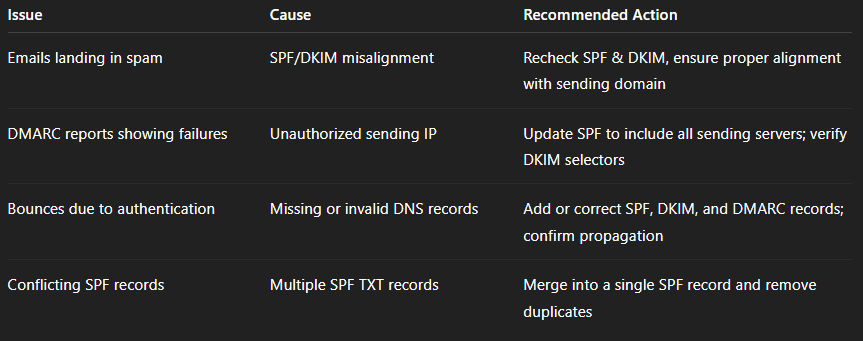
Common causes and fixes
You fixed your DNS but the warning is still there
Smartlead hasn't re-checked since your change.
Open the mailbox and go to Attention Required → DNS Validation Warning.
Click Verify DNS.
To re-check all mailboxes at once, click the gear icon, then Advanced Settings → Validate DNS.
DKIM shows as not verified, but your provider set it up
Your provider may use a DKIM selector that is not on Smartlead's list. Your mail provider sets the selector, not Smartlead, so check it in your provider's DKIM settings.
Open the mailbox and go to Attention Required → DNS Validation Warning.
Enter your selector in Custom DKIM selector.
Click Verify DNS.
SPF, DKIM or DMARC is missing
Add the record at your DNS provider, using the values your mail provider gives you. Then click Verify DNS in Smartlead.
Still stuck? Contact support from the chat in your Smartlead dashboard. Include the mailbox address, your domain and your DKIM selector.