When a mailbox disconnects, Smartlead stops sending from it in every campaign until you reconnect it. Your other mailboxes keep sending as normal.
The campaign shows an Email Sending Blocked banner.
Follow-ups wait for their mailbox. A lead's follow-ups always come from the mailbox that sent its first email, so they stay in one thread. They are not moved to another mailbox automatically.
We don't email you when a mailbox disconnects. Check the views below.
In the left menu, click Sender Accounts.
Click Filter, choose Disconnected and click Apply.
Inside a campaign, open its Email Accounts tab and the Disconnected sub-tab.
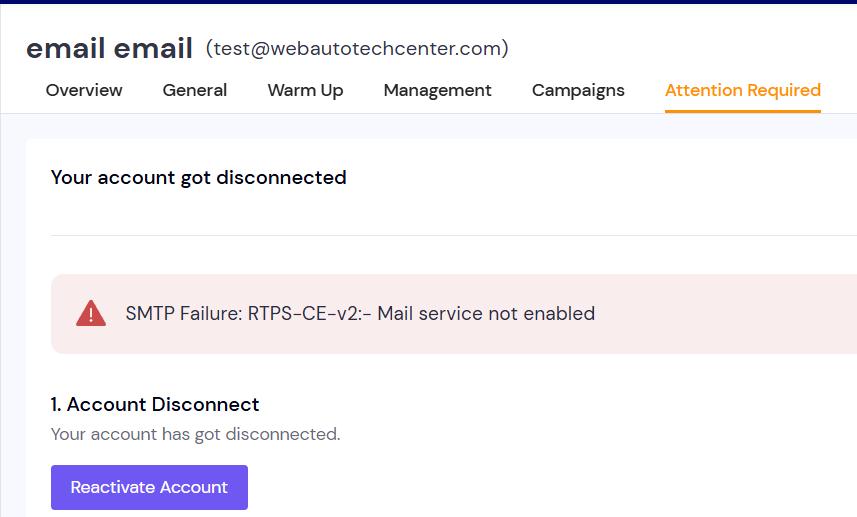
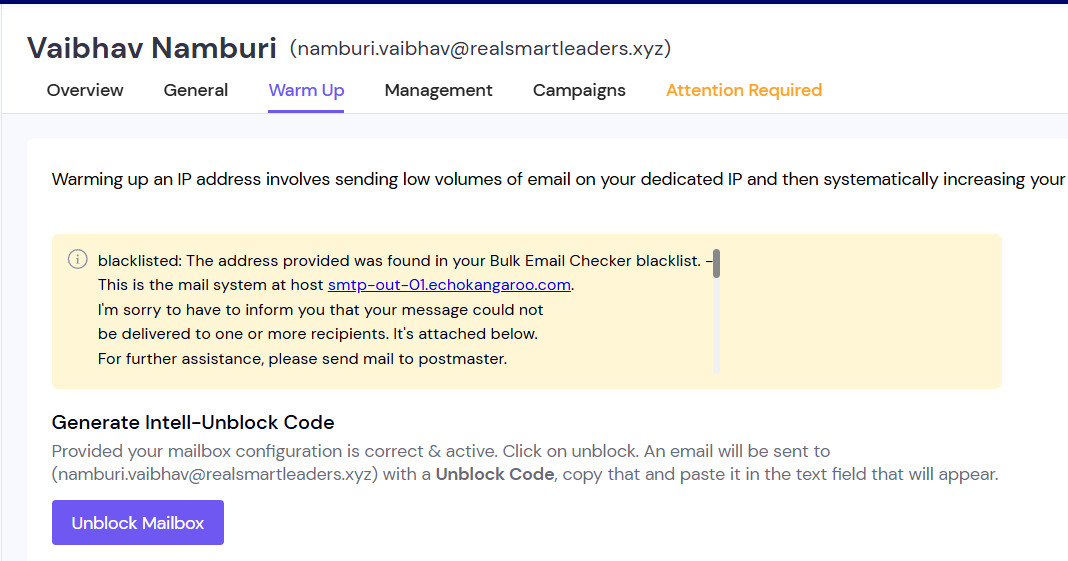
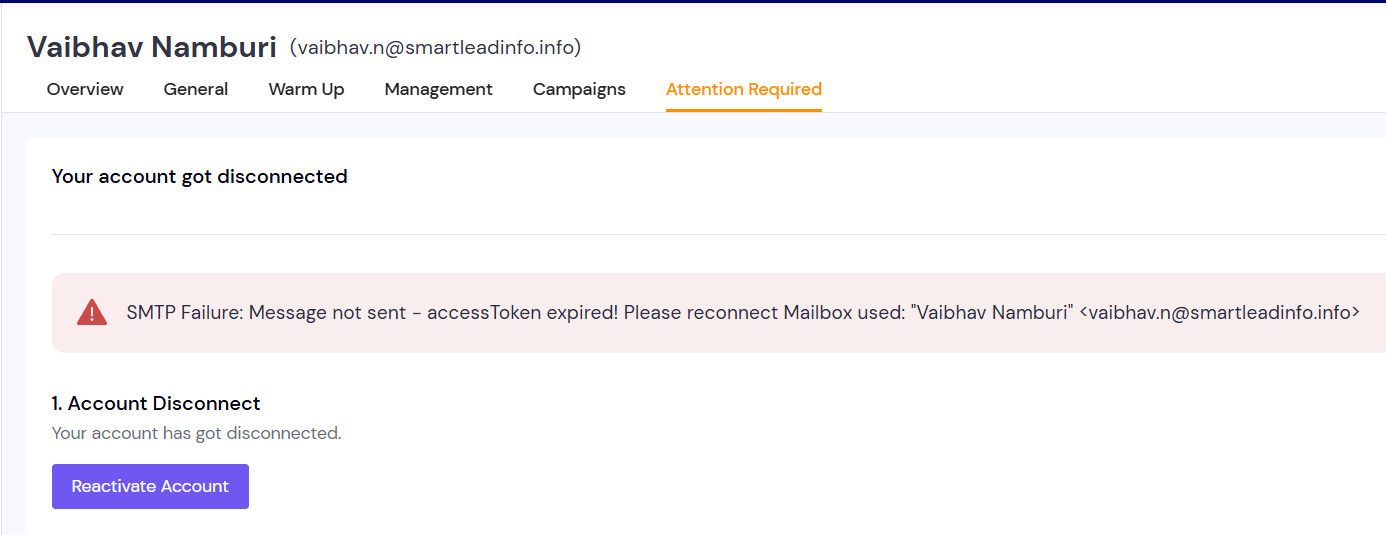
Open the mailbox and go to its Attention Required tab.
Read the error. It tells you whether the login, the provider or a connection setting is the problem.
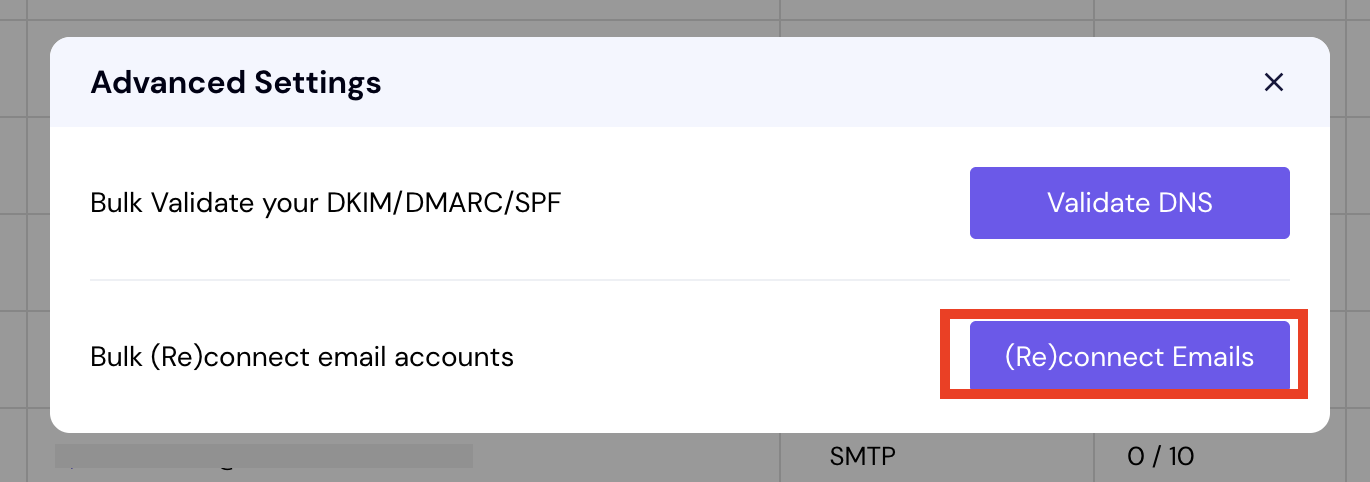
To retry every disconnected mailbox, go to Sender Accounts and click the gear icon. In the Advanced Settings window, next to Bulk (Re)connect email accounts, click (Re)connect Emails.
If a mailbox still fails, its saved login is no longer valid. On its Attention Required tab, click Reactivate Account (Google or Microsoft) or Update Password (SMTP).

Once the mailbox reconnects, its leads' follow-ups continue.
If you can't reconnect the mailbox soon, move its leads to the campaign's other mailboxes. In the campaign header, click More actions → Reallocate Mailboxes, then click OK in the Reallocate Mailboxes dialog.
Bulk reconnect runs in the background and only touches disconnected mailboxes. We email you when it is done.
You can run bulk reconnect up to 3 times a day, at least 30 minutes apart.
Bulk reconnect retries the saved login. It can't fix a password or sign-in that is no longer valid.
Yes. Only the disconnected mailbox stops. Leads already started on it wait for it, or for a reallocation.
Smartlead doesn't send disconnect emails. Use the Disconnected filter and the campaign banner to spot them.
Still stuck? Contact support from the chat in your Smartlead dashboard. Include the campaign ID, the mailbox address and the error text.
