Team members work inside your Smartlead account with their own email and password. Each member has a role that decides what they can see and change.
Team Members needs the Pro plan or higher. On lower plans the page is not shown.
Only the account owner can change a member's role or deactivate a member.
The email you invite must not already have its own Smartlead login, or belong to another account's team.
Go to Settings → Team Members.
Click Invite Member.
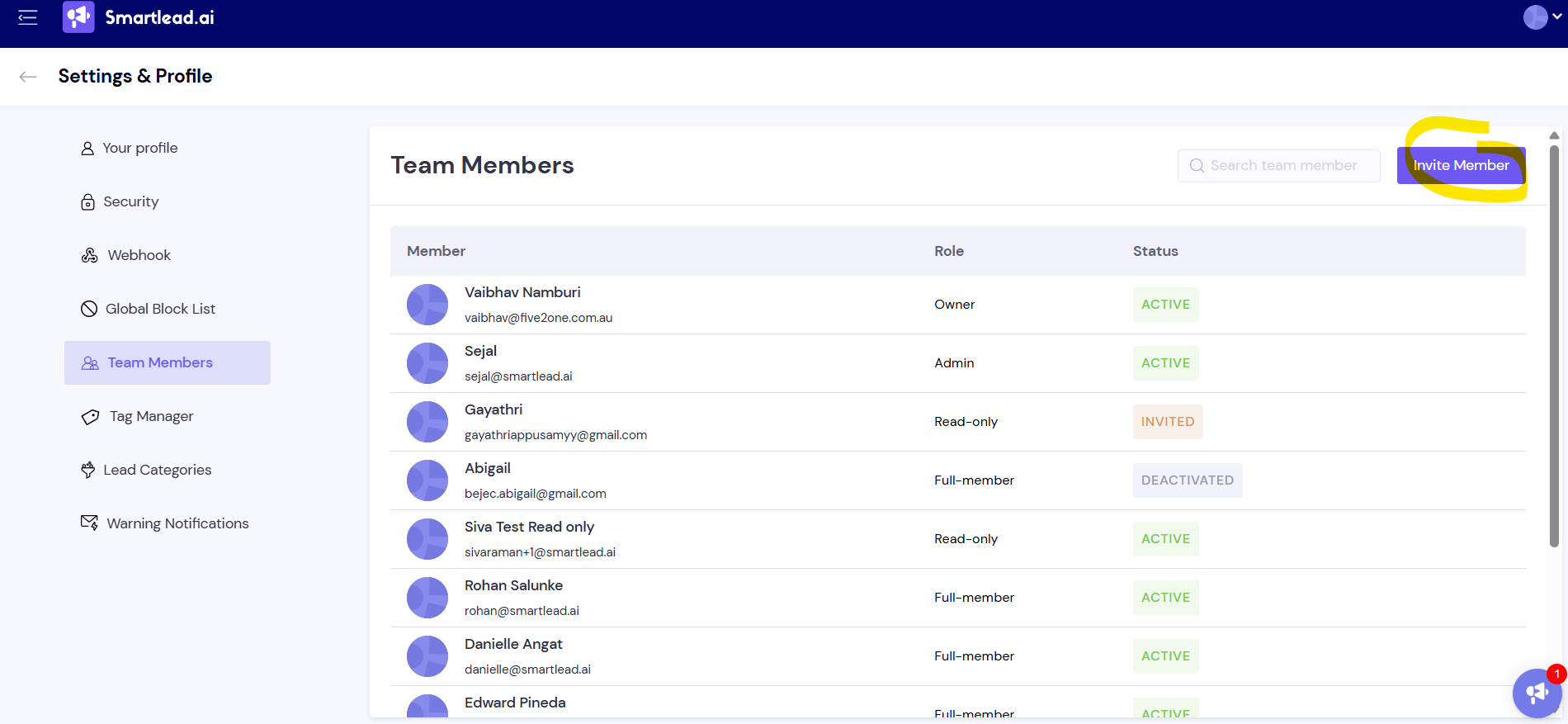
Enter their Email Address and Full Name.
Set a Password for them.
Choose a User Role.
Click Save.
The member appears in the list. You add one member at a time. They log in with their email and the password you set, and can change it with Forgot password? on the login page.
Admin: everything except billing.
Full Member: everything except billing and Team Members.
Limited Full Member: only the campaigns they created or are assigned to.
Read-only: can view everything but change nothing.
Billing, subscription, two-factor authentication and SSO settings are always owner-only. To change a role, the owner clicks ⋯ on the member's row and picks Mark as Admin, Mark as Full Member or View Only Access.
In Settings → Team Members, click ⋯ on the member's row.
Click Mark as Deactivate.
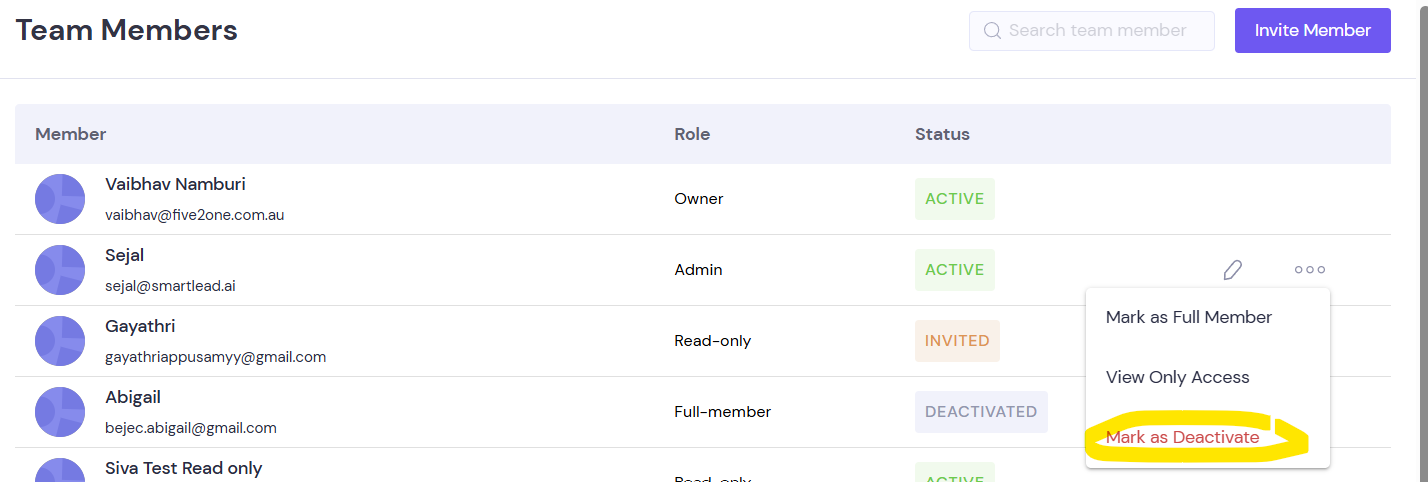
The member can no longer log in, and their work stays in your account. To bring them back, click ⋯ and then Reactivate User.
There is a member limit. Trial accounts can have up to 15 members and paid accounts up to 100. Deactivated members count toward the limit.
Members can't be deleted from the app, only deactivated. A deactivated member's email stays reserved and can't join another account.
If you need a member removed for good, for example to free their email, ask support to remove them permanently.
The invite says the user already exists. That email has its own Smartlead login or is on another team. Invite a different address, or ask support about the other login.
The invite says the member has already been added to your account. They were deactivated earlier. Use Reactivate User instead of inviting again.
You see "Your plan has reached the team member limit. Please upgrade your plan." You have hit the 15 or 100 member limit, including deactivated members.
An Admin can't change a member's role. Only the account owner can change roles or deactivate members.
Still stuck? Contact support from the chat in your Smartlead dashboard.
