A/B testing sends different versions (variants) of a sequence step to your leads, so you can see which one performs best. You can test up to 10 variants per step.
You choose how leads are split across variants: equally, by your own percentages, or by AI, which tests on part of your list and sends the winner to the rest.
Open your campaign and go to the Sequences tab.
Select the step you want to test.
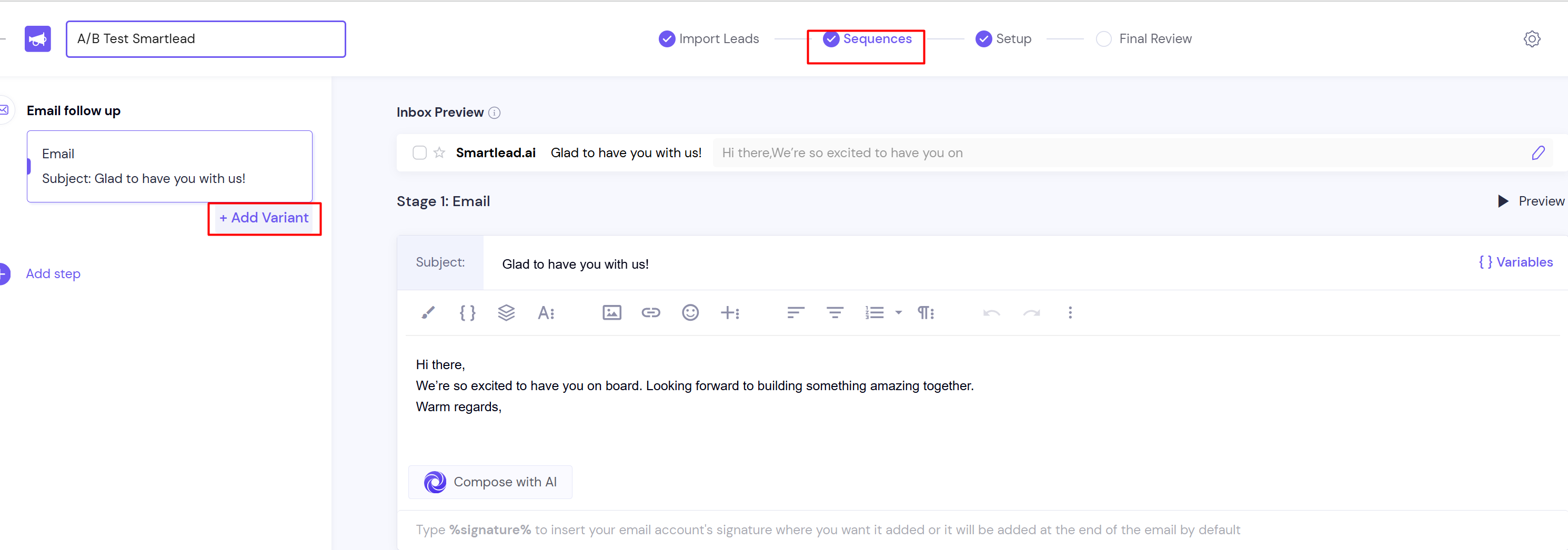
Click Add Variant (the + next to the step's variants) and write the new version. Repeat for each variant.
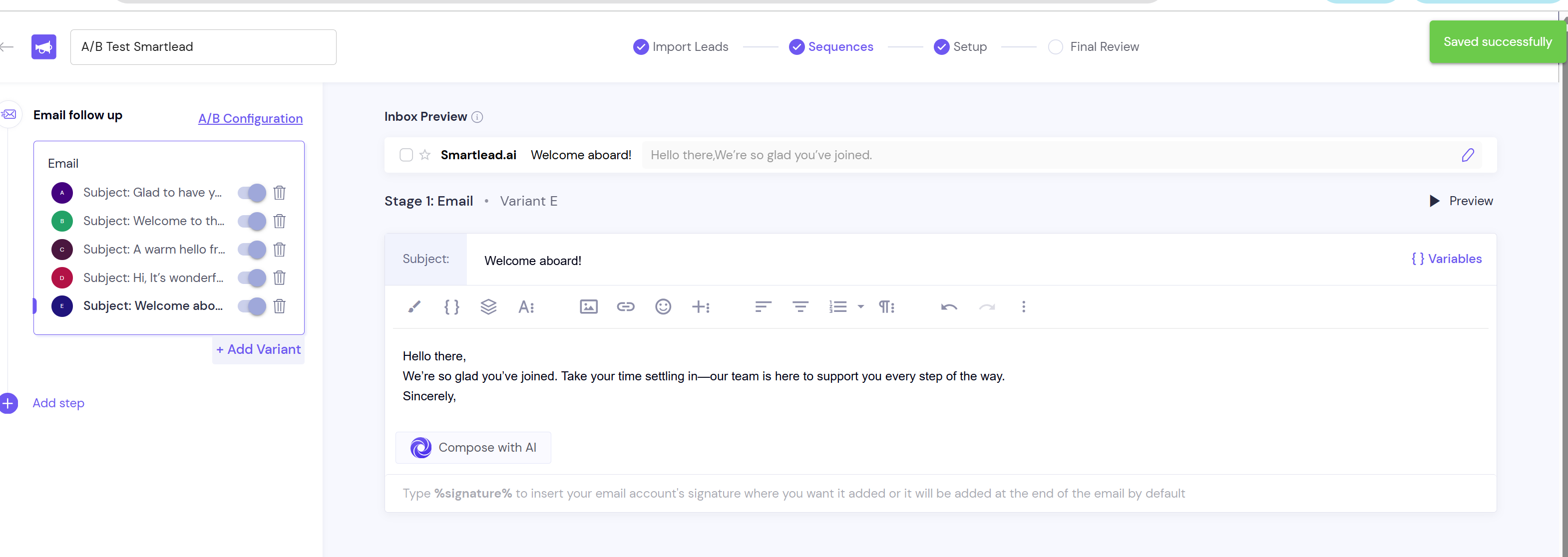
Click More actions (⋮) for the step, then click A/B Config. This opens A/B Testing Setting.
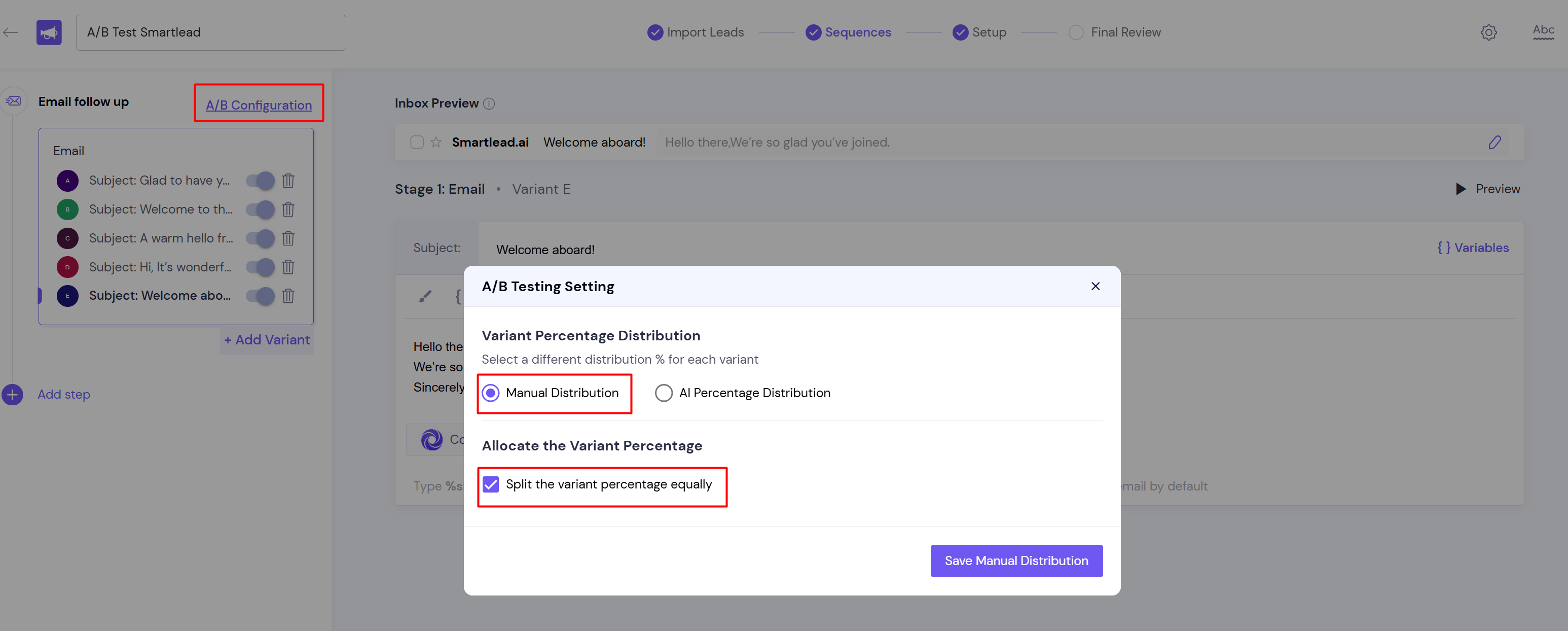
Select Manual Distribution.
Tick Split the variant percentage equally.
Click Save Manual Distribution.
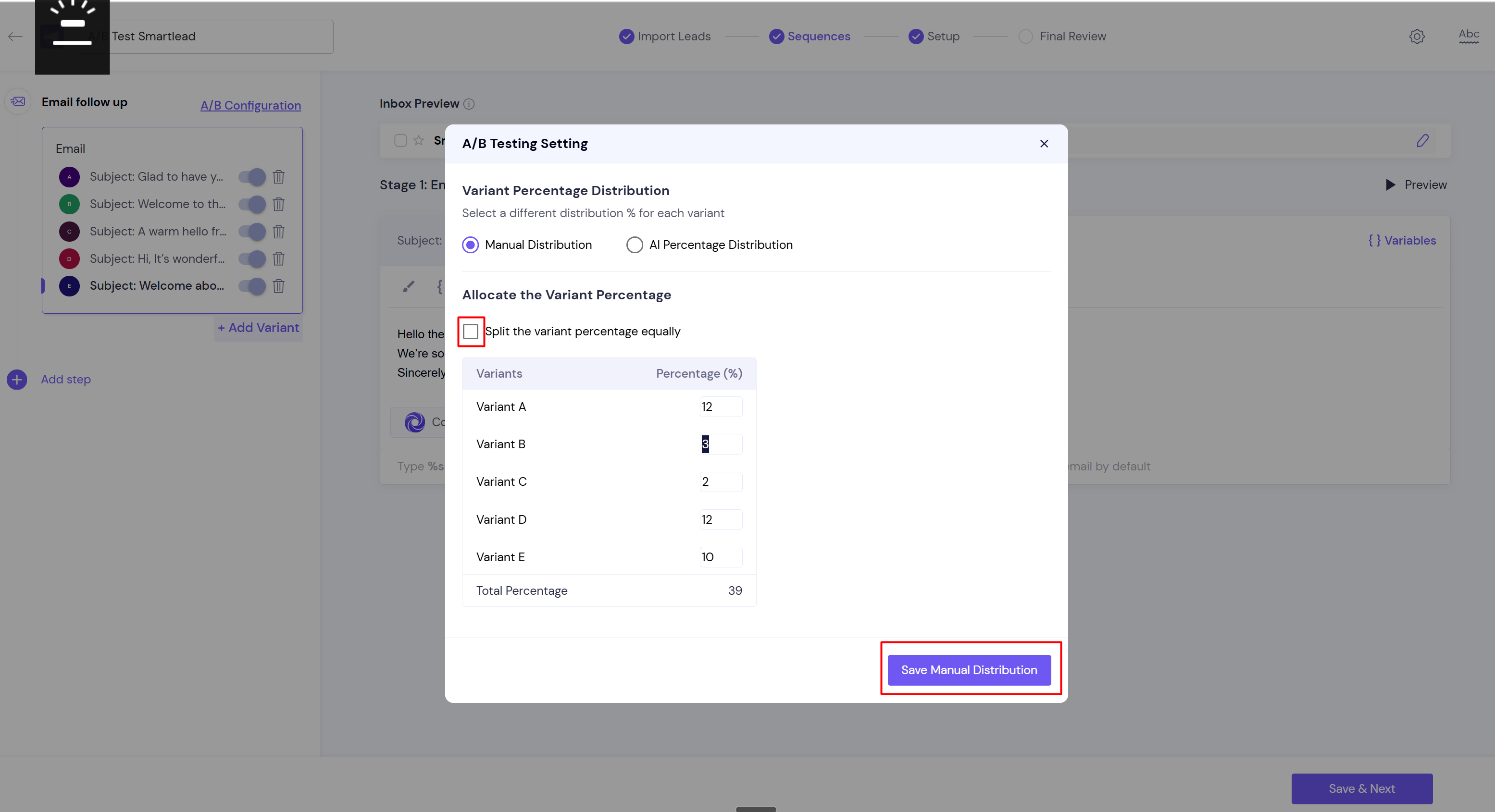
Select Manual Distribution.
Clear Split the variant percentage equally.
Enter a percentage for each variant. Make sure Total Percentage is exactly 100.
Click Save Manual Distribution.
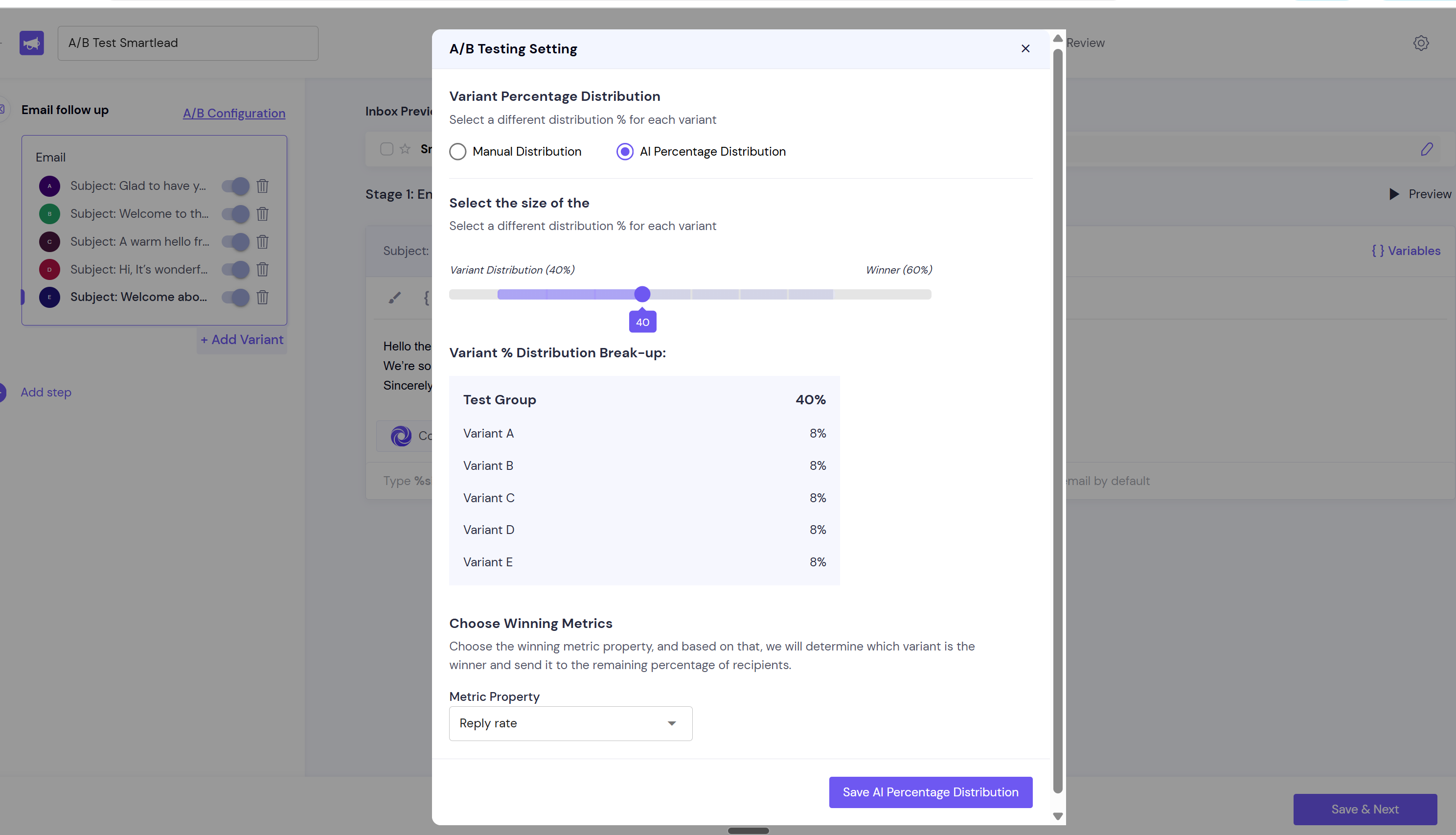
Select AI Percentage Distribution.
Move the slider to set the Test Group size, from 10% to 80% of leads in 10% steps. The default is 40%. The rest of your leads get the winner.
Under Choose Winning Metrics, pick the Metric Property: reply rate, positive reply rate, click rate or open rate.
Click Save AI Percentage Distribution.
Your percentages must total 100%. If they don't, the manual split isn't used.
Manual splits work in 10% slots. Each variant gets its percentage rounded down to a multiple of 10, so the real split is close to what you typed, not exact. A variant under 10% only gets leftover sends.
With AI distribution, leads in the test group are spread evenly across variants until a winner is picked. From then on, every lead on that step gets the winner.
The AI winner sticks. Variants you add later get no traffic, even if you edit the step.
You can change the A/B settings on a live campaign.
The total isn't 100%. Open A/B Config, make Total Percentage 100, and click Save Manual Distribution.
The AI test has already picked a winner for that step. Switch the step to Manual Distribution and set percentages, or test the new variant in a new step or campaign.
This is expected. Set it to at least 10%, or use the equal split.
Still stuck? Contact support from the chat in your Smartlead dashboard. Include the campaign ID and the step number.
