A different reply-to address lets you send from one mailbox while your leads' replies go to another. Use it when one team inbox should collect the replies for several sending mailboxes.
Smartlead can only track replies it can read. The replies land in the reply-to mailbox, so that mailbox must be reachable by Smartlead:
For Google or Microsoft (OAuth) mailboxes, the reply-to address must already be connected to Smartlead as its own mailbox.
For SMTP mailboxes, either connect the reply-to address as its own mailbox, or enter its IMAP details in the steps below.
In the left menu, open Sender Accounts.
Open the mailbox you send from.
Open the General tab.
Turn on Set a different reply to address.
For an OAuth mailbox, pick the reply-to address from the dropdown. Only fully connected, working mailboxes appear in the list.
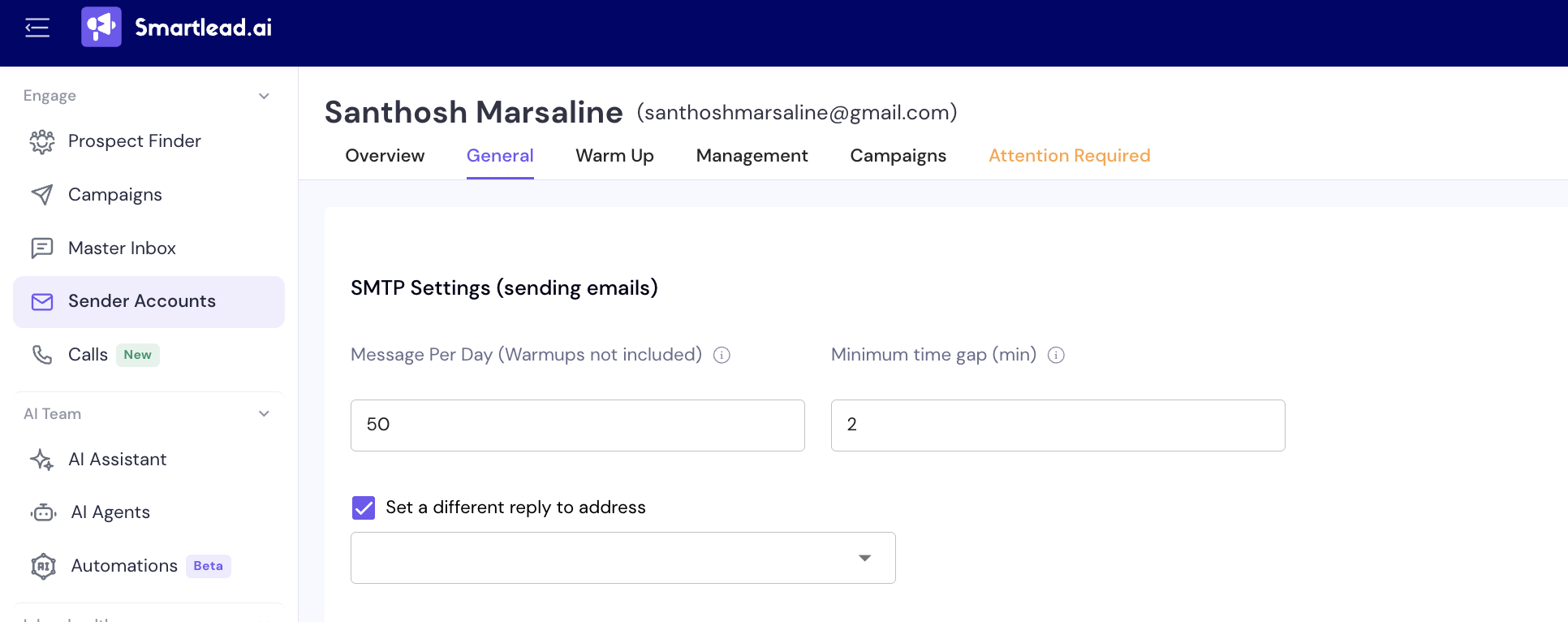
For an SMTP mailbox, type the reply-to address. If it isn't connected to Smartlead, also enter its IMAP details.
Click Save.
When a lead replies, the reply goes to the reply-to mailbox, not to the sending mailbox.
A warning on the sending mailbox under Set a different reply to address is about the reply-to mailbox, not the sending one.
The reply-to address isn't connected to Smartlead, or it's connected but failing.
If it isn't connected, add it as a mailbox in Sender Accounts.
If it's connected but failing, click here in the warning to open its Attention Required tab.
Click Reconnect Account or Update Password.
Reload the sending mailbox's General tab.
The reply-to mailbox is connected but can't send or read mail. Reconnect it from its Attention Required tab, as above.
The dropdown shows only fully connected, working mailboxes. Connect or reconnect the reply-to mailbox first, then try again.
Still stuck? Contact support from the chat in your Smartlead dashboard. Include the sending mailbox, the reply-to address and the exact warning text.
