
When you upload leads to a campaign, you can skip anyone who is already in another of your campaigns. This stops the same person getting emails from two campaigns at once.
This option is off by default. Turn it on for each upload where you want duplicates skipped.
Step 1: Start the upload
Open the campaign you want to add leads to, or create a new one.
Upload your CSV file.
Step 2: Turn on Existing Campaign Leads
On the Upload Settings step, find General Preferences.
Switch on Existing Campaign Leads.
Set the Global Block List, Unsubscribe List and Community Bounce List options as you need.
Continue and finish the import.
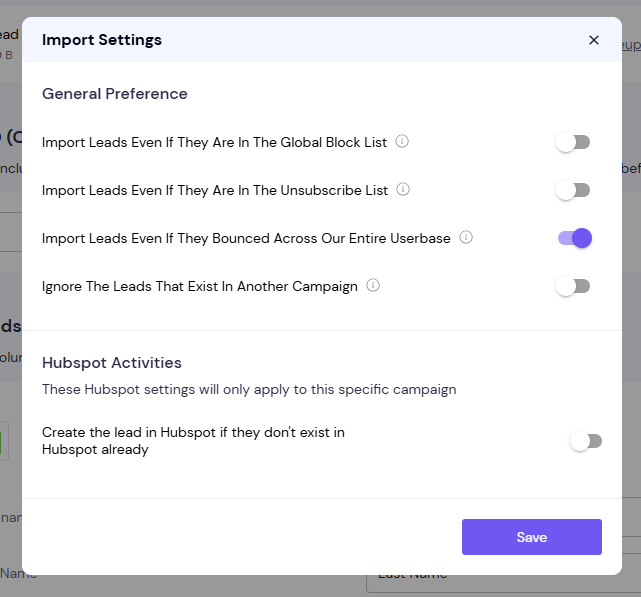
Leads already in your other campaigns are skipped and not added to this one.
Good to know
It also skips leads saved in your account but not in any campaign. For example, leads left behind after their campaign was deleted.
Leads already in this same campaign are always skipped, whatever the setting.
Repeated addresses inside one file are always merged into one lead. Only the first row for each address is used.
In older screens this option is called Ignore the leads that exist in another campaign.
If something goes wrong
Fewer leads were added than you expected. Existing Campaign Leads skipped addresses already in your account. To add them anyway, upload again with the option switched off.
A lead has data from the wrong row. Your file had that address twice. Remove the earlier row and upload again.
Still stuck? Contact support from the chat in your Smartlead dashboard. Include the campaign ID.