
Outlook can send a message as HTML or as plain text. You can set HTML as your default, or switch a single message while you write it.
The recipient's email program decides how the message finally looks. Some programs turn an HTML message back into plain text.
Before you start
HTML supports fonts, colours, lists and pictures inside the message.
Plain text works in every email program, but has no formatting. Pictures can only be sent as attachments.
Step 1: Make HTML your default format
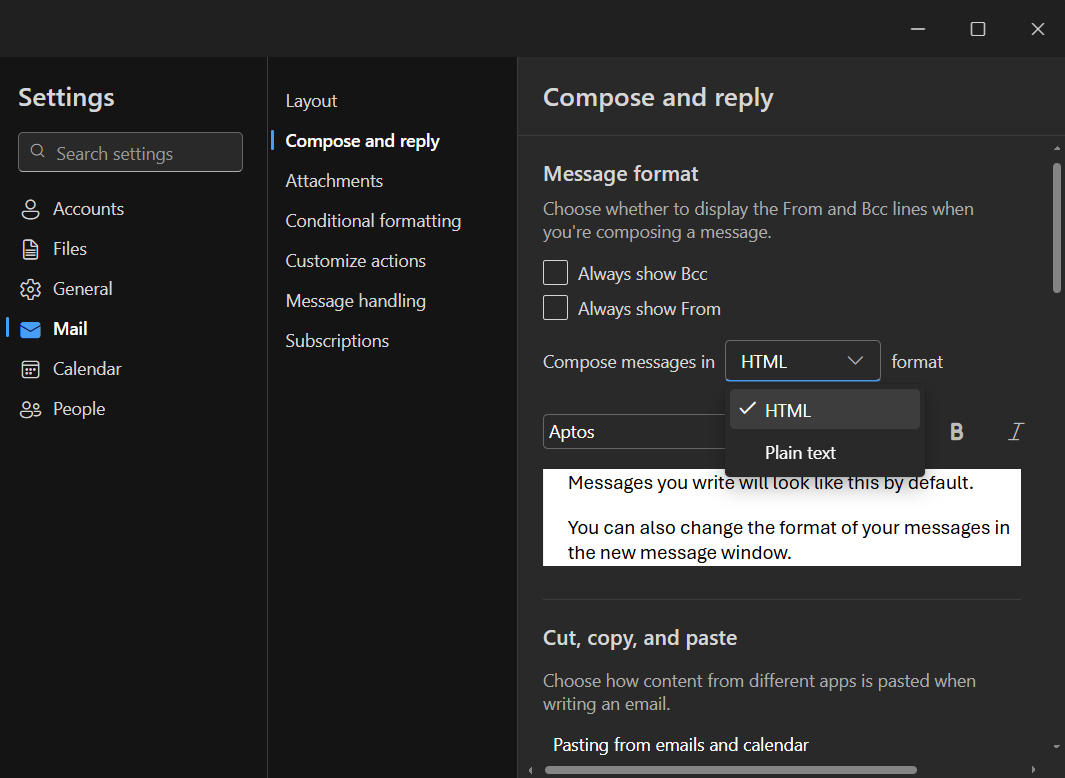
In Outlook, open Settings.
Go to Compose and Reply.
Under Message Format, select HTML.
New messages and replies now use HTML.
Step 2: Switch one message to HTML
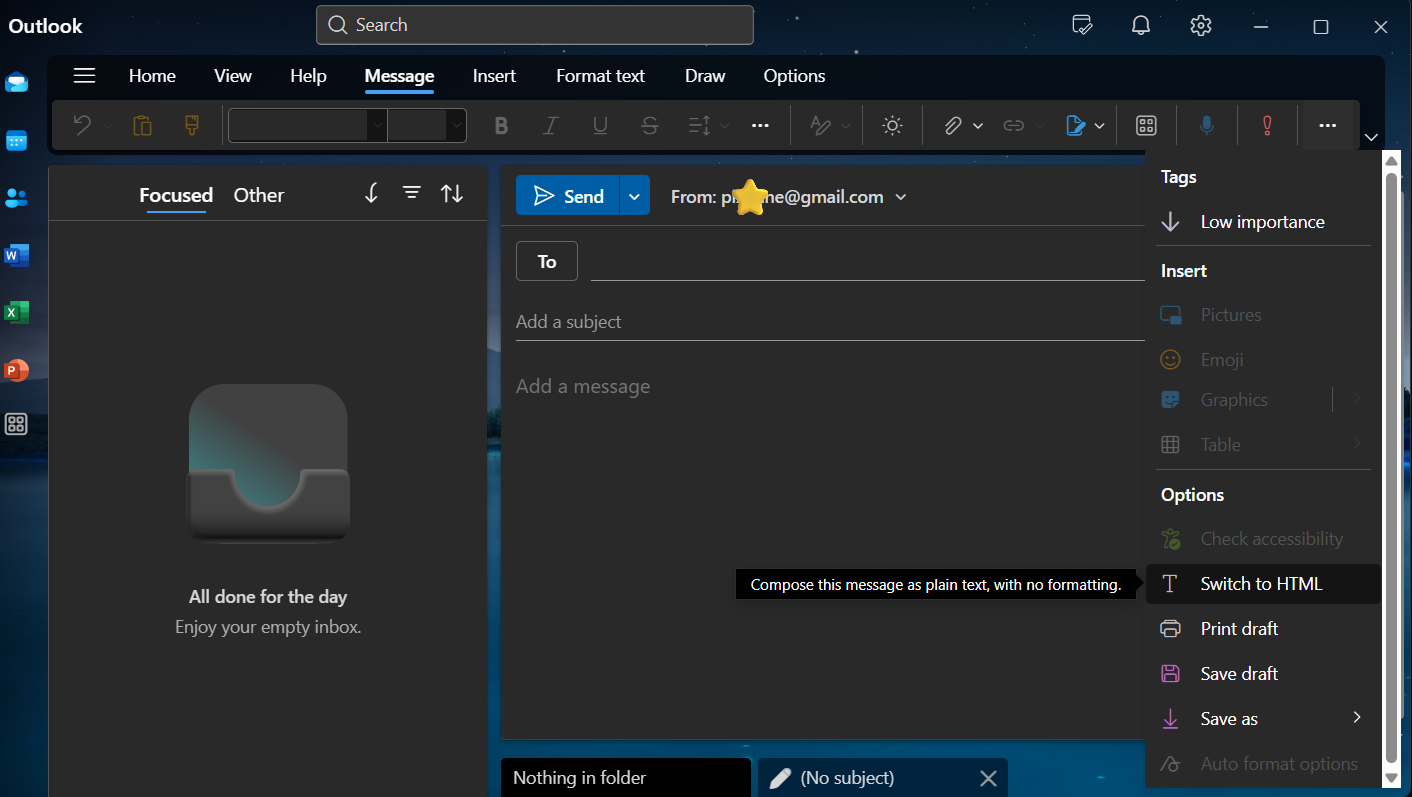
Open the message you are writing, reply or forward.
In the ribbon, open the Format Text tab.
Click HTML.
This works even when the email you received was plain text.
Good to know
Outlook's menus differ by version. The web app and the desktop app may place these settings differently.
Smartlead campaigns support HTML. You can use formatting, images and links in your emails.
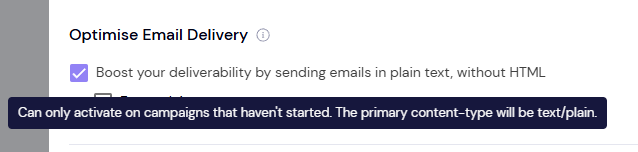
Plain Text Mode turns off tracking. In a campaign with Plain Text Mode on, open and click tracking are off, and the automatic unsubscribe link is not added.
Plain Text Mode is locked after launch. You can only change it while the campaign is a Draft. Once launched, even if paused, the setting can't be changed.
FAQ
Can I change a live Smartlead campaign from plain text to HTML?
No. Duplicate the campaign instead. In the copy, go to Settings → Delivery Optimization, change Plain Text Mode, then click Save Changes before you launch it.
Does Smartlead support HTML emails?
Yes. Campaign emails are sent as HTML unless you turn on Plain Text Mode.
Still stuck? Contact support from the chat in your Smartlead dashboard.