Master Inbox collects replies from all your campaigns in one place. How quickly a reply shows up depends on your plan.
On Pro and higher plans, replies show in near real time. On Trial, Base and Popular plans, a reply can take up to about 1 to 2 hours to appear.
In the left menu, click Master Inbox.
Stay on the Inbox tab. It lists every conversation where the lead replied.
Archived and snoozed conversations are not in Inbox. They have their own Archived and Snoozed tabs.
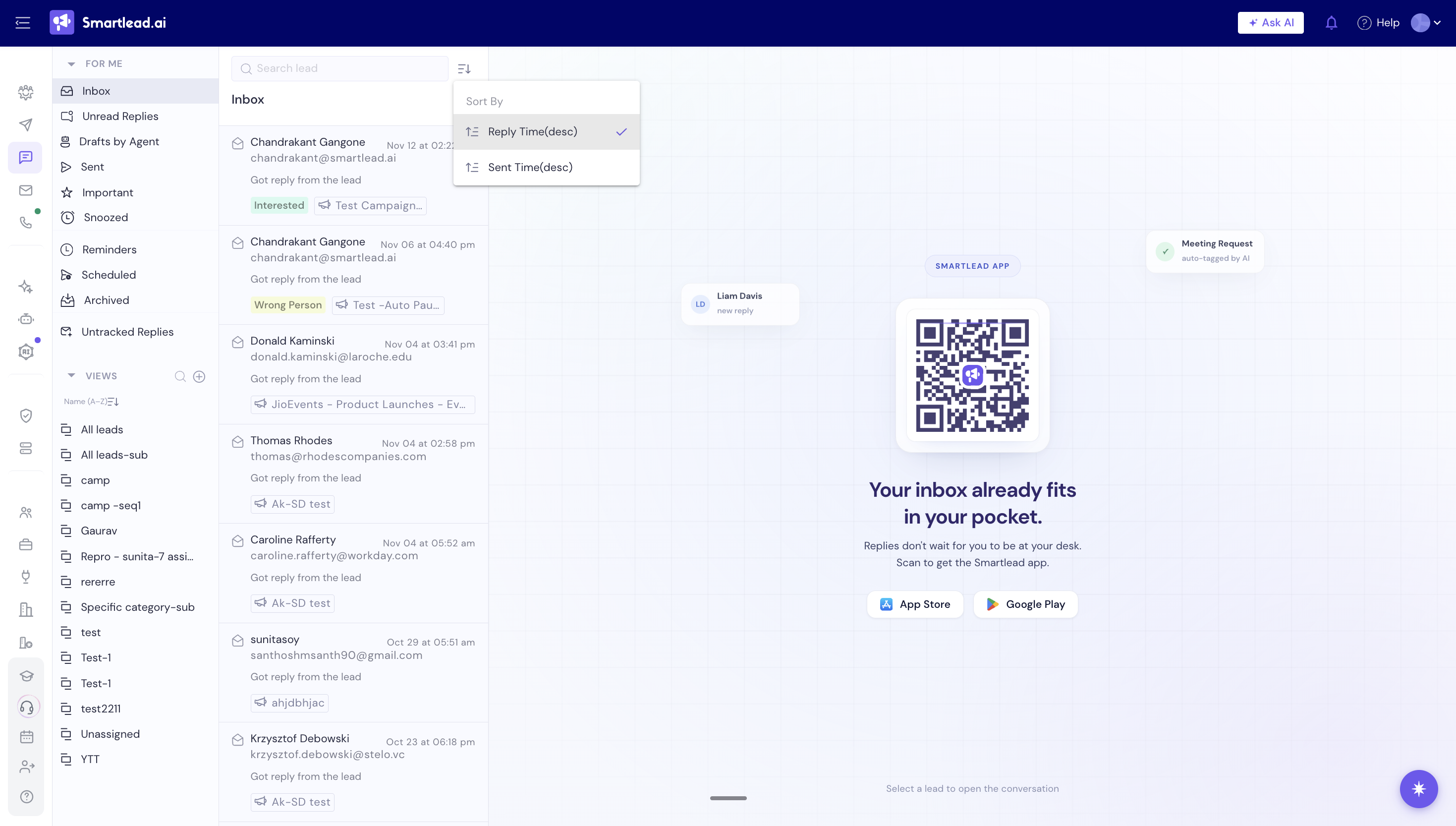
Click the filter button above the list.
Pick the filters you need: By Category, Email Status, Email Campaign, Email Account, Team Member, Campaign Tag Name, Client Name or Reply Date Range.
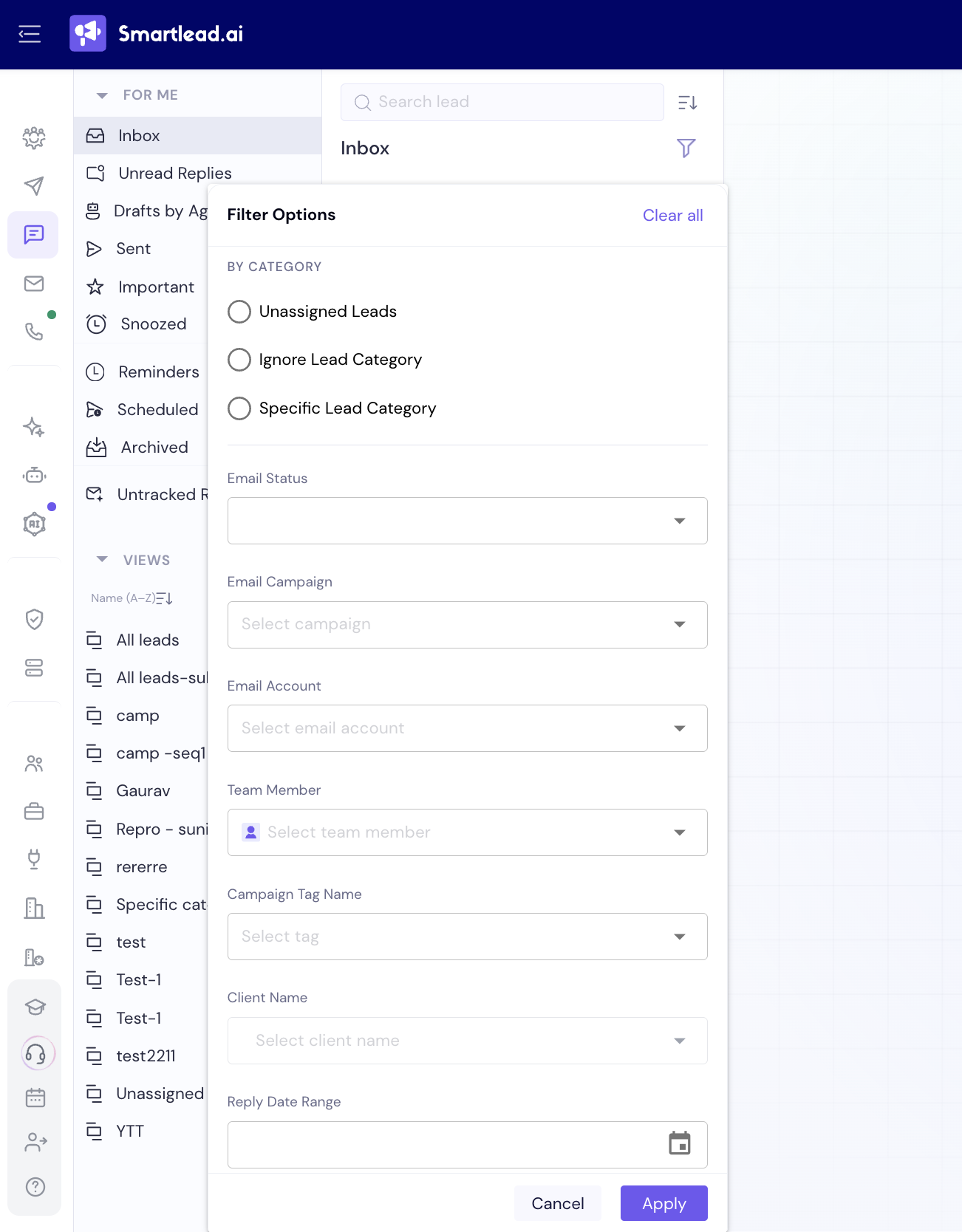
Click Apply.
The list shows only matching conversations. To reset it, open the filters and click Clear all.
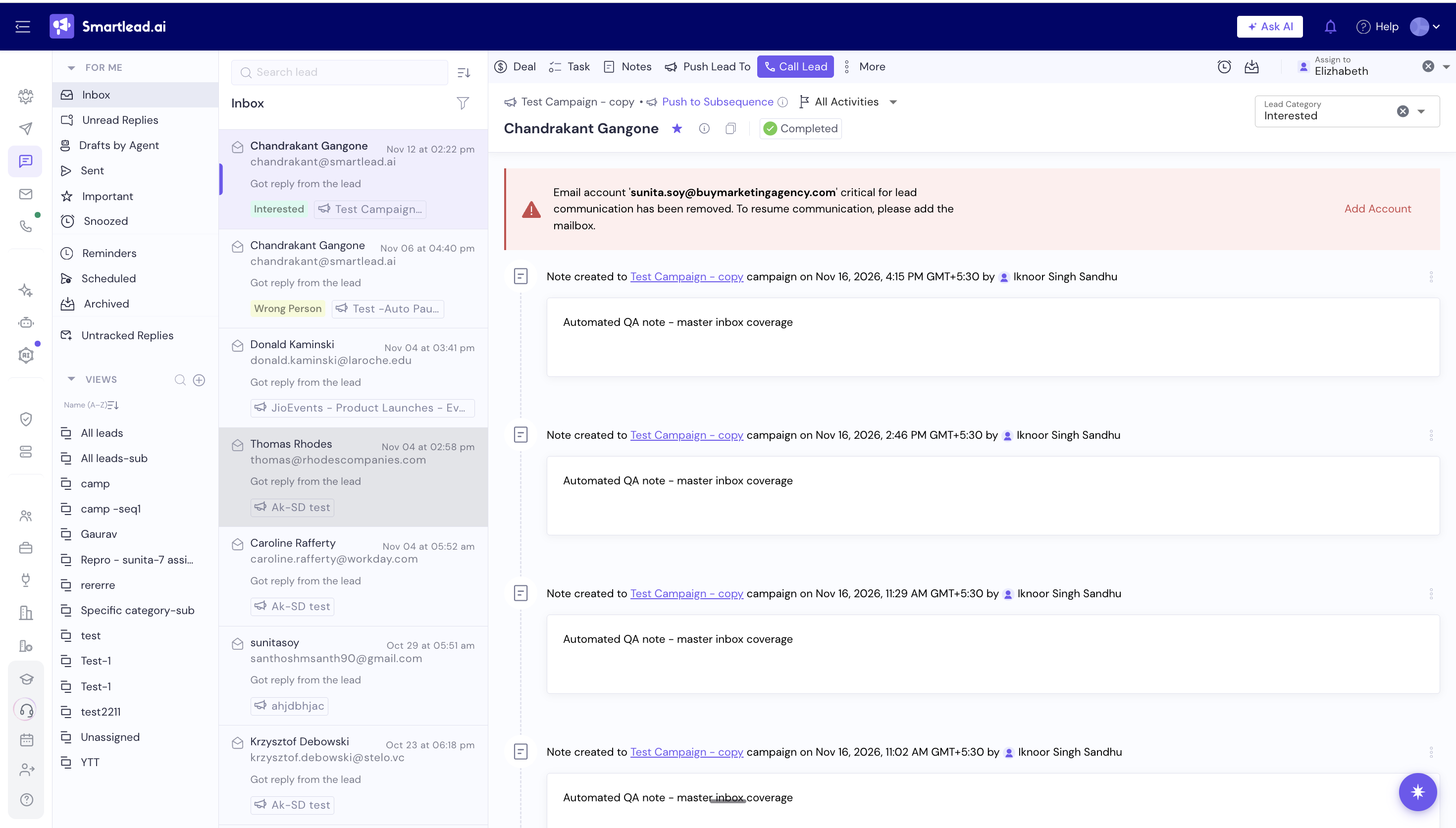
Click a conversation in the list.
Read the full thread, with the latest reply in context.
Opening a conversation marks it as read.
Real-time replies are a Pro and higher feature. On these plans, replies usually show in under a minute.
On Trial, Base and Popular plans, Smartlead checks your mailboxes on a cycle. A delay of up to about 1 to 2 hours is normal.
Follow-ups are still safe during that delay. Smartlead checks the mailbox for a reply right before it sends each follow-up.
A reply isn't showing in Master Inbox.
Open the filters and click Clear all.
Check the Archived and Snoozed tabs.
On Trial, Base or Popular, wait up to 2 hours.
On Pro or higher, if it's still missing after a few minutes, check that the mailbox is still connected.
Still stuck? Contact support from the chat in your Smartlead dashboard. Include the campaign ID, the mailbox and the lead's email address.
