
Reply All sends your reply to everyone on a message, not just the sender. Use it in Master Inbox when a lead has copied in colleagues or replied to several people.
Before you start
Reply All only shows on some messages. You see it when the message was sent to more than one address, or had anyone in CC.
Step 1: Open the conversation
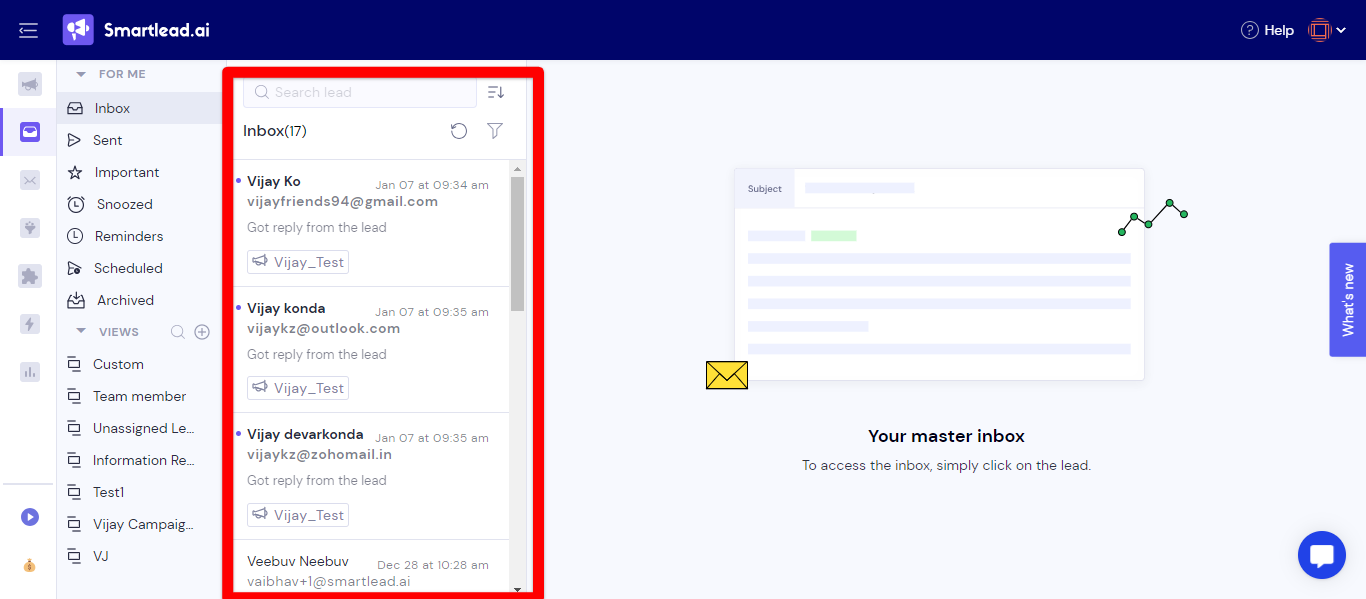
In the left menu, click Master Inbox.
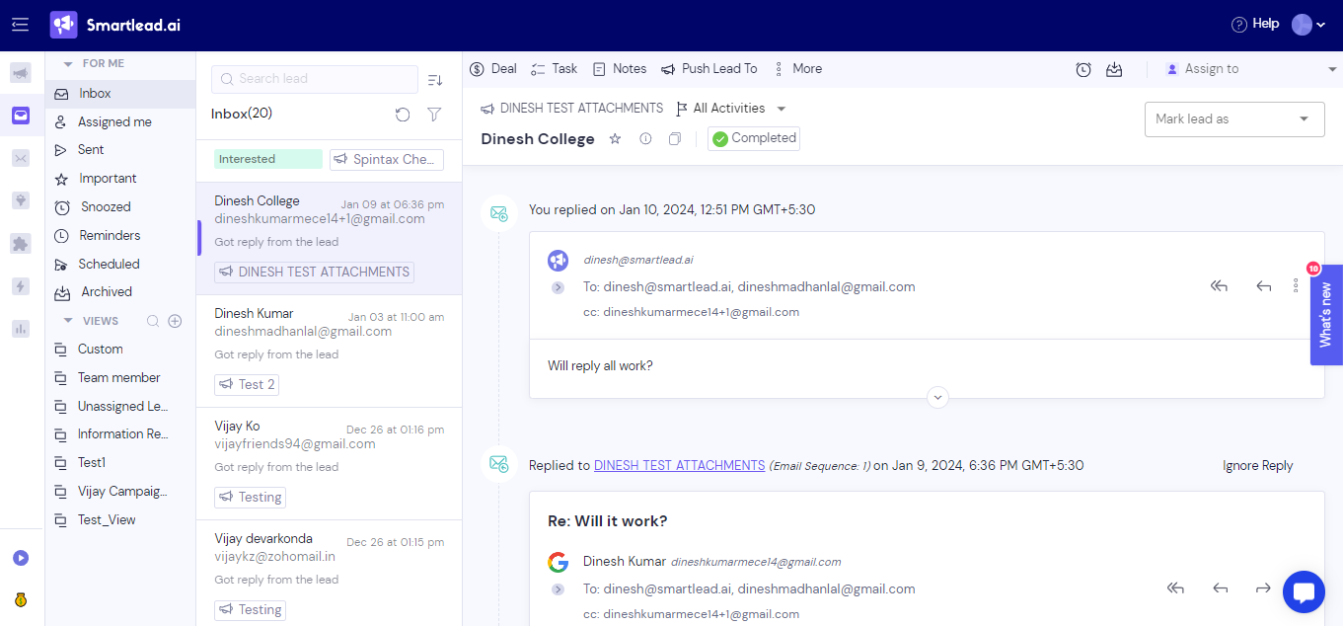
Click the conversation you want to answer.
Find the message you want to reply to.
Step 2: Click Reply All
On the message, click the Reply All icon. It sits to the left of the Reply icon.
Or open the message's ⋯ menu and click Reply All.
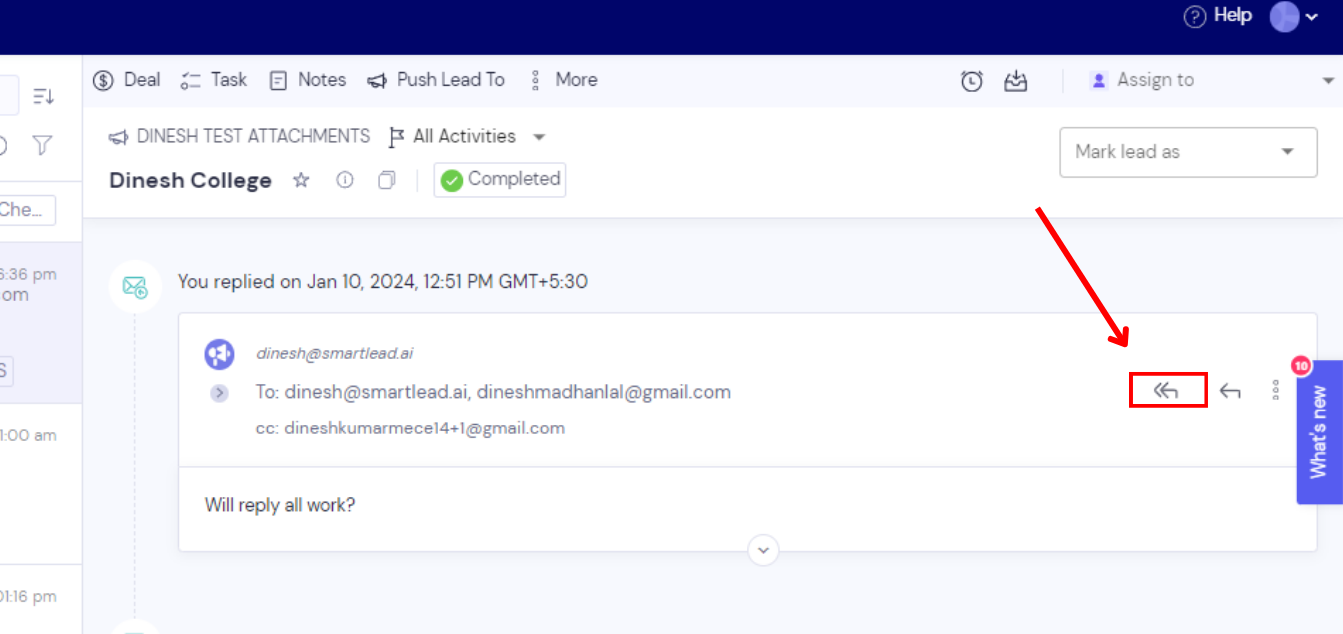
The plain arrow icon is Reply. It answers only the sender.
Step 3: Write and send your reply
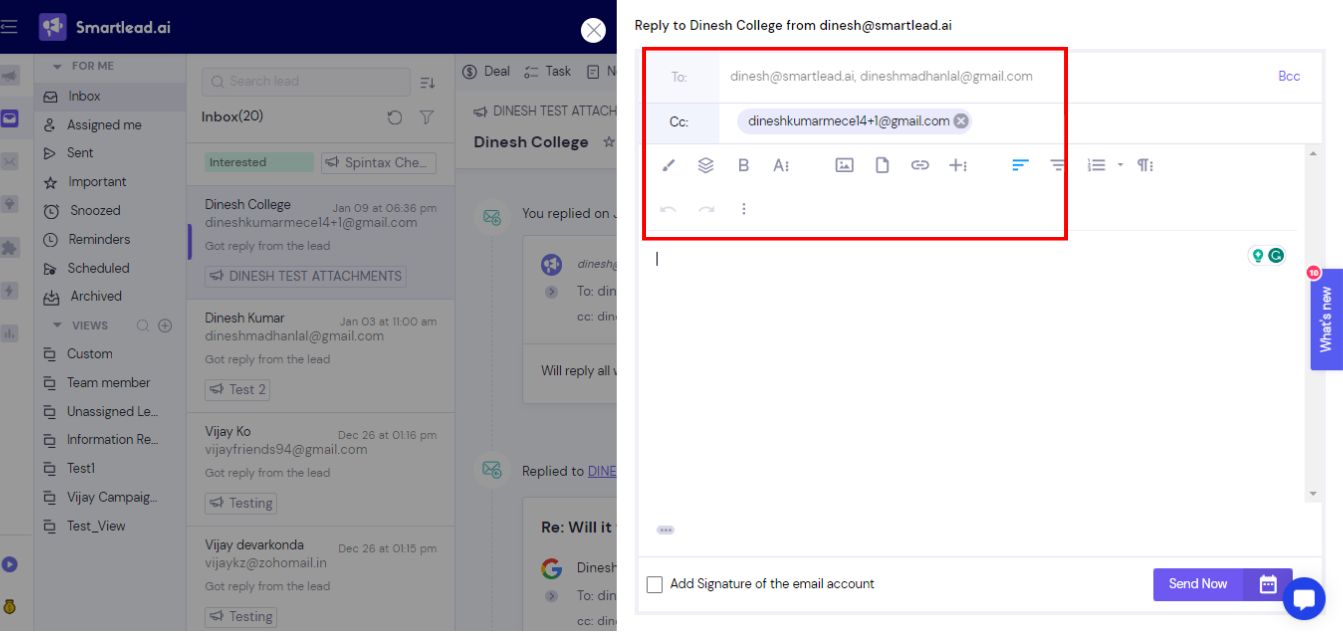
Write your message in the reply window.
To add your signature, tick Add Signature of the email account.
Click Send Now, or click Schedule Send to send it later.
Good to know
Your reply goes out from the mailbox that emailed the lead, in the same thread.
The signature box is off by default.
Replies are queued. They show Email sending is in progress until they're sent.
Replies sent from Master Inbox have no open or click tracking.
Still stuck? Contact support from the chat in your Smartlead dashboard.