A disconnected mailbox can't send campaign emails until it is reconnected. You can retry all disconnected mailboxes at once, or fix one mailbox whose login has changed.
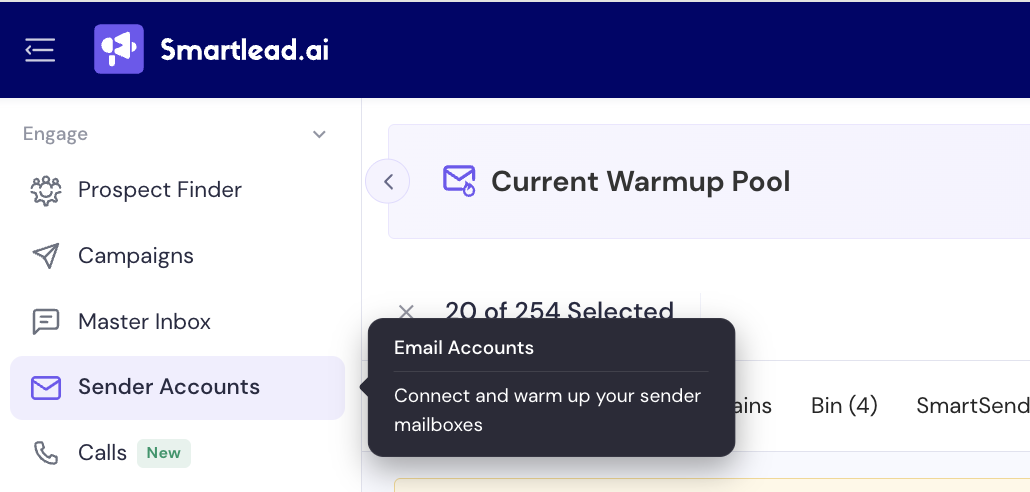
In the left menu, click Sender Accounts.
Click Filter, choose Disconnected and click Apply.
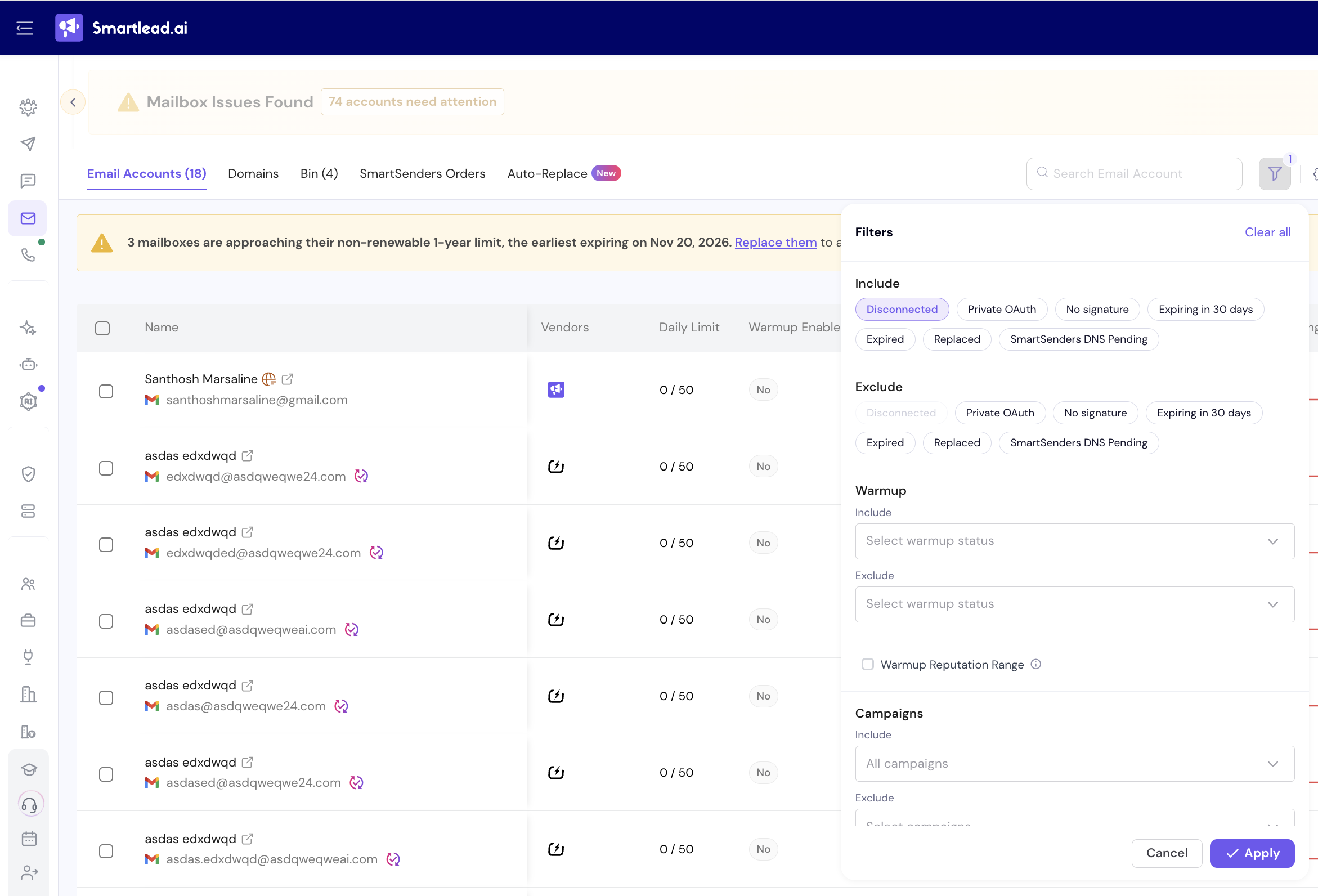
This shows you which mailboxes are affected. You don't need to select them.
Bulk reconnect covers every disconnected mailbox, so you don't need to filter or select anything first.
On Sender Accounts, click the gear icon. The Advanced Settings window opens.
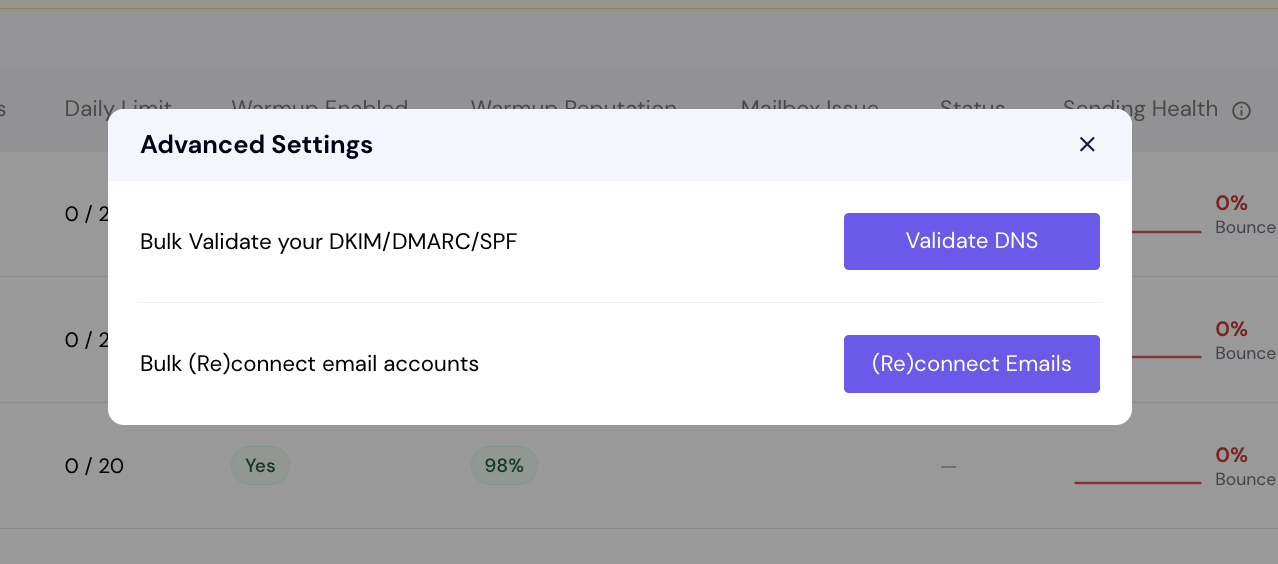
Next to Bulk (Re)connect email accounts, click (Re)connect Emails.
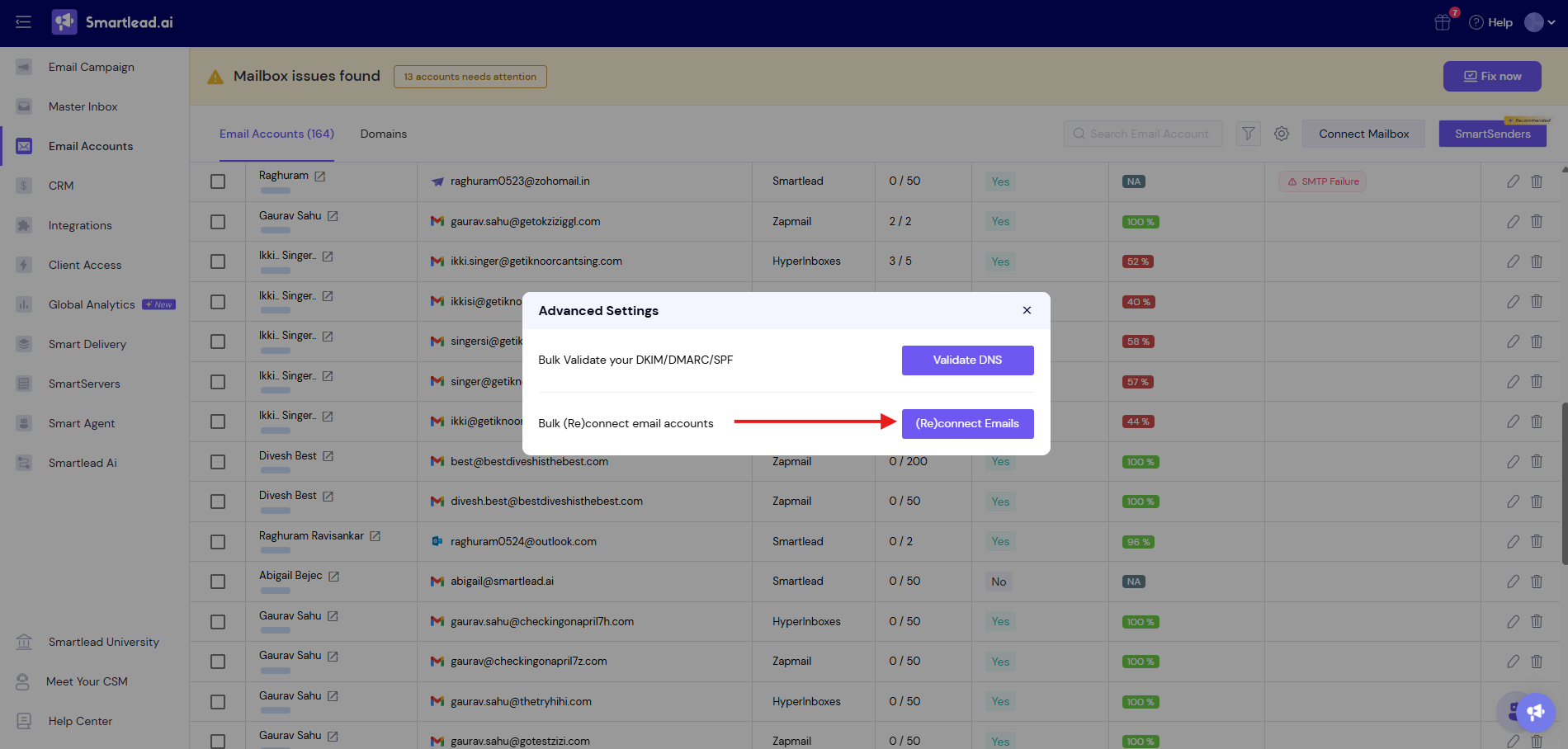
There is nothing to save. The reconnect runs in the background and we email you when it is done.
Bulk reconnect retries the login you saved. If that login is no longer valid, fix the mailbox itself.
Open the mailbox and go to its Attention Required tab.
For a Google or Microsoft mailbox, click Reactivate Account. If the sign-in window doesn't open, click it again and complete the sign-in.
For an SMTP mailbox, click Update Password (or Reconnect Account). Enter the new Password and IMAP Password, then click Save.
Bulk reconnect has limits. You can run it up to 3 times a day, at least 30 minutes apart.
Bulk reconnect only touches disconnected mailboxes.
For Gmail with 2-step verification, the password must be an app password.
We don't email you when a mailbox disconnects. Check the Disconnected filter regularly.
The same mailboxes fail after every bulk reconnect. Their saved login is invalid. Use Step 3 for each one.
The error says "Mail service not enabled" or the tenant is throttled. Your Google or Microsoft admin must fix it in their console first. Then run bulk reconnect.
Still stuck? Contact support from the chat in your Smartlead dashboard. Include the mailbox address and the error text.
