You can remove leads from a campaign in three ways: pick leads by hand, delete everything that matches a filter, or delete a whole uploaded CSV file.
Deleting leads can't be undone. Export anything you need first.
In the left menu, click Email Campaigns.
Open the campaign.
Click the Lead List tab.

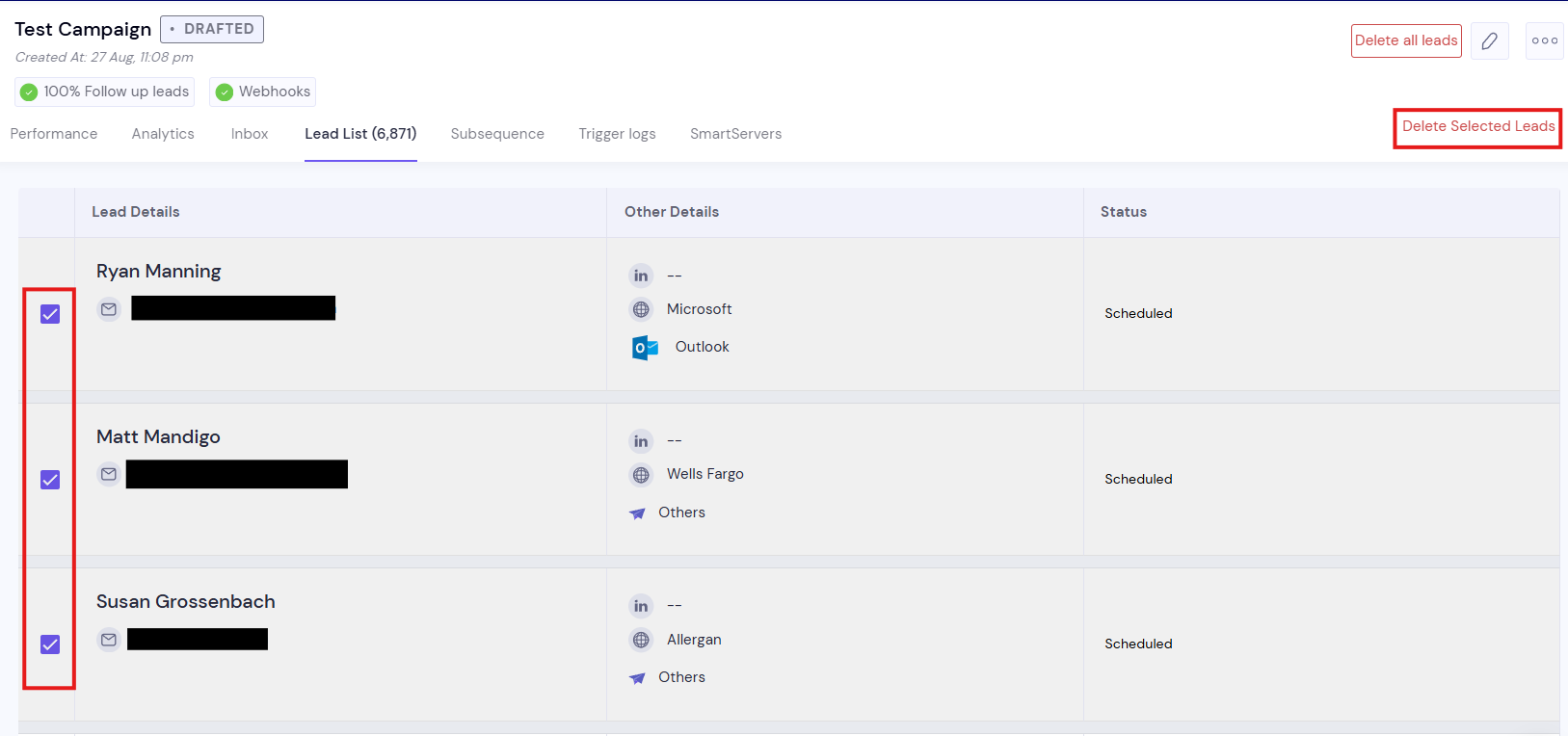
Tick the checkbox next to each lead you want to remove. To select every lead, tick the checkbox at the top of the list.
A bar appears above the list showing how many leads are selected. Click Delete Selected Leads.
Confirm the deletion.
The leads are removed from this campaign. To undo your selection instead, click Clear.

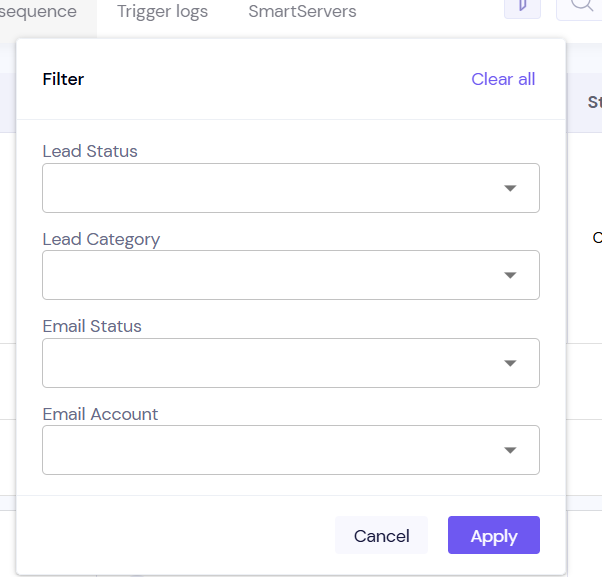
Click the filter icon next to the search bar and apply your filters.
Select all the leads that match.
Click Delete Selected Leads, then click Delete Filtered Leads to confirm.
Only leads that match your active filters are deleted.

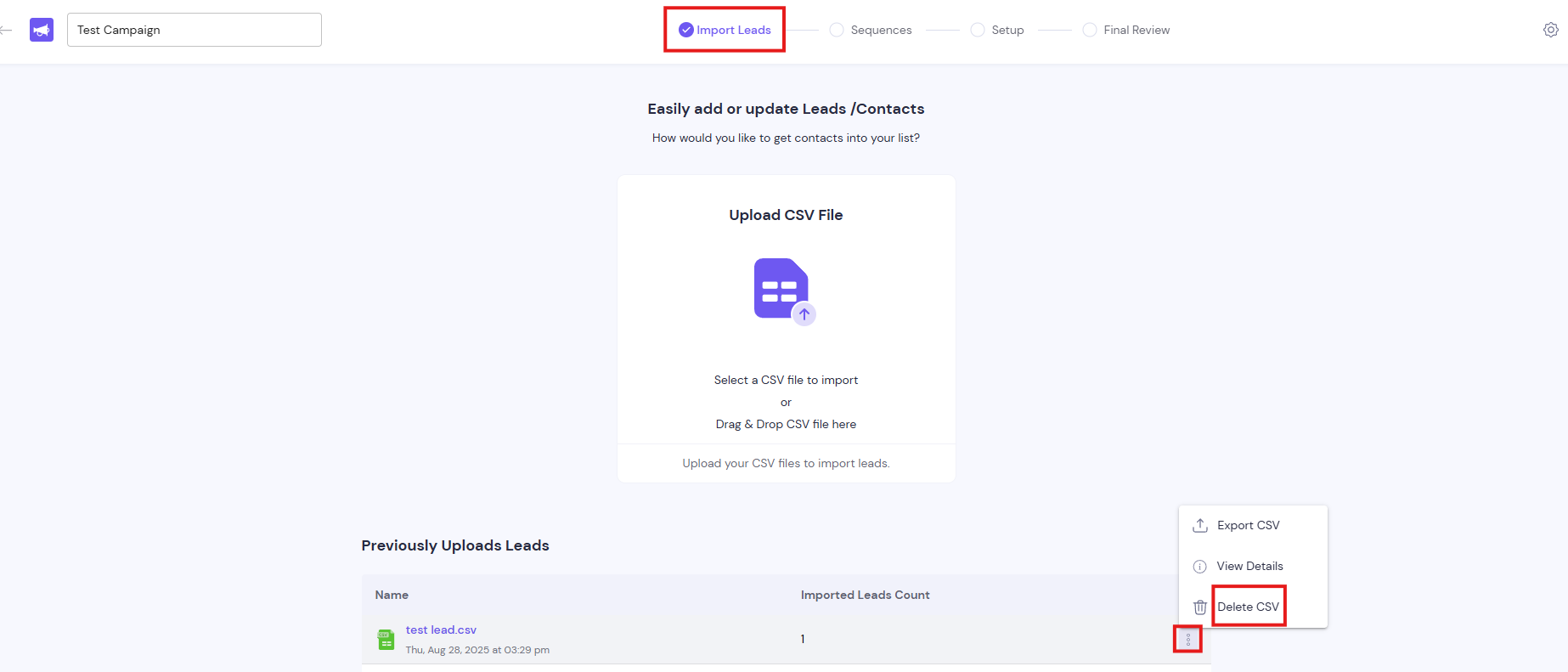
In the campaign's Lead List, open Upload History. This view is shown while the campaign is a draft.
On the file's row, click the delete icon (Delete CSV).
Click Send Deletion Request.
The account owner gets an email with a confirmation link. They open it within 10 minutes and click Confirm & Delete.
Nothing is deleted until the link is confirmed. If a team member sends the request, the account owner still has to confirm it.
Emails that haven't gone out yet to deleted leads are stopped.
The campaign keeps its history of what was already sent, so sent, bounce and reply numbers don't go down.
Deleting a whole CSV is different. It also removes that upload's send statistics and its Upload History row.
Deleted leads' data is also removed from the Master Inbox.
A contact that is also in another campaign stays in your account until it's removed from every campaign.
CSV deletion requests must be at least 30 minutes apart, with at most 2 per day.
The confirmation link expired. Links work for 10 minutes. Send a new request and confirm it straight away.
A new CSV deletion request is refused. You've hit the request limit. Wait at least 30 minutes and try again; only 2 requests count per day.
Still stuck? Contact support from the chat in your Smartlead dashboard.