
Archiving moves a campaign out of your main campaign list. Use it to keep the list tidy while keeping old campaigns for reference.
Step 1: Archive a campaign from the list
Go to Email Campaigns.
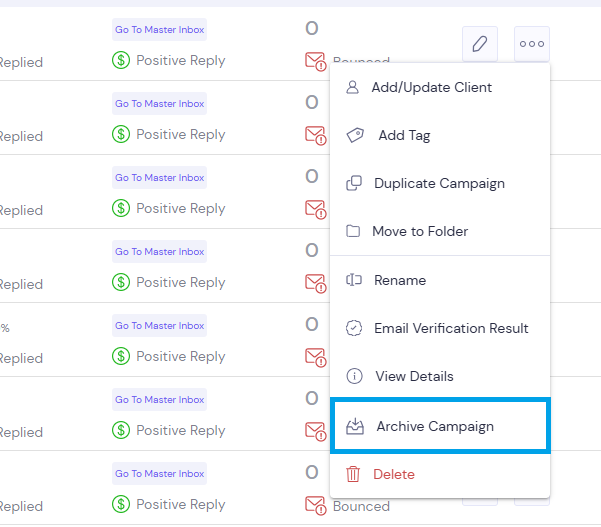
On the campaign's row, click the ⋯ menu.
Click Archive Campaign, then confirm.
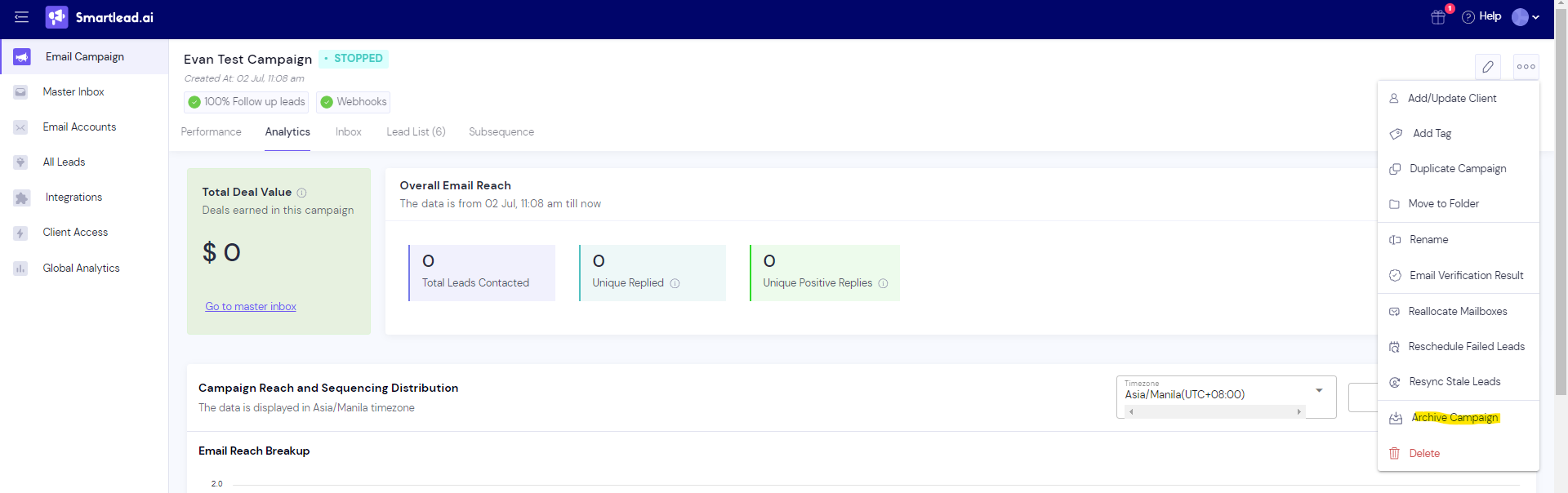
You can also archive a campaign from inside it. Open the campaign, click the ⋯ menu at the top, and click Archive Campaign.
Step 2: Find your archived campaigns
Go to Email Campaigns and select the All tab.
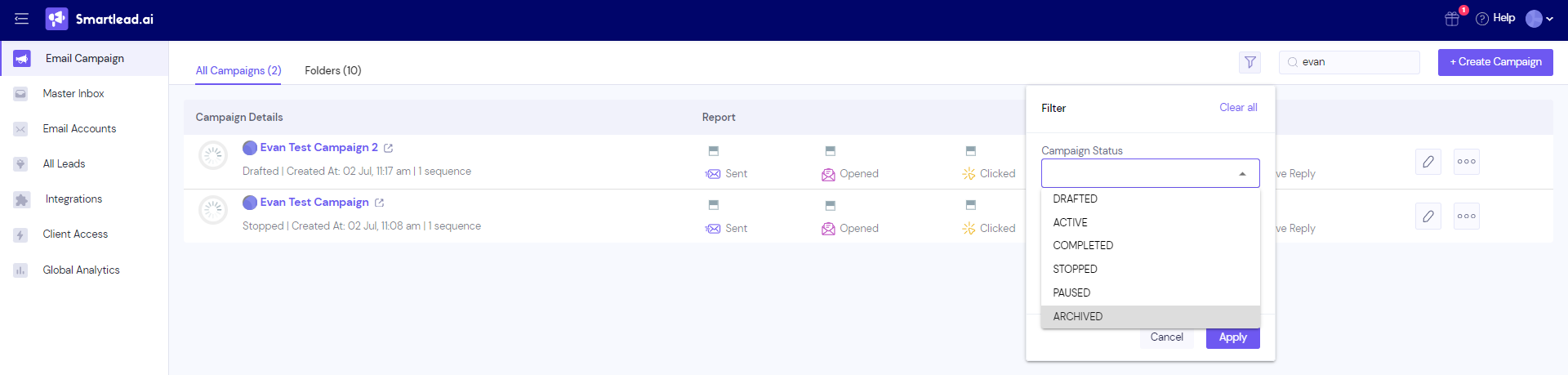
Click Filter.
Under Campaign Status, select Archived.
Click Apply.
The list now shows only your archived campaigns.
Good to know
Select the All tab first. While the Active, Paused or Stopped tab is selected, the status filter is locked to that tab.
Archiving a campaign does not free contact storage. The campaign's leads still count toward your Contact Storage.
Still stuck? Contact support from the chat in your Smartlead dashboard.