A SmartDelivery placement test sends a copy of your campaign email from your own mailboxes to Smartlead's test inboxes at Google Workspace and Microsoft 365. The report shows where each test email landed. Use it before you launch a campaign, or after you change a mailbox or its settings.
A placement test checks test inboxes, not your own leads' inboxes. Use it to see where your email tends to land, not to confirm delivery to one person.
Each run uses one test. A new account starts with 7 free tests. A SmartDelivery plan adds more.
The campaign you test needs at least one mailbox. The test sends from the mailboxes in that campaign.
Client logins don't see SmartDelivery. Use the main account or a team member login.
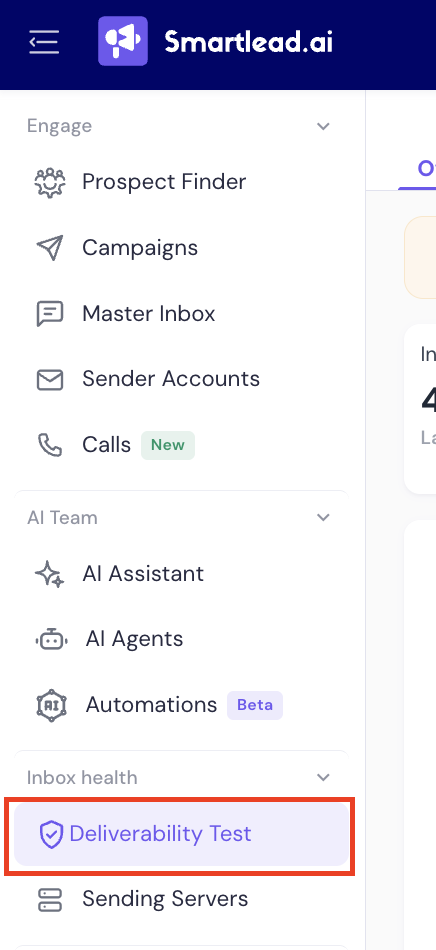
In the left sidebar, under Inbox health, click Deliverability Test.
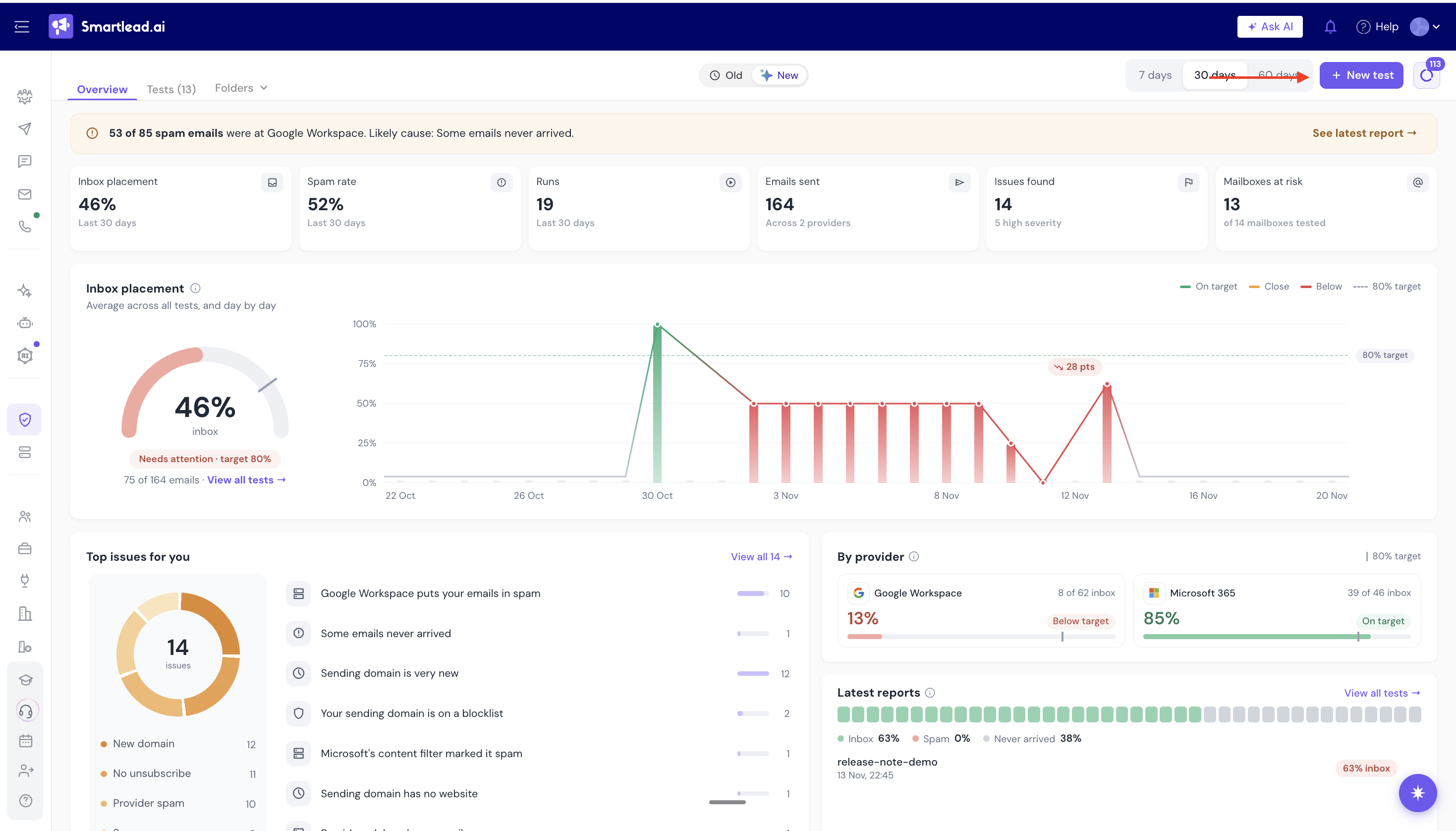
Click + New test at the top right.
The New placement test window opens.
Under Test type, choose Manual to run once, right after you confirm, or Automatic to repeat on a schedule.
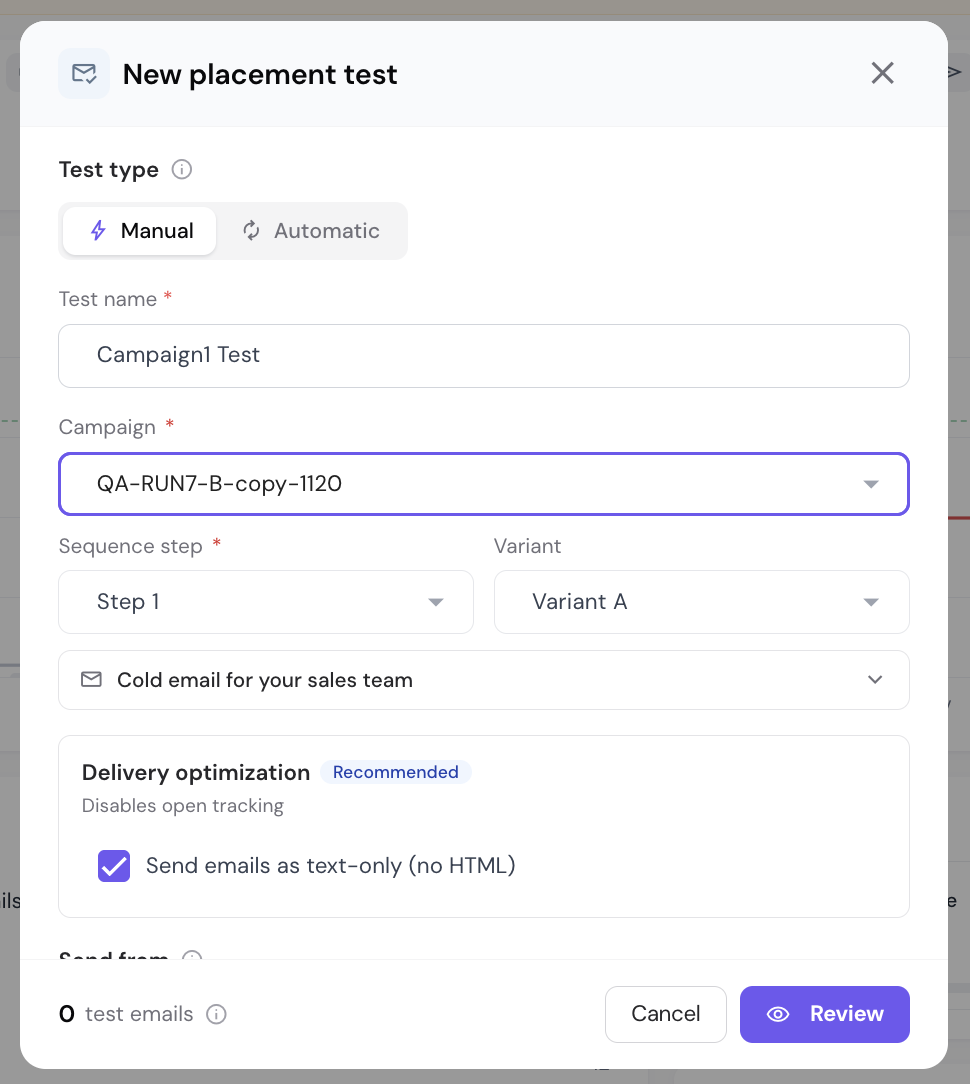
Enter a Test name.
Choose the Campaign, then the Sequence step and Variant. A preview of that email shows below.
Under Delivery optimization, keep Send emails as text-only (no HTML) ticked (recommended). It turns off open tracking for the test.
Under Send from, select the campaign mailboxes to test. Your plan sets how many you can pick per test.
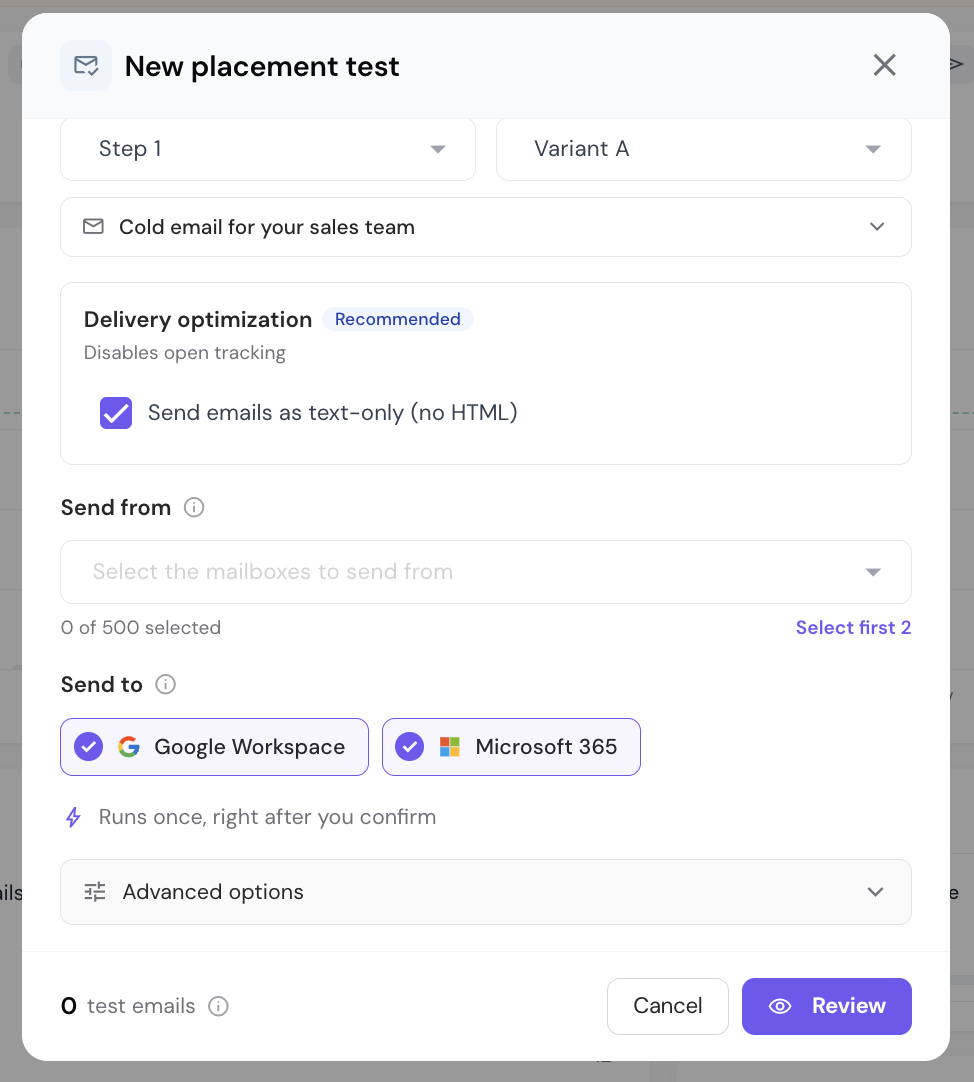
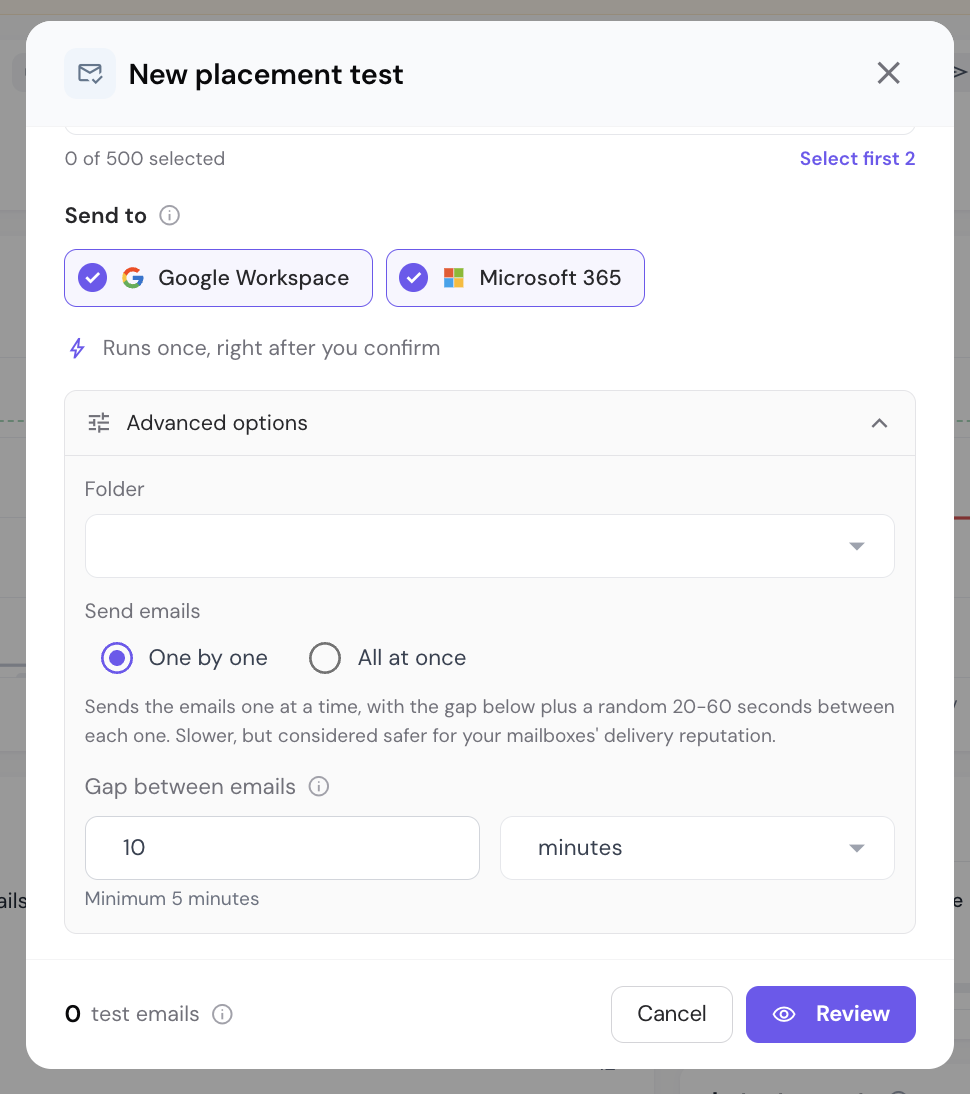
Under Send to, keep Google Workspace, Microsoft 365, or both ticked.
Optional: open Advanced options to choose a Folder, or change Send emails (One by one or All at once) and the Gap between emails.
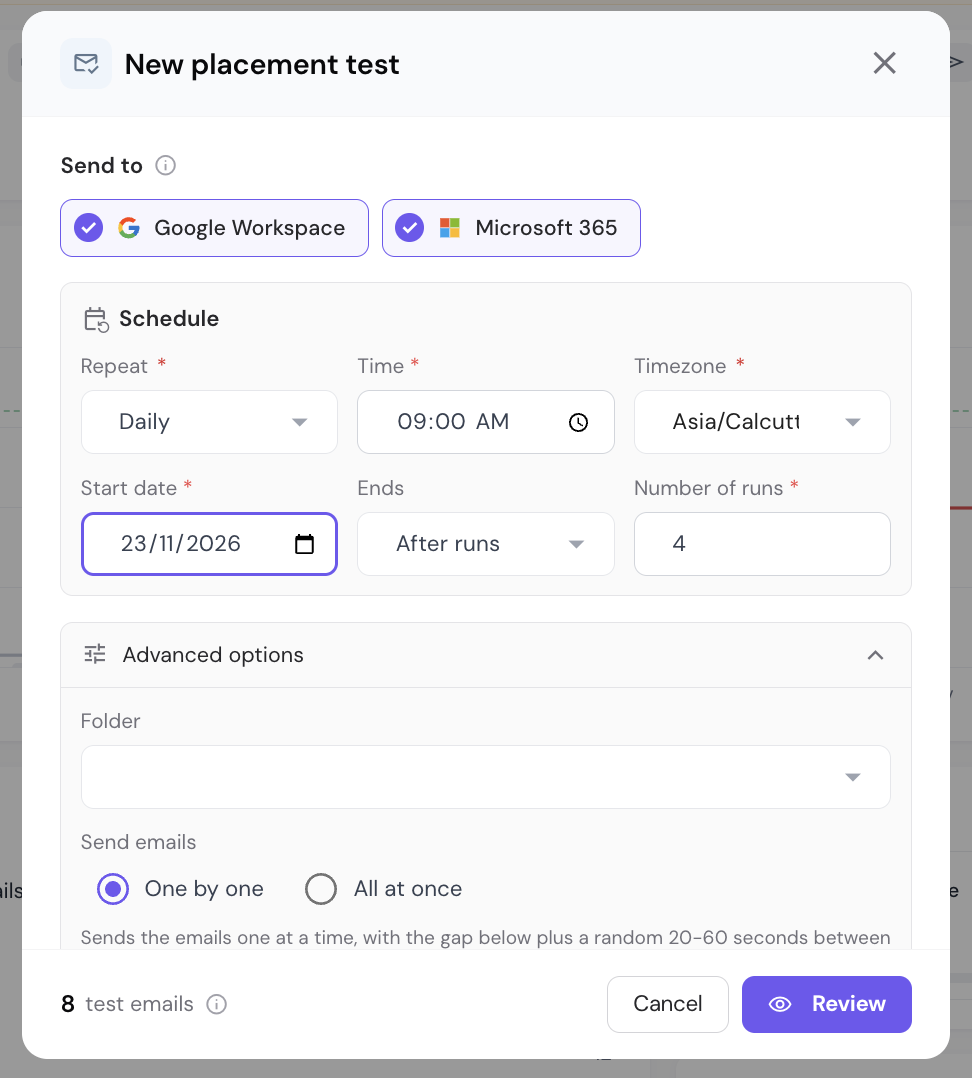
If you chose Automatic, the window also has a Schedule section. Set Repeat, Time, Timezone, Start date, Ends and Number of runs. Everything else is the same.
Click Review.
A summary opens: Run this test now? for Manual, or Start this test? for Automatic. It lists the email, the mailboxes (From), the providers (To), when it runs, the sending pace, the estimated run time and the format.
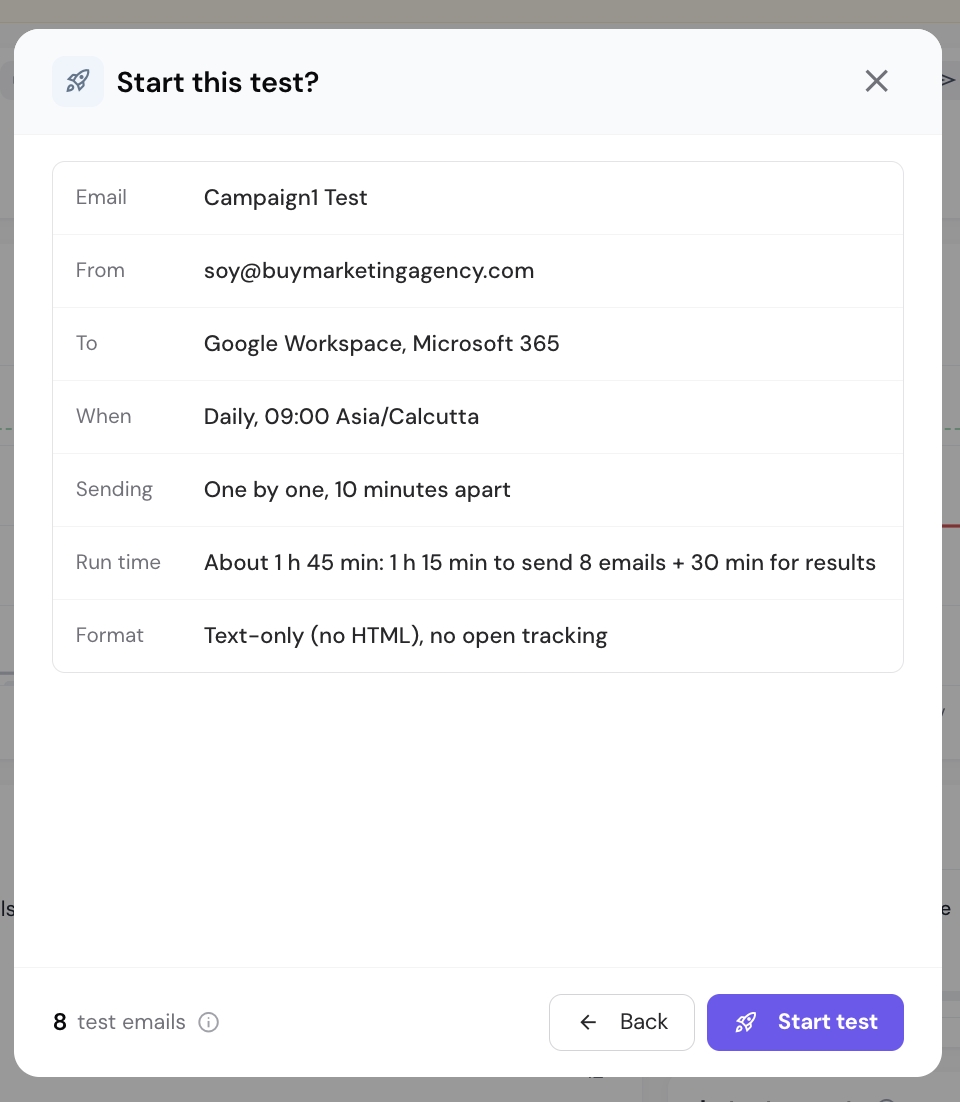
Check the summary. To change something, click Back.
Click Run test (Manual) or Start test (Automatic).
Wait for the run to finish. The page shows progress until the report is ready.
Read the report. It shows the share of delivered test emails that reached the inbox, by provider.
Scroll to Results per email to see each test email: where it landed (Inbox, Tab, Spam, Missing or Bounced), the mailbox it was sent from, and its SPF, DKIM and DMARC results.
The target is 80% in the inbox. Below 70% needs attention.
One by one is the default. It sends the emails one at a time, with the gap you set (default 10 minutes, minimum 5) plus a random 20 to 60 seconds. It is slower but safer for your mailboxes.
The run time is the time to send all emails plus 30 minutes for results.
Results come from test inboxes at each provider. They show a pattern, not the outcome for every recipient.
Test inboxes that bounced are left out of the percentages.
Each run uses one test, whatever its size. A run that is stopped before it sends any email gets its test back.
Run again opens the New placement test window with the same settings.
"Choose at least one mailbox". Cause: no mailbox is selected under Send from. Fix: pick at least one mailbox.
The window shows "No Smart Delivery credits left in this billing cycle." and Upgrade plan instead of Review. Cause: you have used all your tests. Fix: click Upgrade plan, or wait for your tests to reset when your plan renews.
An Automatic test shows Paused. Cause: you ran out of tests. Fix: get more tests with Upgrade plan. The test starts again by itself within about 15 minutes. Runs skipped while it was paused are not made up.
Still stuck? Contact support from the chat in your Smartlead dashboard. Include the test name, the run number and what the report shows.
Run a placement test as shown above. It sends your campaign email from your mailboxes to Smartlead's test inboxes at Google Workspace and Microsoft 365, and the report shows how many landed in the inbox, a tab or spam.
