SmartServers has been renamed SmartInfra, and now comes in two forms - Single SmartInfra and Multi SmartInfra - for dedicated, better-protected email sending
SmartInfra is Smartlead's privatised sending infrastructure, giving your campaigns dedicated servers and IPs instead of shared ones. It's the same feature you knew as SmartServers, rebranded, with a new bundled option for teams that want automatic IP rotation built in.
This guide covers what SmartInfra is, how the two types differ, how pricing and assignment work, and how to purchase and assign SmartInfra to your campaigns and clients.
SmartInfra comes in two types, both managed from Sending Servers → SmartInfra:
Single SmartInfra - one dedicated server with one dedicated IP. This is the direct rename of what used to be a SmartServer; nothing about it has changed functionally.
Multi SmartInfra - a bundle of three dedicated servers under one parent, with automatic IP rotation across the three. You manage and assign the bundle as a single unit; the three servers inside it aren't assigned or renamed individually.
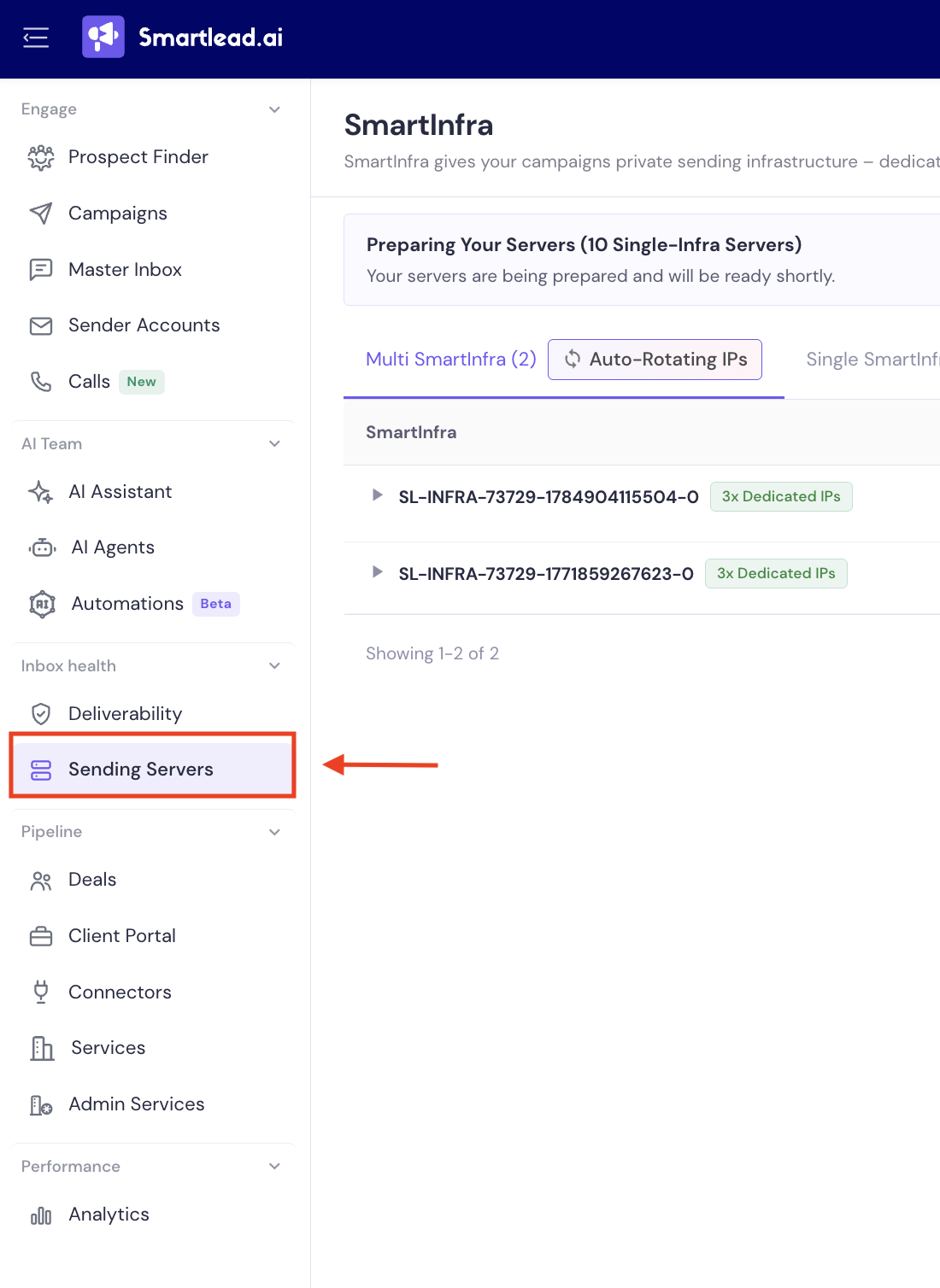
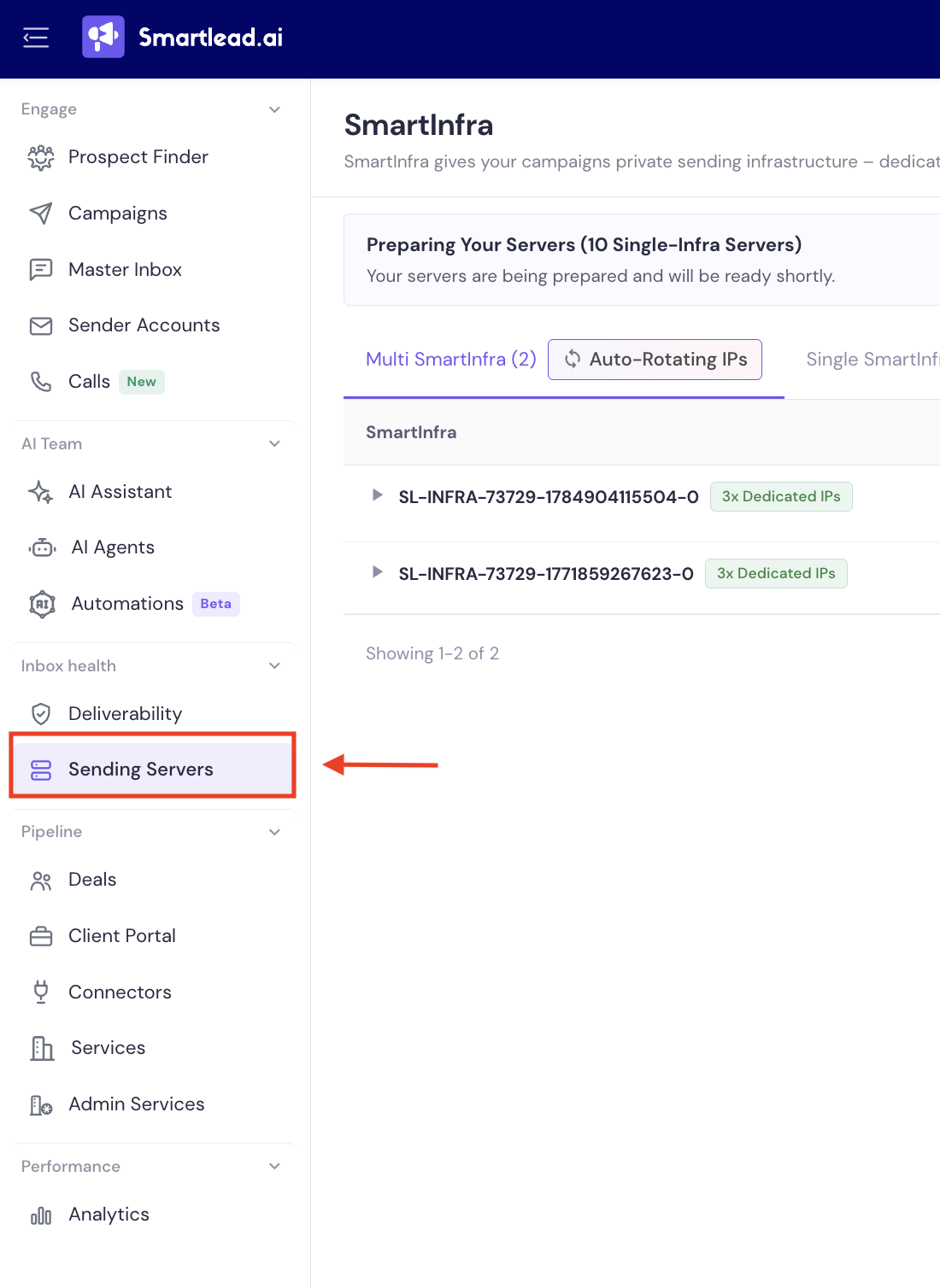
To access SmartInfra, log in to your Smartlead account and navigate to Sending Servers → SmartInfra.
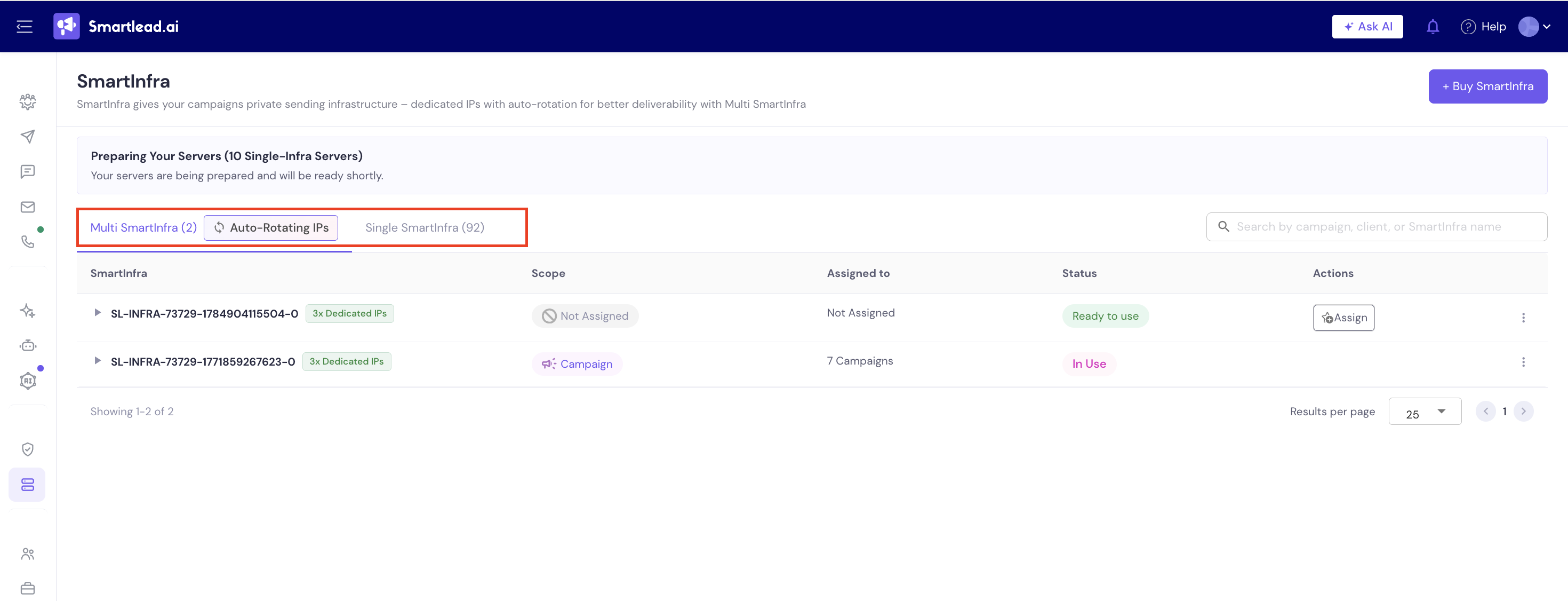
The SmartInfra page has two tabs: Multi SmartInfra and Single SmartInfra. Inside the Multi SmartInfra tab, you'll see an Auto-Rotating IPs view showing how sending is currently distributed across a bundle's three servers.
Rotation logic hasn't changed - it works the same way it always has for both types:
For a Single SmartInfra, your one dedicated IP handles all sending.
For a Multi SmartInfra, sending volume is automatically distributed and rotated across the three dedicated IPs in the bundle to spread risk and protect reputation.
You don't need to manage rotation yourself - the system always shows you the currently active server, and switching happens automatically in the background.
A campaign or a client can use either Single SmartInfra or Multi SmartInfra - never both at the same time. Keep this in mind as you plan out your infrastructure, since switching from one type to the other later means unassigning what's currently in place first.
If you're using Single SmartInfra:
You can assign up to 4 Single SmartInfra to one campaign.
There's no cap on how many Single SmartInfra a client can have.
A single SmartInfra can be assigned to multiple campaigns, but only ever to one client at a time.
If you're using Multi SmartInfra:
You can assign 1 Multi SmartInfra bundle per campaign.
There's no cap on how many Multi SmartInfra bundles a client can have.
A Multi SmartInfra bundle can be assigned to multiple campaigns, but only ever to one client at a time.
Key Note: You can't mix Single and Multi SmartInfra within the same campaign or the same client. If you want to switch a campaign or client from one type to the other, you'll need to unassign the current infrastructure first.
If you manage multiple clients, each with their own campaigns, SmartInfra (Single or Multi) stays tied to one client at a time - even though it can be used across several of that client's campaigns.
If you try to assign a SmartInfra that's already in use under one client to campaigns under a different client, you'll see a warning naming the client it's currently tied to. This is there to stop infrastructure from accidentally being shared across clients, which can hurt deliverability and reputation isolation.
Log in to your Smartlead account and navigate to Sending Servers → SmartInfra. Click Buy SmartInfra in the top right.
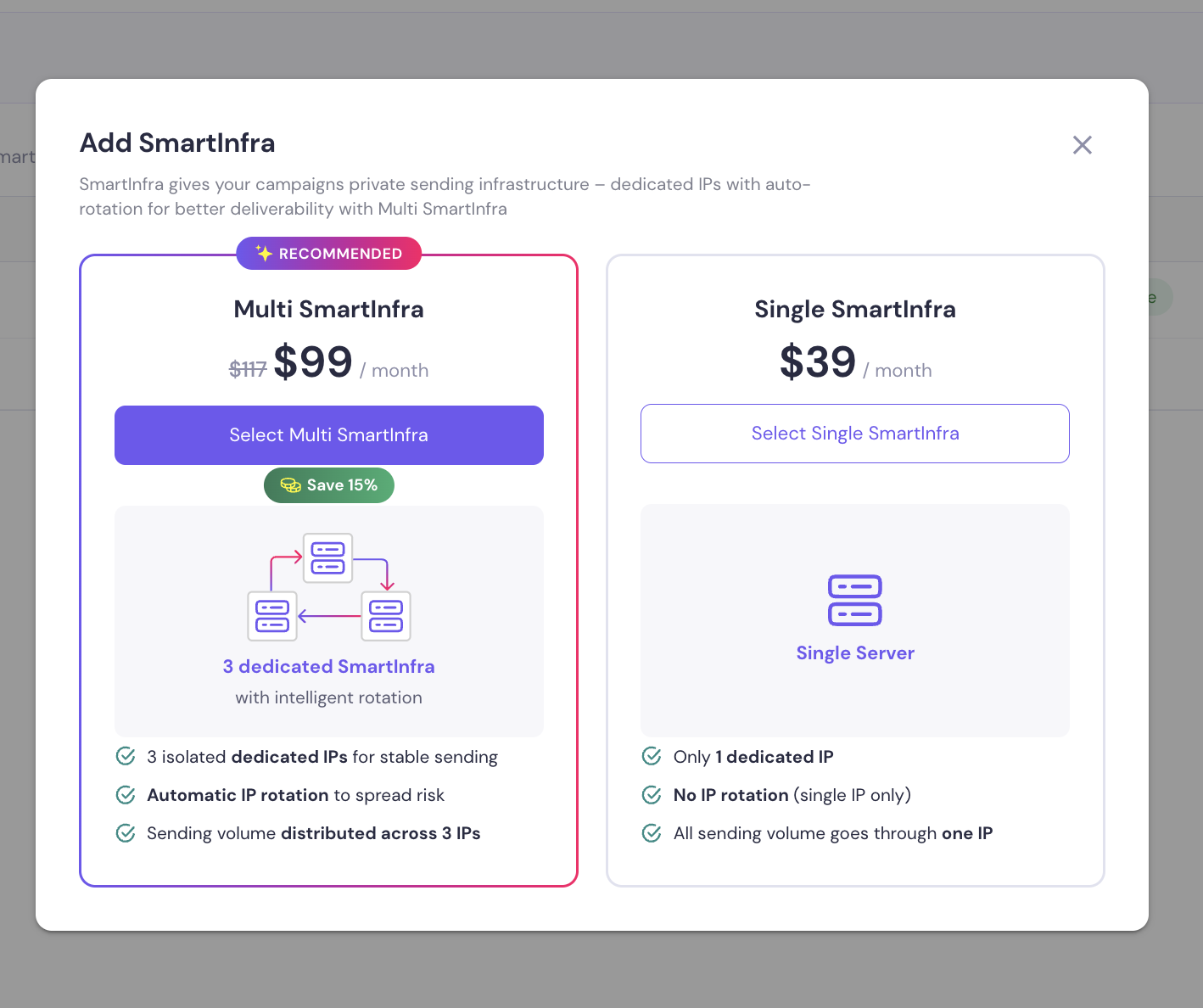
You'll see both options side by side, with pricing and what's included in each:
Multi SmartInfra ($99/month) - 3 dedicated, auto-rotating SmartInfra, distributed sending, marked as the recommended option.
Single SmartInfra ($39/month) - 1 dedicated IP, no rotation, all volume through that one server.
Choose your region (US or EU) and the number of servers or bundles you want (up to 10 per purchase). You'll see the total cost update as you adjust quantity.
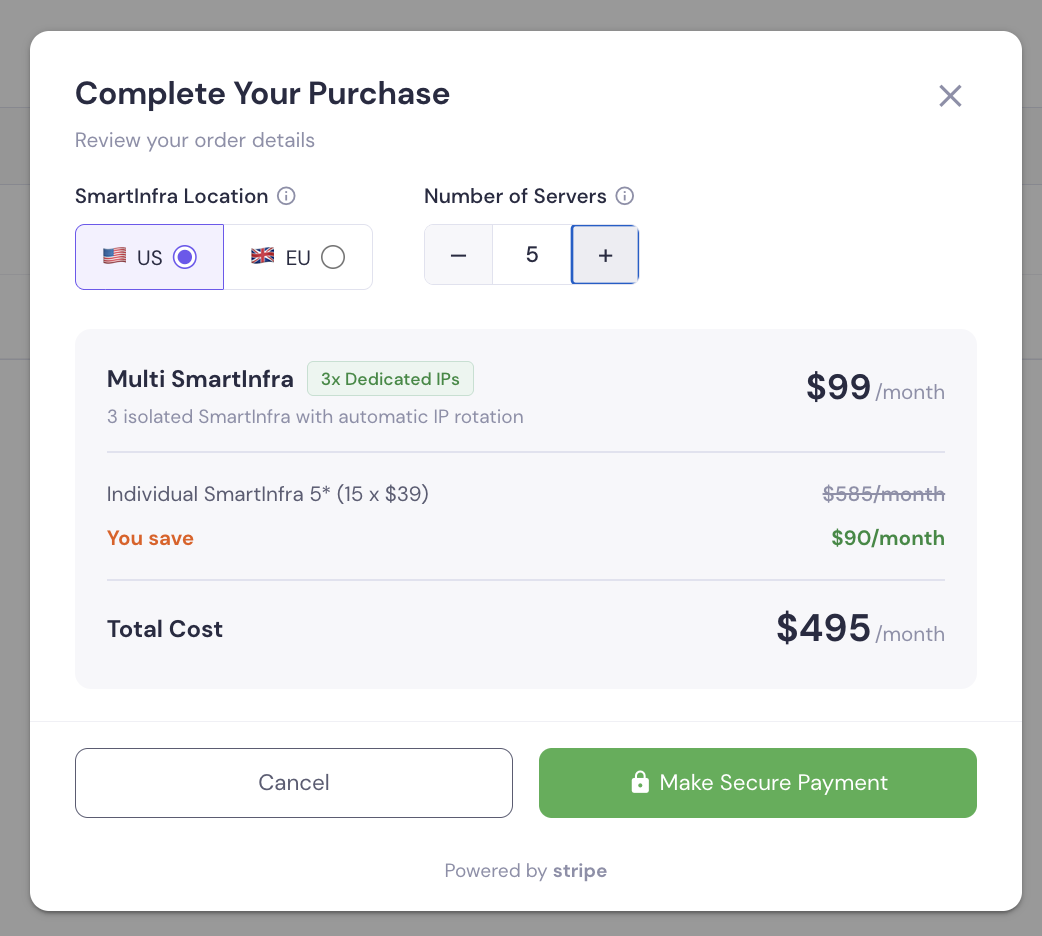
The review screen breaks down the cost - for Multi SmartInfra, it also shows the individual-equivalent price and your savings - before you complete payment via Stripe.
If your servers provision quickly, they're ready right away.
If provisioning takes longer, you'll see a Preparing status and can come back to assign it once it's ready.
Once provisioning finishes, an Assign SmartInfra prompt appears so you can attach it to a campaign or a client right away.
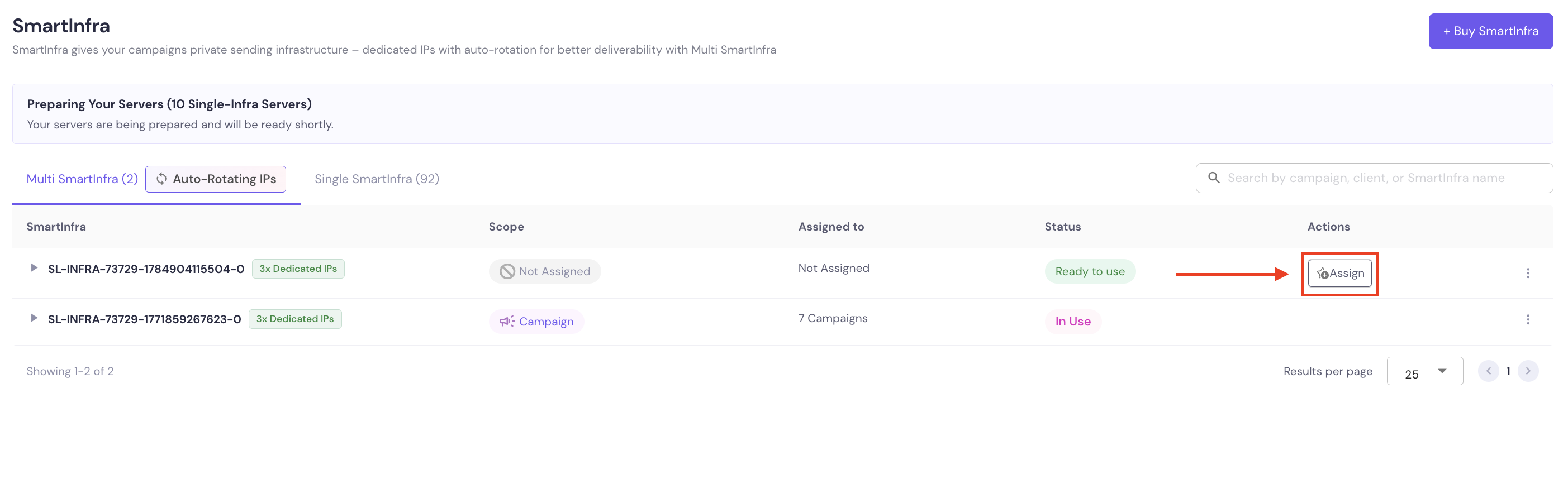
If there's a conflict - for example, trying to assign it to a client that already has different infrastructure attached - you'll see a warning, but it won't block the assignment outright.
Newly purchased SmartInfra shows up at the top of your list.
You can see assignment status both from the SmartInfra page (Scope and Assigned To columns) and from the Campaigns page.
Each SmartInfra will show one of these statuses: Preparing, Not Assigned / Assigned, or Ready to use / In Use.
Renaming: you can rename a Single SmartInfra, and you can rename the parent of a Multi SmartInfra bundle. The three servers inside a bundle can't be renamed individually, since they aren't managed separately.
SmartInfra gives you the same dedicated-server control that SmartServers always did, with a new bundled option for teams that want automatic IP rotation without managing multiple servers by hand. Whether you go with Single or Multi, you can buy, view, and assign your infrastructure directly from the SmartInfra page.
For further assistance, feel free to contact our support team or refer to the Smartlead help center.