You can now delete a single SmartSenders mailbox without losing the other mailboxes on its domain. This article covers how to delete mailboxes, what happens after, and how to restore them if you change your mind.
1. Go to Sender Accounts under Engage
You can delete one mailbox or many at once:
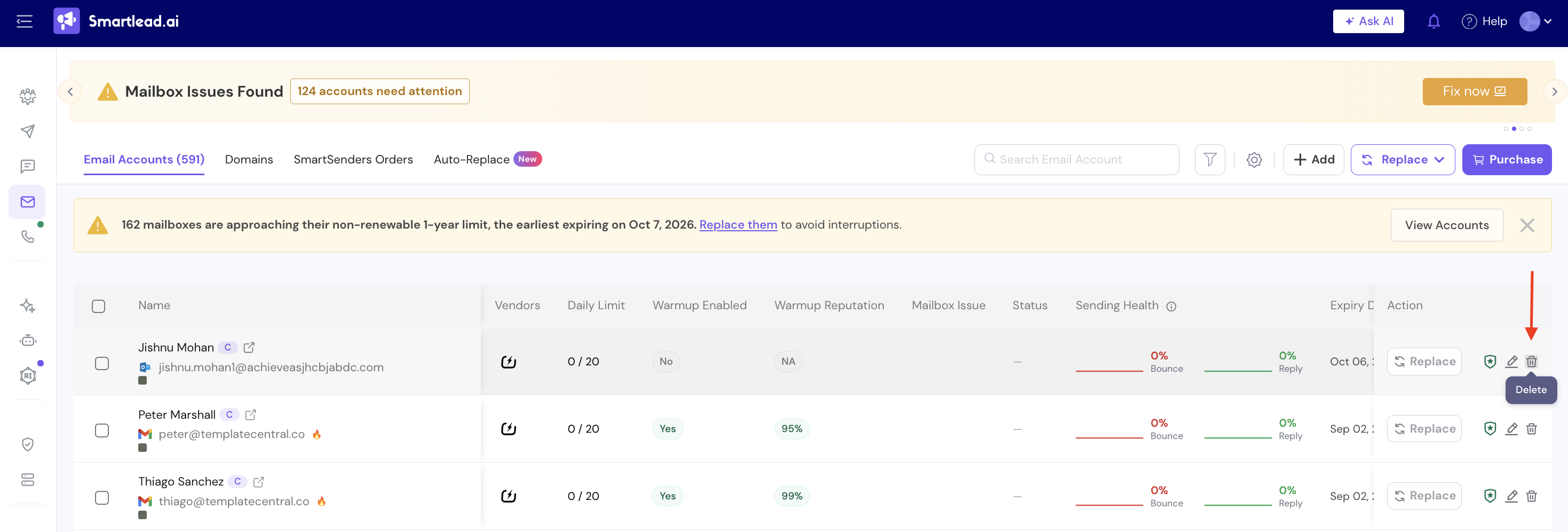
One mailbox: click the delete (trash) icon in the Action column of that row.
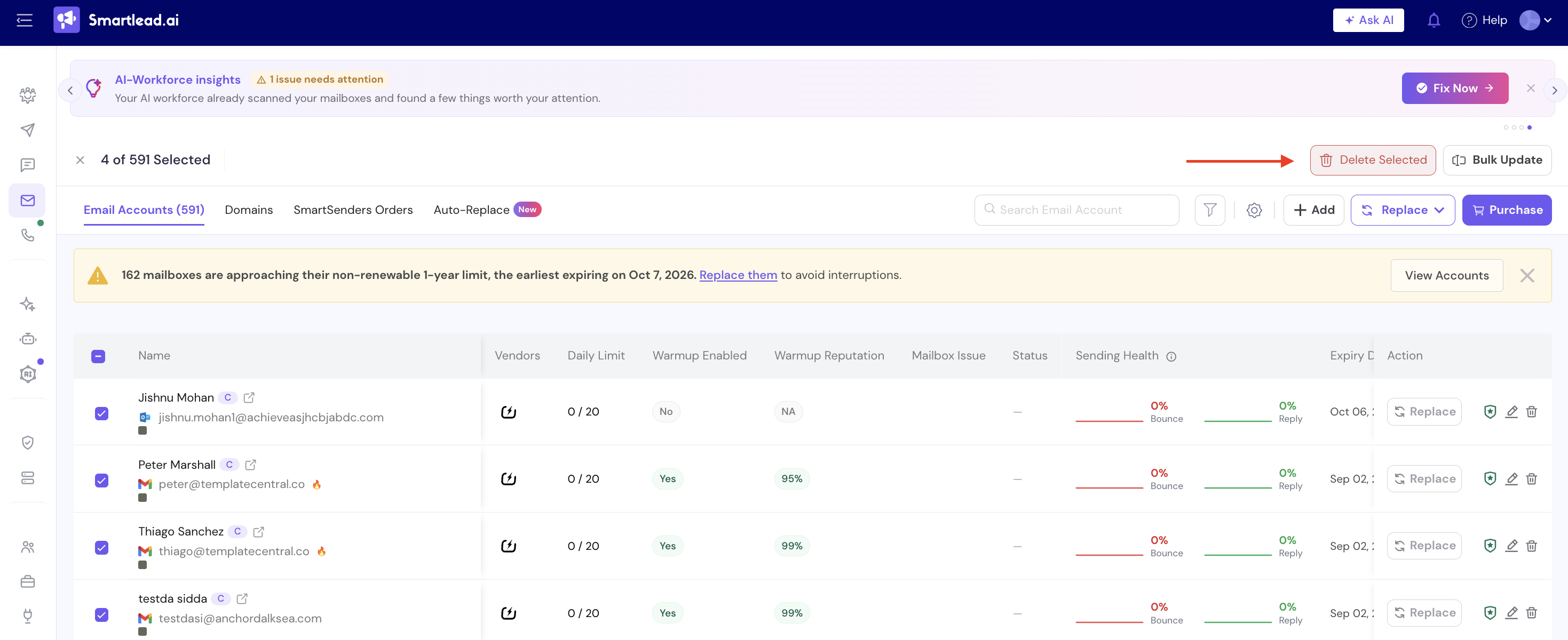
Several mailboxes: select them using the checkboxes on the left, then click Delete Selected at the top right.
2. Review the confirmation screen.
The screen groups your mailboxes and shows what will happen to each group:
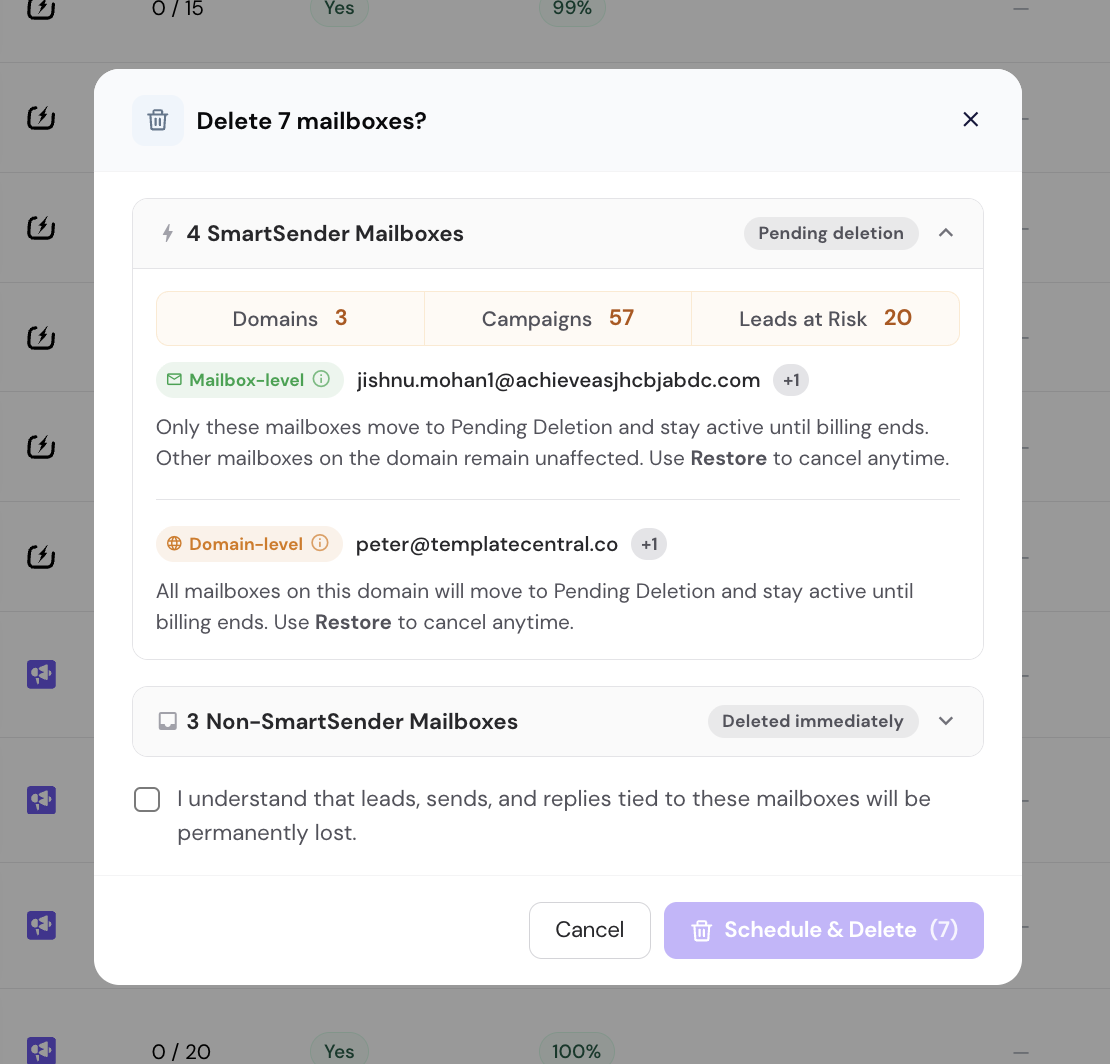
SmartSender Mailboxes (Pending deletion): shows the number of domains, campaigns, and leads at risk.
Non-SmartSender Mailboxes (Deleted immediately): shows the number of campaigns and leads at risk.
For example, if you select both SmartSender and Non-SmartSender mailboxes, upon clicking Delete, you will see the following window:
Each SmartSenders mailbox has one of two tags:
Mailbox-level: only this mailbox is deleted. Other mailboxes on the same domain are not affected.
Domain-level: all mailboxes on this domain are deleted together. Some SmartSenders mailboxes can only be deleted this way.
If your selection includes mailboxes with different billing cycles, you'll see a Dates vary tag, since each one is removed on its own date.
Now, let’s say you want to delete SmartSender mailboxes only, you can select the individual mailbox you want to delete.
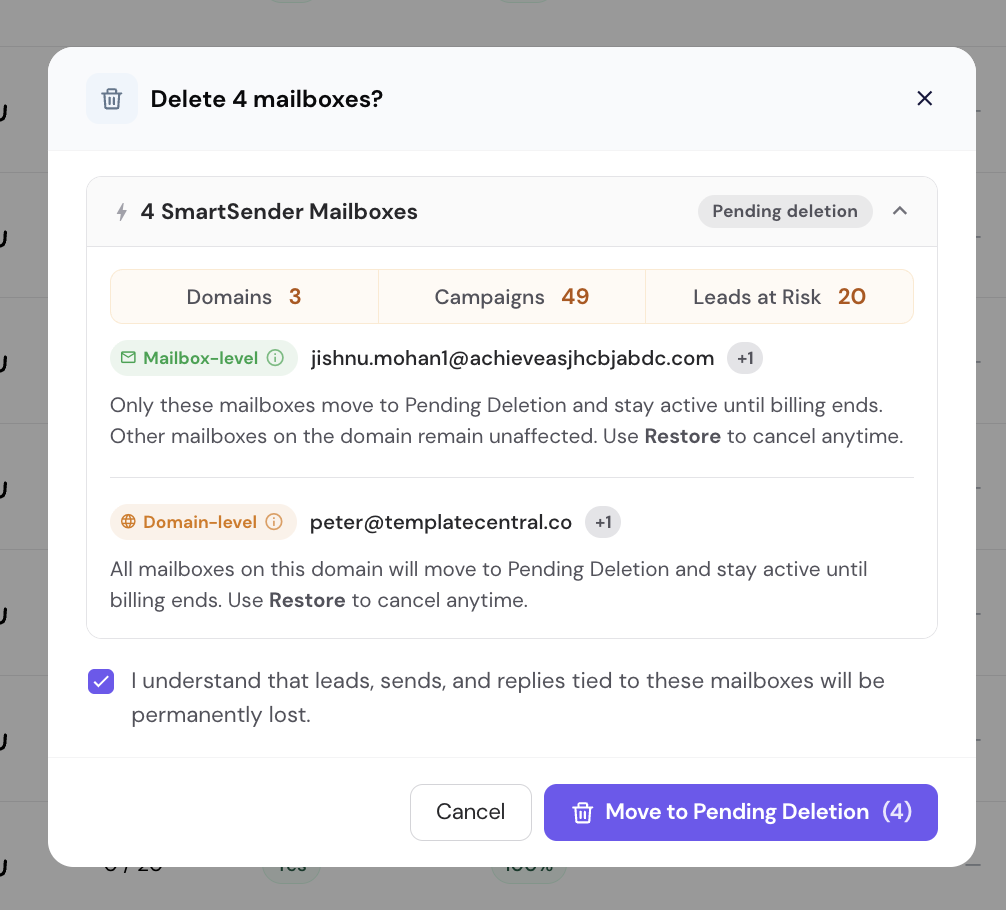
You will see a “Move to Pending Deletion” option. If the mailbox has the Mailbox-level tag, only the mailbox you select will move to Pending Deletion and can be restored before the billing ends. Other mailboxes on the same domain remain unaffected.
3. Check the box: "I understand that leads, sends, and replies tied to these mailboxes will be permanently lost."
4. Click Move to Pending Deletion.
5. Type CONFIRM in the box. It's case-sensitive. The screen also shows the date your mailboxes will be permanently deleted.
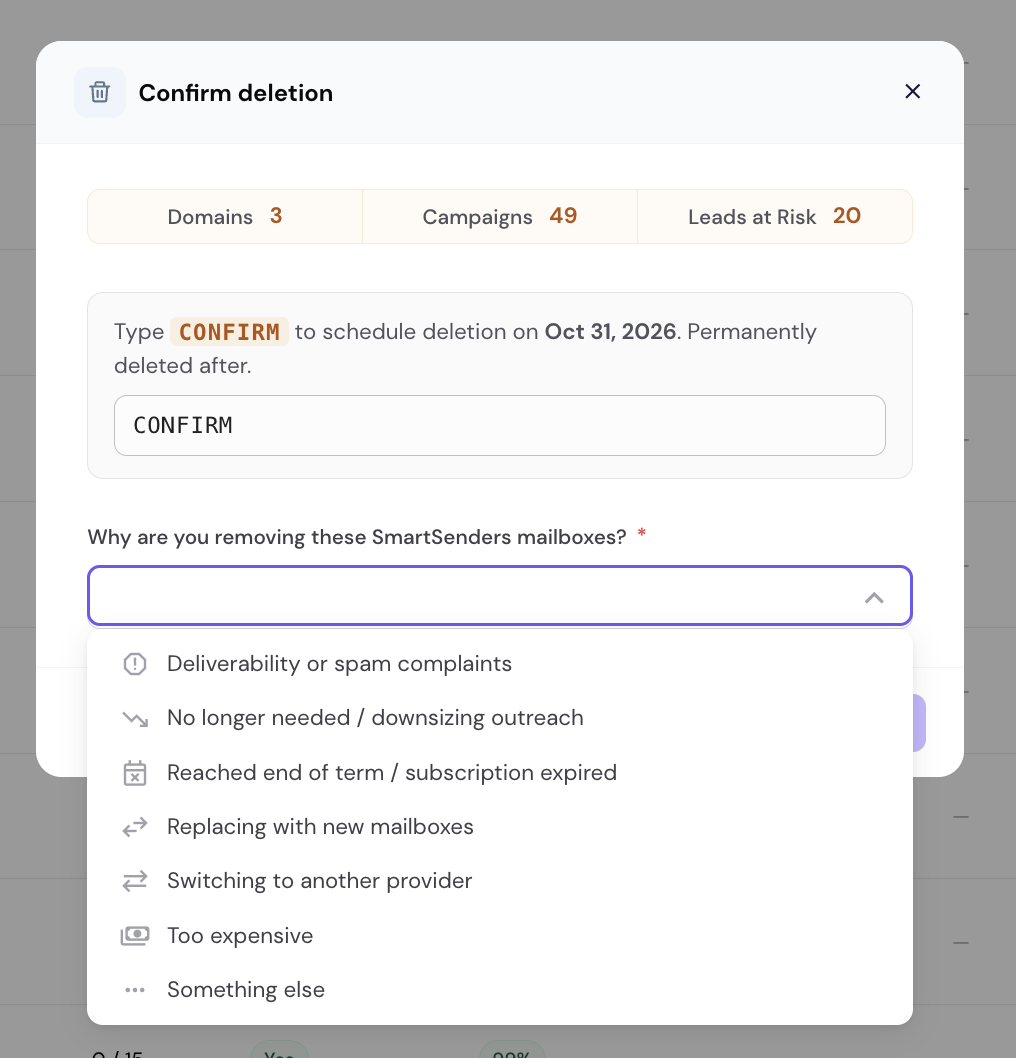
Choose a reason from the Why are you removing these SmartSenders mailboxes? dropdown.
Confirm to finish.
Note: The button name depends on what you select. If you select both SmartSenders and non-SmartSenders mailboxes, click Schedule & Delete. If you select only non-SmartSenders mailboxes, click Delete immediately. These are removed right away and can't be restored.
1. SmartSenders mailboxes move to Pending Deletion
They don't disappear right away. They keep sending, receiving, and working normally until one day before their billing cycle ends. You can restore them any time before then.
This includes Pre-Warmed mailboxes. They're always deleted at the domain level, so all mailboxes on that domain move to Pending Deletion together.
Important: If a mailbox's billing cycle ends on the same day you delete it, it skips Pending Deletion. It's deleted right away and can't be restored.
2. Non-SmartSenders mailboxes are deleted right away
There is no Pending Deletion period and no restore option. Deletion is permanent.
3. No refunds
If you delete a mailbox partway through a billing cycle, the remaining days are not refunded.
4. Can't be recovered after the cutoff
Once a mailbox is permanently deleted, it cannot be recovered.

You can restore SmartSenders mailboxes that are still in Pending Deletion.
1. Go to Sender Accounts under Engage and find the mailbox. You can apply the Pending Deletion filter to quickly locate the relevant mailboxes. (Click on Filter icon on top and select Pending Deletion filter, and click on Apply)
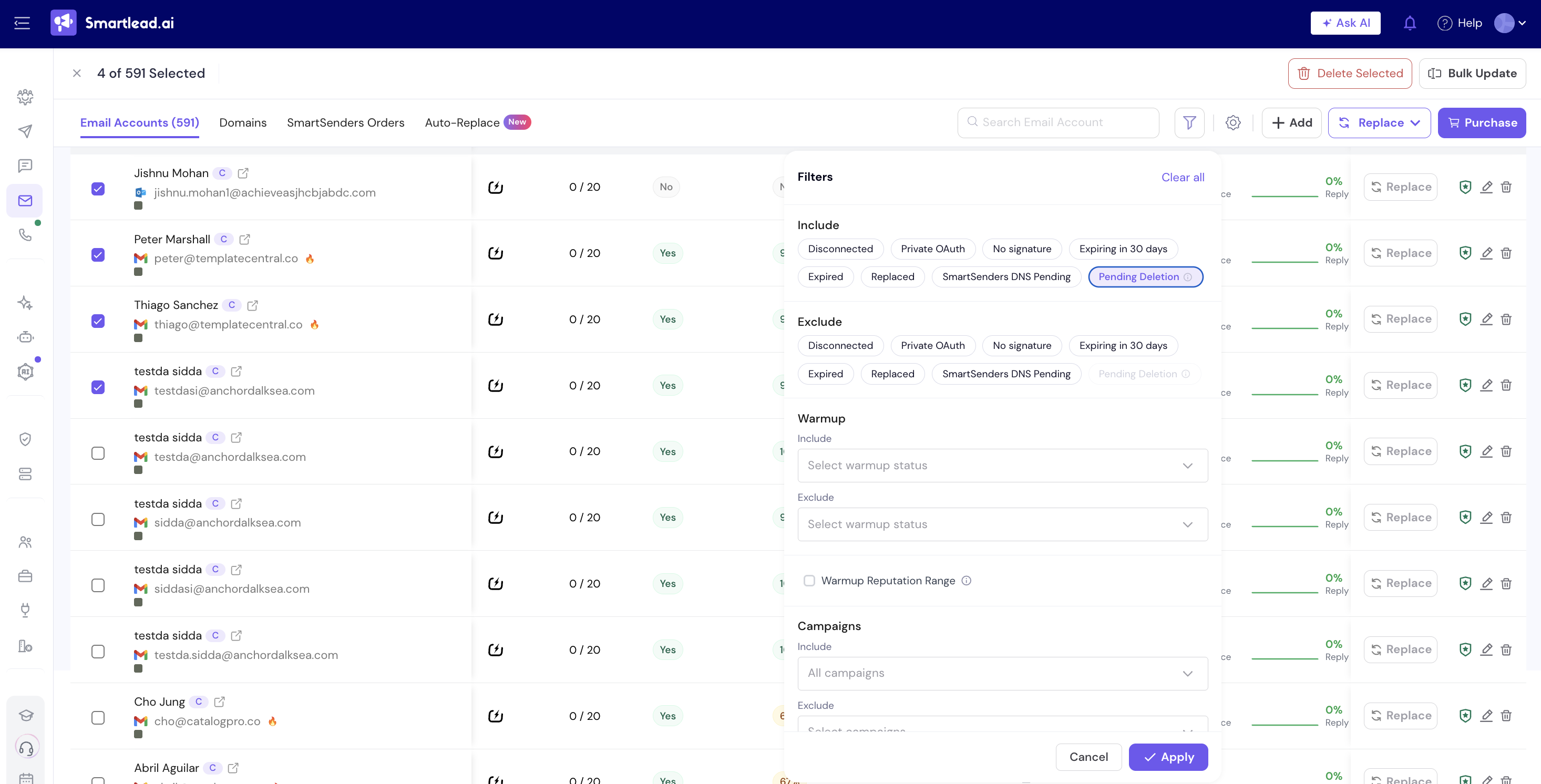
Mailboxes in Pending Deletion status display a Restore button in the Action column and a Permanently Removed On date.
2. Click Restore.
3. Review the "Restore 1 mailbox?" screen. It shows the mailbox, its domain, and the status it will return to (Active).
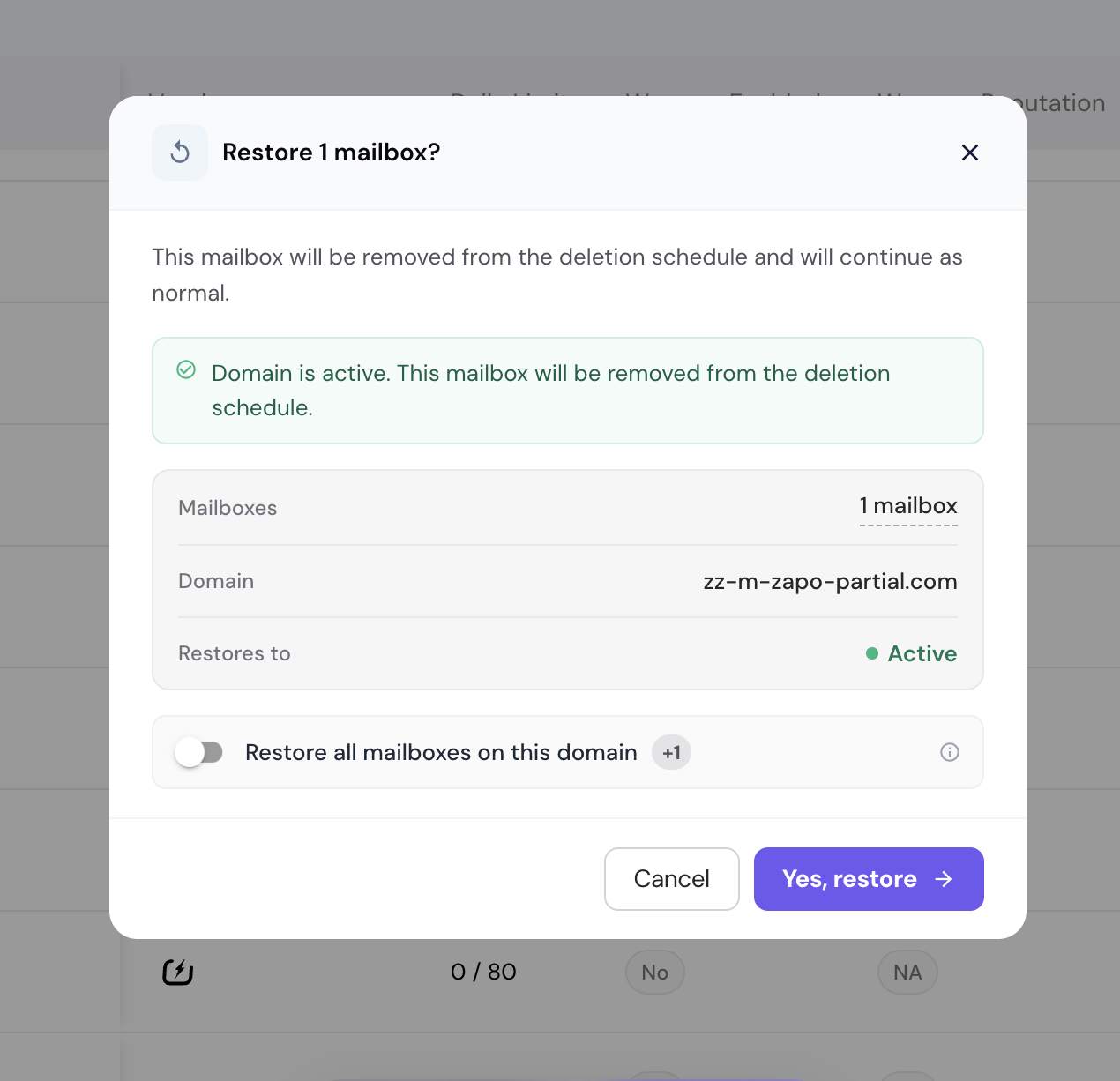
Only the mailbox you picked is restored. To restore every pending mailbox on that domain at once, turn on Restore all mailboxes on this domain.
4. Click Yes, restore. The mailbox goes back to Active and continues as normal.
Once a mailbox is permanently deleted, you lose:
1. Follow-ups to leads: follow-up emails to leads tied to that mailbox will stop.
2. Sending volume: campaigns using the mailbox will send less.
3. Replies: you won't receive replies sent to that mailbox anymore.
Not sure yet? You can pause the mailbox or move its leads to another mailbox instead.
If you have questions, reach out to our support team. We're happy to help.