Your Email Network lets you connect mailboxes through your own Google Cloud or Microsoft Azure OAuth app instead of Smartlead’s shared app. You control the credentials, satisfy strict security reviews, and sign every message with your app ID, boosting trust and deliverability.
Let’s look at how you can create an OAuth app in Google.
⚠ Before You Start
Please connect with your Smartlead Customer Success Manager (CSM) before creating your OAuth app. They’ll guide you through the steps to generate your Client ID and Client Secret correctly.
Mistakes here can affect your email deliverability and campaign performance, so we strongly recommend doing this with a CSM.
Go to Google Cloud Console.
Click the project dropdown on the top bar.
Click “New Project”.
Give your project a name (e.g. YourAgency Smartlead OAuth) and click Create
Inside your new project, go to the left sidebar and click APIs & Services > Library.
In the search bar, type “Gmail API”.
Click on Gmail API.
Click Enable.
Go to APIs & Services > OAuth consent screen
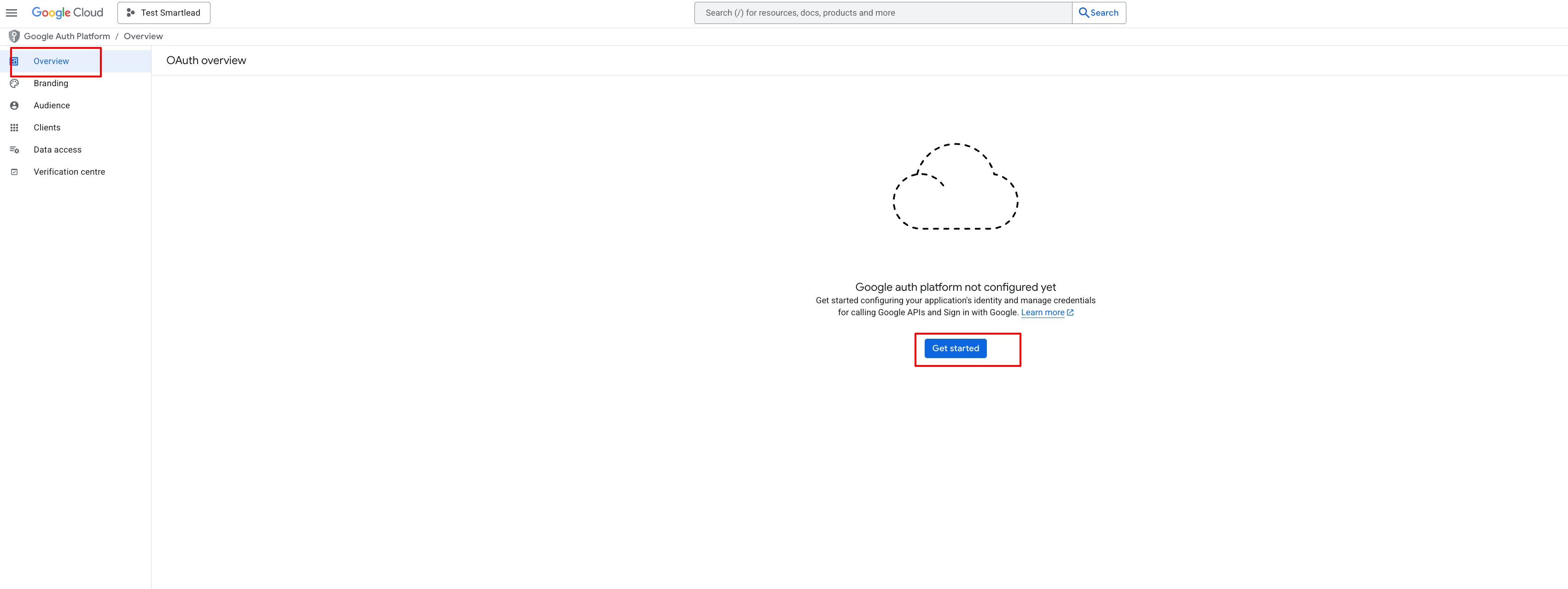
In the OAuth overview, click on get started
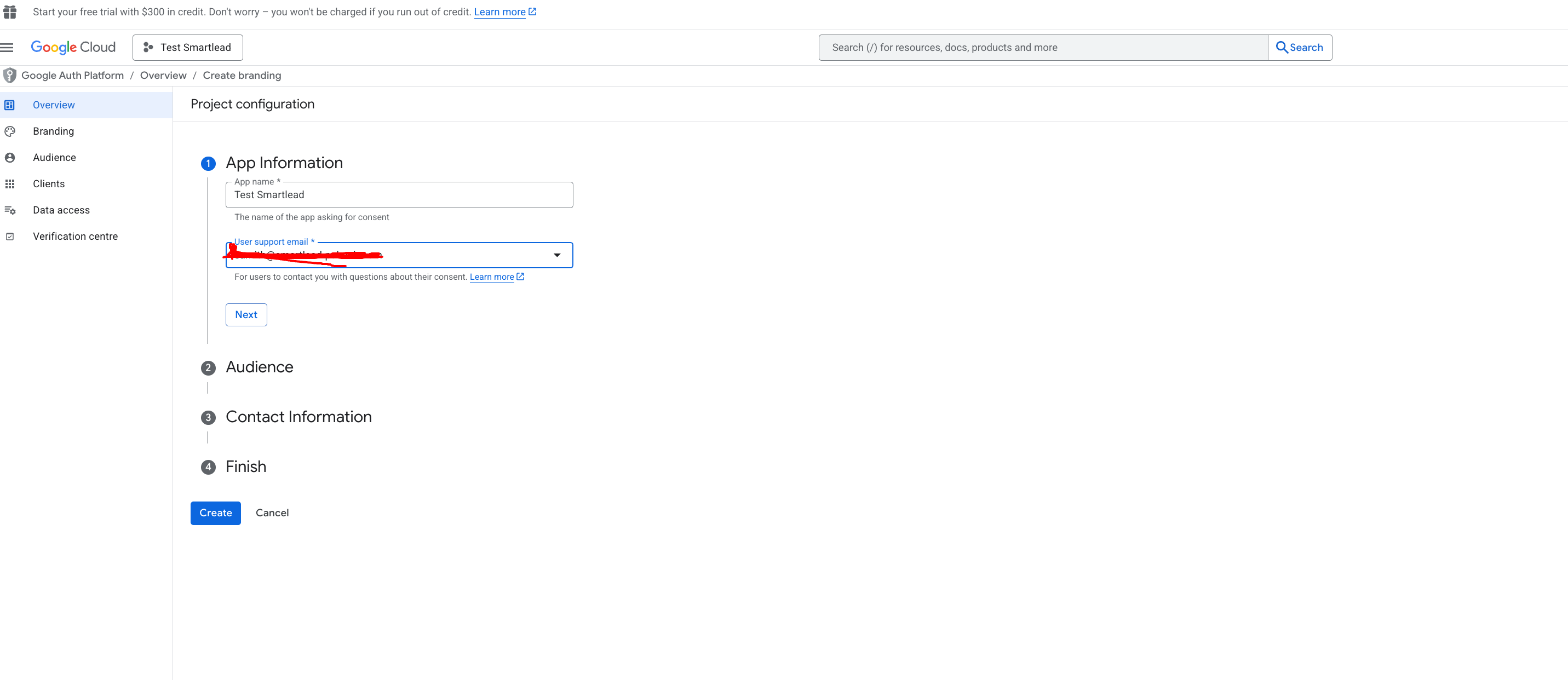
Fill in the following details:
Give the app name and user support email, and click on next
App name: Your agency or business name
User support email: Your email address
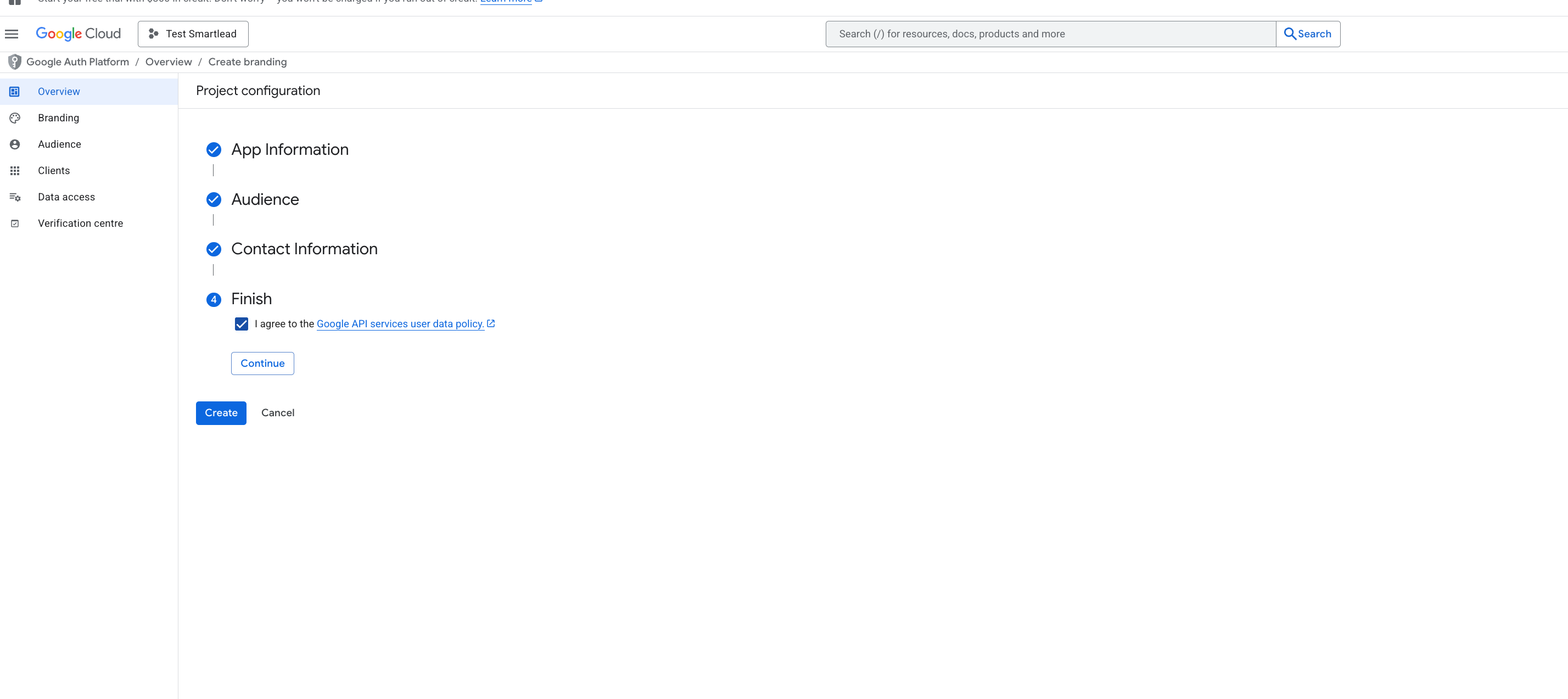
Choose the Audience type to External and click on next.
Choose the email address and click on finish.
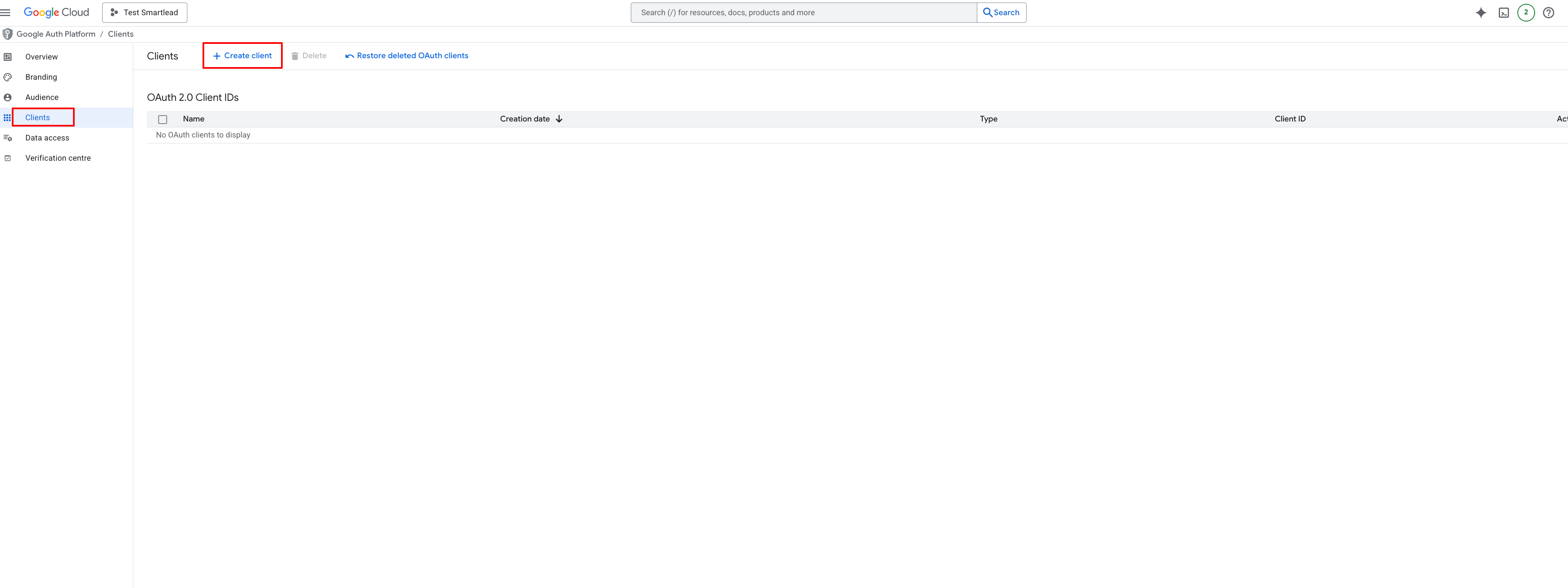
Navigate to clients
Click on Create clients
Choose the application type as a web application
Select the Name, it can be your brand name.
In the Authorized JavaScript origins, add:
https://yourwhitlabledurl (you can ignore if you don’t have any)
In the Authorized Redirect URLs, add:
https://server.intellioauth.com/api/email-account/gmail/callback
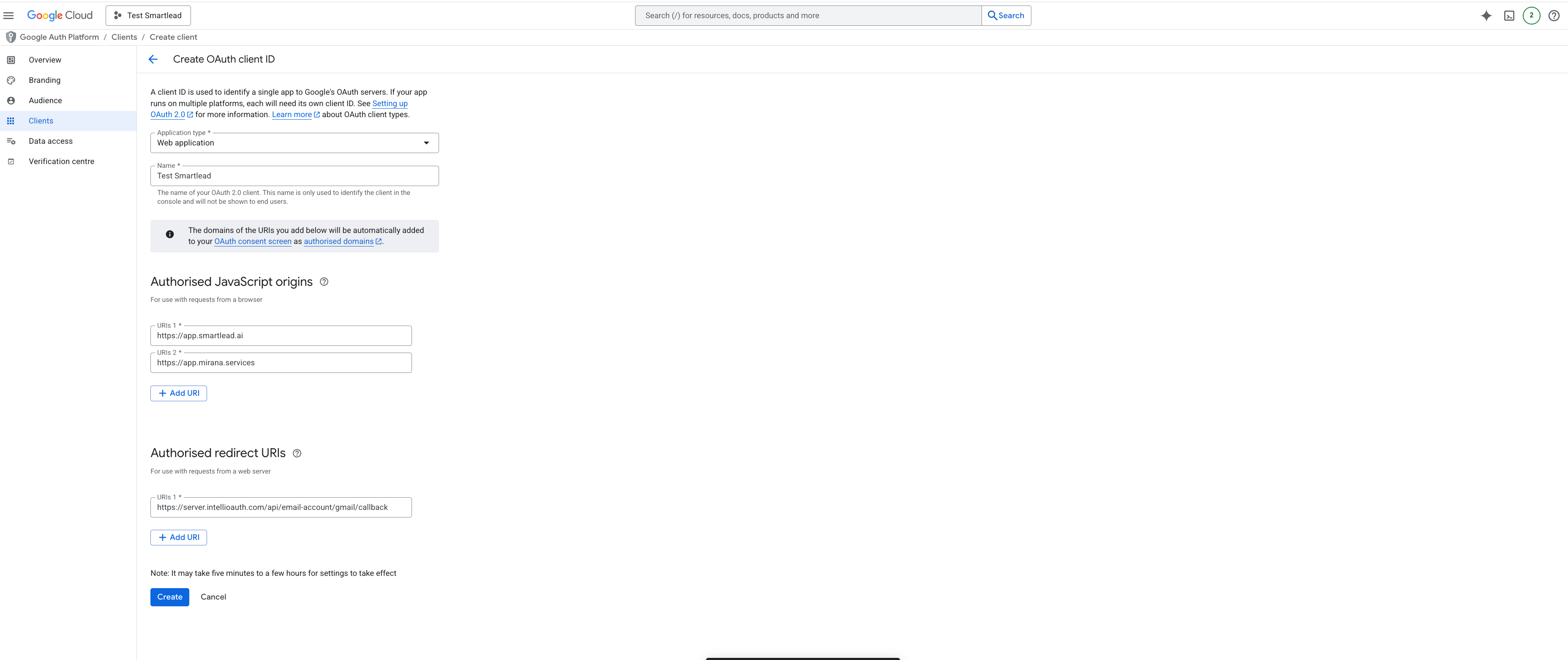
Click on create
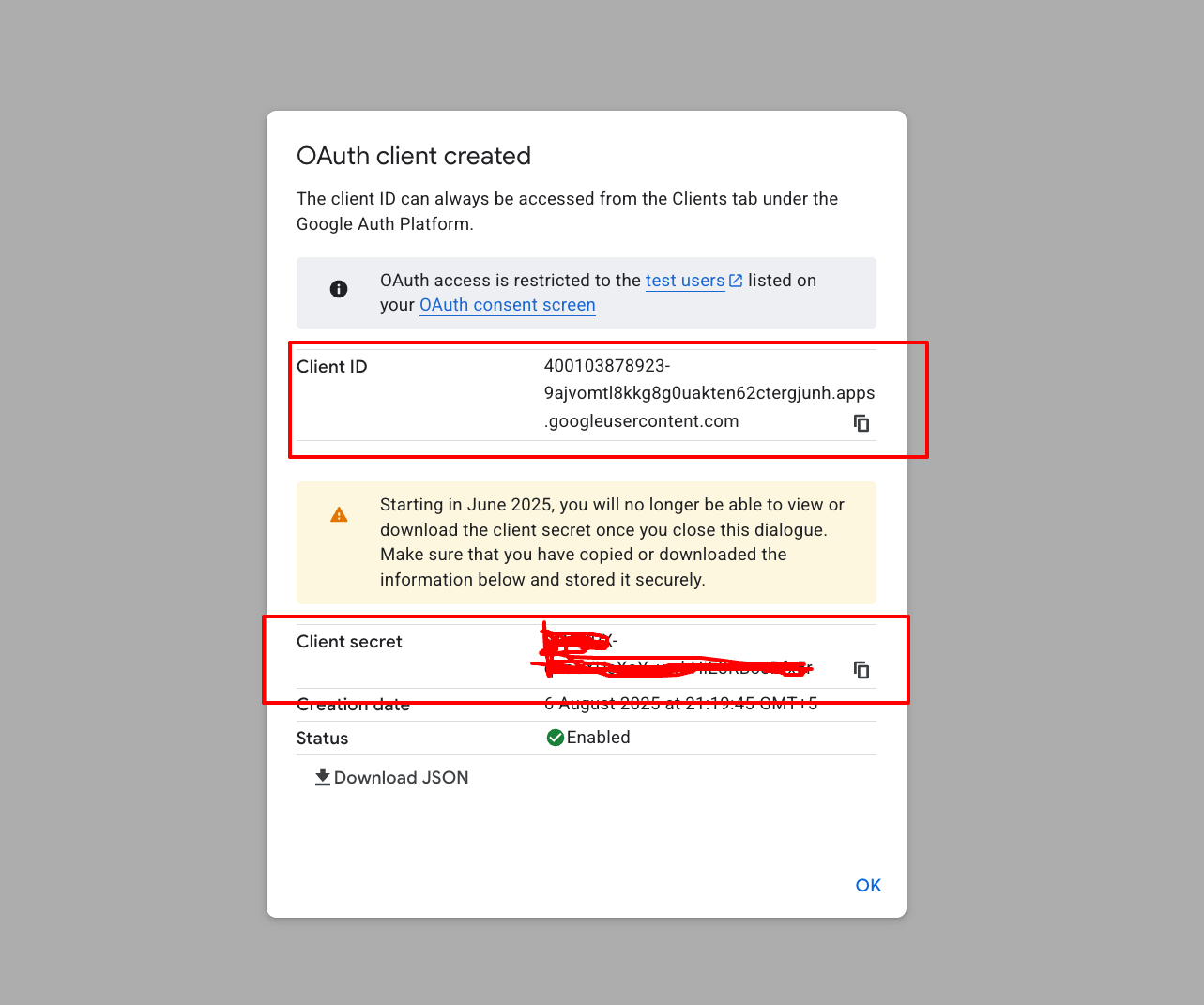
You will get the client id and client secret, please have it downloaded for your reference
Navigate to data access to add scopes:
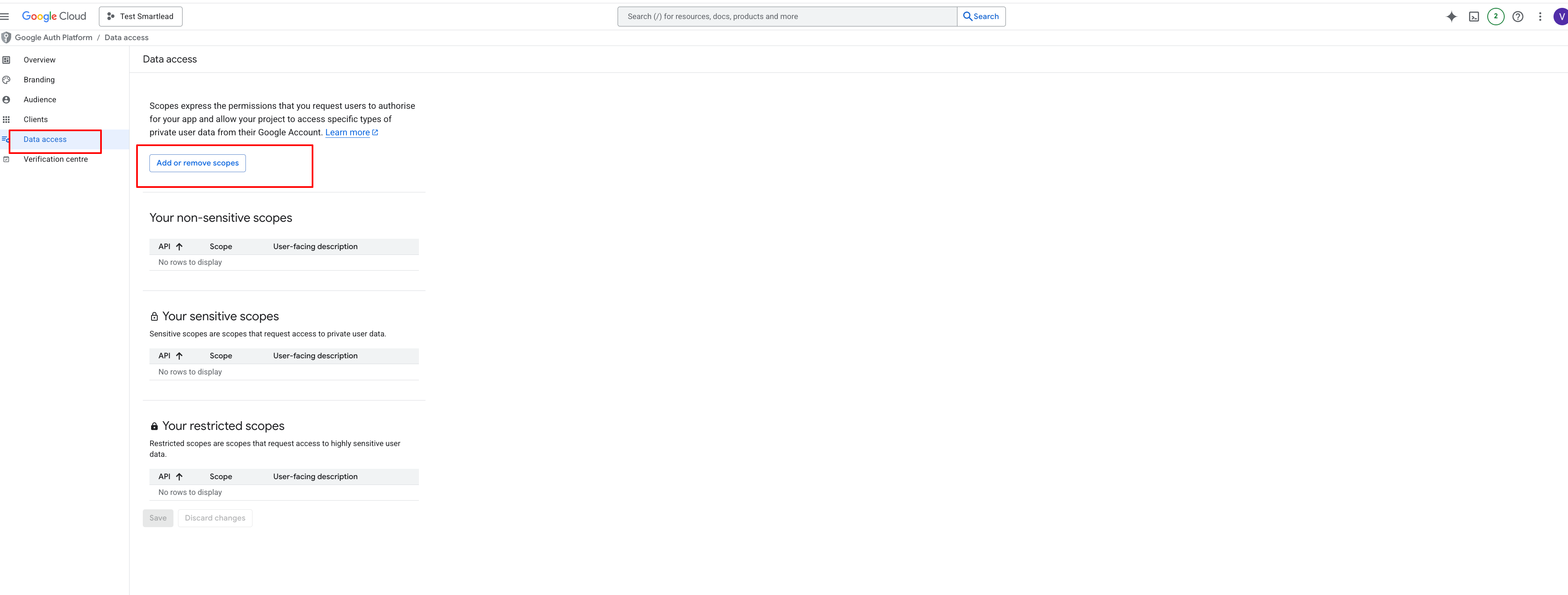
Click Add or Remove Scopes
Add the following scopes:
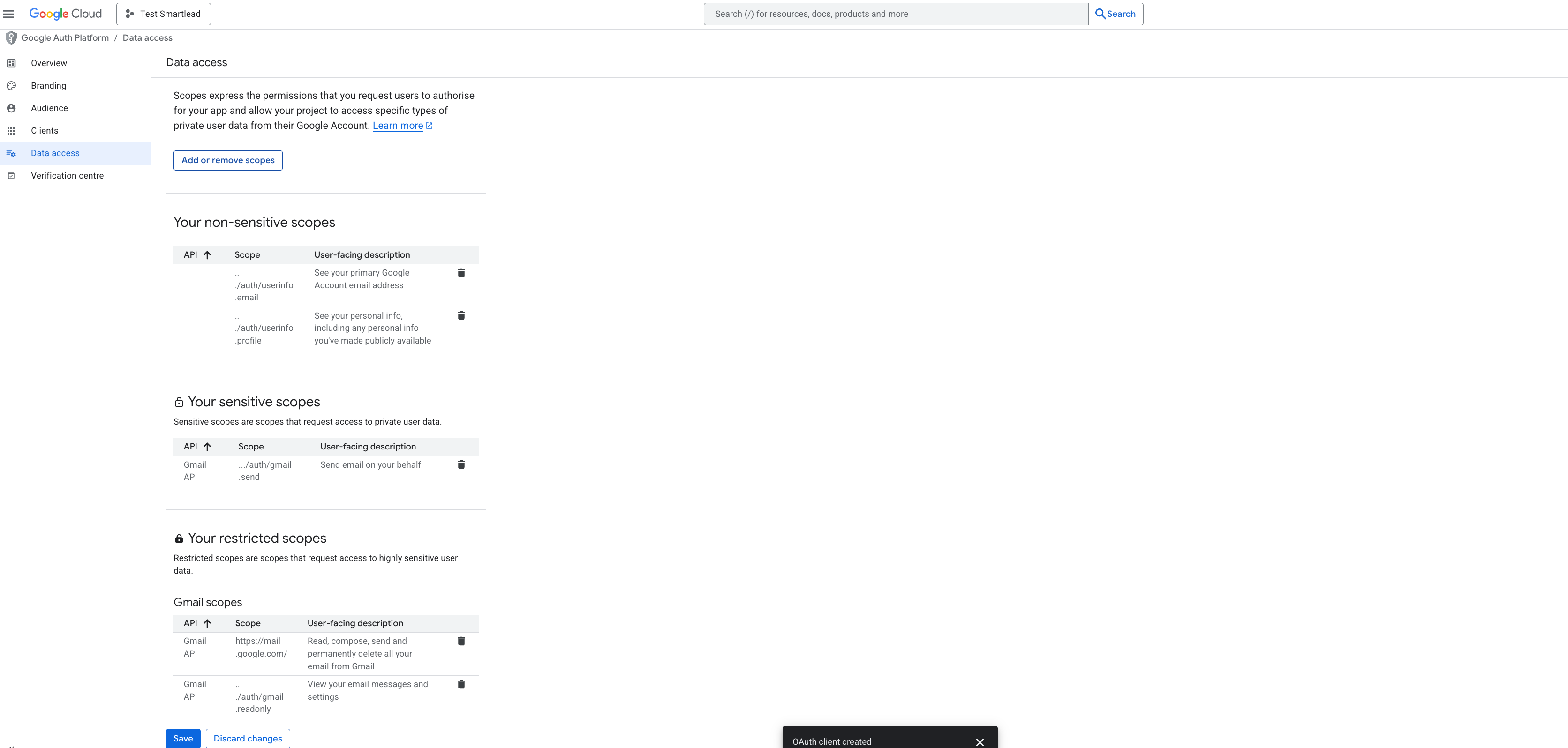
https://www.googleapis.com/auth/userinfo.email
https://www.googleapis.com/auth/userinfo.profile
https://www.googleapis.com/auth/gmail.send
https://www.googleapis.com/auth/gmail.readonly
https://mail.google.com/
Once the above scopes are added, click on save.
In Smartlead, go to:
Settings > Google OAuth
Paste your:
Client ID
Client Secret
Click Save Credentials.

Go to Email Accounts > Add Mailbox
Select:
Your Email Network (for Smart and Prime users only)
Google OAuth
Choose the mailbox and complete the connection.
Your mailbox is now connected using your own OAuth app, not Smartlead’s.
Similar to how you create Google OAuth, you can create Outlook OAuth too for setting up your own email network in Smartlead.👇
Set Up Microsoft Outlook OAuthQ. Can I switch back to Smartlead’s shared OAuth?
Yes - delete your custom provider in OAuth Configuration and reconnect mailboxes using Smartlead OAuth.
Q. Does Smartlead store my client secret?
Only momentarily for validation; it is never stored long‑term.