Email verification checks each address when you add leads to a campaign. It keeps valid and catch-all addresses, and removes invalid and risky ones, such as unknown results.
Verify a new list before you send to it. Fewer bounces help protect your mailboxes' reputation.
You need verification credits. Each lead in the upload uses one credit.
Only the account owner can buy credits, and not during a trial.
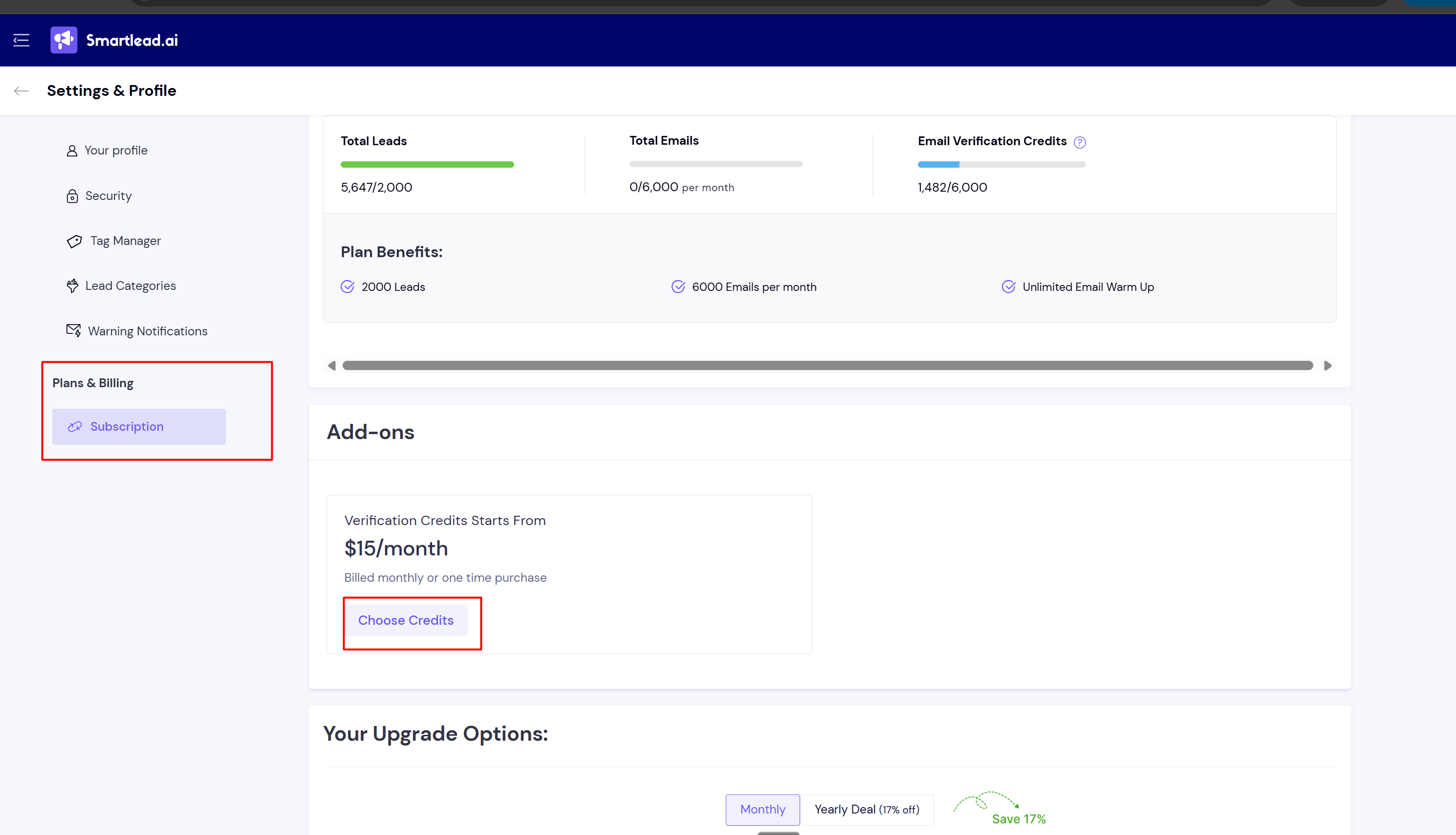
Go to Settings → Subscription.
Open General Plan → Add-on Details.
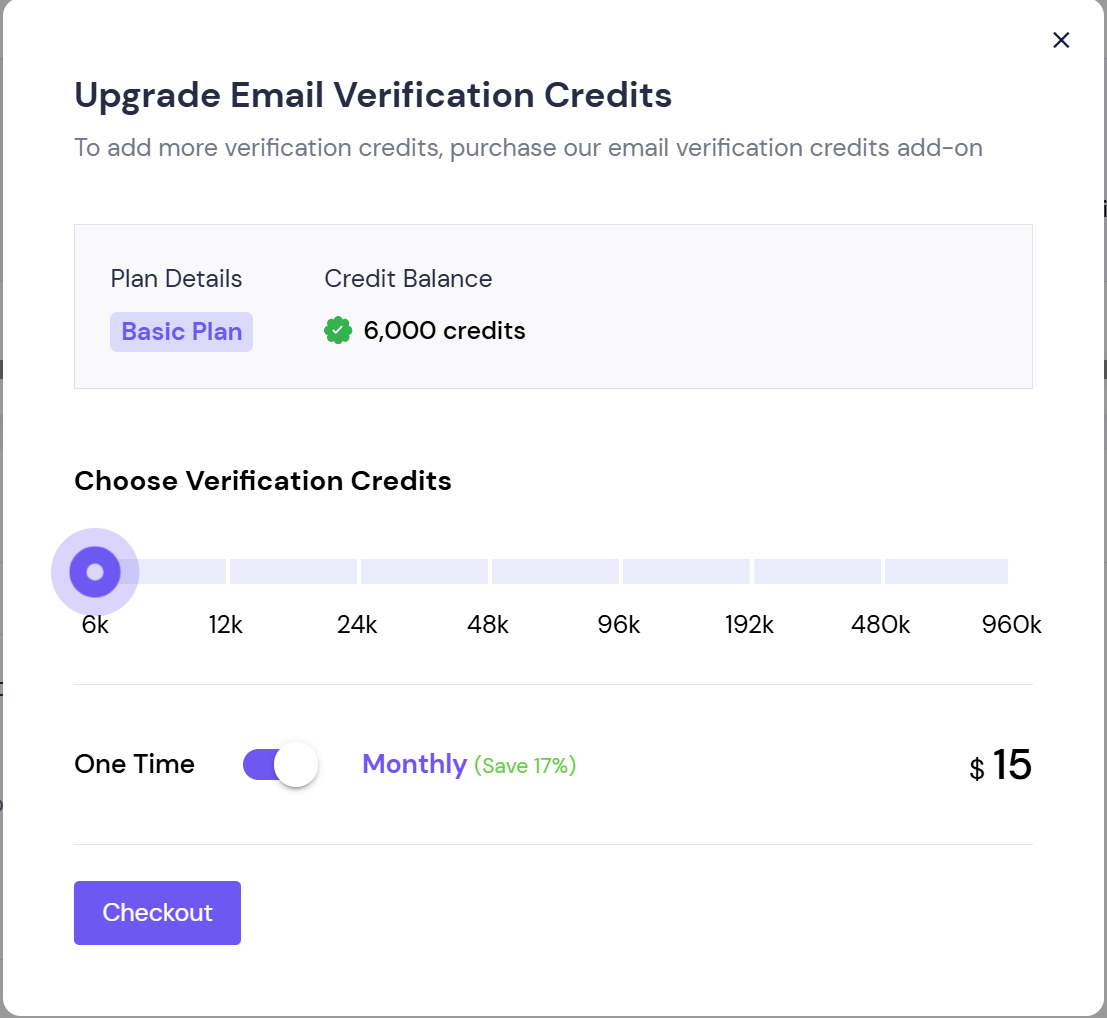
Click Upgrade, choose your verification credits, then click Checkout.
The new credits are added to your balance.
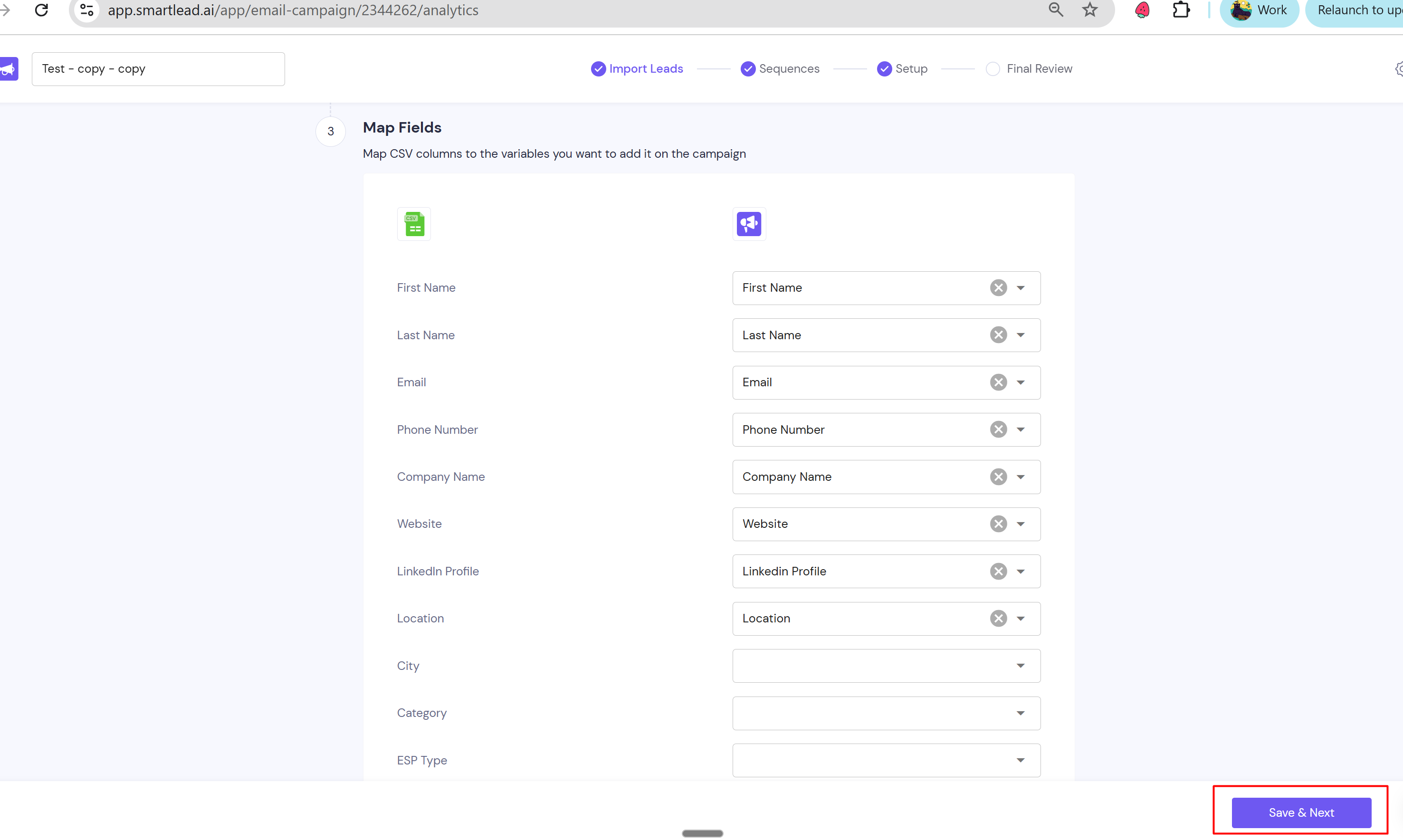
Open the campaign you want to add leads to, or create a new one.
Upload your CSV file and map the fields.
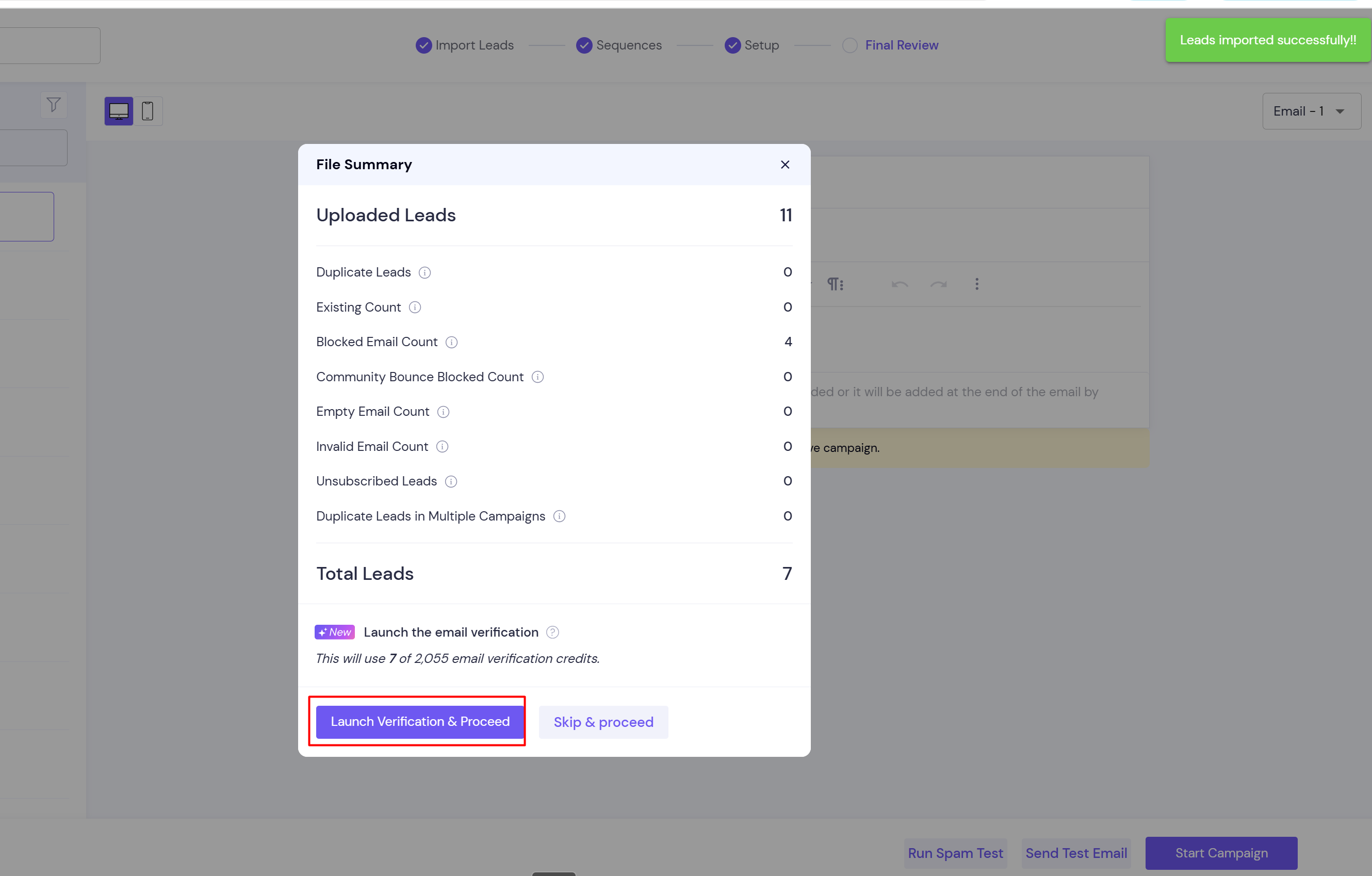
On the upload summary, click Launch Verification. In the older campaign screen, the button is Launch Verification & Proceed.
To add the leads without verifying them, click Skip & Proceed instead.
Wait for verification to finish.
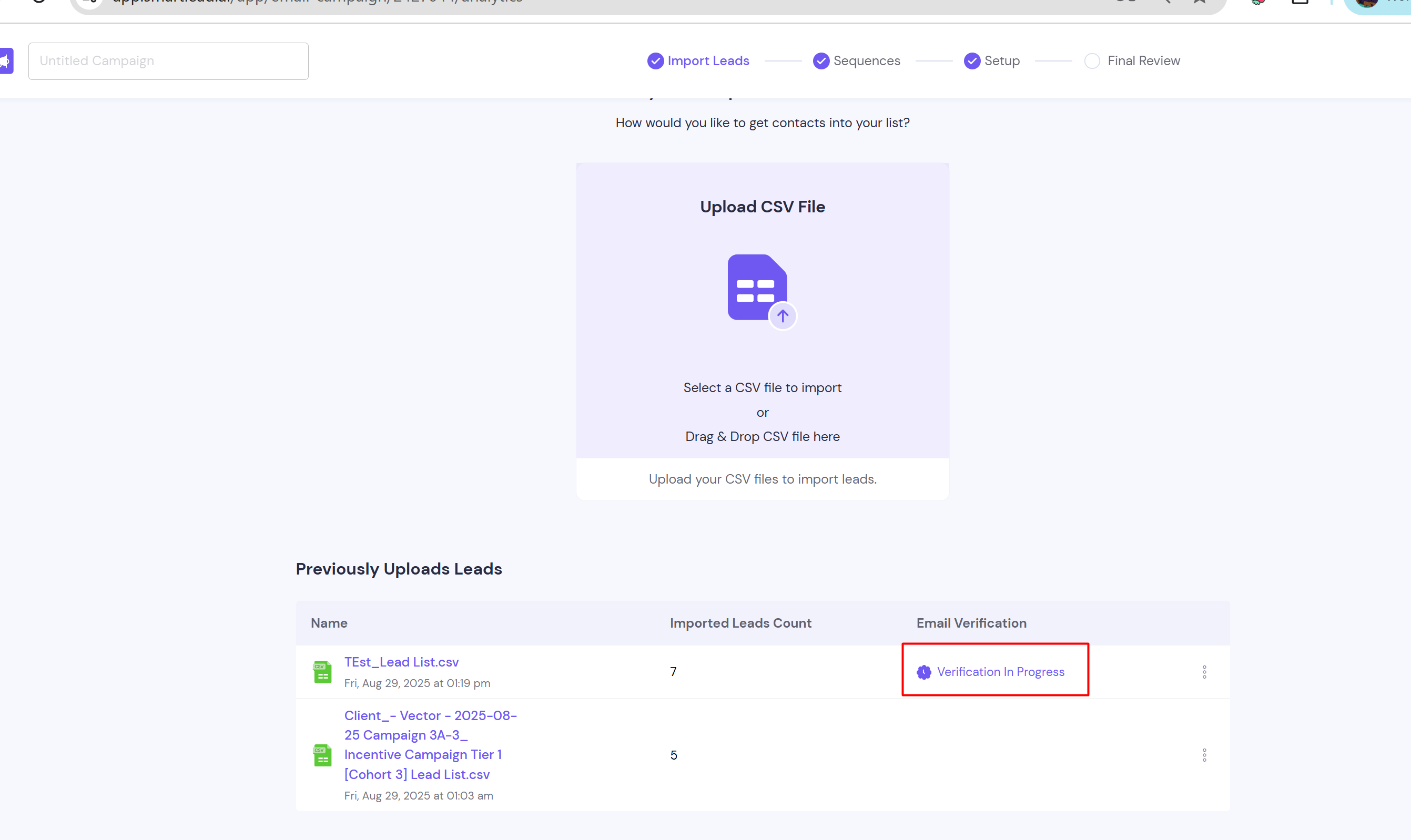
Review the results. Valid and catch-all leads stay in the campaign. Invalid and risky leads are removed.
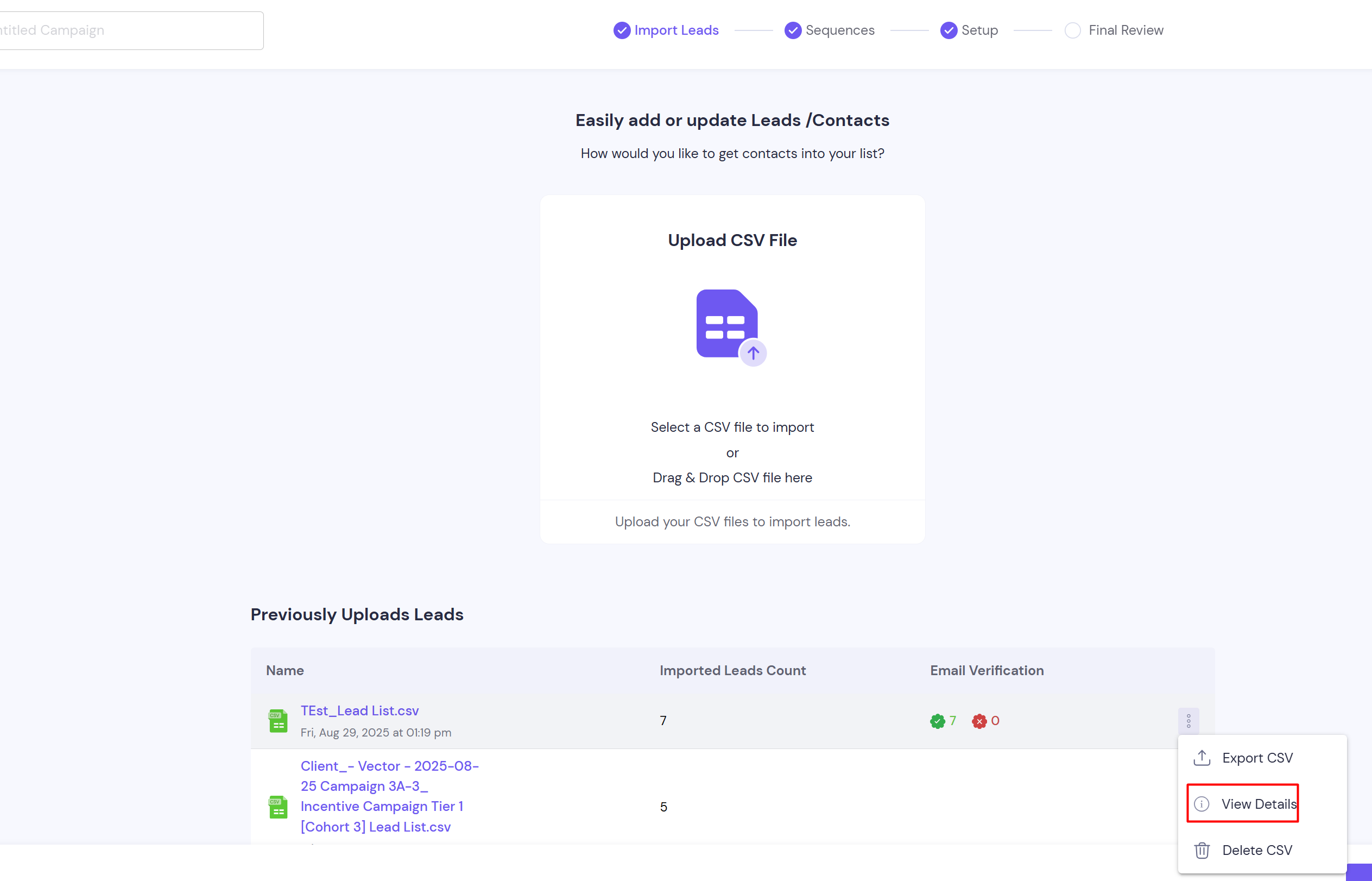
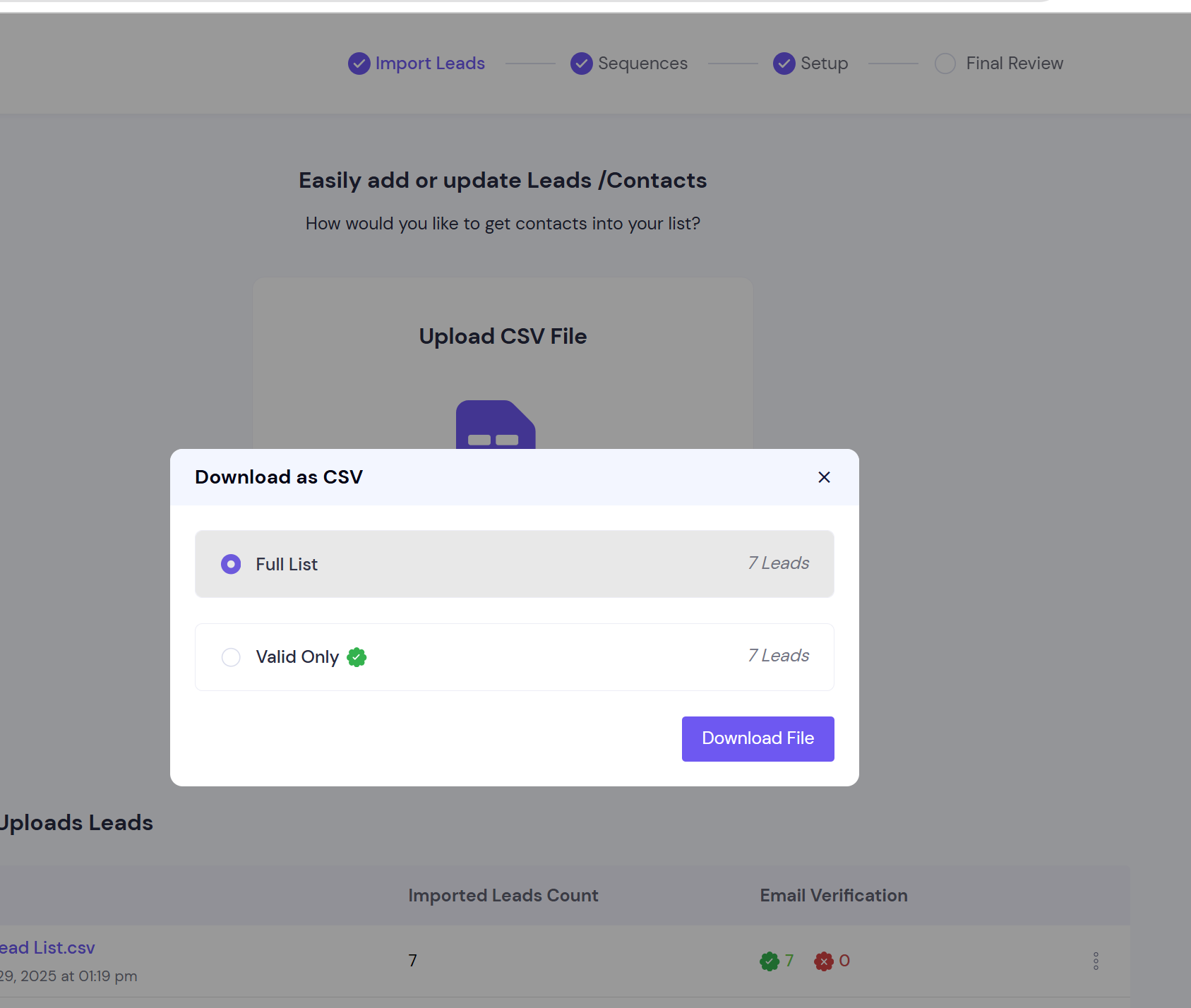
You can now launch the campaign or keep editing it.
Credits are charged up front. Each lead in the upload uses one credit when verification starts, whatever the result.
If you don't have enough credits for the whole upload, verification doesn't start. You see Not enough credits available!.
The Launch Verification button only shows when you have verification credits.
Verifying the same leads again uses credits again.
Credits are not refunded for invalid or risky results.
Catch-all addresses can still bounce. Their domain accepts all mail, so no checker can confirm the mailbox exists.
Current credit prices are shown on the Subscription page.
You see "Not enough credits available!" Your balance is lower than the number of leads in the upload. Buy more credits in Step 1, then upload and verify again. Or split the file into smaller uploads.
There is no Launch Verification button. You have no verification credits left. Buy credits in Step 1.
Still stuck? Contact support from the chat in your Smartlead dashboard. Include the campaign ID and the number of leads you uploaded.
