You connect an Outlook or Microsoft 365 mailbox by signing in to Microsoft from Smartlead. Smartlead connects exactly the mailbox you sign in with.
One sign-in connects one mailbox. There is no bulk upload for Outlook accounts. Repeat these steps for each mailbox.
Know the email address and password of the mailbox you want to connect.
If your organisation only allows admin-approved apps, your Microsoft 365 admin must approve Smartlead first.
Go to Email Accounts and click Add.

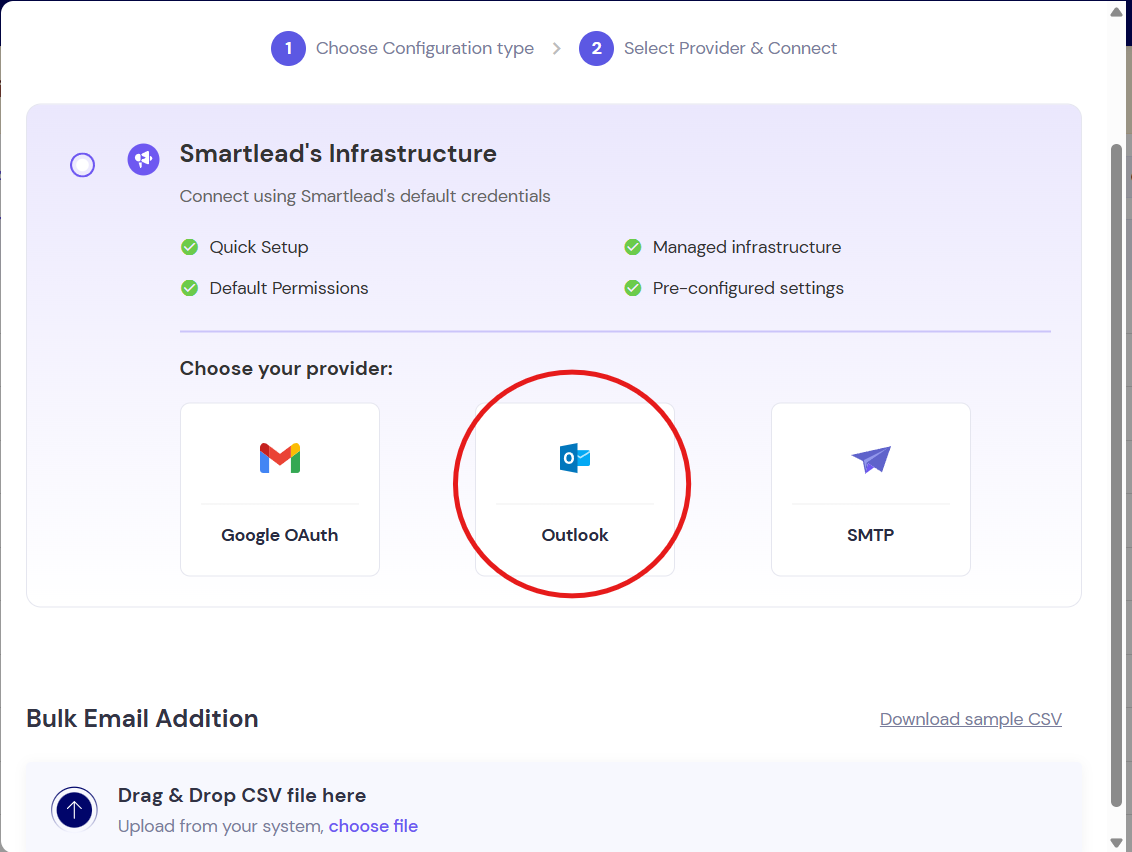
Under Smartlead's Infrastructure, choose Outlook.
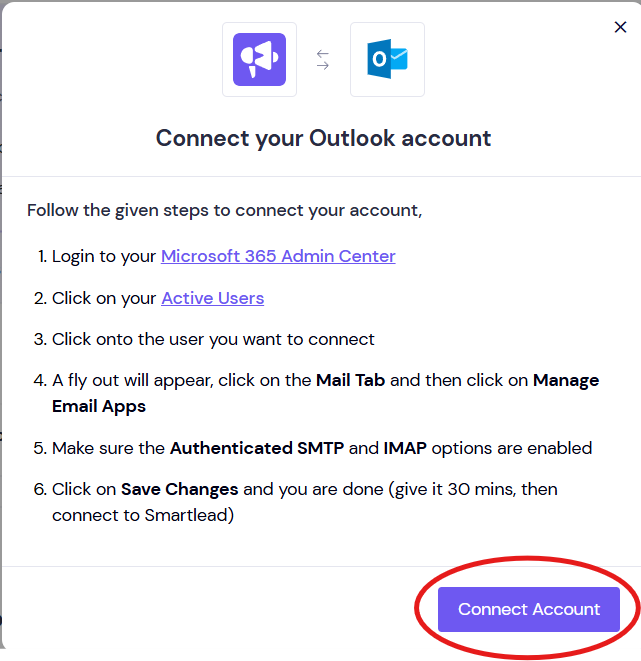
Click Connect Account.
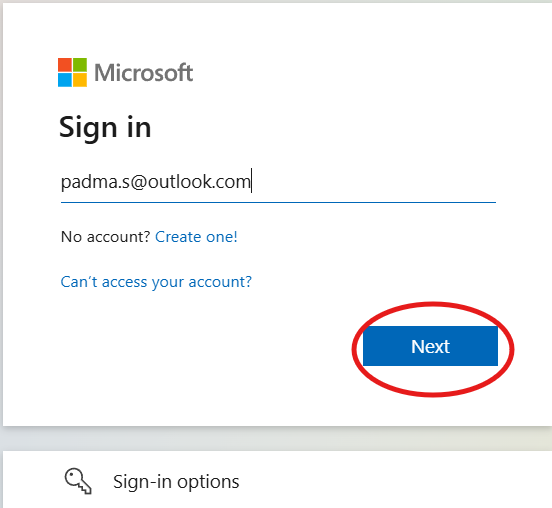
Enter the mailbox's email address, then its password, and sign in.

When Microsoft asks for permission for Smartlead, click Accept.

You return to Smartlead and the mailbox appears in Email Accounts, ready to set up.

An admin signing in connects only the admin's own mailbox. Each user must sign in as themselves to connect their mailbox.
Microsoft shows "Need admin approval". Your tenant only allows admin-approved apps. Your Microsoft 365 admin must approve the Smartlead app for the organisation. Then sign in again. Smartlead can't skip this screen.
Smartlead says the mailbox is already associated to another user. That address is already connected to another Smartlead account.
Still stuck? Contact support from the chat in your Smartlead dashboard. Include the mailbox address and a screenshot of the error.
