A lead says they replied, but the reply isn't in your Master Inbox. Usually the reply is delayed by your plan's sync cycle, sits in Untracked Replies, or is in a folder Smartlead doesn't read.
Work through the causes below in order.
Real-time reply sync is part of the Pro plan and above. On Trial, Base and Popular plans, Smartlead checks your mailboxes on a regular cycle. A reply can take up to one to two hours to appear.
Wait up to two hours, then check again.
For instant reply sync, the account owner can upgrade in Settings → Subscription.
Follow-ups are still safe while you wait. Smartlead checks the mailbox for a reply right before it sends each follow-up.
These replies don't match a Smartlead email, so they go to Untracked Replies instead of the campaign thread.
In Master Inbox, click Untracked Replies in the left menu.
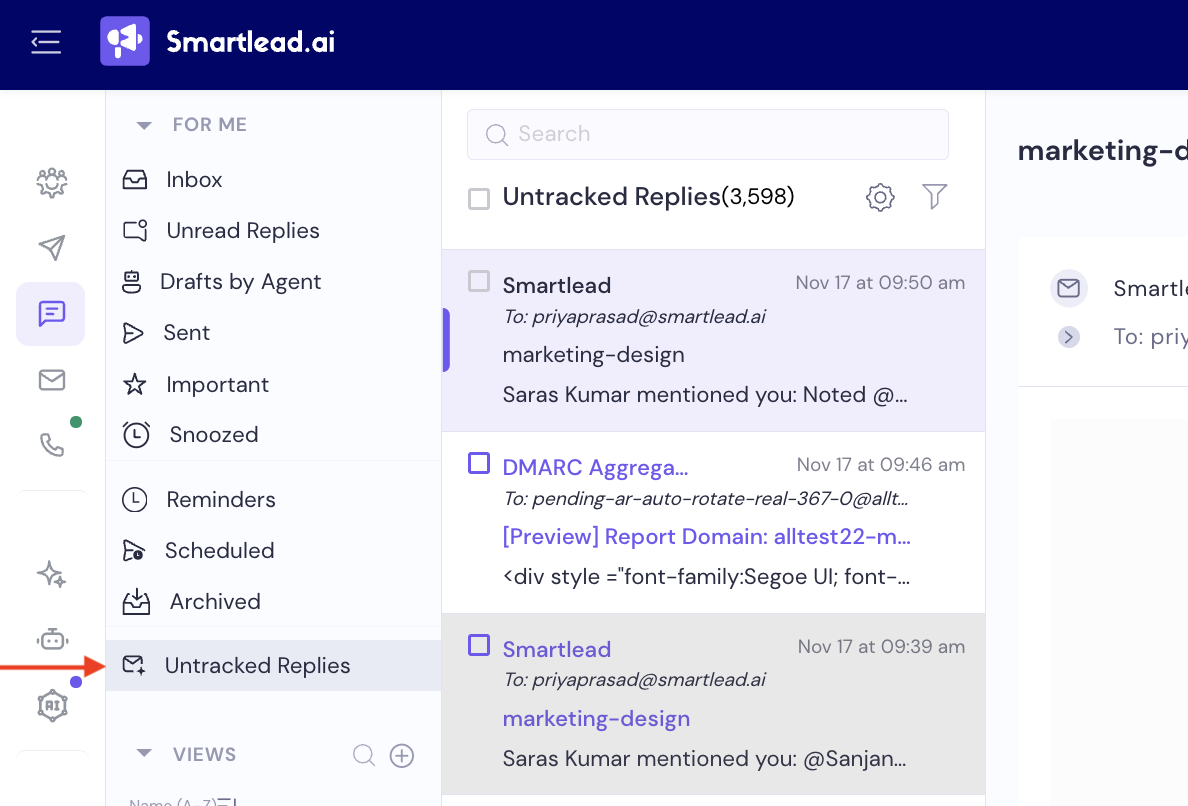
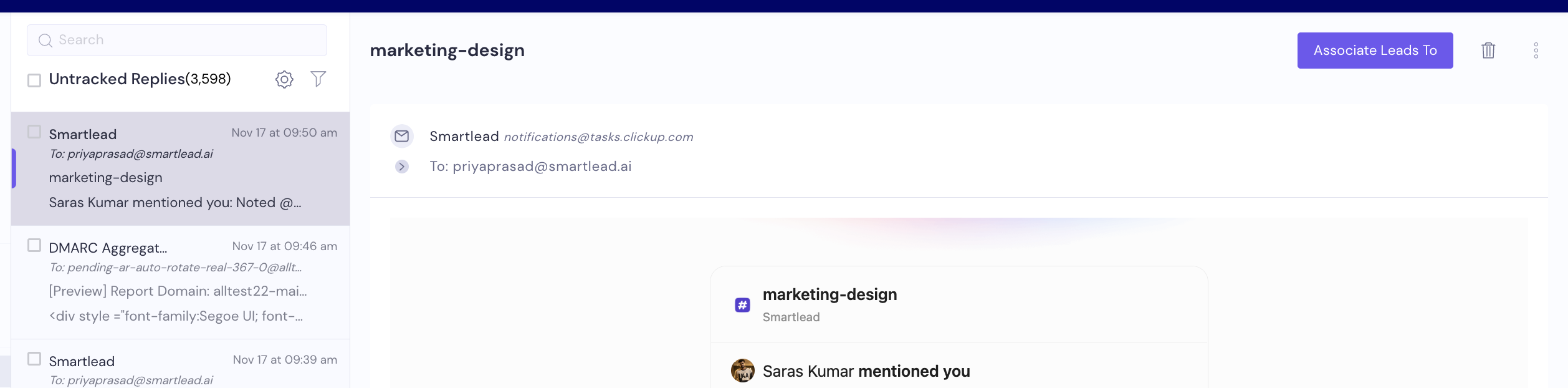
Open the reply and click Associate Leads To.
In the Associate lead To window, choose Recommended campaigns which matches this lead & reply, or choose Assign lead reply to a Campaign Manually and search for the campaign.
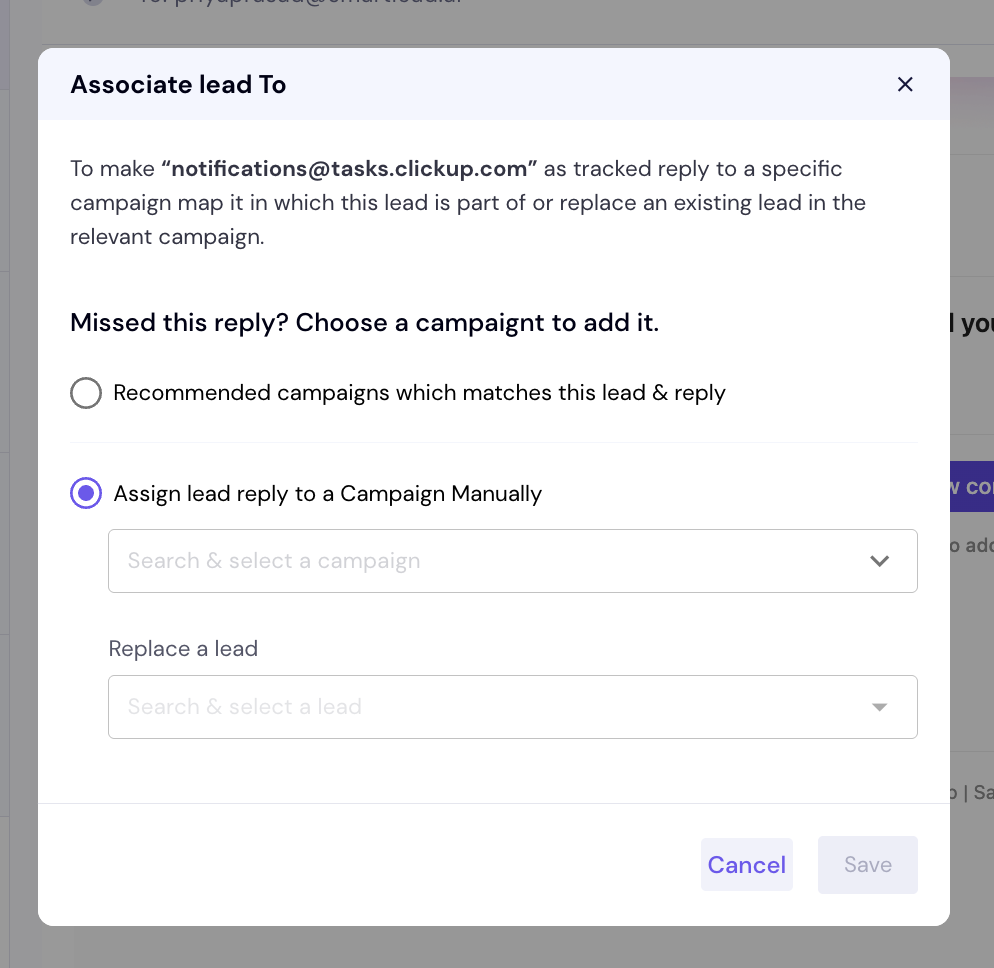
If the sender isn't a lead in that campaign, pick the lead it should replace under Replace a lead.
Click Save.
The reply then counts as a tracked reply in that campaign.
Untracked Replies has a few limits:
It's available on the Pro plan and above.
Client logins can't see it. The agency owner's login can.
It only collects mail addressed To your mailbox, not mail where you're only in CC or BCC.
The tab shows the last 7 days.
Senders you blocked in Untracked Replies are not collected. To unblock one, click the gear icon in Untracked Replies, open Blocked Email Address or Blocked Domains, select the entry and click Delete.
Smartlead reads replies from:
Gmail: Inbox and Spam
Outlook: Inbox and Junk
Other SMTP/IMAP mailboxes: Inbox only
If a mail rule moved the reply to another folder, or your mail host put it in junk, Smartlead doesn't see it.
Move the reply back to the inbox in your mail client.
Change the mail rule so future replies stay in the inbox.
The reply is picked up on the next check.
Smartlead stops fetching replies when a subscription or trial has ended. Fetching starts again once the plan is paid.

Still stuck? Contact support from the chat in your Smartlead dashboard. Include the campaign ID, the mailbox that received the reply, the sender's address and the time the reply arrived.
