
When a mailbox in a campaign disconnects, the leads it was emailing stop getting follow-ups. Smartlead doesn't move them to another mailbox on its own.
Follow-ups always come from the mailbox that sent the first email. This keeps each conversation in one thread. So those leads wait until you reconnect the mailbox or move them to another one.
Common causes and fixes
The mailbox lost its connection
A disconnected mailbox shows an Attention Required tab when you open it.


If you still have access to the mailbox, reconnect it:
Open the mailbox and go to its Attention Required tab.
For a Google or Microsoft mailbox, click Reactivate Account. If the sign-in window doesn't open, click it again.
For a password-based (SMTP) mailbox, click Update Password, or Reconnect Account, and save.
The leads' follow-ups continue from the same mailbox once it's connected again.
To reconnect many mailboxes at once, go to Sender Accounts and click the gear icon. In the Advanced Settings window, next to Bulk (Re)connect email accounts, click (Re)connect Emails. It runs in the background.
You can't reconnect the mailbox, or you removed it
Move its leads to the other mailboxes in the campaign:
Open the campaign.
At the top right, click the More actions menu (⋮).
Click Reallocate Mailboxes.
In the Reallocate Mailboxes dialog, click OK.
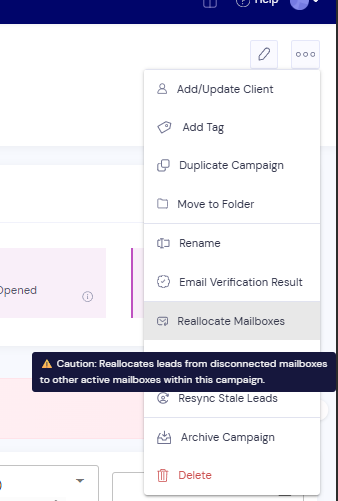
Smartlead moves leads from disconnected mailboxes to the active mailboxes in this campaign. Their next follow-ups come from the new mailbox.
Reallocation shows an error
Mailbox not found: the campaign has no mailboxes. Add at least one connected mailbox to the campaign, then try again.
No disconnected leads found: no leads are waiting on a disconnected mailbox in this campaign. Nothing needs to move.
Still stuck? Contact support from the chat in your Smartlead dashboard. Include the campaign ID, the mailbox address and the exact error text.