
When a campaign email fails to send, Smartlead marks that send as failed. Reschedule Failed Leads moves all of a campaign's failed leads to other active mailboxes in that campaign, so they can be sent again.
It works on the whole campaign at once. You can't pick single leads.
Before you start
The campaign needs at least one mailbox. Ideally add more than one, so failed leads can move to a working mailbox.
Fix or reconnect the mailbox that failed, if you can.
Step 1: Reschedule the failed leads
Open the campaign.
At the top right, click the More actions menu (⋮).
Click Reschedule Failed Leads.
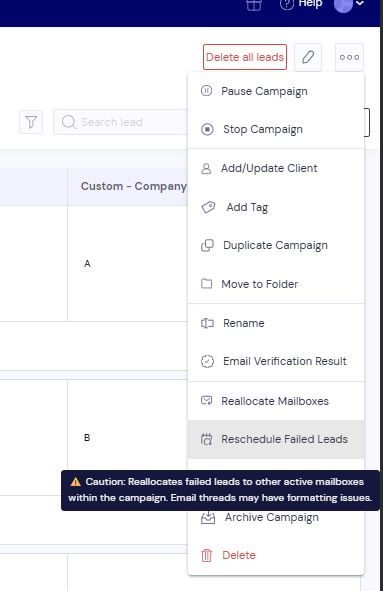
Read the warning and click OK to continue.
You'll see the message Failed leads re-scheduled and mailboxes re-allocation process started. Smartlead then moves the failed leads to other active mailboxes in the campaign.
Good to know
Only failed leads are rescheduled. Leads that are paused or stopped are not changed.
Email threads may look different. The dialog warns that rescheduled email threads may have formatting issues, because the next emails come from a different mailbox.
Disconnected mailboxes need a different action. To move leads off a mailbox that was disconnected or removed, use Reallocate Mailboxes in the same menu.
If something goes wrong
The message says "No failed leads found"
The campaign has no leads with a failed send. Paused or stopped leads don't count.
The message says "Mailbox not found"
The campaign has no mailboxes. Add at least one mailbox to the campaign, then try again.
Still stuck? Contact support from the chat in your Smartlead dashboard. Include the campaign ID.