You can connect a Gmail or Google Workspace mailbox to Smartlead with SMTP and IMAP. You sign in with a Google app password, not your normal Gmail password.
Use this when you can't or don't want to connect with Google OAuth.
You need 2-Step Verification turned on in your Google account. Google only lets you create an app password once it is on.
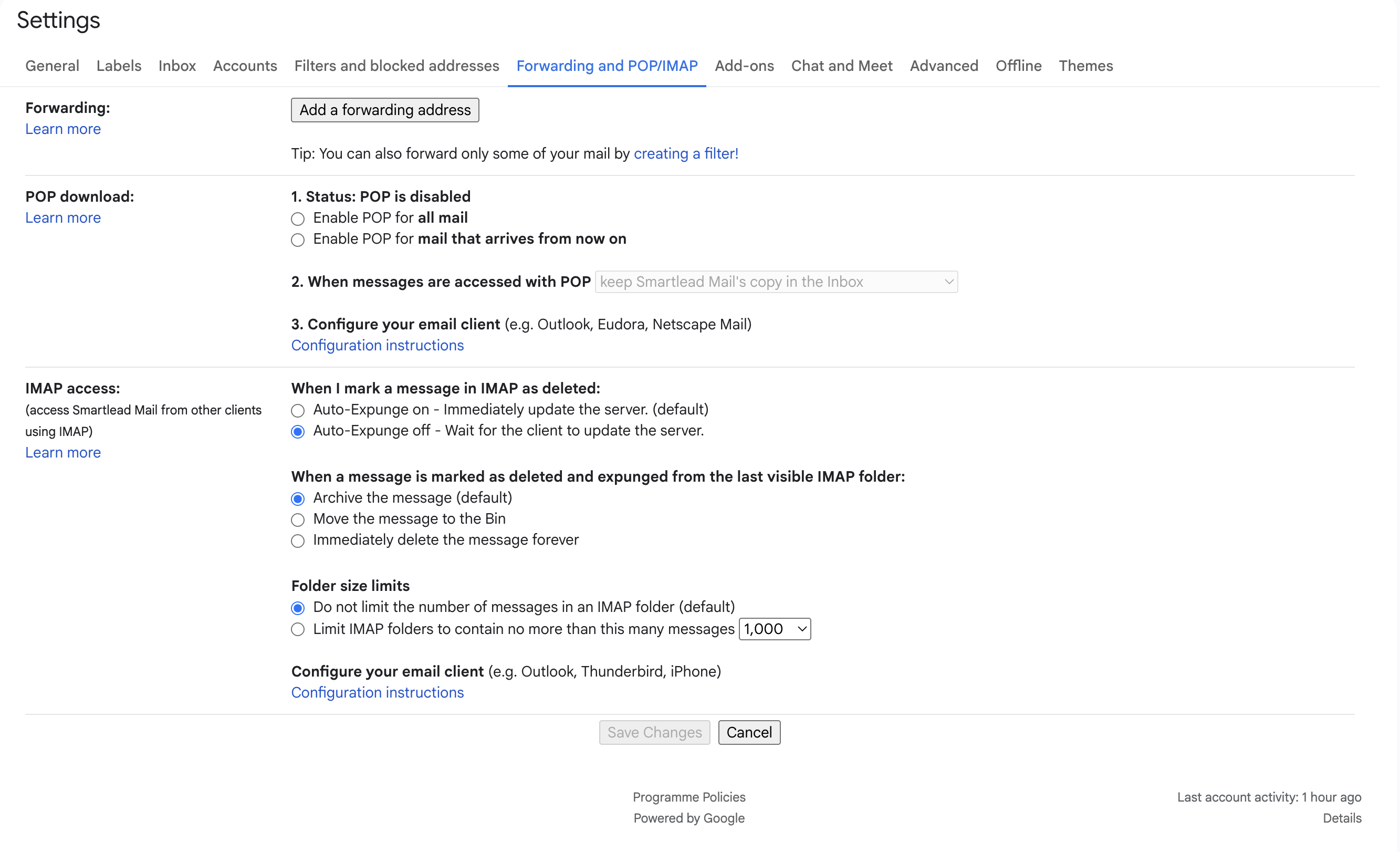
On a Google Workspace account, your admin may have turned IMAP off. Ask them to check Apps → Google Workspace → Gmail → End User Access at admin.google.com, and turn on IMAP Access.
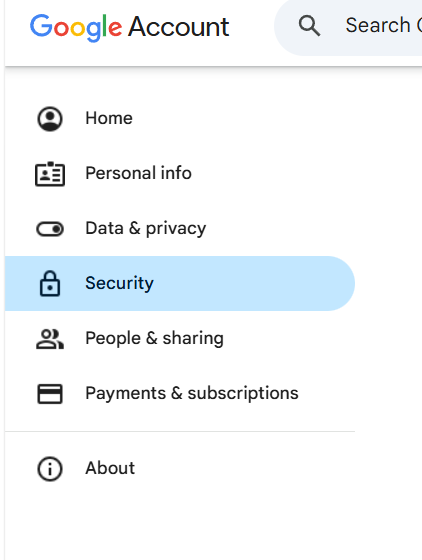
Open your Google account at myaccount.google.com.
Click Security in the left menu.
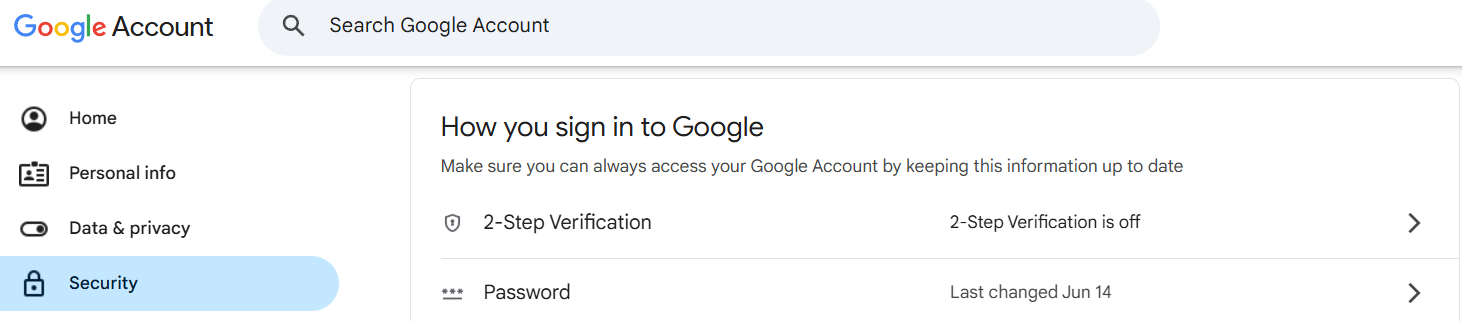
Under How you sign in to Google, click 2-Step Verification.
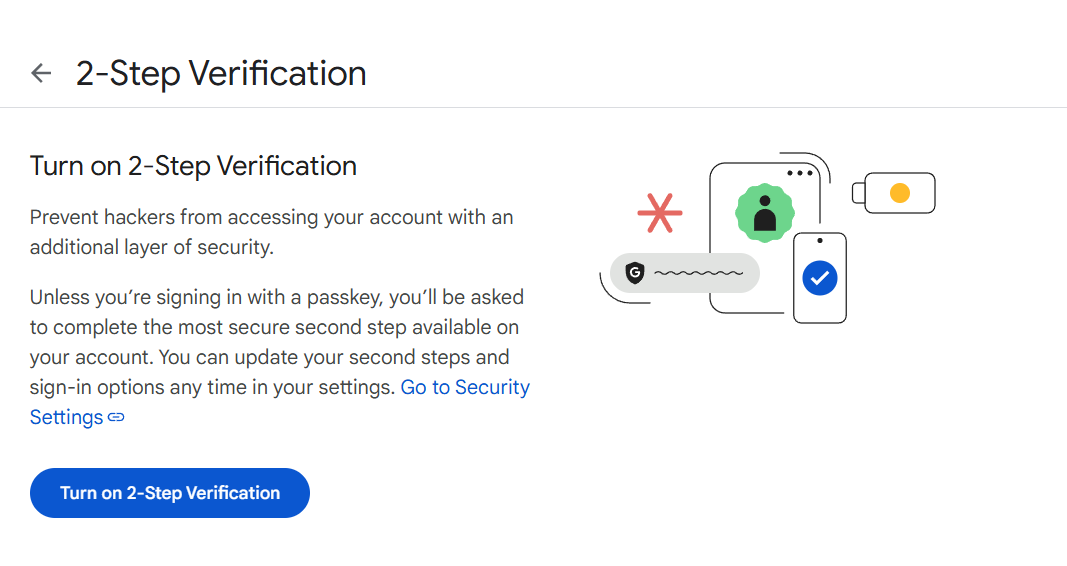
If it is off, click Turn on 2-Step Verification.
Enter your Google password, then add and verify your phone number.
Click Turn On.
You see a checkmark next to 2-Step Verification on the Security tab.

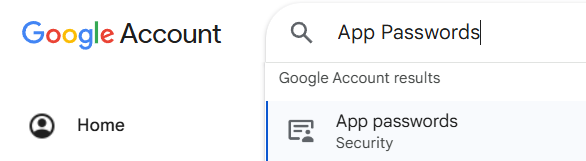
Go to myaccount.google.com/apppasswords. You can also search for App passwords in your Google account.
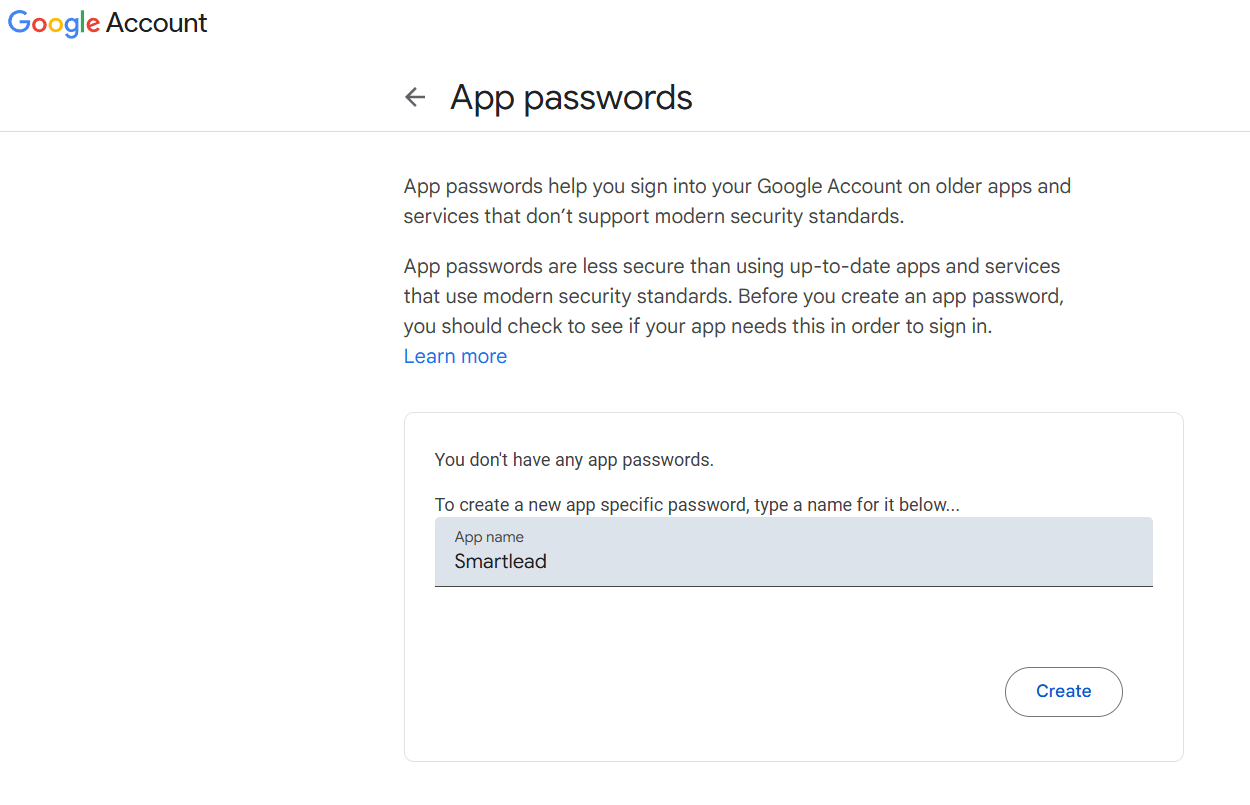
In App name, enter a name such as Smartlead.
Click Create.
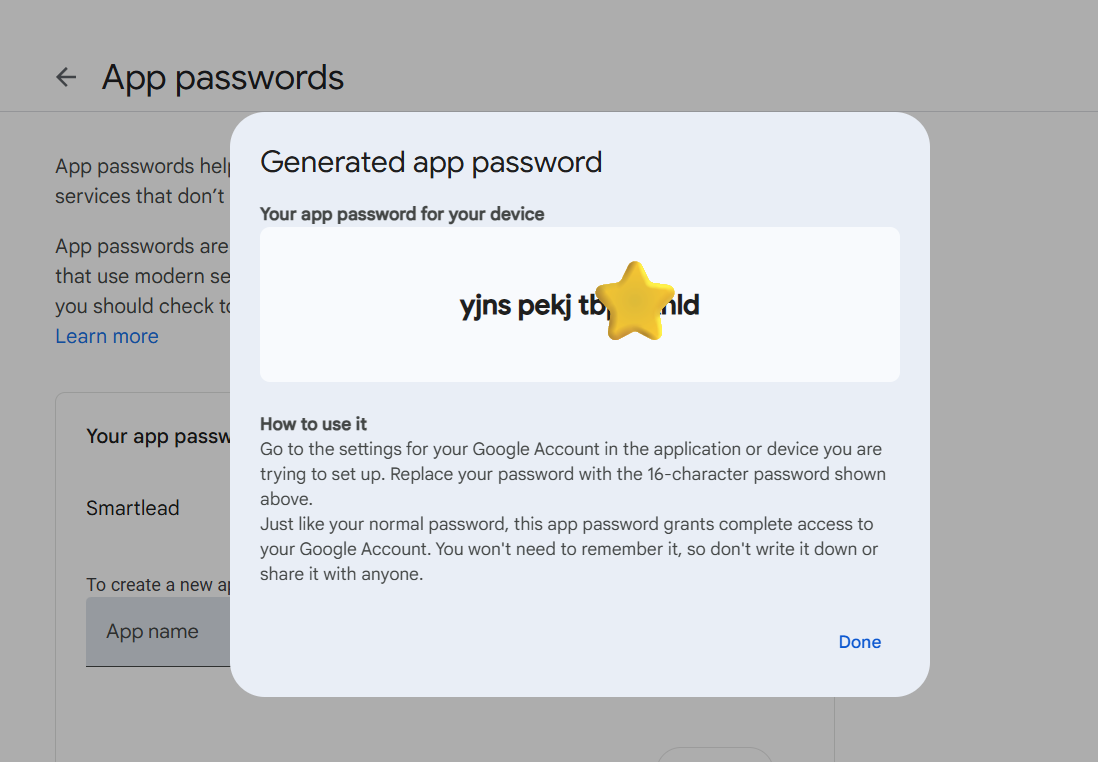
Copy the 16-character password. Google shows it only once.
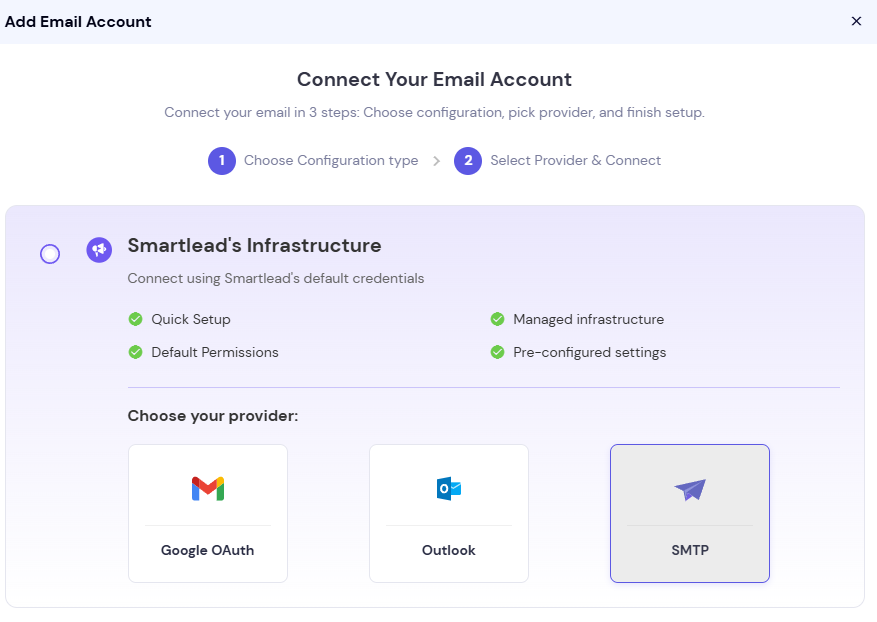
In Smartlead, go to Sender Accounts.
Click Add (or Connect Mailbox if you have no mailboxes yet).

Choose Smartlead's Infrastructure → SMTP.
Enter your Gmail address and the app password from Step 2.
Enter Google's server settings:
SMTP Host: smtp.gmail.com, SMTP Port: 465, SSL on
IMAP Host: imap.gmail.com, IMAP Port: 993, SSL on
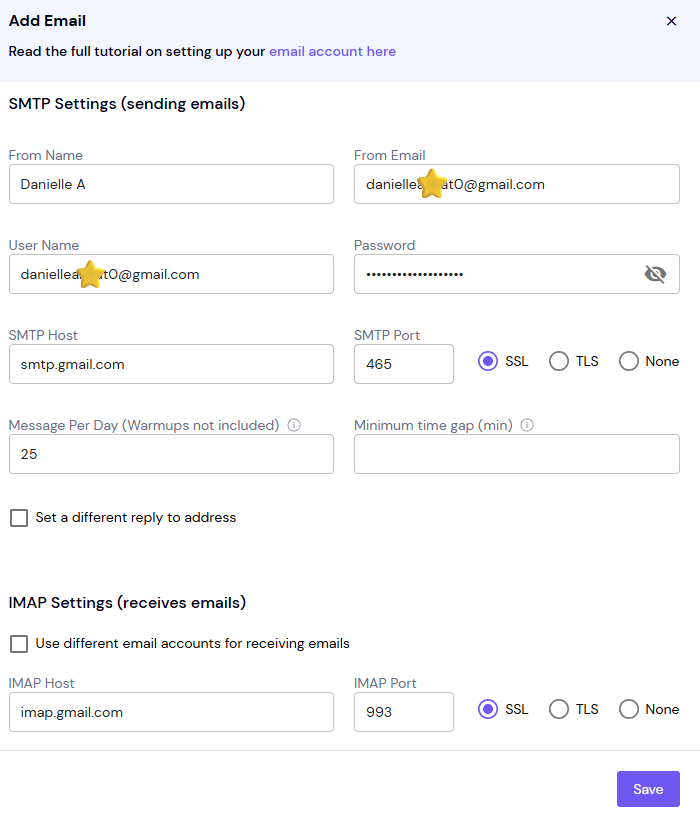
Click Verify Email Account, then Save.
Smartlead signs in to SMTP and IMAP with these details. The mailbox is added only if both logins work.
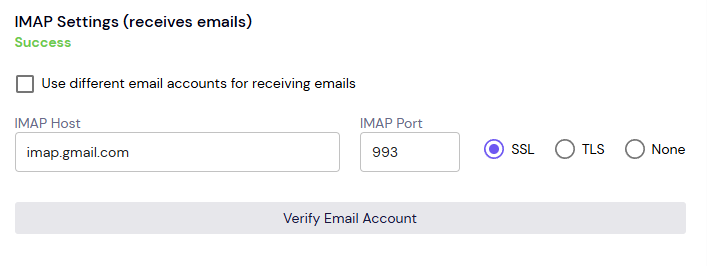
Saving checks the login again. Each time you save the mailbox's settings, Smartlead tests the SMTP and IMAP login.
Prefer not to use an app password? Connect with Google sign-in instead. See the Google OAuth article below.
You entered your normal Gmail password. Turn on 2-Step Verification, create an app password, and use that instead.
Still stuck? Contact support from the chat in your Smartlead dashboard.
