If your lead quota is full or you simply want to clean up old data, Smartlead offers flexible options to remove leads and free up lead credits. Whether you're looking to clear out a single campaign or clean up based on lead status, this guide covers all available methods without affecting your account setup unnecessarily.
If you no longer need the campaign and want to remove all leads in one go:
Steps:
Go to Campaigns (Engage » Campaigns)
Locate the campaign you want to delete
Click the three-dot menu on the right
Select Delete
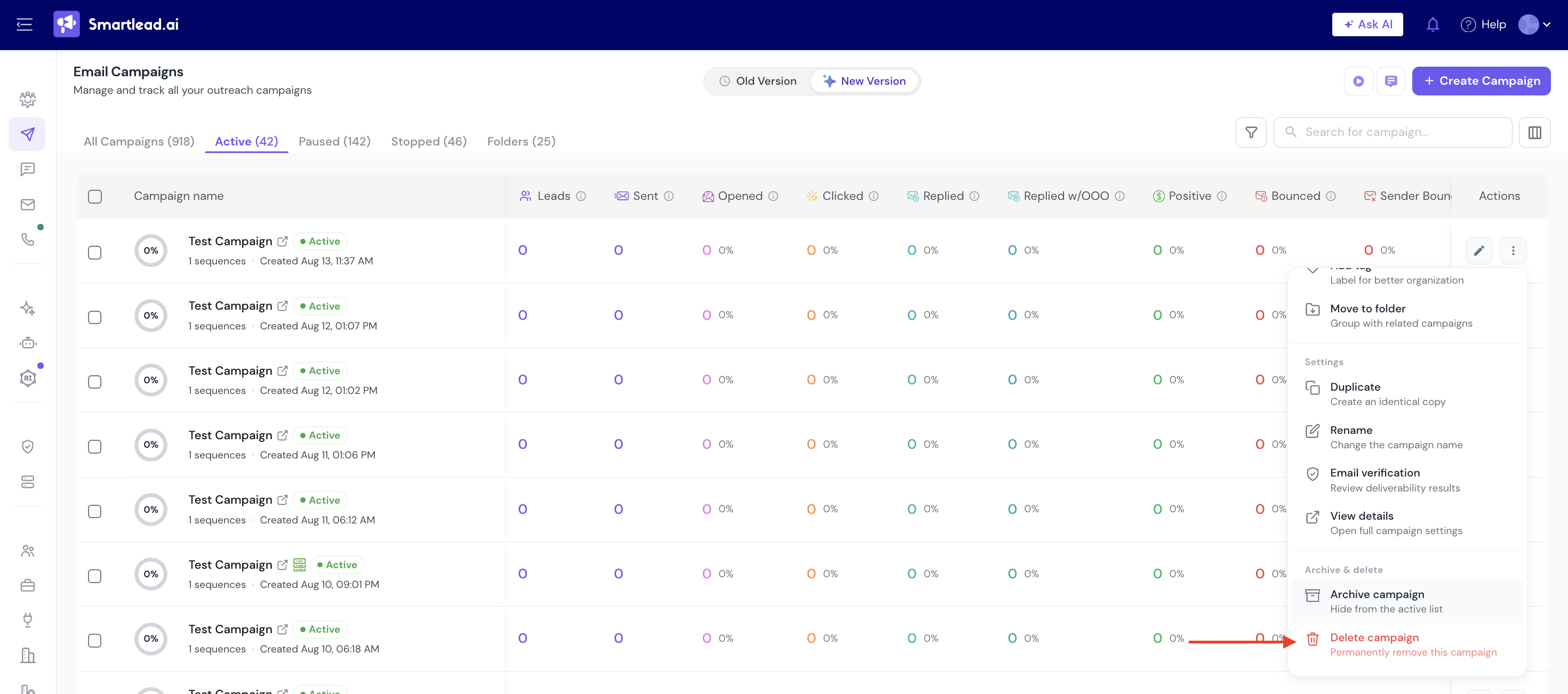
⚠ Deleting a campaign will also delete all associated leads and data.
If you want to keep the campaign but remove all its leads:
Go to Engage » Campaigns > Leads.
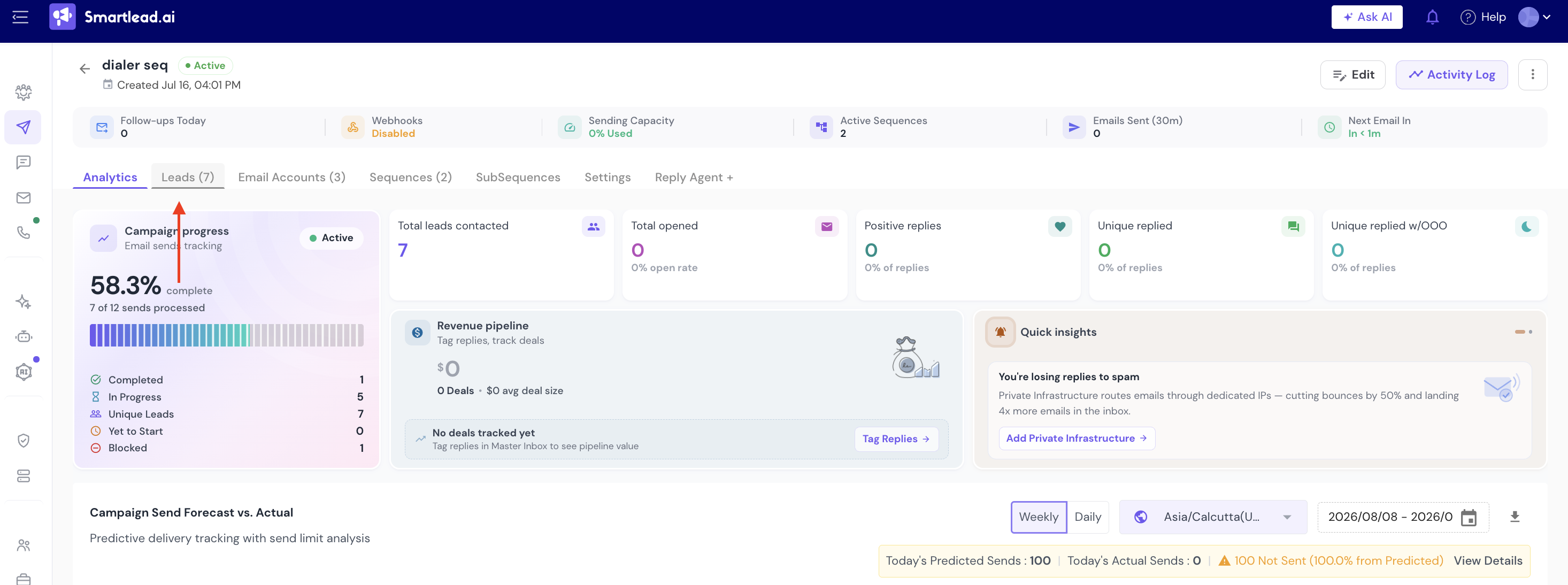
From here, you can either select individual leads, or number of leads you want to delete.
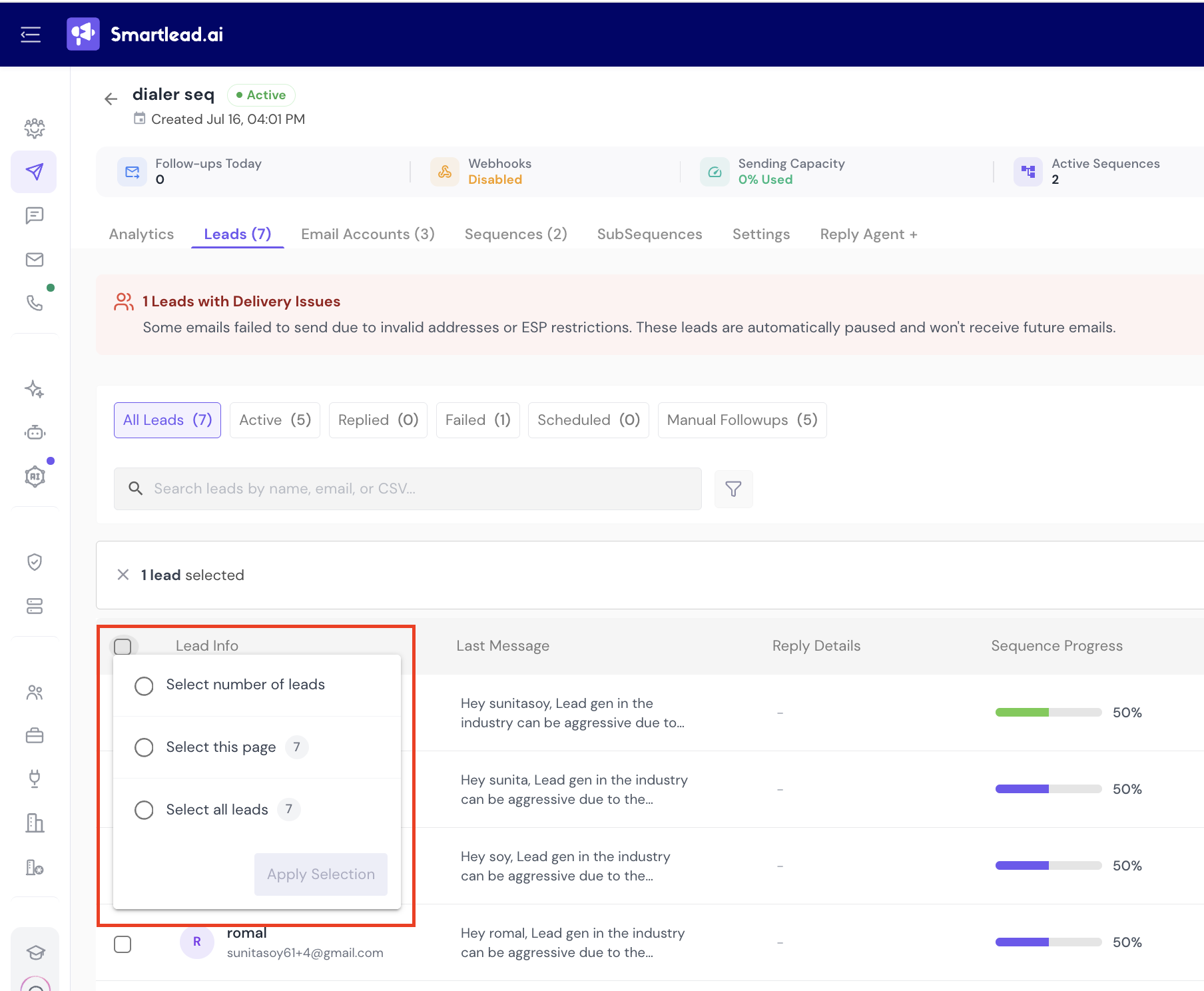
Click on Apply Selection.
And then click on Delete Selected Leads Button.
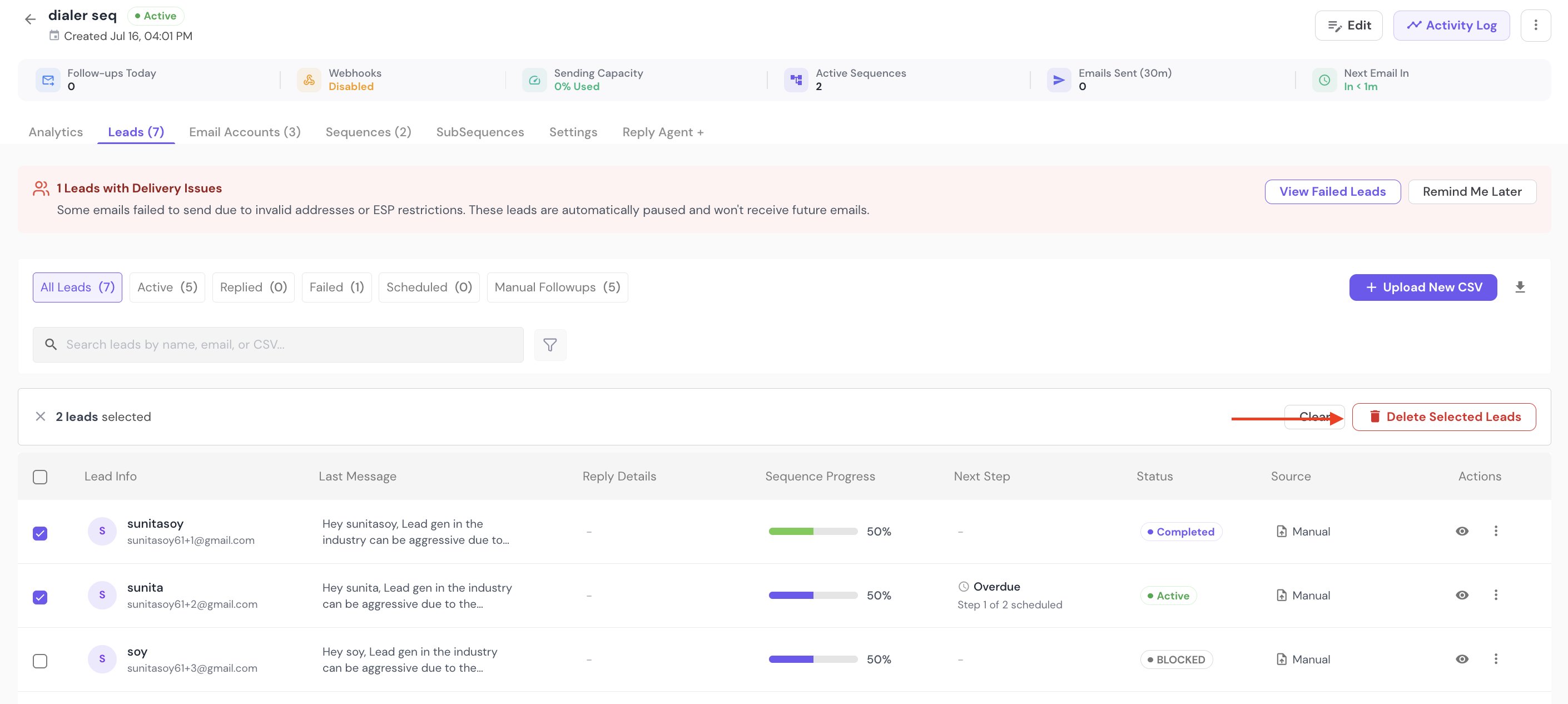
This keeps the structure and content of your campaign intact, but removes all the leads from it.
You can also filter and delete leads based on specific criteria:
From the same page, click on Filters icon.
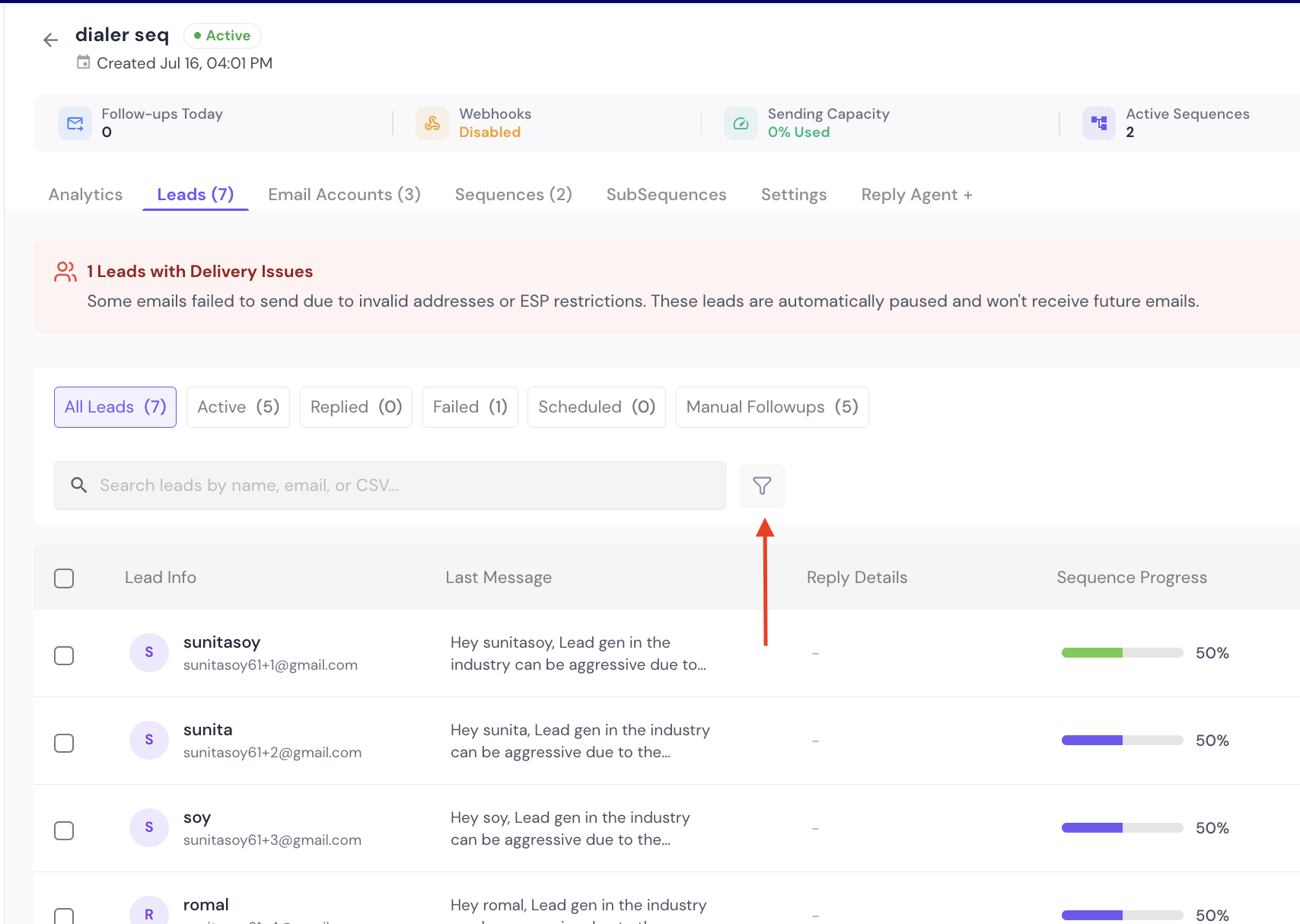
Apply the filters relevant to your use case.
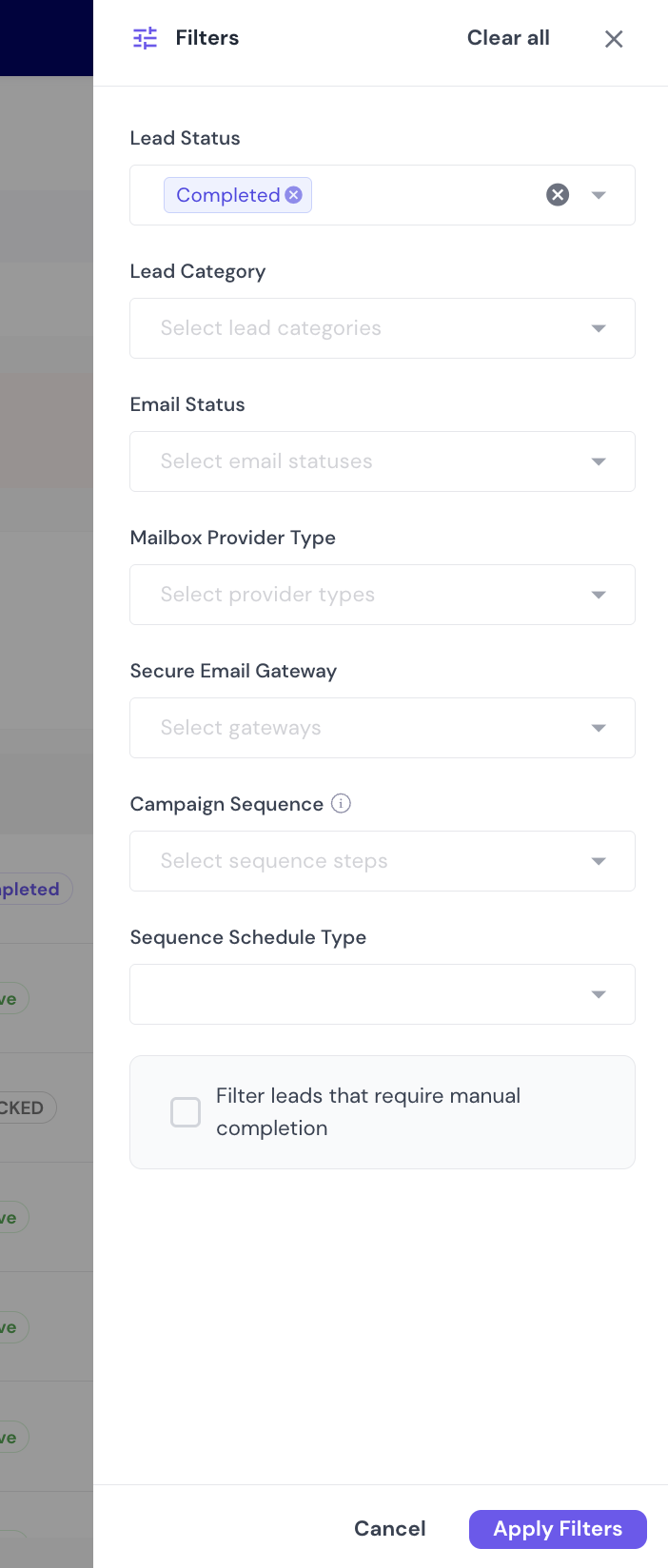
you can Use filters like:
Lead Status (e.g., Bounced, Failed, Replied)
Email Status
Any custom filters
Click on Apply Filters and then Delete Selected Leads
✅ Useful for removing unresponsive or bounced leads without deleting the entire list.

Frequently Asked Questions (FAQs)
Q: Will deleting leads reset my lead quota?
Yes, once leads are deleted, the credits are freed up and available for new imports.
Q: Does deleting a campaign delete all associated leads?
Yes. Deleting the campaign will also remove every lead within it.
Q: Can I export leads before deleting them?
Yes. Use the Export Leads feature in either Campaign or All Leads section before deletion.
Q: Can I recover deleted leads?
No. Deletion is permanent. Ensure backups are made if needed.