Lead credits, shown as Contact Storage, count the unique contacts in your campaigns. One email address uses one credit, however many campaigns it is in.
Credits don't reset each month. They free up only when you delete contacts, and a contact frees its credit only when it is in no other campaign.
Deleting can't be undone. Deleted leads and their history can't be recovered, so export anything you need first.
To see how much storage you use, open the avatar menu and check the Contact Storage bar.
Go to Email Campaigns.
On the campaign's row, click the ⋯ menu and choose to delete it.
Confirm in the Delete Campaign dialog.
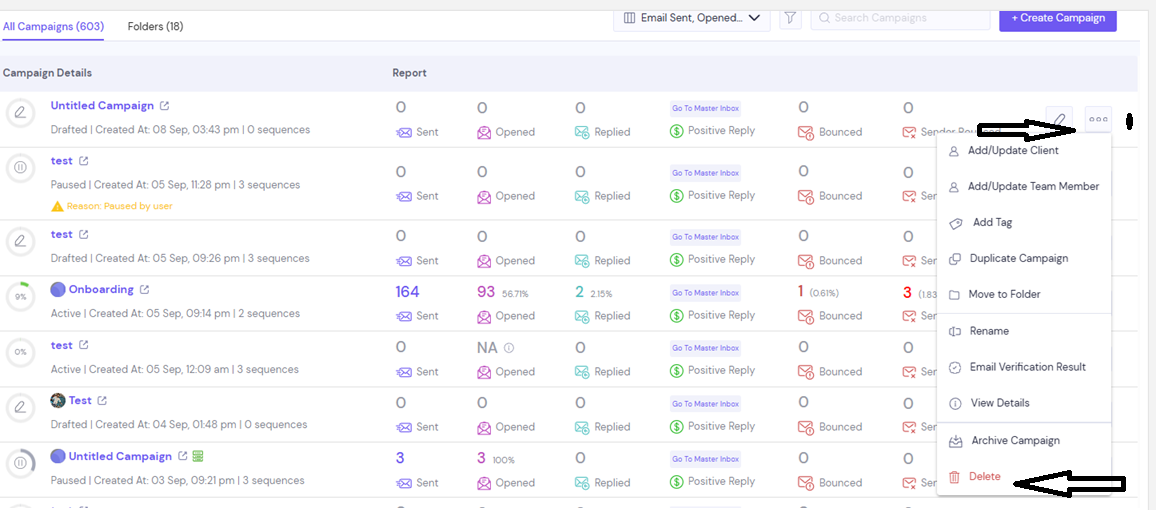
This deletes only the contacts that were in no other campaign. Contacts that are also in another campaign stay in your account and still use credits.
Open the campaign and go to the Lead List tab.
Filter or select the leads you want to remove.
Click Delete Filtered Leads.
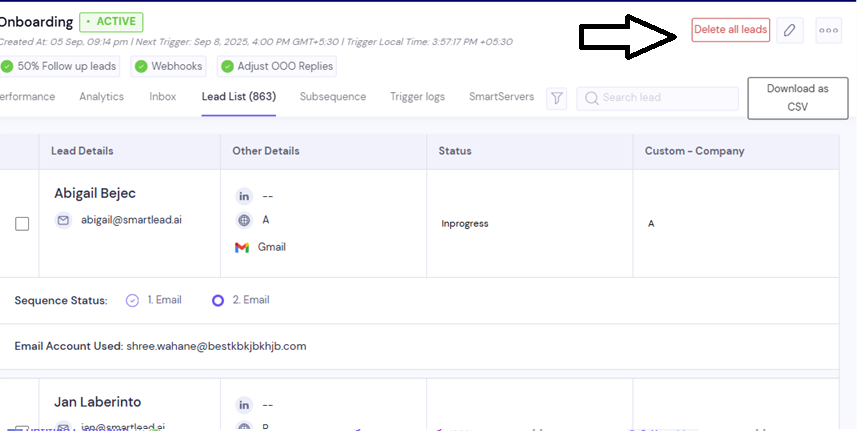
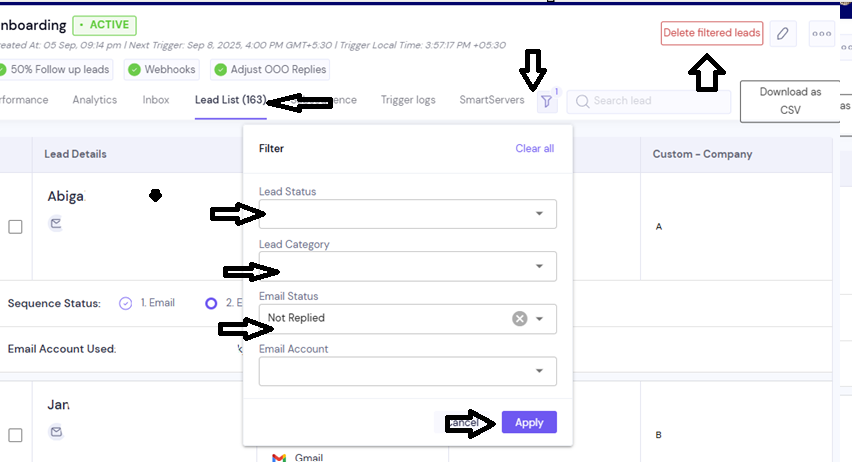
The leads leave this campaign and their unsent emails stop. The campaign's sent statistics stay.
Go to All Leads.
Filter the list to the contacts you want to remove.
Tick the contacts, then click Delete Lead.
Confirm with Delete Leads.
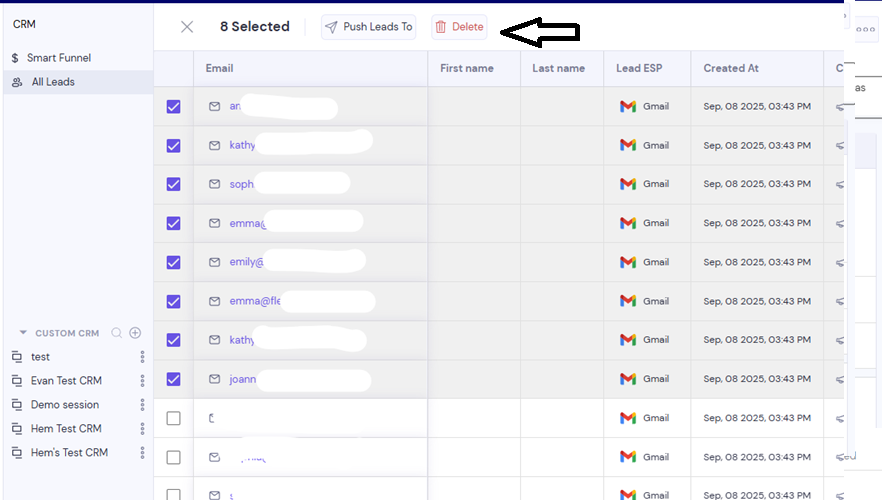
This removes the contacts from every campaign, so their credits free up.
Credits free up as soon as the delete finishes.
A bulk delete you run yourself must be scoped, with a filter, list, campaign or selection, and stay under 50,000 leads.
Credits didn't go down. The contacts are probably still in another campaign. Search for them in All Leads and delete them there.
You see "Support needs to delete your full account for you." or "Support needs to delete 50,000+ leads for you." Contact support and say which leads to delete, and whether your campaigns and block list should stay.
Still stuck? Contact support from the chat in your Smartlead dashboard.