
Duplicating a campaign creates a copy with the same sequence, settings and sender mailboxes. Use it to launch a similar campaign without building it again from scratch.
Leads are not copied. You add new leads to the copy.
Step 1: Duplicate the campaign
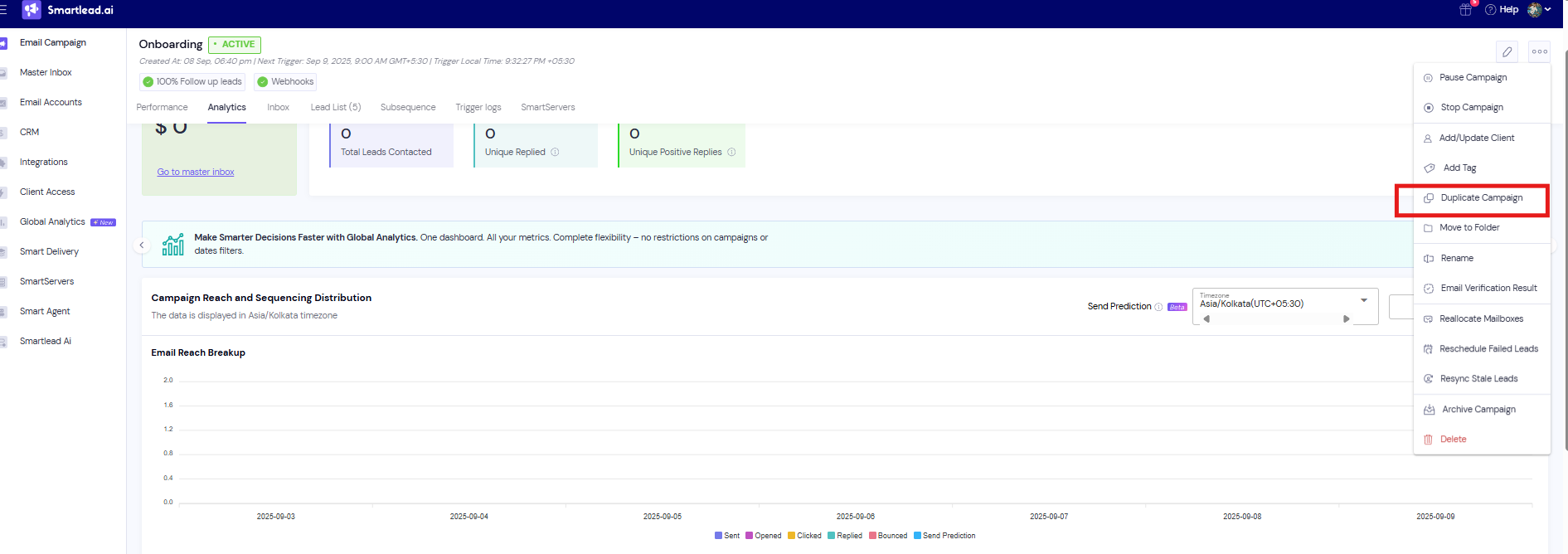
In the left menu, click Email Campaigns.
Find the campaign and click the ⋯ menu on its row.
Click Duplicate Campaign.
Step 2: Choose what to copy
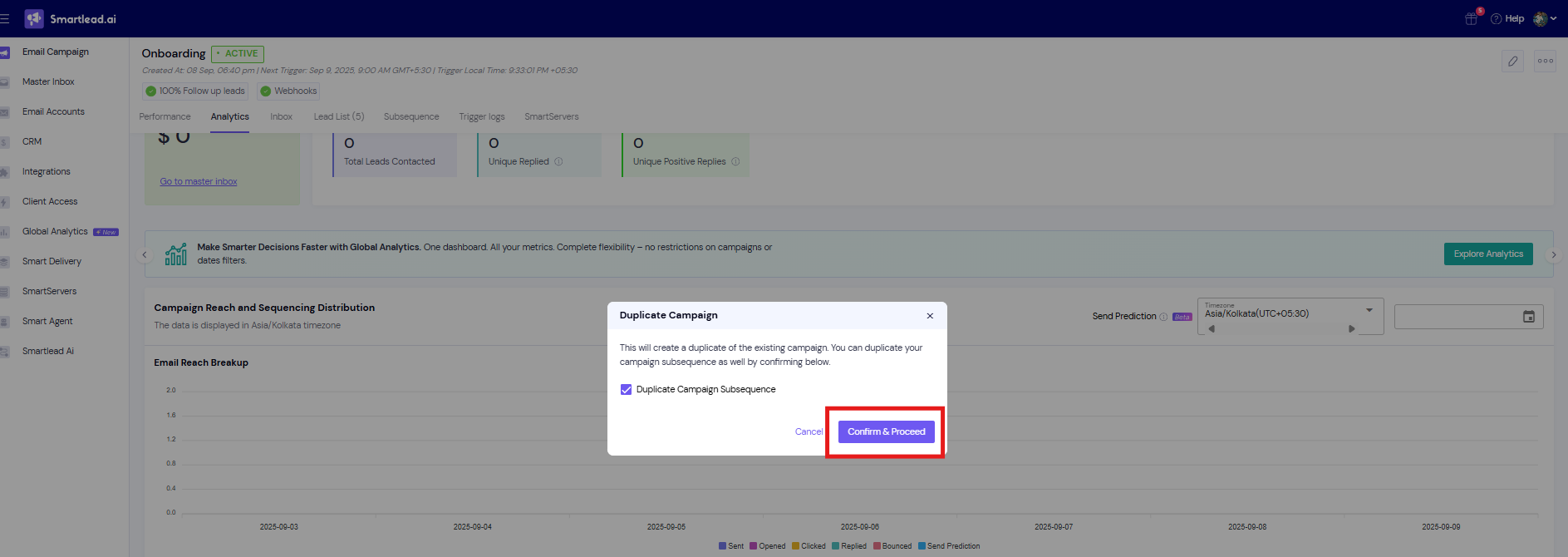
In the Duplicate Campaign window, tick Duplicate Campaign Subsequence if you want the subsequences copied too.
Tick Copy client label to duplicated campaign if the copy should keep the same client.
Click Confirm & Proceed.
Both options are off by default. If you leave them unticked, subsequences and the client label are not copied.
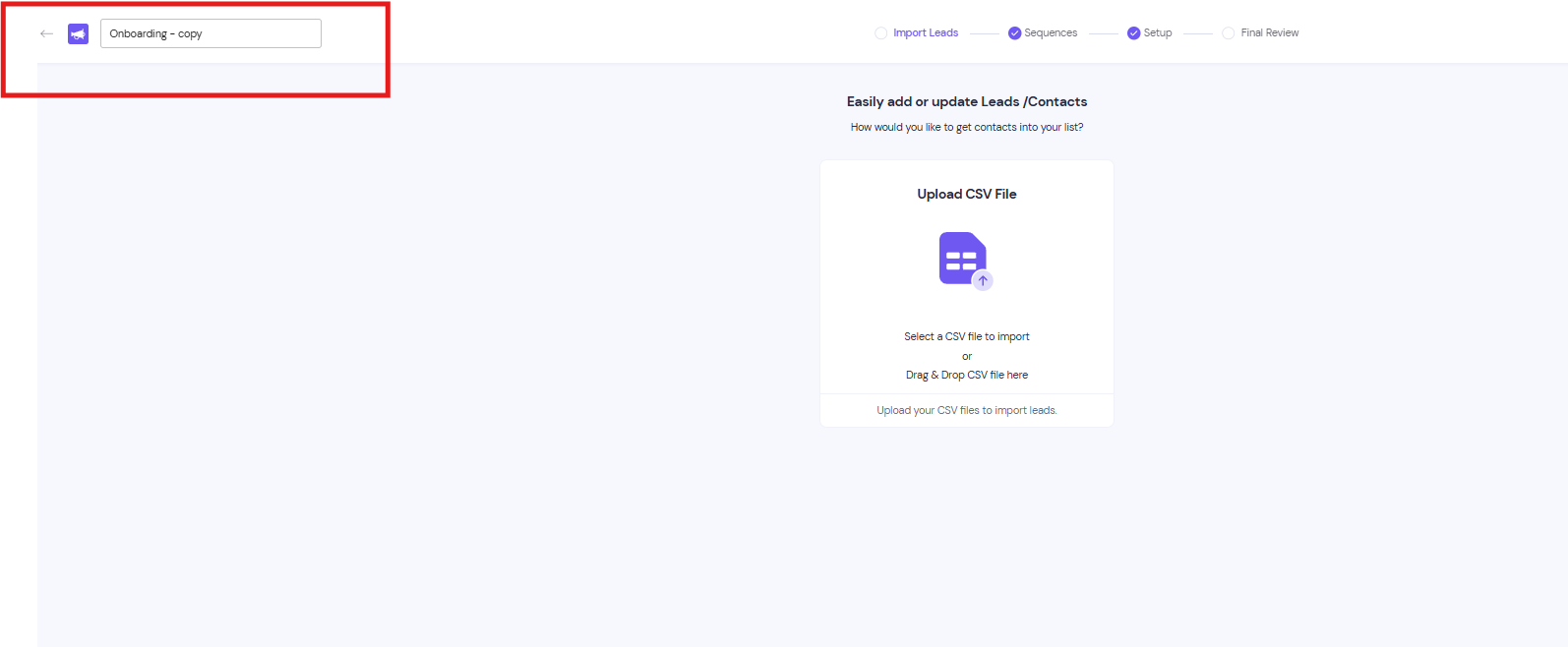
The copy is created and opens after a couple of seconds. It's named after the original with - copy at the end.
Step 3: Set up the copy
Rename the campaign if you need to.
Add your leads to the copy.
Check the sender mailboxes on the Email Accounts tab, and change them if the copy should send from different ones.
Review the sequence and any variables for the new audience.
Good to know
Sender mailboxes are always copied. There is no option to skip them. To use other mailboxes, open the copy's Email Accounts tab, remove the ones you don't want with Remove from Campaign, and add others from Unselected Accounts.
The copy includes the sequence steps, their variants and the campaign settings.
Leads are not copied.
Still stuck? Contact support from the chat in your Smartlead dashboard.