
Security scanners and mail privacy features often load your email's images and links before a person reads it. Smartlead counts these as opens and clicks.
Smartlead does not filter bot opens or clicks. You can spot likely bot activity yourself by checking how soon after sending each open or click happened.
How it works
An open is counted every time the tracking image in an email loads. That can be a person, Apple Mail Privacy Protection, a company security scanner, a spam filter or an image proxy.
A click is counted every time a tracked link is requested. Security scanners often "click" every link in an email within seconds of delivery.
So one email can show an open, or every link clicked, before anyone has seen it.
Step 1: Export the Inbox CSV
The Inbox export is only in the old campaign view.
Go to your campaigns list.
In the page header, click Old Version.
Open the campaign and go to the Inbox tab.
Click Download as CSV and save the file.

The file has one row per lead per sequence step. It includes Sent Time, Opened Time, Clicked Time, Replied Time, Open Count and Click Count.
Step 2: Compare the times
Open the CSV in Excel, Google Sheets or another spreadsheet tool.
For each row, subtract Sent Time from Opened Time, and from Clicked Time.
Mark rows where the open or click came within seconds or a few minutes of sending.
Opens and clicks that land seconds after sending, often with several counts, are the typical machine pattern. A row where every link was clicked straight away, with no open or reply, points the same way.
Good to know
Replies are the most reliable sign of real interest. Clicks and opens that come hours or days later are also more likely to be human.
Open Count and Click Count stop at 10 in this export.
Plain-text campaigns, and campaigns with open tracking turned off, record no opens. If your CSV has no open times, check this first.
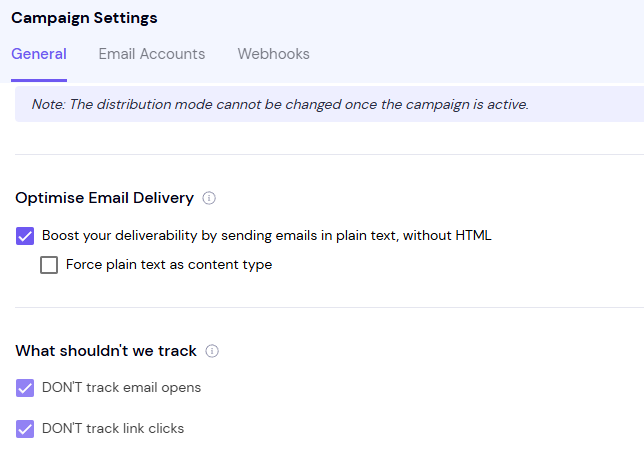
To avoid scanner clicks, turn on Don't track link clicks in a draft campaign under Settings → Delivery Optimization → Tracking Settings, then click Save Changes. You can't change this after launch.
Still stuck? Contact support from the chat in your Smartlead dashboard.