
A "Connection Timed Out" or "Request timeout" error when you add or save an SMTP mailbox usually means the SMTP port you entered is blocked, for example by your internet provider, a firewall or the mail server's settings. Smartlead can't reach the mail server on that port.
Common causes and fixes
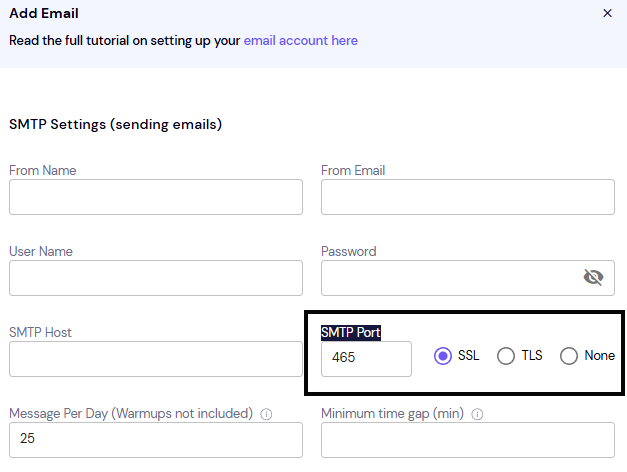
Port 465 is blocked
Open the mailbox and go to General, or reopen the SMTP form if you are adding it.
In SMTP Port, change 465 to 587.
Set the encryption to match the port: port 465 uses SSL, port 587 uses STARTTLS (TLS).
Click Save, or Verify Email Account for a new mailbox.
The host or port is wrong
Check SMTP Host, SMTP Port, IMAP Host and IMAP Port against your email provider's published settings.
Correct any typo and click Save.
A certificate error usually means the port and encryption setting don't match. An "ENOTFOUND" error means the host name is wrong.
Still stuck? Contact support from the chat in your Smartlead dashboard. Include the mailbox address, your email provider, the SMTP host, port and encryption you used, and the full error text.