The Reply Agent writes a draft reply each time a lead answers one of your campaigns. The draft is saved in the Master Inbox, where you can edit it, accept it, or reject it. Use it when you want a fast reply for each lead that moves the conversation toward your goal, without writing every response yourself.
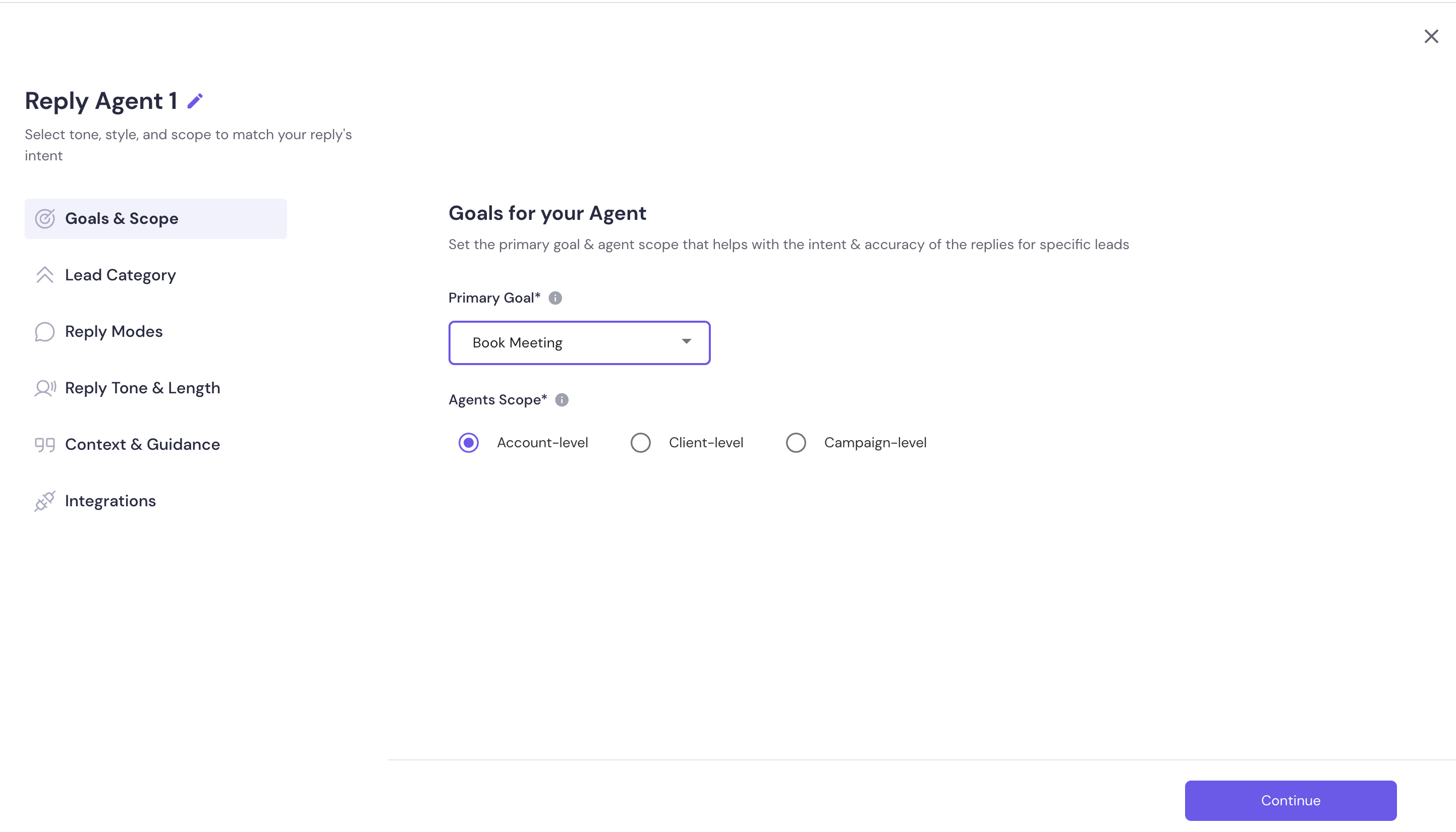
You set up a Reply Agent once. The setup asks for:
Primary Goal: Book Meeting, Re-engage Lead, Close Deal, or Qualify Lead.
Agents Scope: Account-level, Client-level, or Campaign-level.
Category Application: Apply across all email replies, or only to specific lead categories.
Reply Modes: Auto Send Replies or Manual Reply preview. You must choose one.
Reply Tone & Length: a tone of Professional, Casual, Friendly, or Direct, and a length of Short, Medium, or Long.
Context & Guidance and Integrations (both optional): your communication style, business context, objection handling, resource links to share, and Calendly.
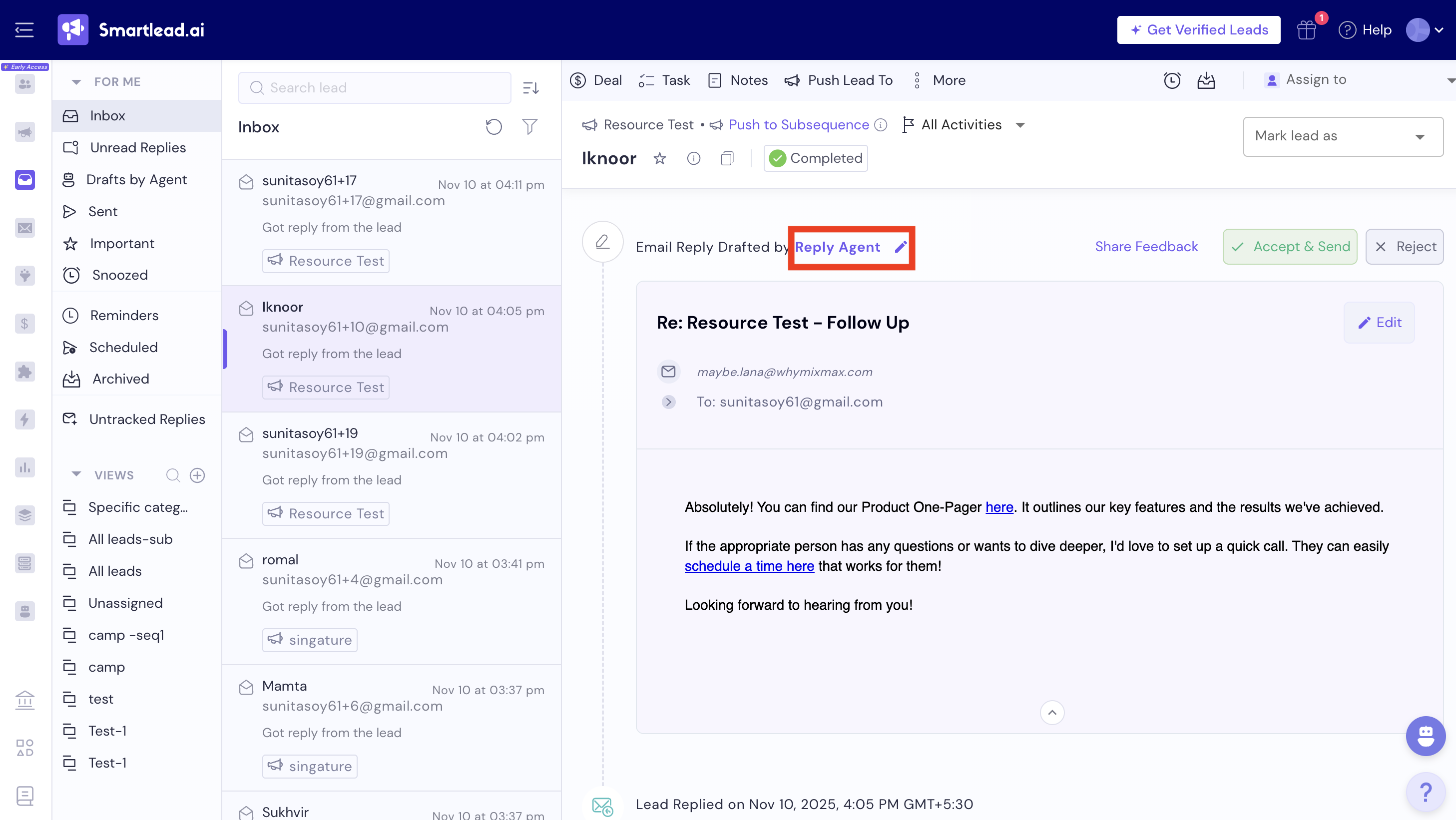
When a lead replies, the agent reads the conversation and writes a draft in that lead's thread. The draft appears under Email Reply Drafted by, followed by the agent's name, the subject line, and the draft text.
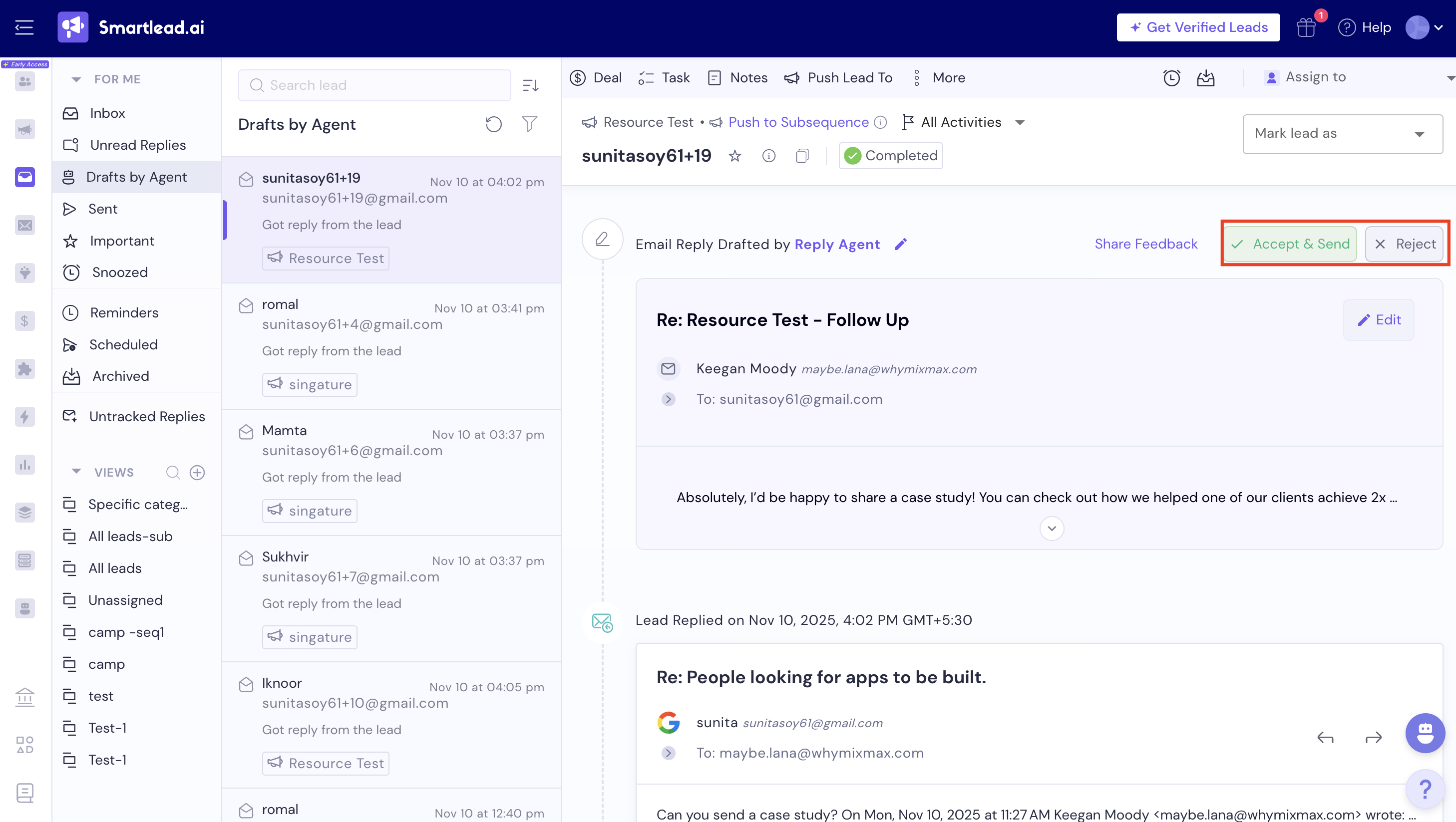
The draft has these actions:
Accept & Send sends the draft. A 5-second countdown starts, and Undo stops the send before it goes out.
Edit Reply opens the reply editor so you can change the text first.
Reject discards the draft. If the agent has no context or calendar link yet, you may see a prompt to add them first.
Edit, next to the agent's name, opens the agent's configuration.
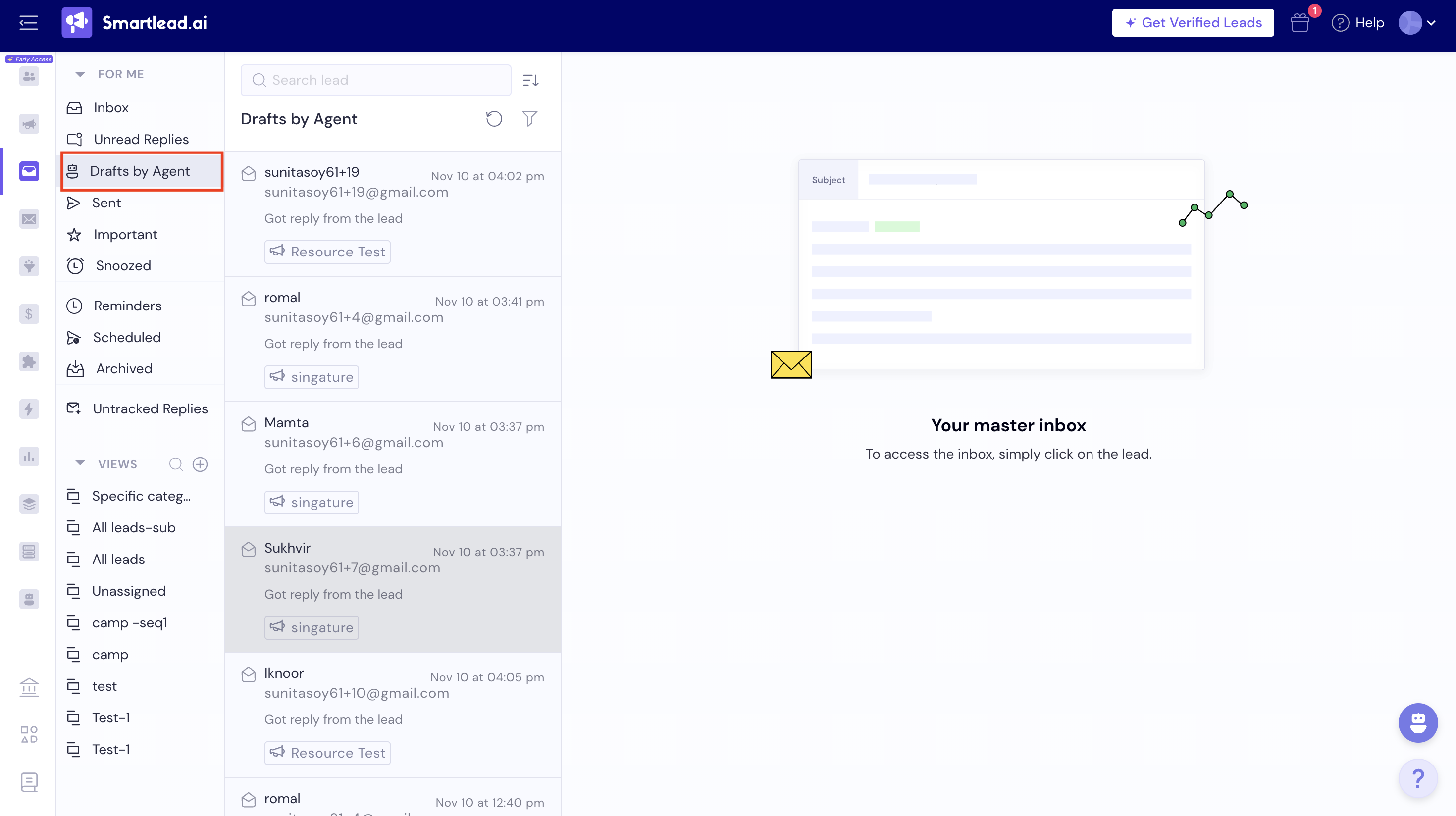
All drafts are also listed under the Drafts by Agent filter in the Master Inbox.
You get many replies and want a first draft ready for each lead.
You want the same goal and tone across campaigns. An account-level agent's context applies to all campaigns and clients under that account.
You want different handling for some lead categories. Choose specific categories when you set up the agent.
Start with Manual Reply preview. Nothing goes out until you send it.
Auto Send Replies sends without manual review. Switch to it after you have checked enough drafts to trust them.
You can change settings later. Use Edit on a draft, or the settings button on the Reply Agent card in the campaign's Reply Agent tab.
Only in Auto Send Replies mode. In Manual Reply preview, every draft waits for you.
Open the Master Inbox and select the Drafts by Agent filter. You can also open a lead's thread, where the draft appears.
Open the Smart Agent page, select the Reply Agents tab, and select Create Reply Agent.
Yes. Select Edit next to the agent's name on a draft, or use the settings button on the Reply Agent card in the campaign's Reply Agent tab.