If you’re using Slack inside your SmartAgents workflows, you must add SmartAgents to the Slack channel where you want to receive messages, alerts, or reports.
Without this step, Slack won’t deliver any automation output from Smartlead.
The good news: it takes less than a minute.
Whenever your workflow includes a Slack step (e.g., “Send message to Slack” or “Send report to Slack”), Slack will only deliver those messages to channels where the SmartAgents app has been added.
You only need to connect your Slack workspace to Smartlead once, but adding SmartAgents to specific channels must be done per channel.
Or, continue reading.
Slack gives you two ways to add an app to a channel.
You can use whichever feels faster.
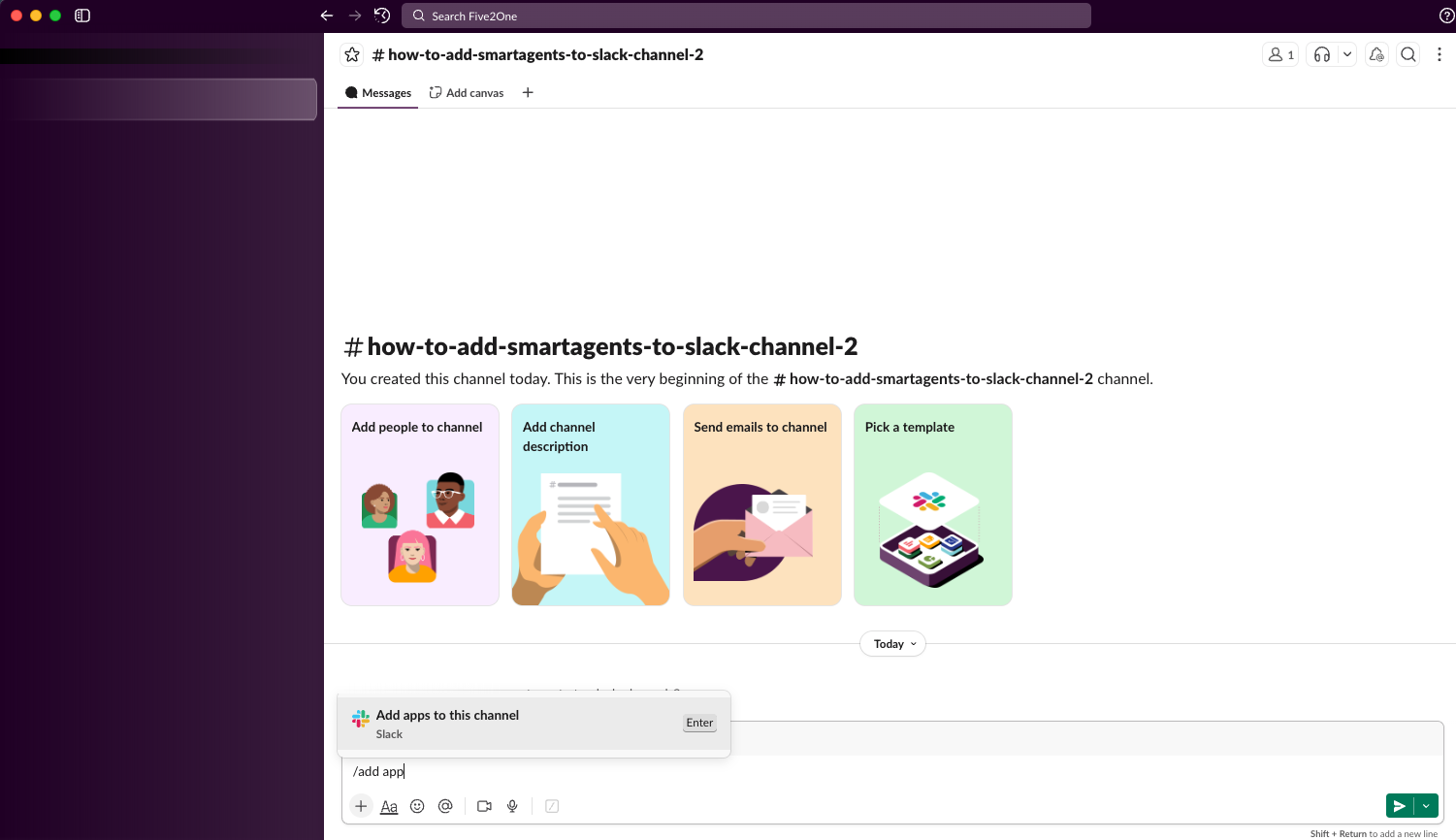
Open the Slack channel where you want to receive SmartAgent messages.
In the message box, type:
/apps
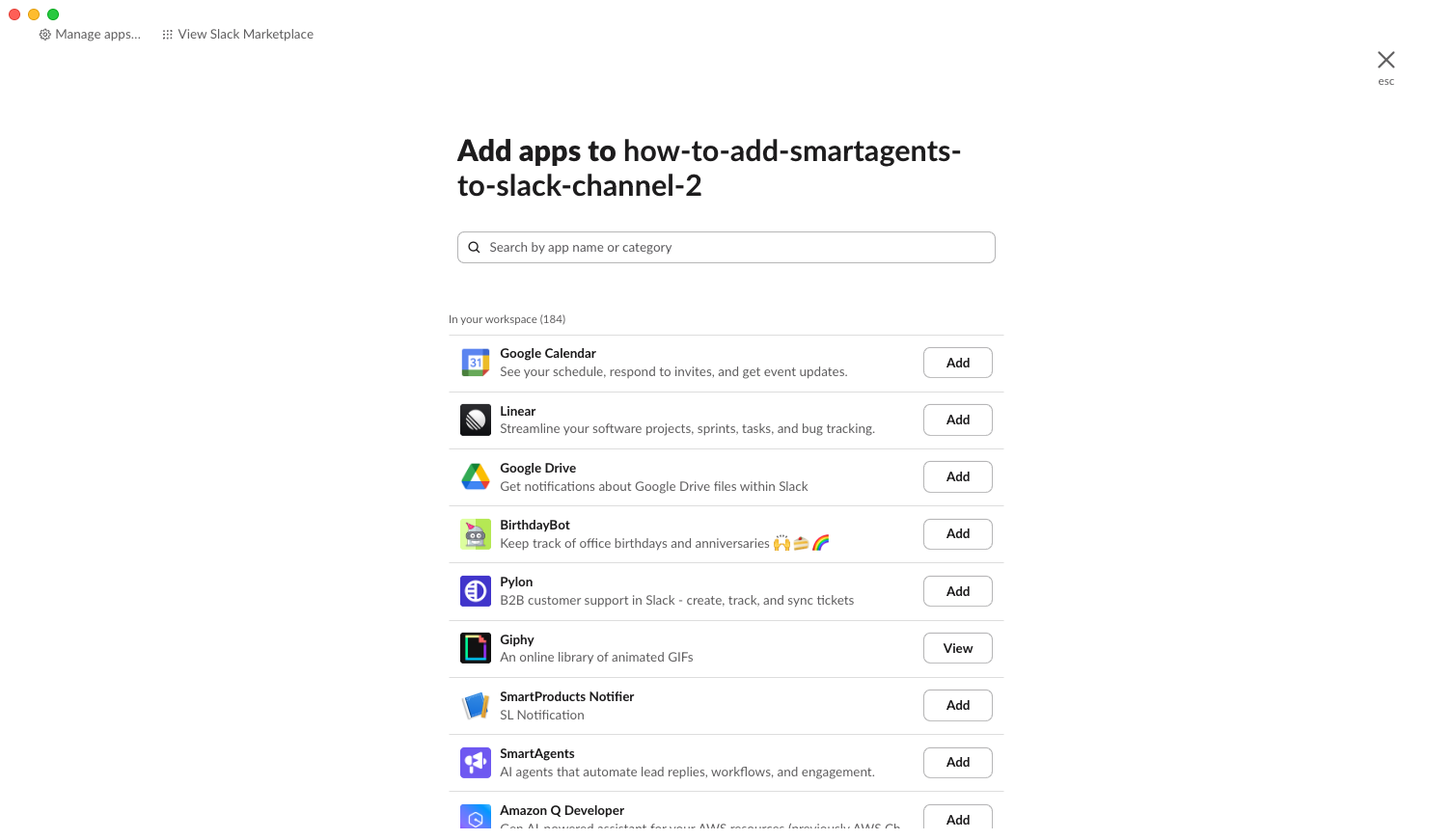
Slack will open the Add apps to this channel panel.
Search for SmartAgents.
Click Add.
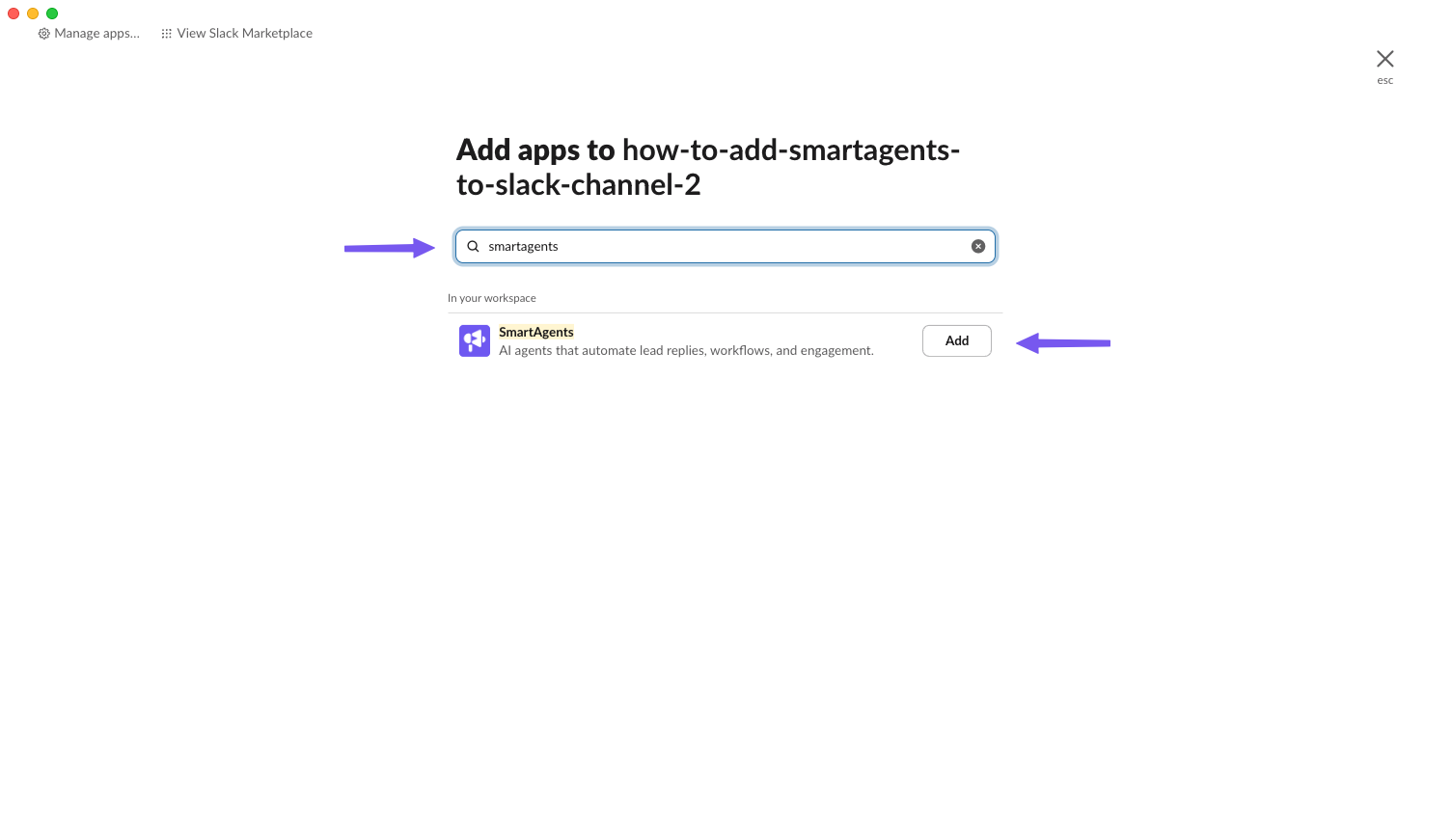
That’s it - SmartAgents is now allowed to send messages into this channel.
Open the Slack channel.
Click the channel name at the top.
Go to Integrations.
Click Add an app.
Search for SmartAgents and add it.
Both methods do the same thing - pick whichever is easier.
You can quickly check whether the app is added:
Type /apps again
Search for SmartAgents
If Slack shows View, instead of Add, the app is already added to that channel.
When building or editing a SmartAgent workflow, you’ll see Slack as an action option.
Once SmartAgents is added to the Slack channel, simply:
Choose Slack as the step inside your automation
Select the channel you want to send messages to
Save and deploy the workflow
Slack will now deliver messages from your automations into that specific channel.
You only connect your Slack workspace to Smartlead once (global connection).
You must add SmartAgents to each Slack channel individually if you want that channel to receive automation output.
If you switch channels later, you’ll need to repeat the “Add app” step for the new channel.