The SmartSenders Orders Dashboard gives you a consolidated view of every mailbox and domain you’ve purchased in Smartlead.
From tracking order status to downloading invoices and exporting records, everything is now accessible from a single page.
Note: SmartSenders order management has moved. What used to live under Email Accounts > SmartSenders Orders is now found under Settings & Profile > Subscription > SmartSenders. The old Email Accounts tab now just shows a banner with a button linking you to the new location.
Log in to your Smartlead account.
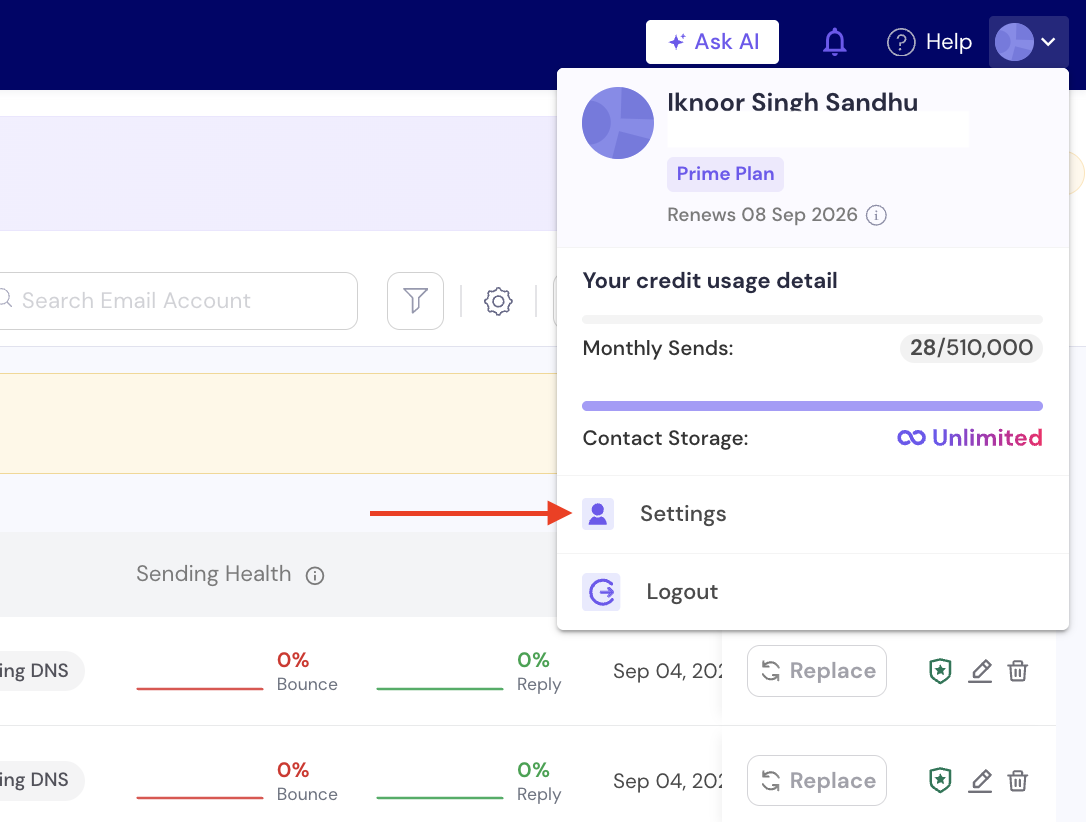
Click on your Profile picture and then click on Settings.
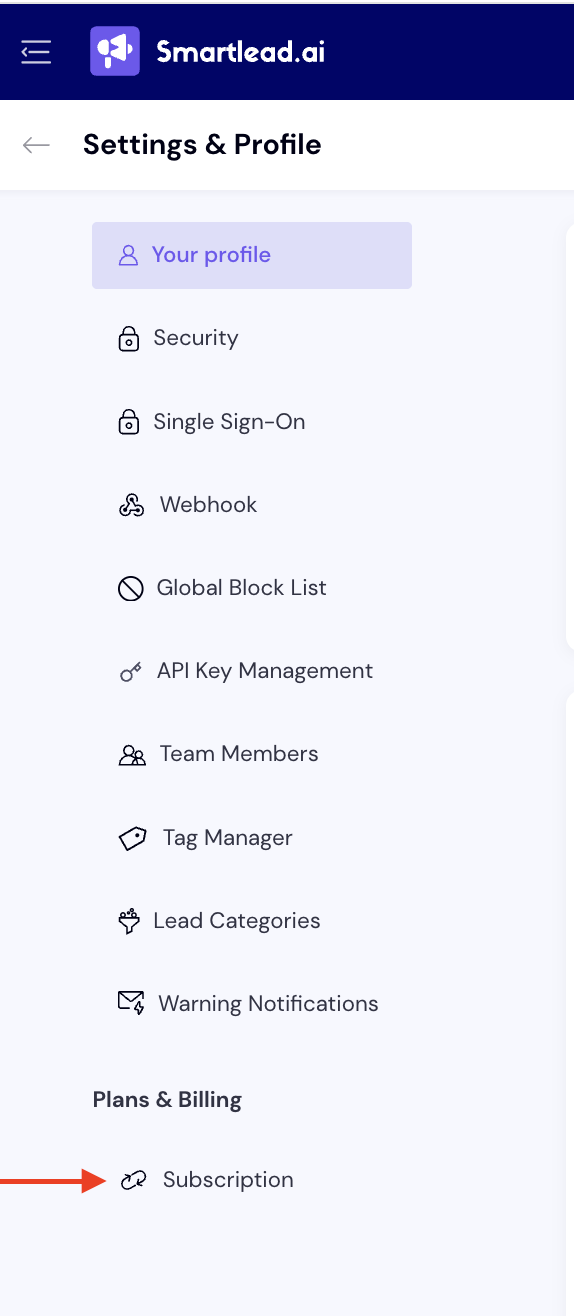
Next, click on Subscription.
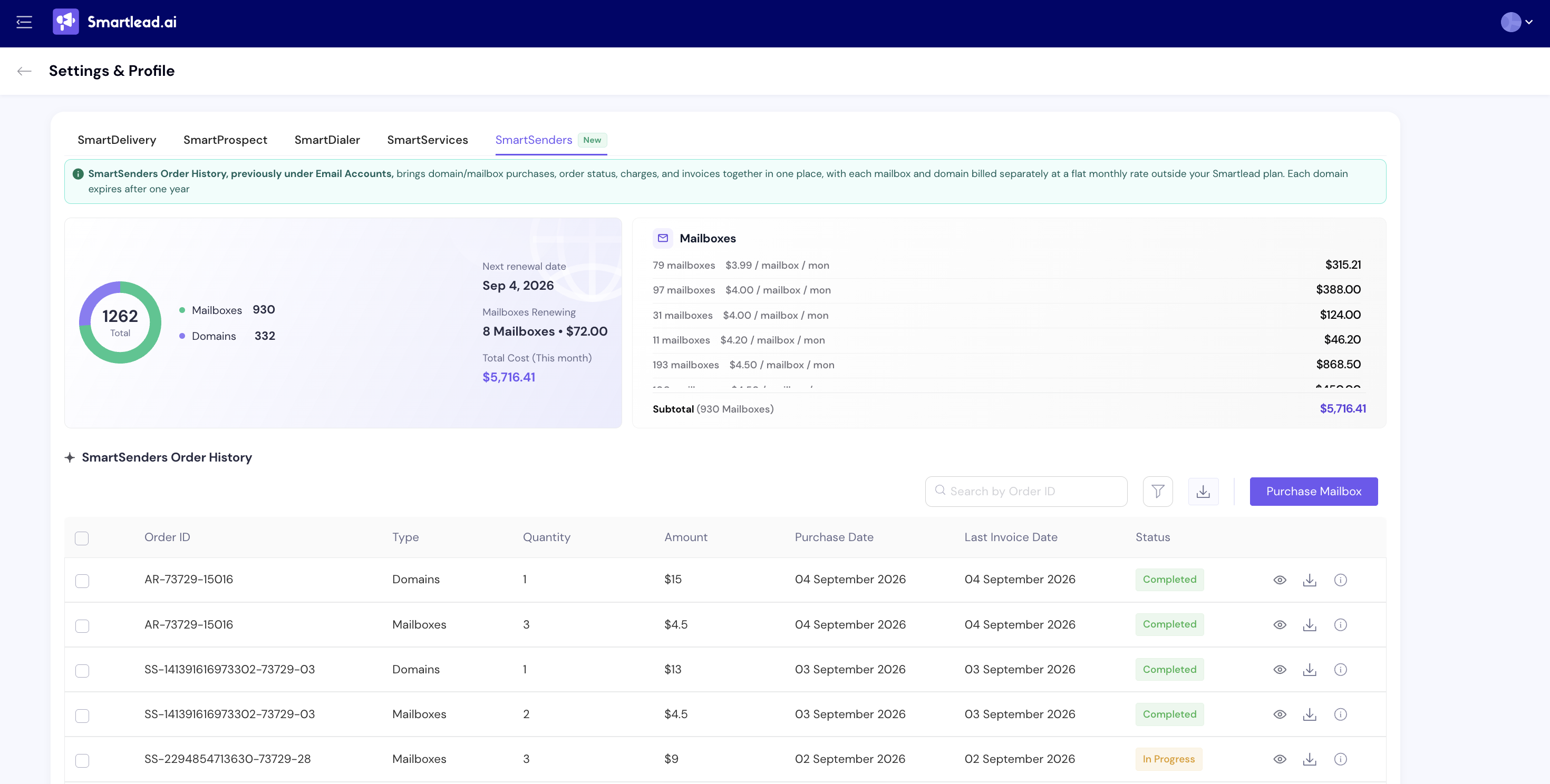
From the subscriptions page, select SmartSenders Tab to open the main orders dashboard.
What You Can Do on the Orders Dashboard
The dashboard helps you:
View all your mailbox and domain orders in one place
Check order amounts, quantities, purchase dates, and statuses
Download invoices for any order
Track real-time order progress
Search for specific orders
Select one or many orders (including bulk select)
Export selected orders as a CSV
Understanding the Dashboard Layout
When you open Settings & Profile > Subscription > SmartSenders, you'll see a cost summary panel at the top, followed by the same order table you're used to.
The summary panel shows:
Total number of mailboxes and domains you currently own
Your next renewal date
Mailboxes renewing soon, along with their renewal cost
Your total SmartSenders cost for the current month
A cost breakdown of your mailboxes by pricing tier
Below the summary panel, the order table contains:
Order ID
Type (Mailbox or Domain)
Quantity
Amount
Purchase Date
Last Invoice Date
Status
You can scroll, search, or filter to quickly locate any order.
A Purchase Mailbox button is also available here, so you can start a new order without leaving this page.
To view live provisioning progress:
Go to the Orders Dashboard
Find the order you want to track
Click the More Info icon ℹ beside it
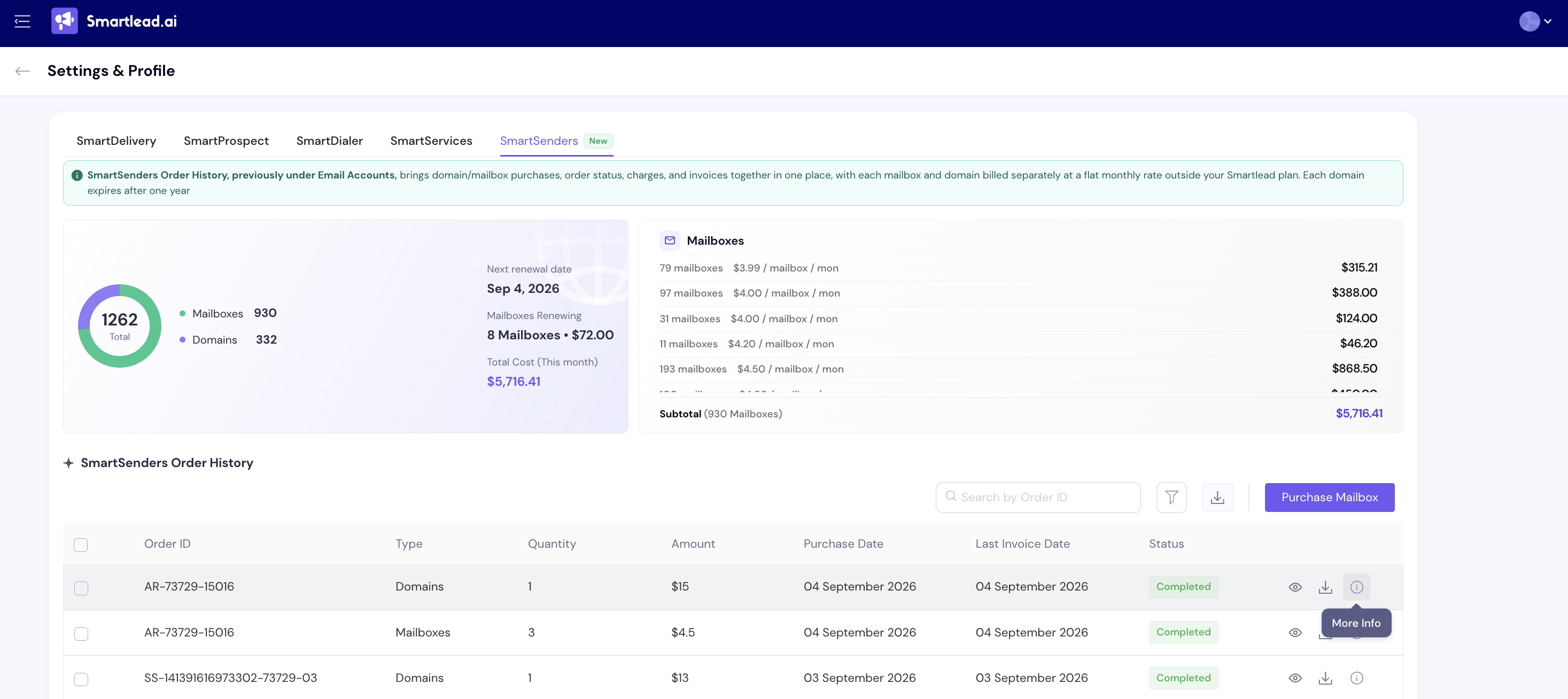
A tracker panel opens showing real-time order status
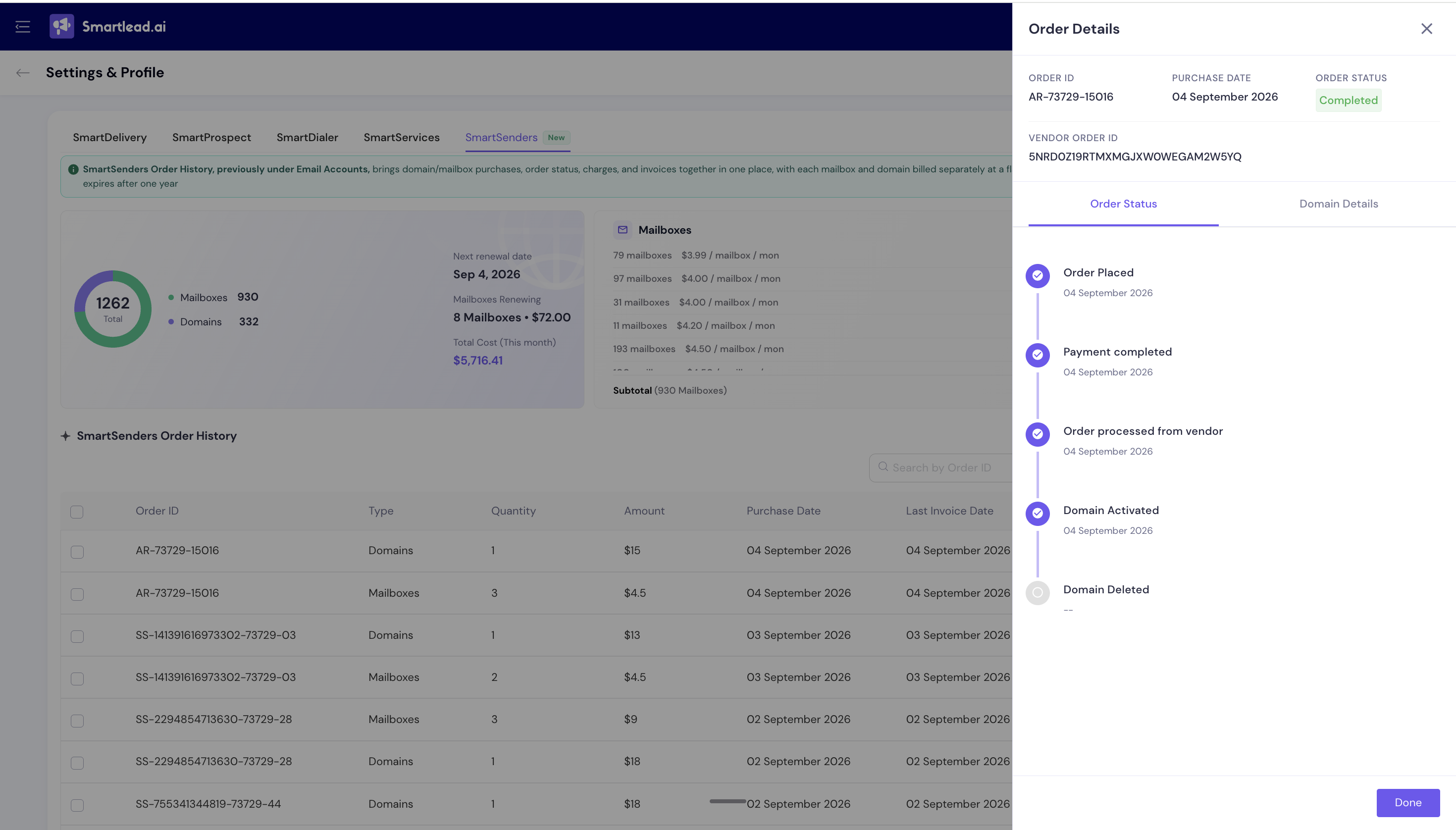
This helps you confirm whether a mailbox/domain is fully set up, pending, or in progress.
To get an invoice for any order:
Locate the order in the dashboard
Click the Download Invoice icon or button
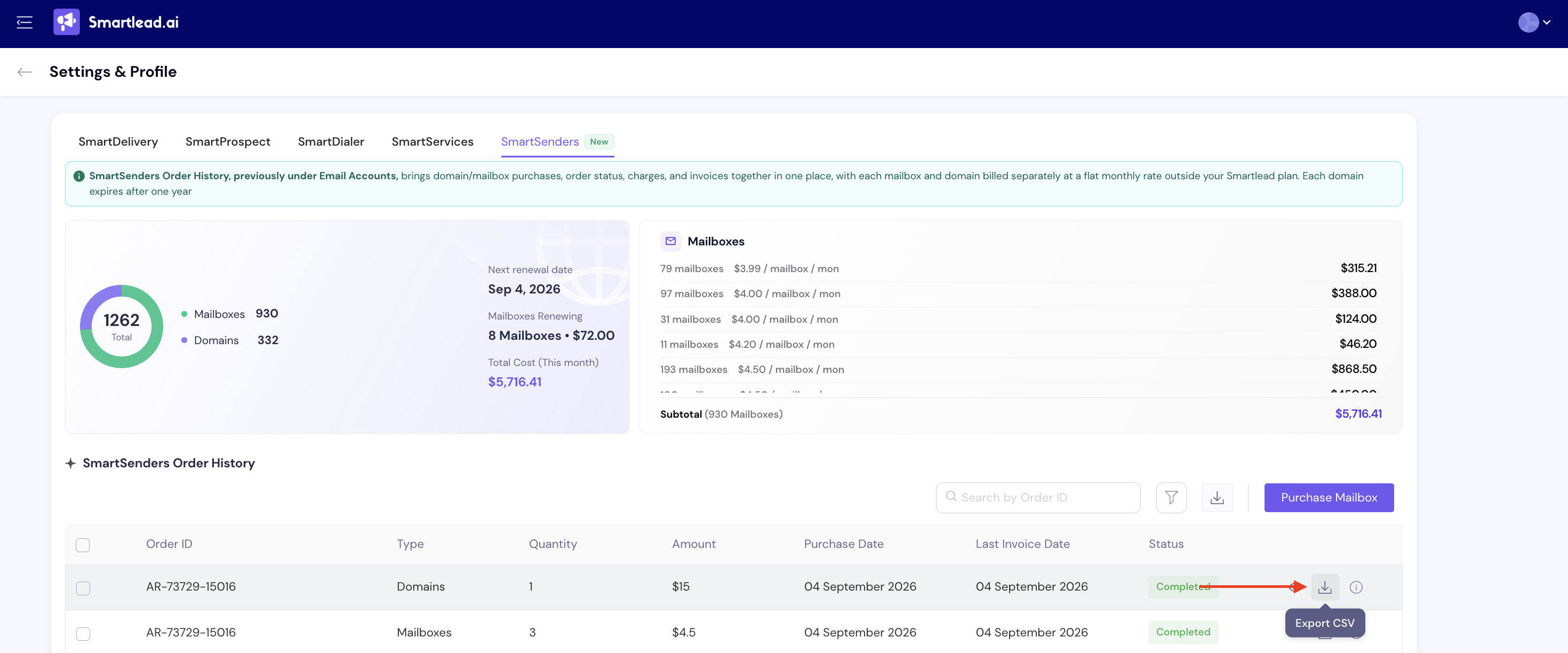
A PDF will download instantly
Use this for accounting, compliance, or internal reporting.
If you need to export orders:
Use the search bar to locate specific orders
Use filters to find orders by date range or type. Once you set the filters, click on Apply.
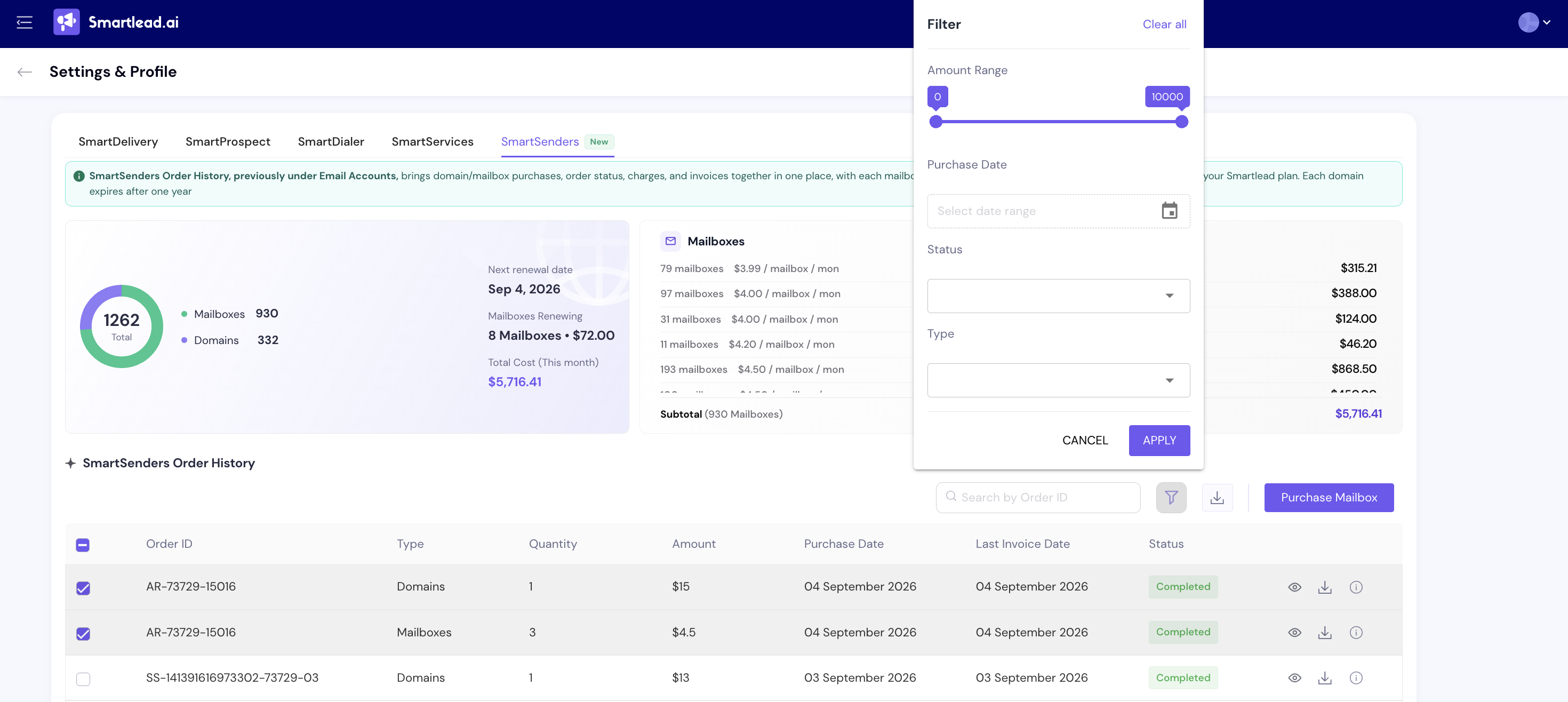
Click on the Export icon.
A CSV file will download containing all selected records
This is useful for monthly reviews, finance audits, or sharing purchase data internally.
Tracking is shown per order. You’ll need to click the ℹ icon for each order individually.
Currently, exports are available in CSV.
You can use the search bar to quickly find orders by ID or keywords. More filtering options will be added in future updates.