
When you connect HeyReach with Smartlead (for SmartAgents or any HeyReach-powered automation), you will be asked to provide your HeyReach API key.
Follow the steps below to find and copy it from your HeyReach account.
Watch a Quick TutorialOr, continue reading:
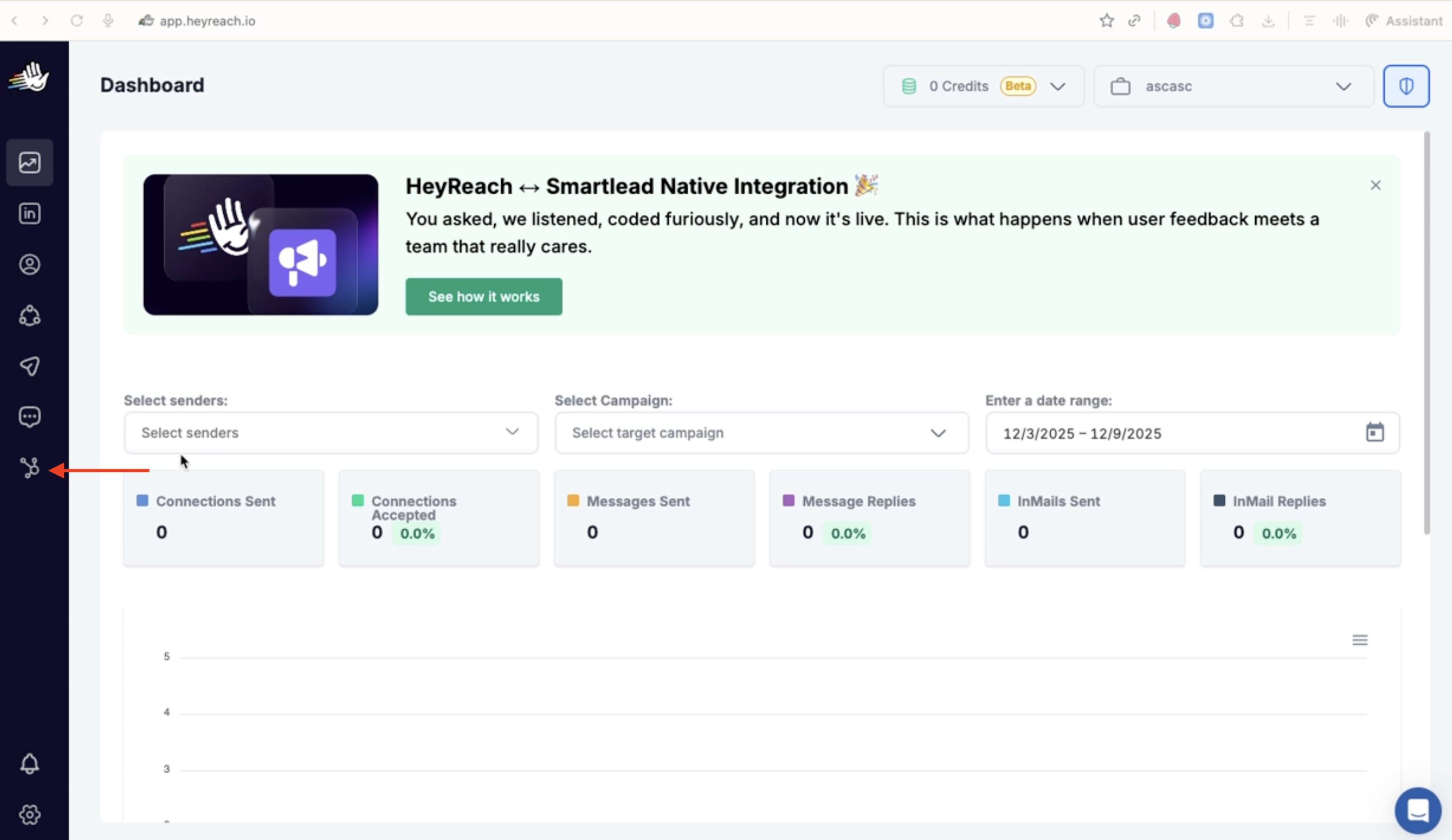
Step 1: Open the Integrations section in HeyReach
Log in to your HeyReach account.
Go to Integrations from the left sidebar or top navigation.
Step 2: Locate the HeyReach API option
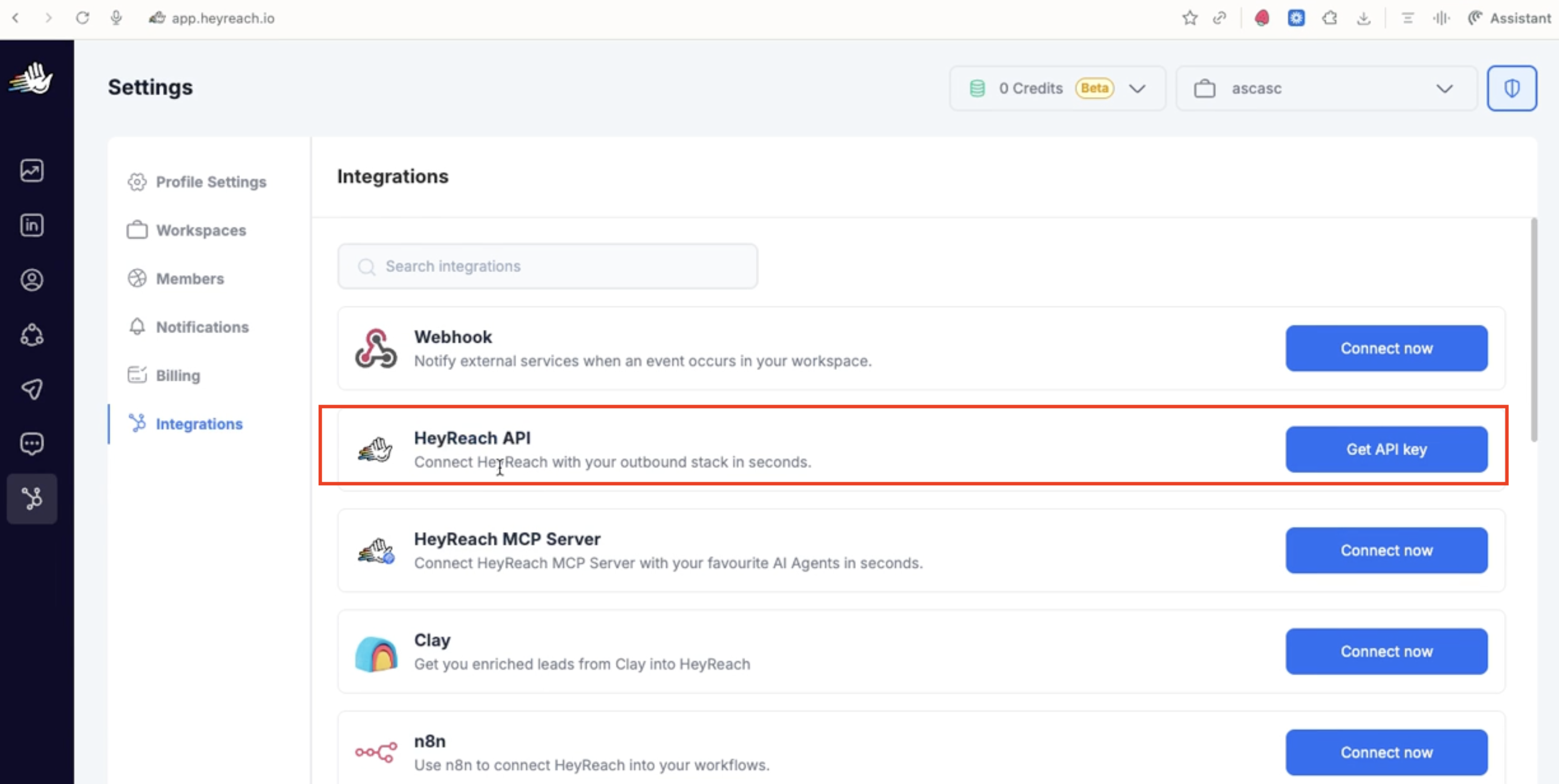
On the Integrations page, find the section named HeyReach API.
Click on it to open the API details.
Step 3: Generate or copy your API key
In the HeyReach API section, you will see your API key field.
Click the field or the Copy button to copy the API key.
Step 4: Use the API key in Smartlead
When setting up a SmartAgent or integration inside Smartlead:
Go to the integration or SmartAgent setup screen.
When prompted to Enter HeyReach API Key, paste the key you copied from HeyReach.
Save or connect the integration.
That’s it
You do not need to make any additional changes in HeyReach. As long as the API key is valid and correctly pasted in Smartlead, your integration will remain connected.
If the connection fails:
Ensure you copied the full API key.
Make sure there are no extra spaces when pasting.
Contact HeyReach support