
Connecting Slack to SmartAgents lets you bring your GTM automations exactly where your team already works. Instead of switching between tools or checking dashboards, you can receive updates, alerts, and outcomes from your agents directly inside Slack — in real time.
In this guide, we’ll walk through how to connect Slack with SmartAgents so your automations can notify channels, message teammates, and keep everyone aligned without manual follow-ups.
Connecting Slack With SmartAgents
In Smartlead, navigate to SmartAgents → Integrations tab.
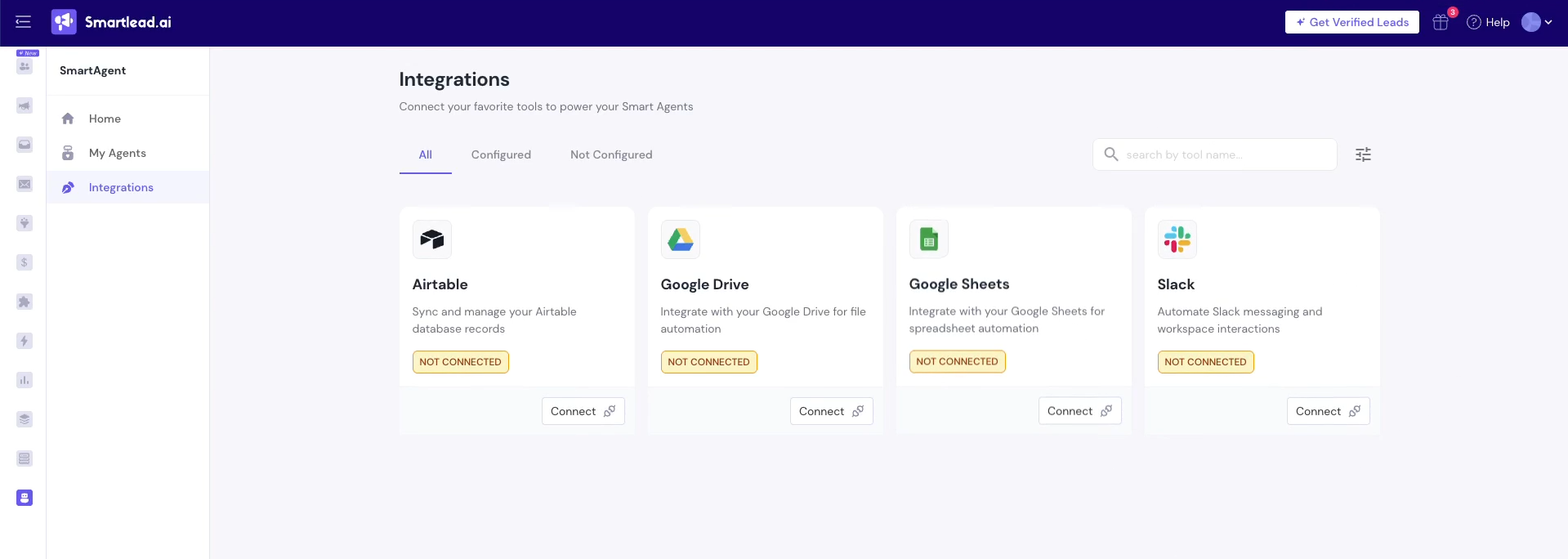
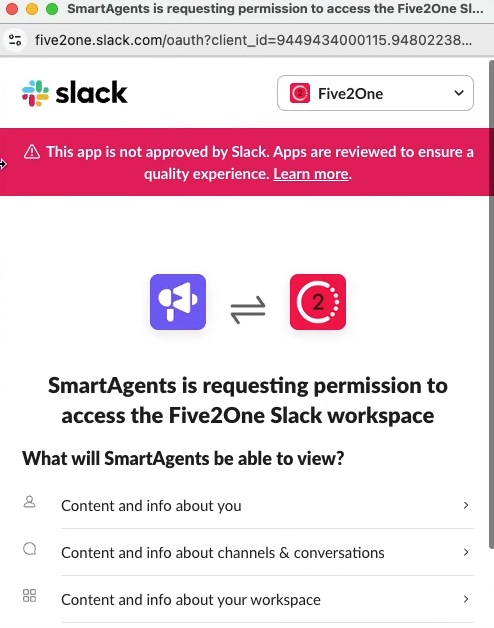
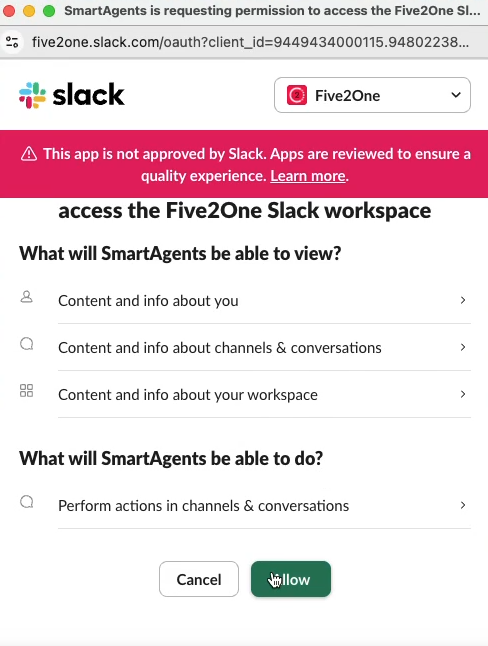
Click Connect next to Slack and authorize access.
Go to the Slack channel that you want to use for your updates or any messages you want to receive. Type
/appsor/writeappsto see apps available in that channel.And then, you will see that apps, all the apps are available. For this channel, type in smart agents, and then you will see this smart agents, app.
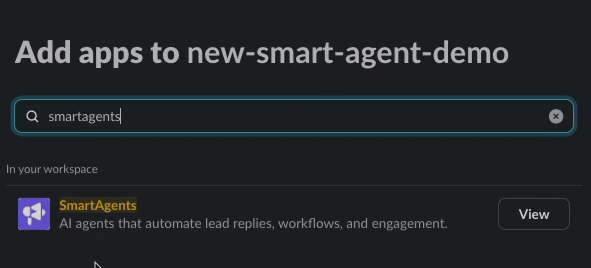
If it is not added, you will see an Add button. Just click Add. (In the example screen above, since it is already added, the View option is appearing.)
Once you do that, you are done. You are good to go with this channel to receive any messages.
Connect Google Sheets, Google Drive, Airtable, and More
In the Integrations tab, click Connect for each tool you want to link.
Sign in and grant permissions when prompted.
Once connected, you only need to do this once unless you manually disconnect
Note: If Google shows "App not verified," click Advanced and proceed to the app anyway. This is normal for apps under review. We are getting it reviewed by Google and so just give access to this. Similarly for Airtable.