The Smartlead × Aimfox integration lets you automatically move qualified email leads from Smartlead into Aimfox LinkedIn campaigns using Smart Agents.
This enables an email-first → LinkedIn follow-up workflow without manual exports or list uploads.
What You Can Do With This Integration
With the Smartlead × Aimfox integration, you can:
Push interested or qualified leads from Smartlead into Aimfox
Add those leads directly to Aimfox LinkedIn outreach campaigns
Pass contact details as custom variables for LinkedIn personalization
Automate LinkedIn enrollment on a scheduled basis
How the Integration Works (Overview)
You connect Aimfox to Smartlead using an API key
You create a Smart Agent in Smartlead
The agent pulls qualified leads from a Smartlead campaign
Those leads are added to a selected Aimfox LinkedIn campaign
Prerequisites
Before setting this up, ensure:
You have active Smartlead and Aimfox accounts
You have access to Smartlead → Integrations
Your leads include LinkedIn profile data (required by Aimfox)
Step 1: Connect Aimfox to Smartlead
Aimfox must be connected before you build the agent.
In Smartlead, go to Smart Agents » Integrations
Locate Aimfox
Click Connect
Enter your Aimfox API credentials
Confirm the connection
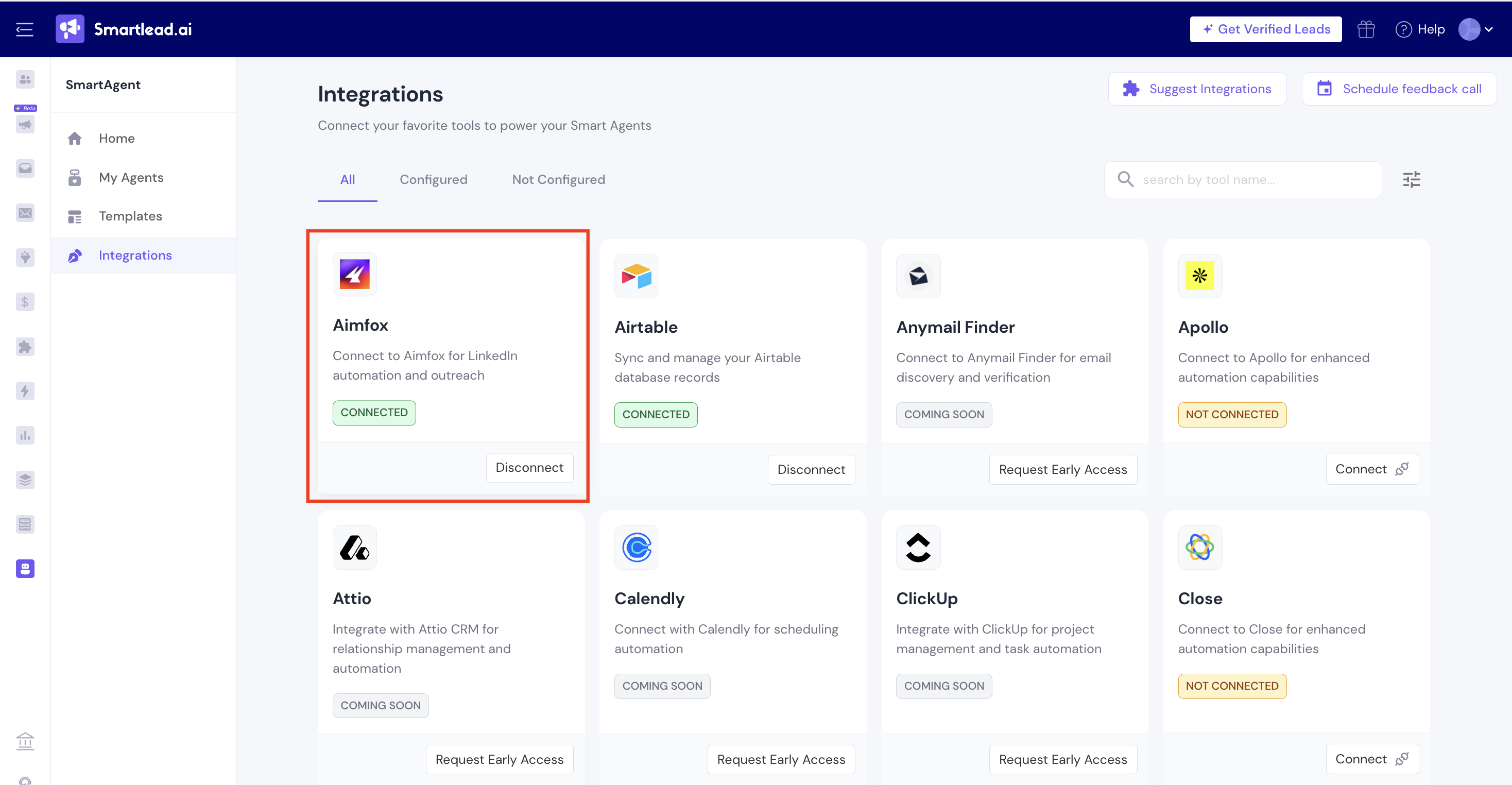
Once connected, Aimfox will be available inside the Smart Agent builder.
Step 2: Create the Smart Agent
You can set this up in two ways:
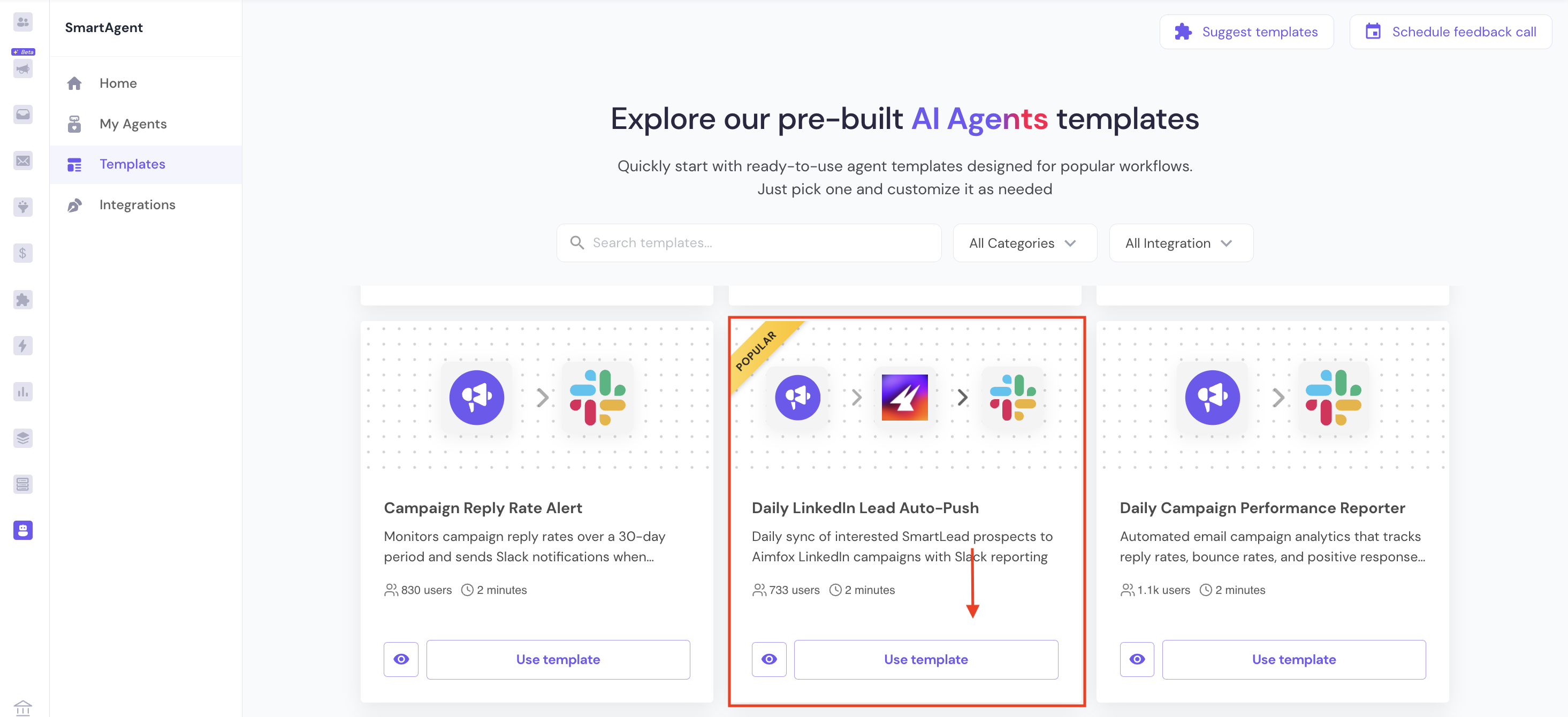
Go to Smart Agent → Home
Find the template “Daily LinkedIn Lead Auto-Push”
Click Use template
This automatically creates an agent with the required steps preconfigured.
As next steps, you will just need to configure Aimfox (select workspace and campaign ID) and Slack (select channel for receiving notifications).
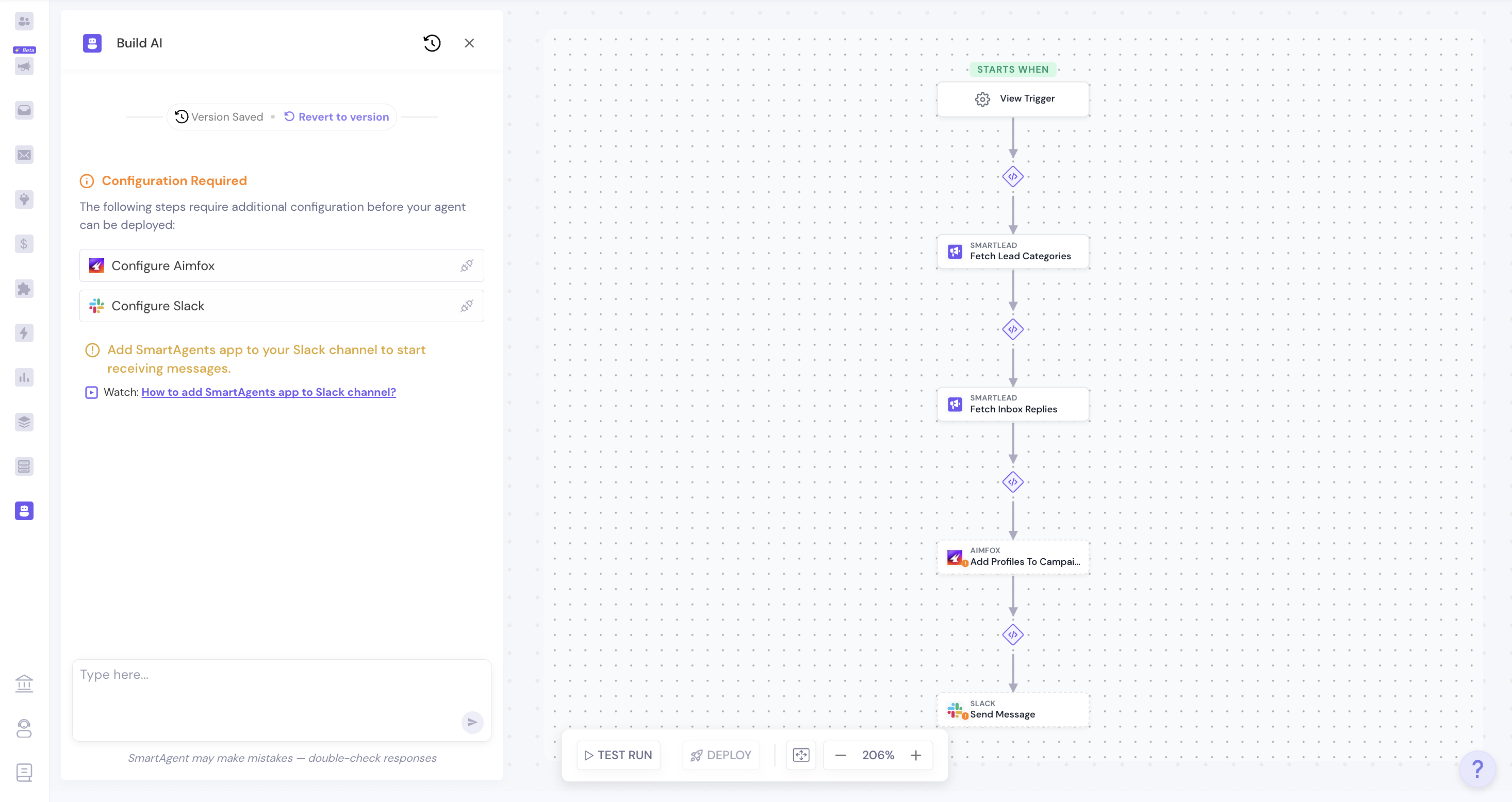
Once done, you can simply deploy it.
If you prefer to build the agent yourself:
Go to Smart Agent → Create
Start with a blank agent
Type in your prompt. For example:
Create a Smart Agent that runs daily to identify qualified or interested leads from a selected Smartlead campaign and automatically add those leads to a chosen Aimfox LinkedIn outreach campaign.
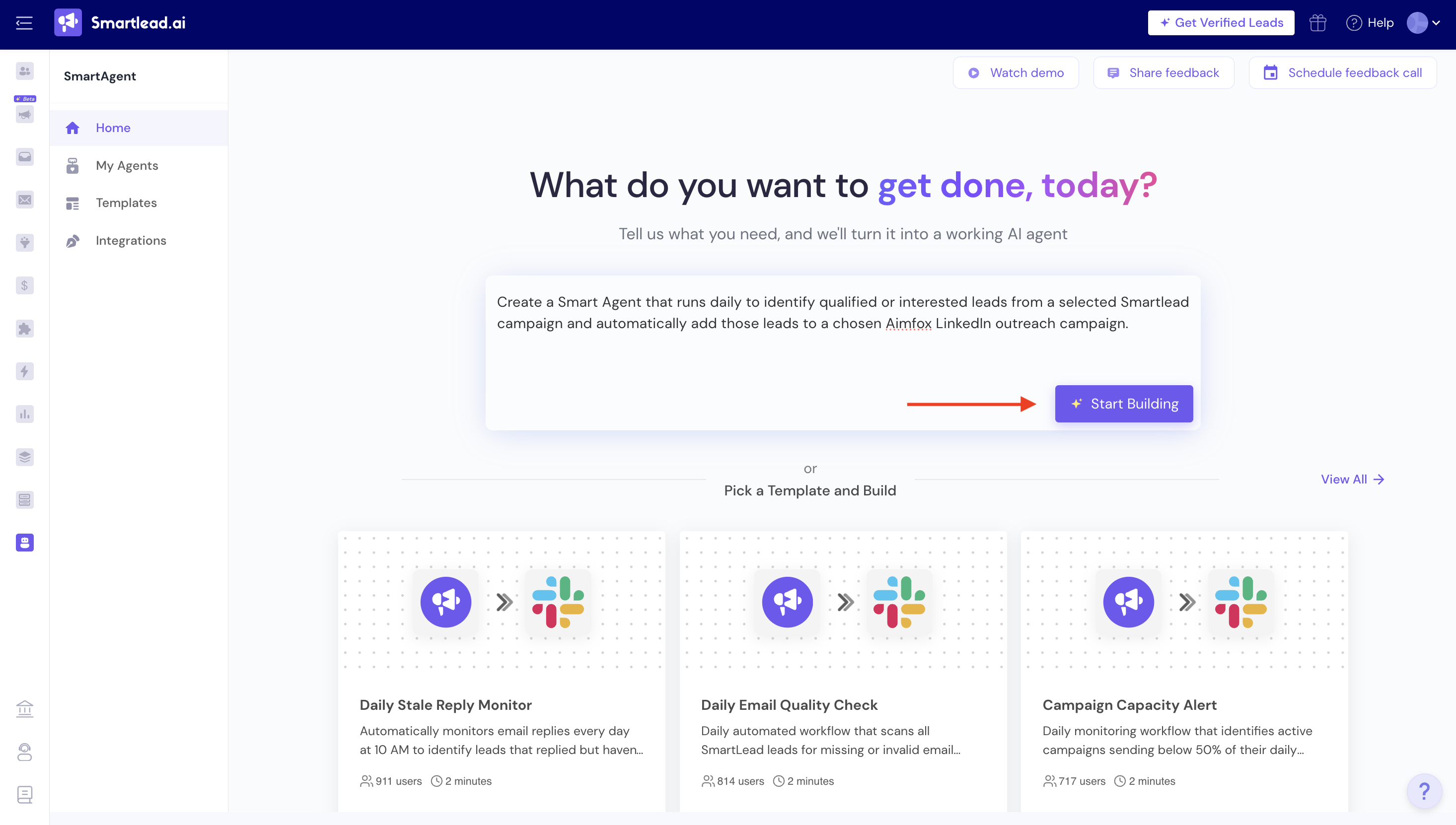
Once you click on start building, next you will need to select your SmartAgent trigger.
You can pick between event-based and Schedule-based triggers.
(Event-based triggers fire on opens, clicks, replies. Schedule-based runs on time intervals.) You can also choose to skip sending on weekends by turning the toggle on.
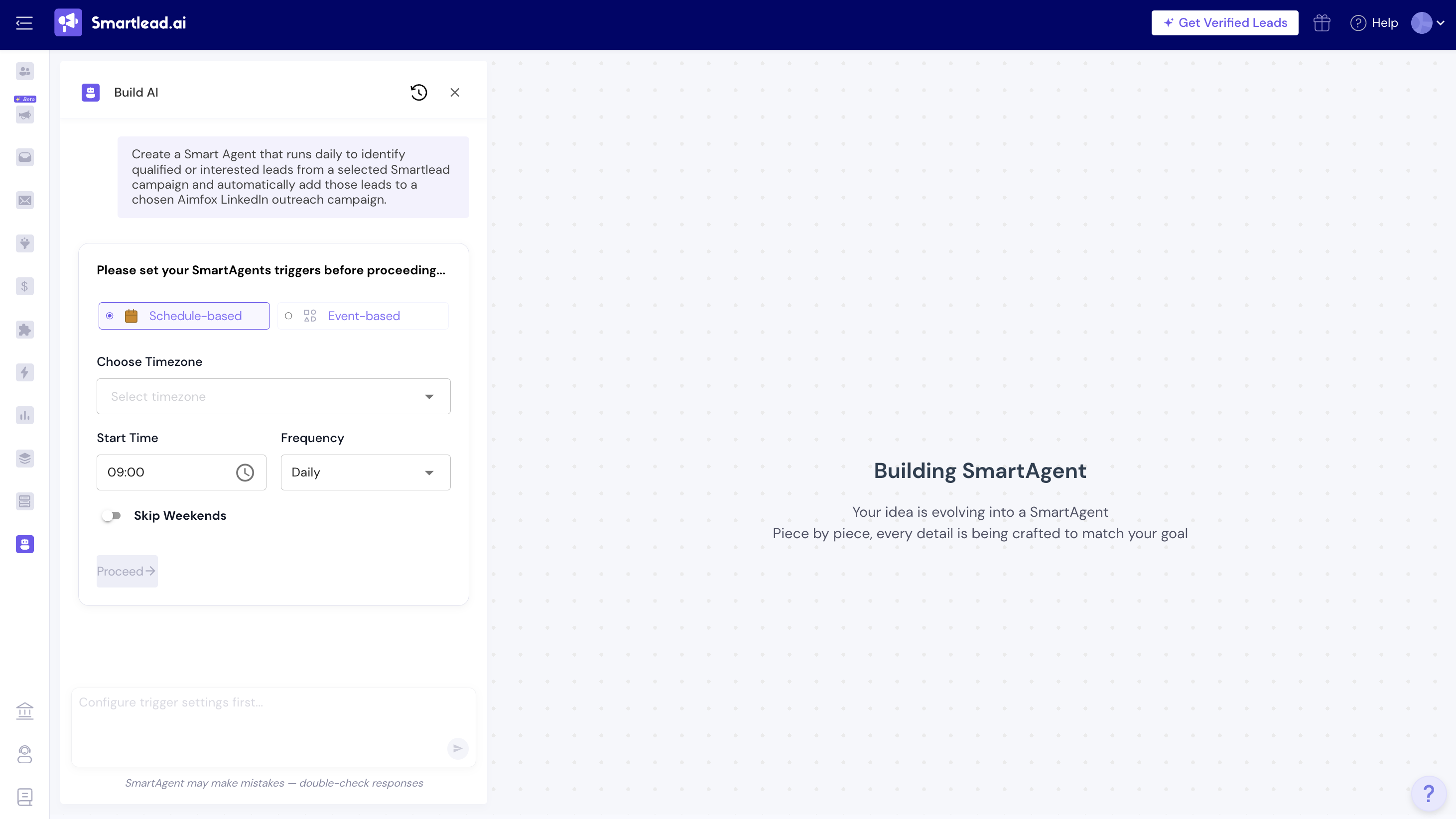
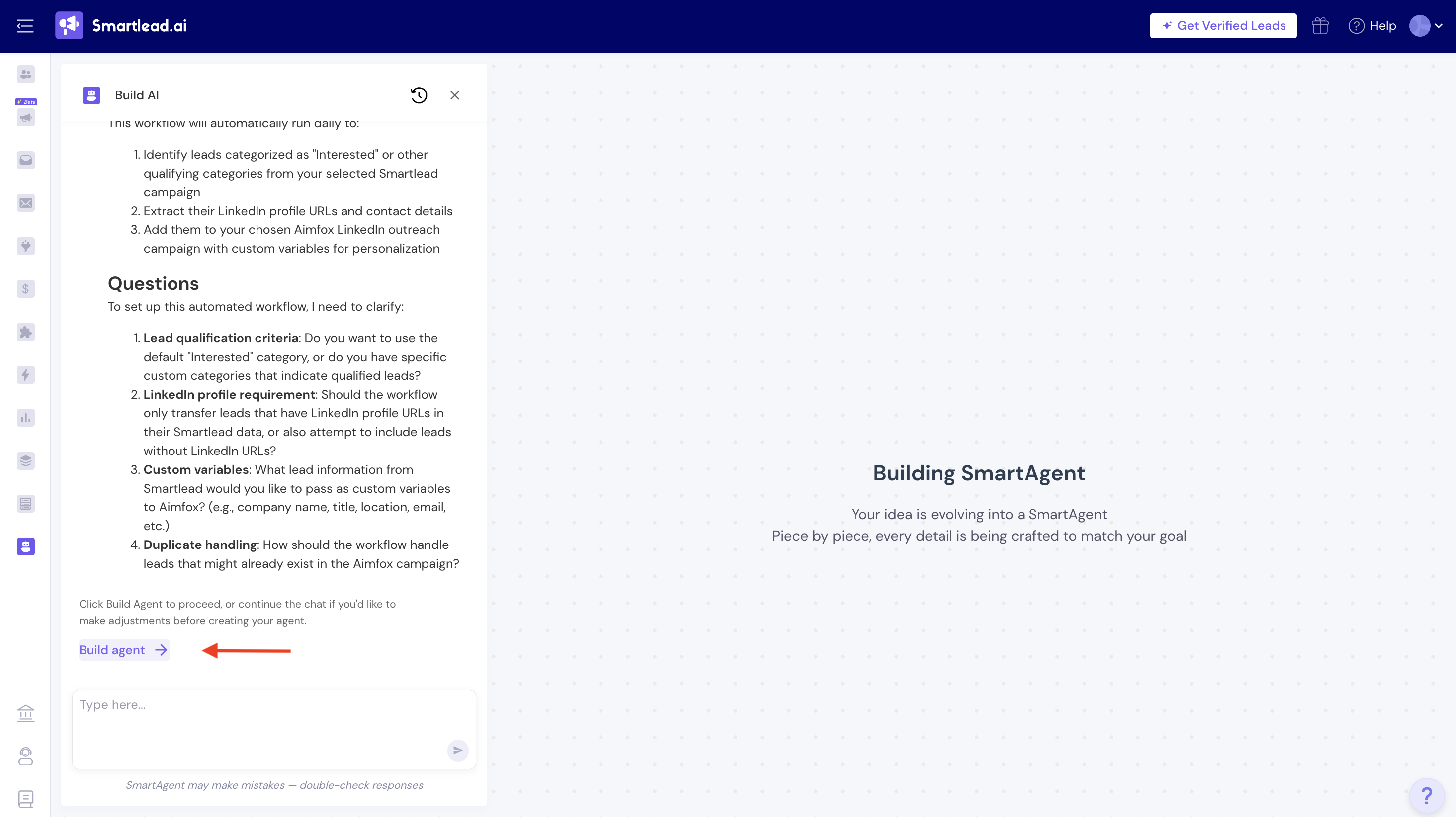
Once you click on Proceed, the agent will start creating the workflow. You will get the complete details on the interface, you can also edit the prompt or answer or clarify any questions raised by the agent.
If all good, click on Build Agent.
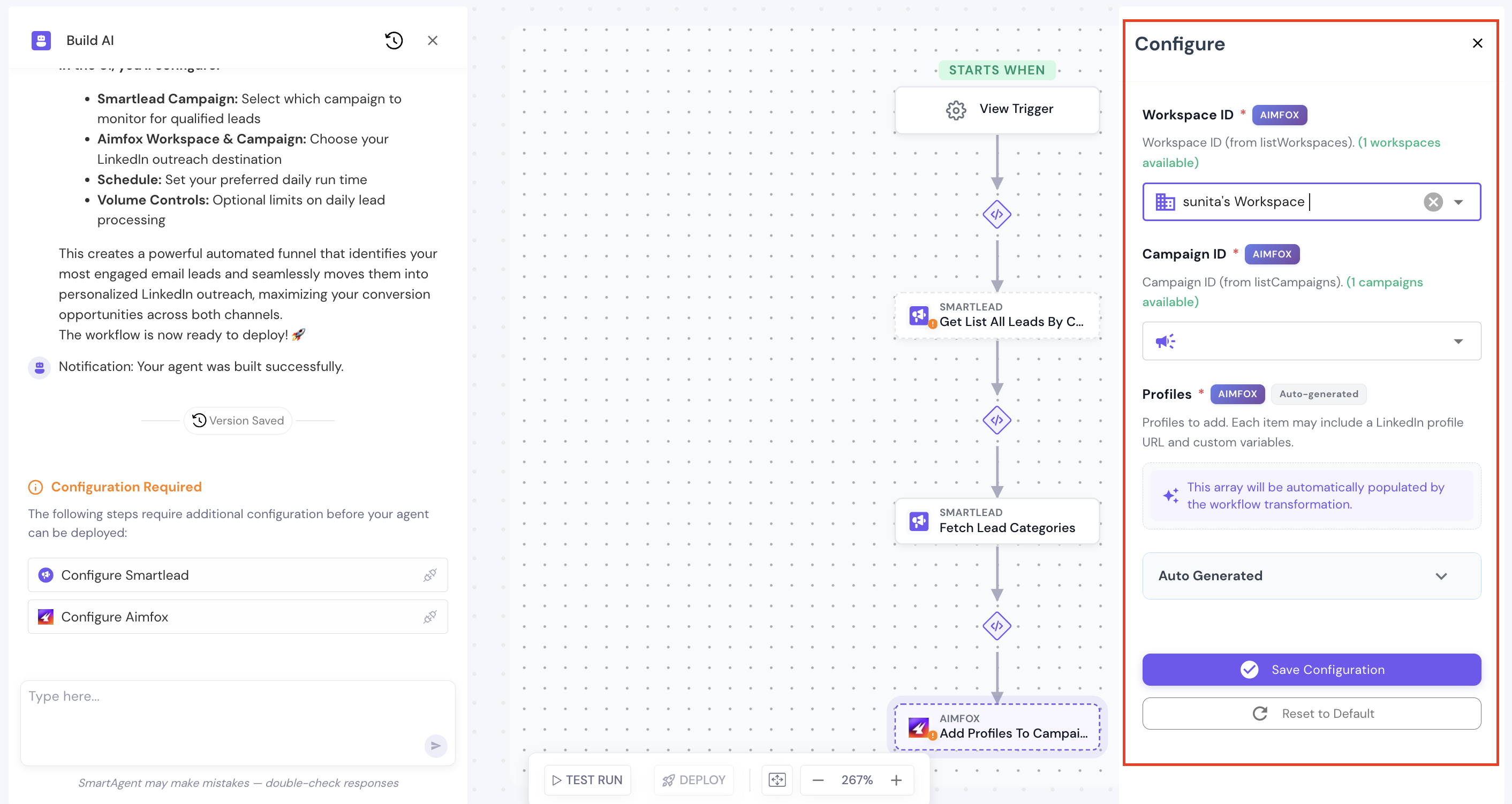
Step 3: Configure Agent Inputs
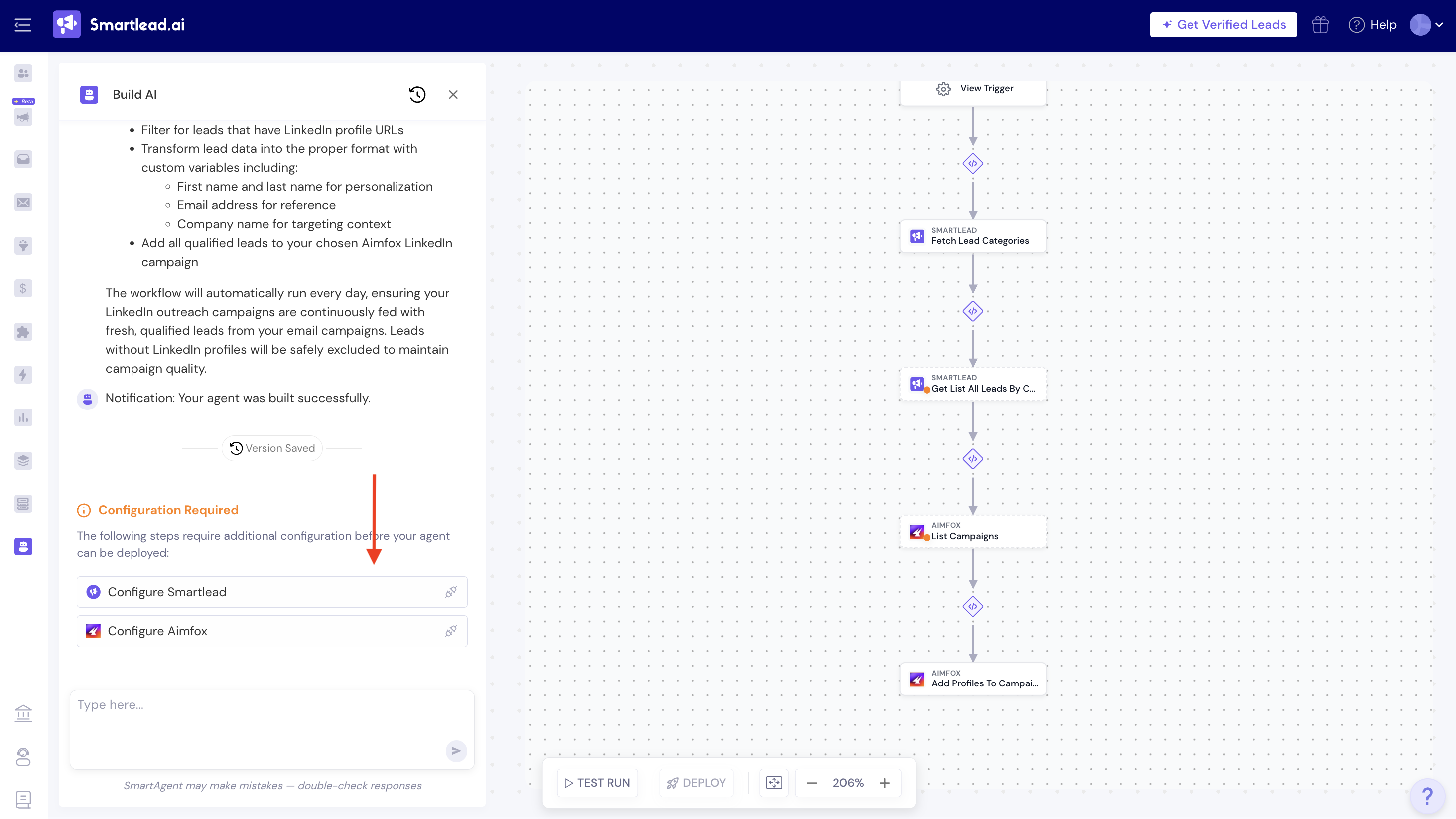
When configuring the agent, you’ll need to configure Aimfox and Smartlead info. You need to specify:
Smartlead Campaign
The campaign from which qualified leads should be pulled
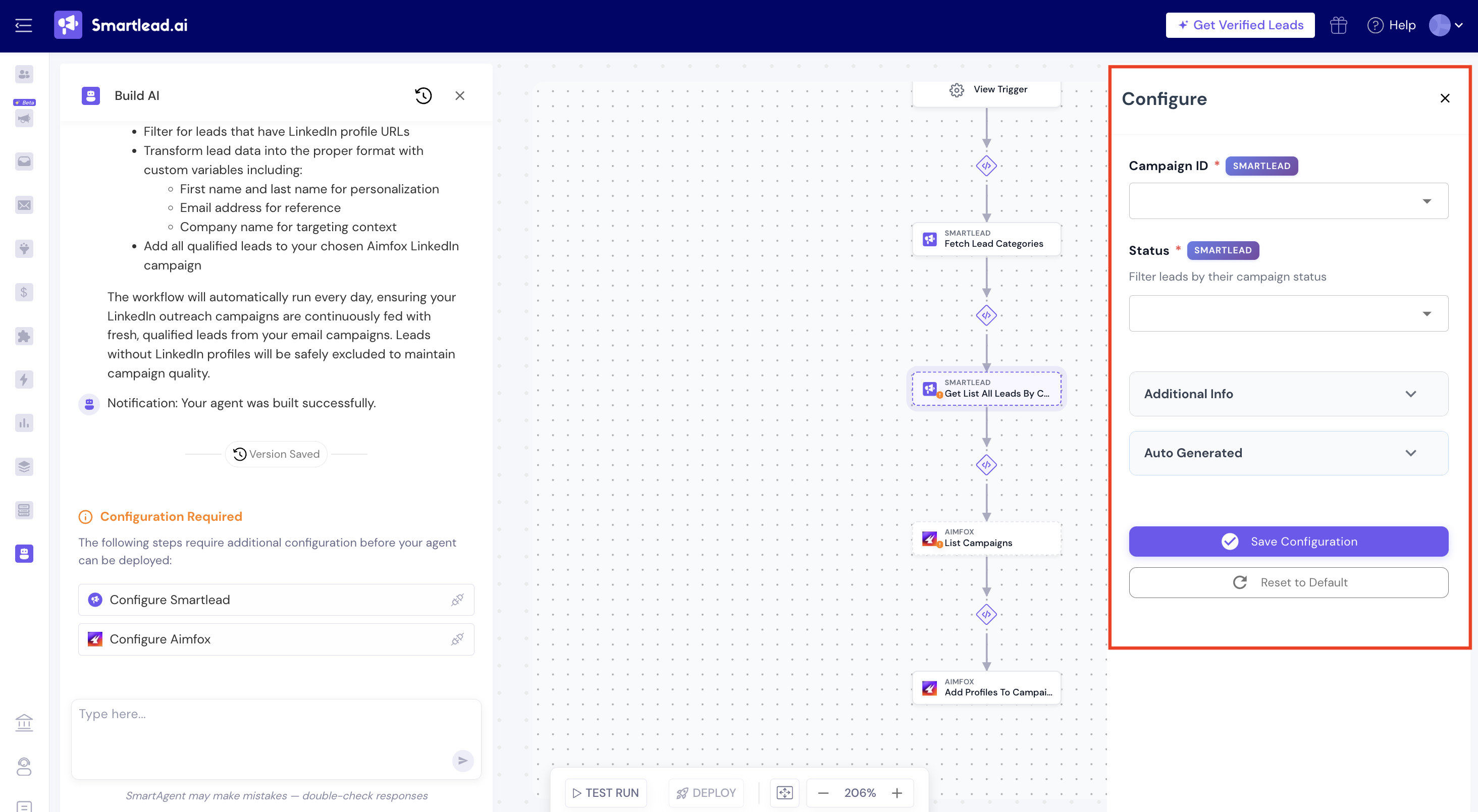
Aimfox Workspace
Select the workspace and The LinkedIn campaign where leads will be added
Don’t forget to Save configuration each time.
Step 4: Deploy the Agent
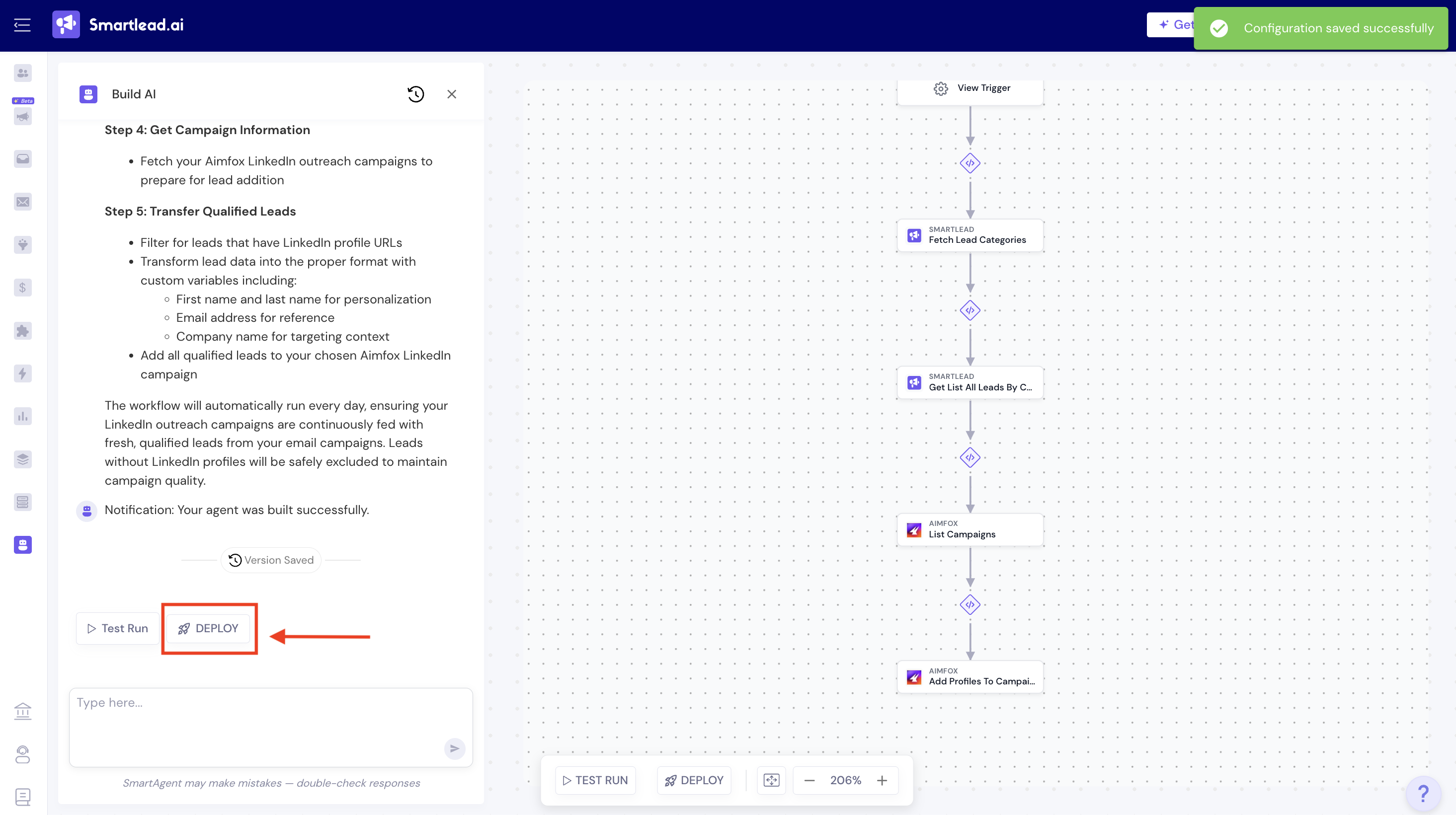
Review all steps in the workflow
Click Test Run (optional but recommended)
Click Deploy
Once deployed, the agent will run on the defined schedule and push leads automatically.
Example Use Cases
Common ways teams use this integration:
Move positive email responders to LinkedIn follow-ups
Run email → LinkedIn sequencing without manual work
Enrich LinkedIn outreach with Smartlead campaign context
Scale multichannel outbound while keeping workflows clean
Important Notes
Aimfox must be connected from Integrations before it appears in the agent builder
Leads must have LinkedIn profiles to be added to Aimfox campaigns
Start with a small campaign to validate setup before scaling