SmartAssistant is an AI-powered command center built into Smartlead. It lives in a chat panel on the right side of every page and lets you run the product through plain-language conversation - create campaigns, find leads, write sequences, diagnose problems, and pull account data without clicking through menus.
You don't learn commands. You type what you want. SmartAssistant figures out the rest, takes the action, and shows you what it did.
Two ways from anywhere in Smartlead:
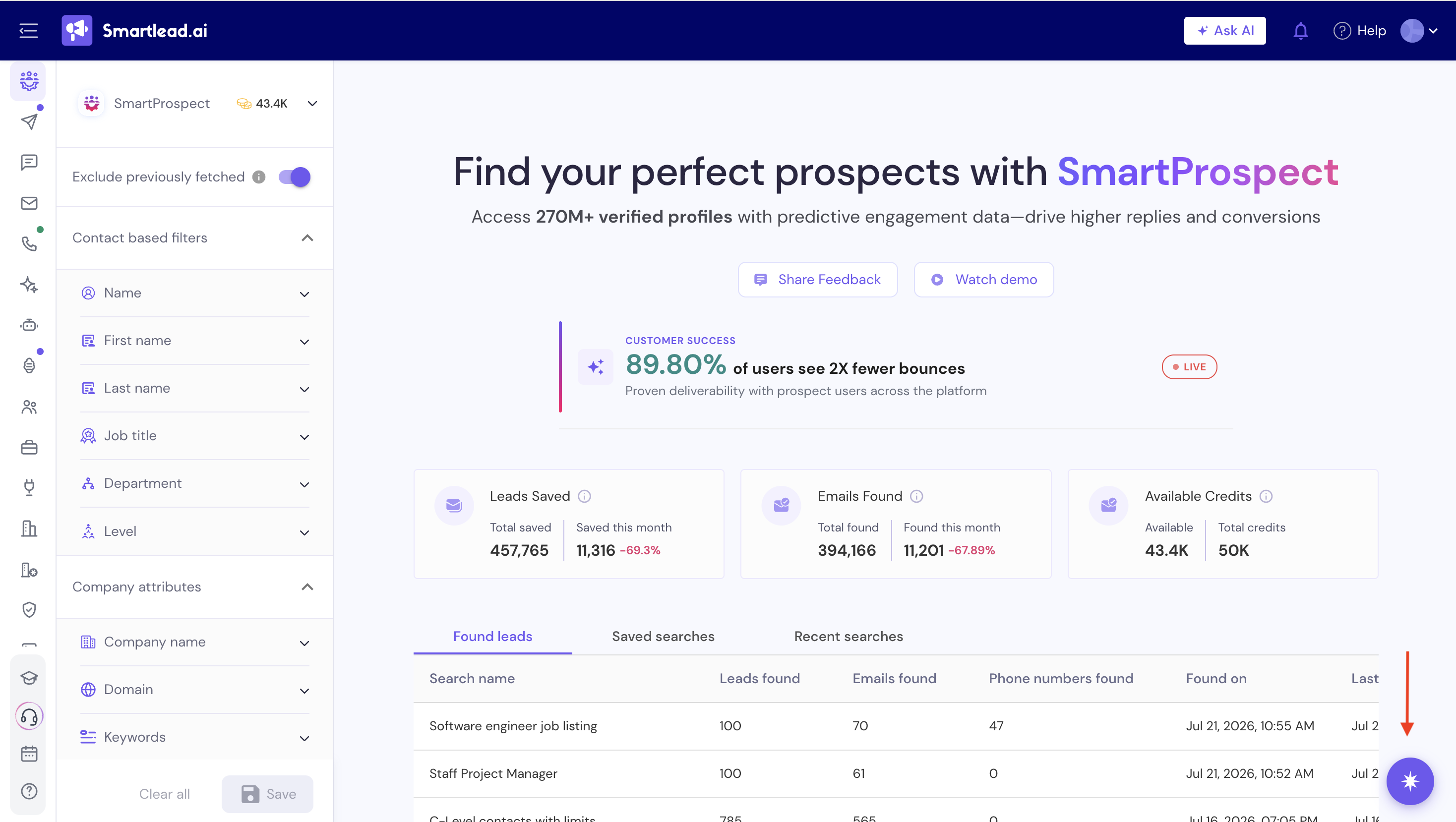
Floating button (primary): Purple sparkle icon in the bottom-right corner.
Top navigation (secondary): "Ask AI" button in the top-right header.
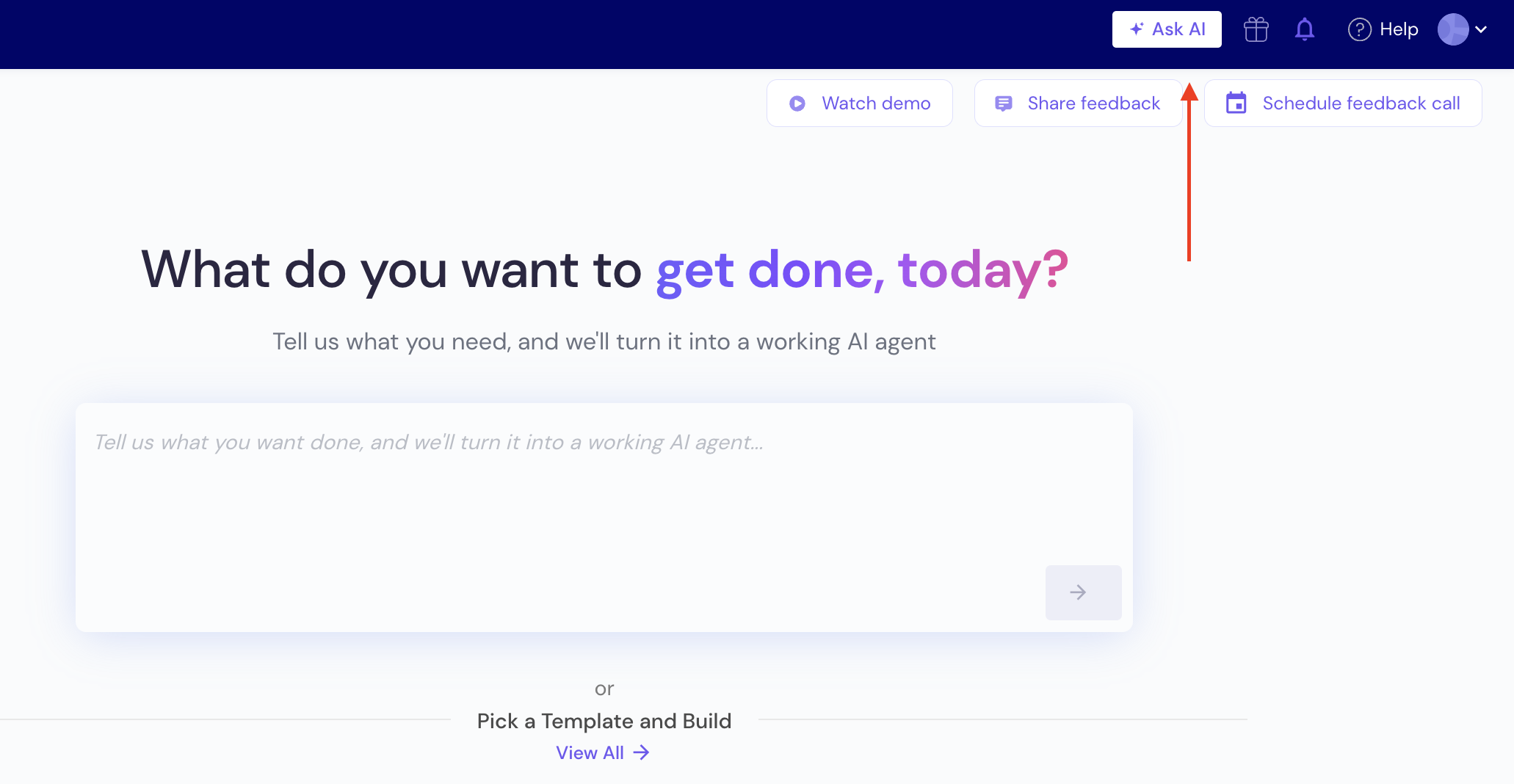
Both open the same panel. It sits on the right side and stays accessible even when modals or drawers are open, so you can keep working in the main area while SmartAssistant runs in parallel.
First open shows a "What can I help you with?" screen with four quick-start chips: What can you do?, Create a new campaign, Show me my campaign performance, Share feedback. Click one or type your own request in the Ask anything or give a command input.
Enter sends. Shift + Enter adds a new line.
You can also simply click on the dedicated SmartAssistant Page from left-nav menu. Go to AI Team » AI Assistant
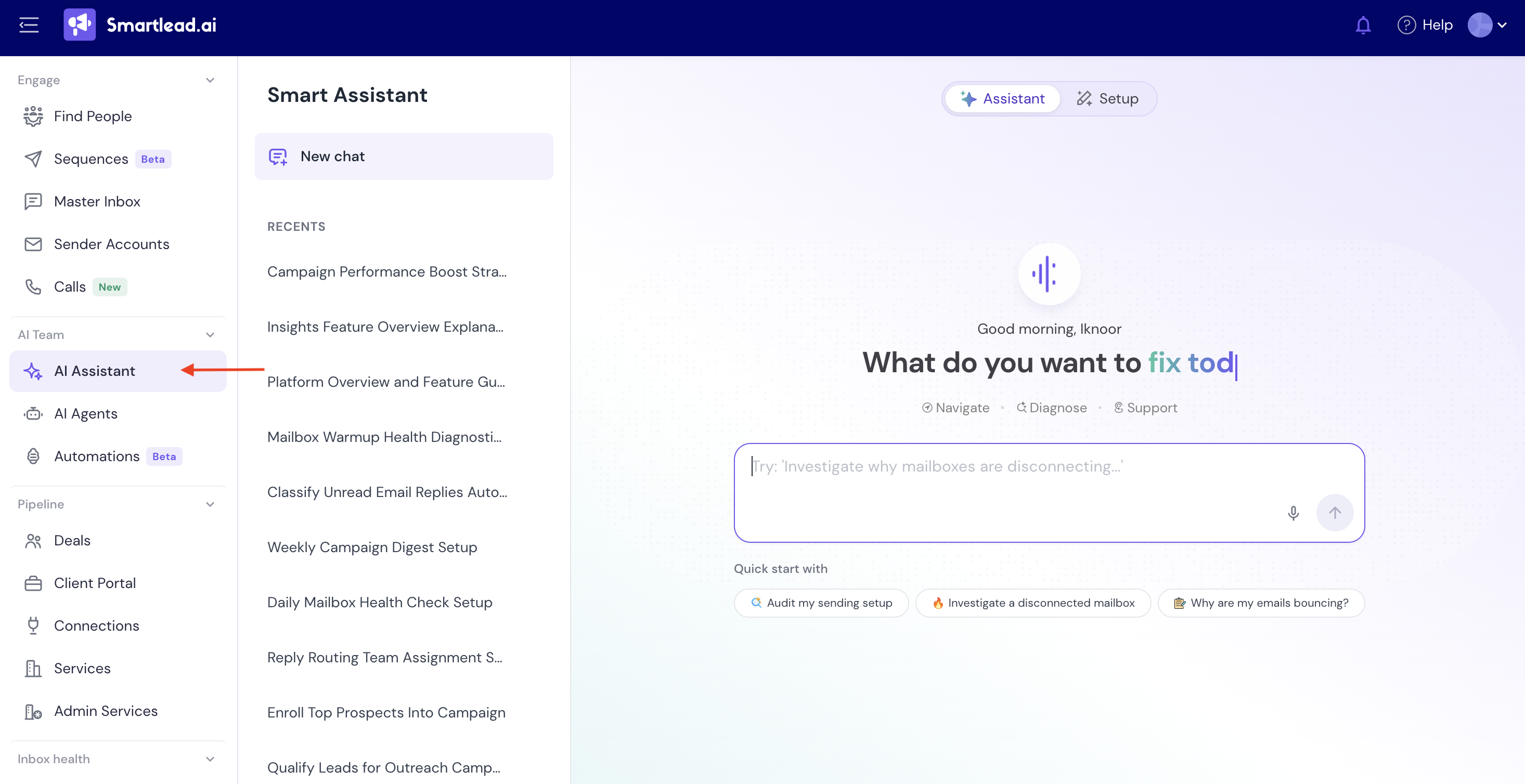
The SmartAssistant page has two tabs at the top: Assistant (the chat you use day to day) and Setup (your business context, covered in section 2 below).
Before you start chatting, it's worth spending two minutes on the Setup tab (check previous screen - click the tab next to Assistant). This is where you give SmartAssistant context about your company so its suggestions, copy, and diagnostics are tuned to your business instead of generic.
The first time you open Setup, SmartAssistant greets you by name and asks you to describe your business:
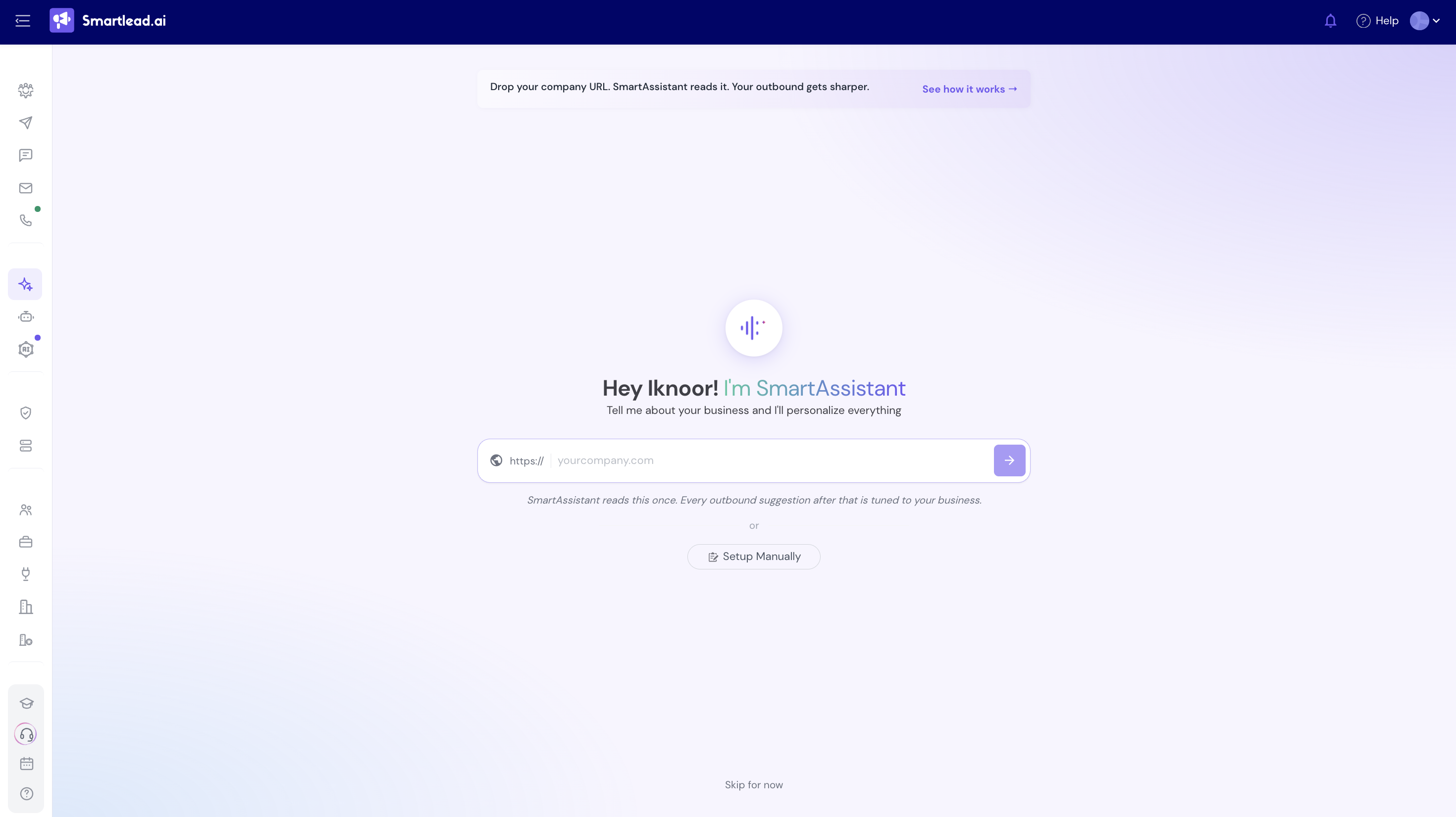
Drop your company URL. Paste your website and SmartAssistant crawls it once (“Scanning your website - crawling pages, structure & metadata”), then shows you what it found.
Setup Manually. Skip the crawl and fill in the fields yourself by clicking on “Setup Yourself”.
Skip for now. Come back to this later. SmartAssistant still works without it, just with less personalization.
After a URL crawl, you land on a “Here's what we found!” screen. Every field is editable, click any of them to change what SmartAssistant pulled in:
An example of running “smartlead.ai” URL in the business context below:
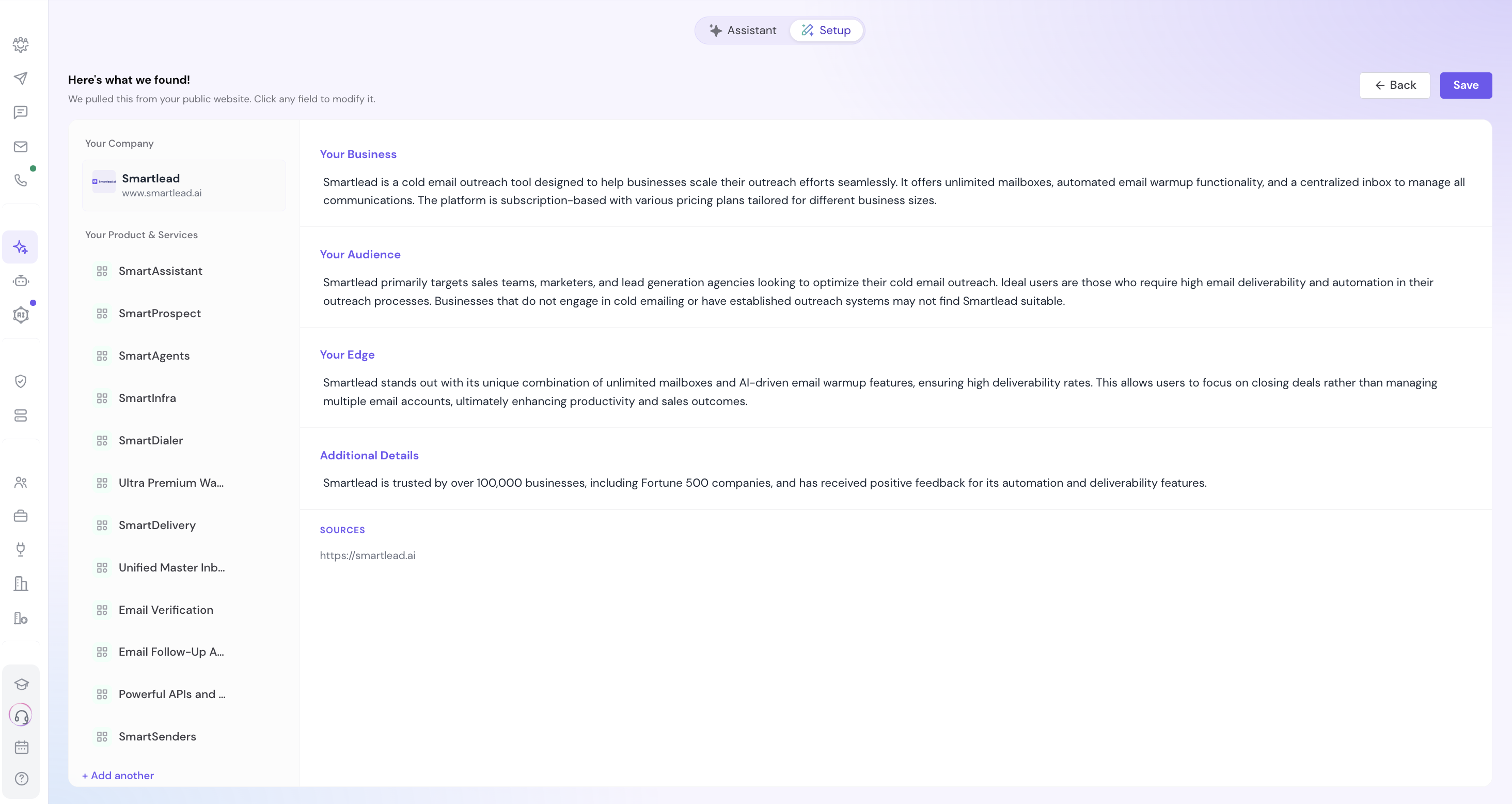
Your Company: name and website.
Your Product & Services: a list of what you offer, with an “+ Add another” link to add more items.
Your Business: a short description of what your company does.
Your Audience: who you sell to, and who it's not a fit for.
Your Edge: what sets you apart from alternatives.
Additional Details: anything else worth knowing, editable via the pencil icon.
Sources: the URL(s) SmartAssistant pulled this from.
Once it looks right, click Save. Click Back if you want to redo the crawl or change your URL first.
Return to the Setup tab anytime to review or edit your business details, or click Start Fresh to re-run the crawl from scratch. There's also a See how it works link on the initial Setup screen if you want more detail before dropping in a URL.
Why it matters: this business context is what lets SmartAssistant write on-brand campaign copy, target the right ICP, and give answers specific to your company rather than generic cold-email advice.
SmartAssistant handles three kinds of work:
Take actions in your account. Create campaigns, write email sequences, add leads, configure settings, pause or resume campaigns, push prospects from SmartProspect into a campaign, mark lead statuses, update mailbox configuration.
Run diagnostics on your data. Check why a campaign isn't sending, why emails are landing in spam, whether warmup is working, whether DNS records are set up correctly, whether a webhook is failing, whether your subject lines have spam triggers. It checks against your account - not generic templates.
Answer product questions and pull data. Anything about how Smartlead works, plus live account data: how many email accounts you have, how many credits are left, which campaign has the highest reply rate.
It also navigates anywhere in the product on command across Sequences, Sender Accounts, Find People, AI Agents, Calls, Master Inbox, Analytics, Deals, Settings, Subscription, API Keys, Client Portal, Connections, Webhooks, Warmup, Domain Health, Block List, and more.
Coverage varies by area. Some workflows are fully automated (SmartAssistant completes the task for you). Others are guided (it walks you through and points you to the right place).
SmartAssistant is context-aware. It reads which page you're on and adapts its suggestions:
On the Campaigns page, it offers campaign-related actions first.
Inside a specific campaign, it knows which campaign you're in and won't ask again.
On Email Accounts, it surfaces warmup and connectivity help.
On Smart Prospect, it offers filter and search help.
This means the same prompt can produce different first responses depending on where you ask it from. Useful when you want fast help - open SmartAssistant from the page closest to what you're trying to do.
Copy and paste these to see how it works:
Campaigns
"Create a new campaign called Q2 Outreach"
"Build me a 3-step sequence for a project management SaaS targeting CTOs, friendly tone"
"Pause my Q1 Outreach campaign"
"Why isn't my campaign sending?"
Smart Prospect
"Find me 200 marketing directors at B2B SaaS companies in the US with 50–200 employees"
"Unlock the top 50 leads and push them to my Q2 Outreach campaign"
Diagnostics
"My emails are going to spam, what's wrong?"
"Is my warmup working correctly?"
"Check my domain health"
Product questions
"How do I set up SPF, DKIM, and DMARC?"
"What's the difference between SmartSenders and Hyperinboxes?"
"Why is my email account disconnected?"
Account data
"How many campaigns do I have running?"
"How many prospect credits do I have left?"
"Which campaign has the highest reply rate?"
You don't need to phrase things perfectly. SmartAssistant handles messy one-liners and follow-up questions.
SmartAssistant is built to take action on your behalf — but it won't do anything destructive without checking with you first. Actions fall into three tiers:
Low risk - done immediately. Navigation, highlighting elements, opening help articles, pulling account data. Safe and reversible, no confirmation needed.
Medium risk - done immediately but easy to undo. Opening a creation modal, typing into a field, applying filters. You can edit or cancel before submitting.
High risk - always asks for explicit confirmation. Launching a campaign, pausing or resuming a campaign, deleting anything, large batch operations. SmartAssistant summarizes what's about to happen and waits for your "yes."
SmartAssistant will not delete campaigns, email accounts, or leads, change your billing plan, or connect/disconnect email accounts on your behalf. For these, it guides you to the right screen so you can do it yourself.
Every SmartAssistant response has thumbs-up and thumbs-down icons next to it.
Thumbs up reinforces what's working.
Thumbs down opens a short correction box — wrong answer, missed your intent, didn't complete the task, etc.
Your corrections feed back into SmartAssistant. It learns from the last 20 corrections across your workspace and uses them to improve future responses, usually within a day or two.
If SmartAssistant can't resolve your question - edge case, product limitation, or low confidence - it offers to open a support ticket.
Accept and it pre-fills a Gleap support ticket with your full conversation context and a "Submitted via SmartAssistant" note. You review the pre-filled ticket before it's submitted. Our support team operates in IST and typically responds within 48-72 hours.