Smartlead now supports multiple admin API keys per account, giving you independent control over every integration, script, and team member using your API. You can create up to 25 admin API keys - each with its own name - so rotating or revoking one key no longer disrupts every connected integration.
This article walks you through creating, managing, and revoking admin API keys, and explains how rate limits work across them.
Teams running multiple integrations: Assign a dedicated key to each tool (Zapier, Clay, Make, custom scripts) so you can rotate or revoke one without breaking the others.
Agencies and growth teams: Give each team member their own admin key for cleaner audits and attribution.
Developers: Use separate keys for production, staging, and internal tools to isolate environments.
Previously, each Smartlead account had a single admin API key shared across every integration. Now:
You can create up to 25 admin API keys per account
Each key has a custom name for easy identification
Keys can be renamed, reset, or revoked independently
Revoked admin keys are retained in a new Revoked Keys tab
The account's existing rate limit is now shared across all admin keys (no change to the limit itself)
Note: This update applies to admin API keys only. Client-level API key behavior remains unchanged.
From your profile, Go to Settings → API Key Management.
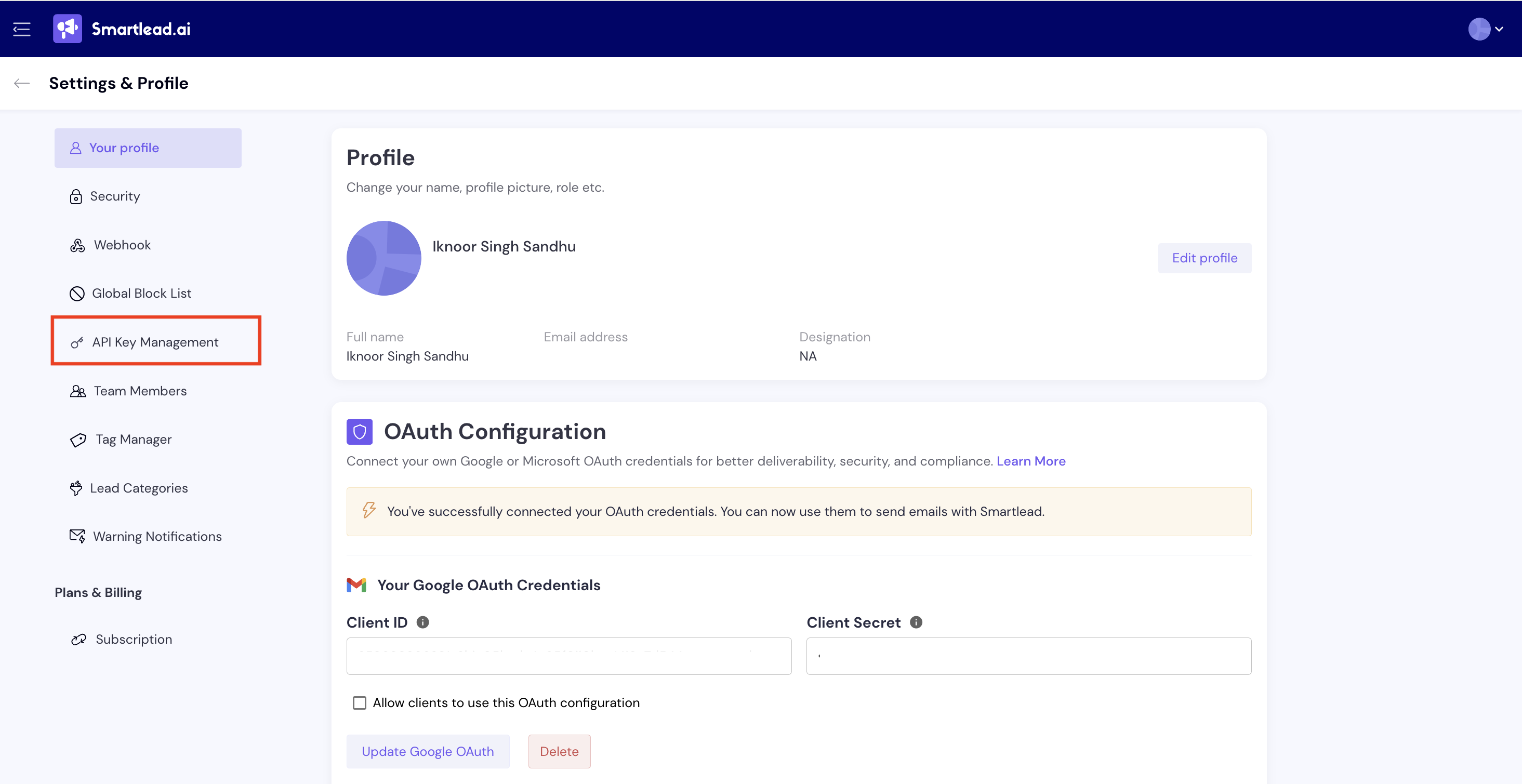
In the Admin API Keys section, click + Create API Key.
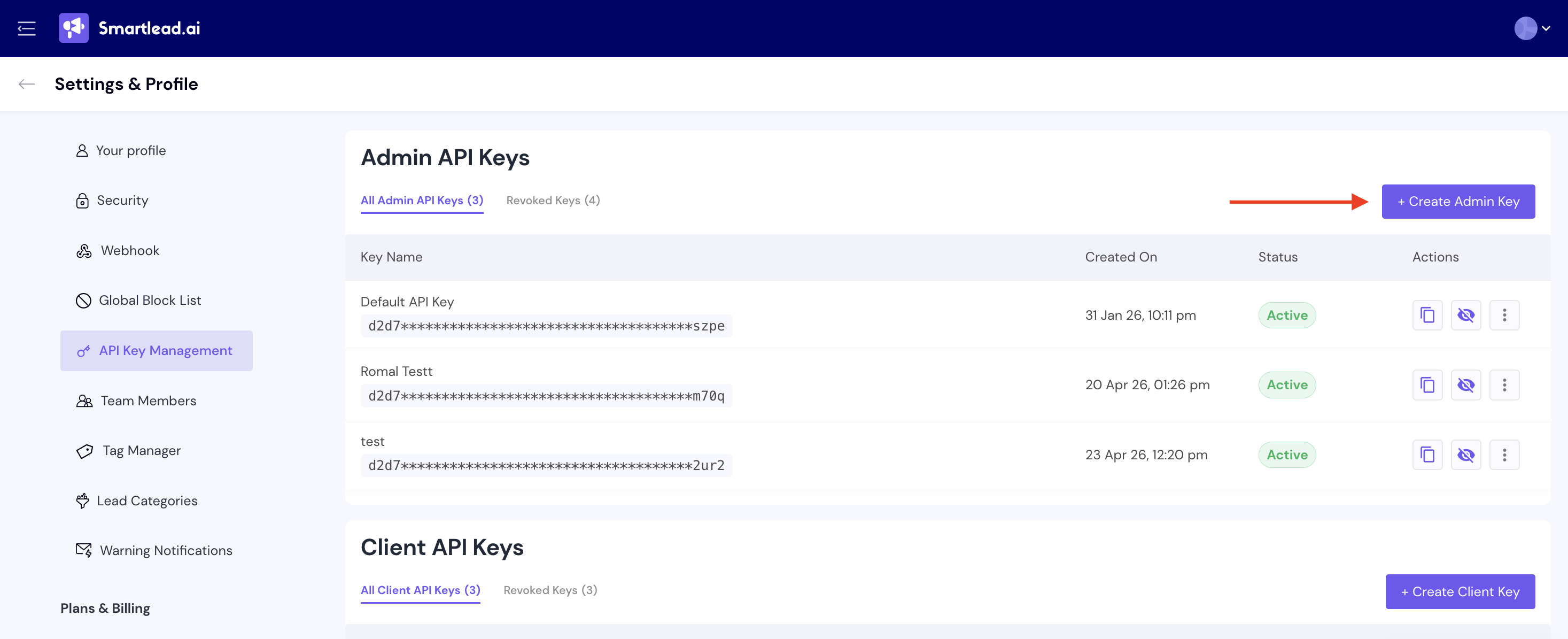
Enter a descriptive name for the key (e.g., Zapier Integration, Clay Sync, Internal Dashboard).
Click Create.
Copy the key immediately (click on copy icon - check the previous screenshot) and store it securely for security reasons, the full key value will not be visible again once you leave the page.
All your admin API keys are listed in a single table under Settings → API Key Management, with their name, status, and creation date visible. Click on the three dots in front of the API Key you want to edit.
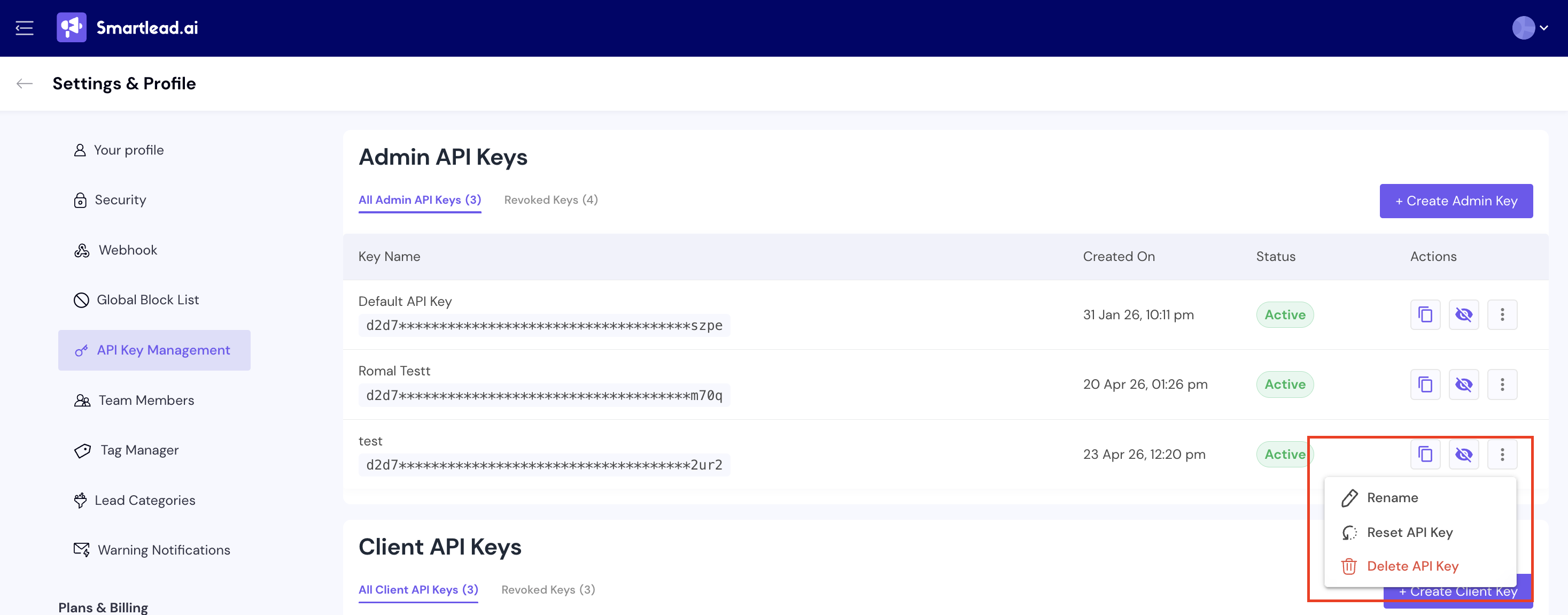
Click the Edit icon next to the key name.
Update the name (e.g., Client A – CRM Integration).
Save your changes. The key value and permissions remain the same.
If you suspect unauthorized use or want to rotate credentials:
Click Reset Key from the actions menu next to the key.
Confirm the reset. A new key value will be generated.
Update the integration using this key with the new value.
Warning: Resetting a key immediately invalidates the old value. Any integration using the old key will stop working until updated.
Click Revoke from the actions menu next to the key.
Confirm the action.
The key is moved to the Revoked Keys tab and can no longer be used for API requests.
Note: The primary admin API key cannot be revoked. All other admin keys can be revoked independently without affecting the primary key or other active keys.
Your account's existing rate limit is shared across all admin API keys. This means:
The total number of requests per minute remains the same as before
All admin keys draw from the same shared pool
A high-volume integration on one key can consume the rate limit available to others
Use one key per integration - Makes it easy to track usage and revoke access if an integration is deprecated.
Use descriptive names - Names like Zapier – Lead Sync are easier to audit than Key 3.
Rotate keys periodically - Reset keys on a regular cadence, especially for external integrations.
Revoke unused keys - Keep your active key list clean to reduce attack surface.
Never share keys across team members - Issue each person their own key.
Q: How many admin API keys can I create?
Up to 25 per account.
Q: Does creating more admin keys increase my rate limit?
No. Your account's existing rate limit is shared across all admin keys.
Q: Will my existing admin API key stop working?
No. Your original admin key continues to work as the primary key. You can now create additional keys alongside it.
Q: Can I revoke my primary admin API key?
No. The primary admin key cannot be revoked, but it can be reset.
Q: What's the difference between admin and client API keys?
Admin API keys give account-level access across all clients. Client API keys are scoped to a specific client sub-account. Learn more in How Client Level API Keys Work in Smartlead.
Q: Are revoked keys permanently deleted?
Revoked keys are retained in the Revoked Keys tab for audit purposes but cannot be reactivated.