Set it once and Smartlead detects burning or expiring mailboxes, orders replacements, warms them up, and swaps them into your campaigns automatically.
Look for Auto-Replace (marked New) as a tab on your Email Accounts page.
This guide covers:
What Auto-Replace does
How to Set-up Auto-Replace in Smartlead
How Auto-Replace works: the 5-step process
Tracking coverage and activity
Understanding mailbox status
FAQ
Cold email mailboxes don't last forever. Over time a mailbox can “burn” - its bounce or reply rate crosses a threshold that signals damaged deliverability - or it simply reaches the 1-year point after which its vendor won't renew it. Either way, campaigns using that mailbox quietly lose sending capacity.
Auto-Replace watches your mailboxes for both situations. Once you turn it on, it handles the fix end-to-end - orders a replacement, provisions it, warms it up, swaps it into your campaigns in place of the old one, and cleans up the old mailbox once you're ready. You configure your preferences once; after that it runs hands-free.
Setup takes under 5 minutes. You'll work through a short 3-step wizard - Automation Preferences,
Health Thresholds, and Replacement Defaults - and Auto-Replace turns on as soon as you save the last step.
1. Open Sender Accounts
In the left sidebar, under Engage, click Sender Accounts. This opens your Email Accounts page.
You will see a banner on top that lets you know if Auto-Replace is off and any mailboxes need attention.
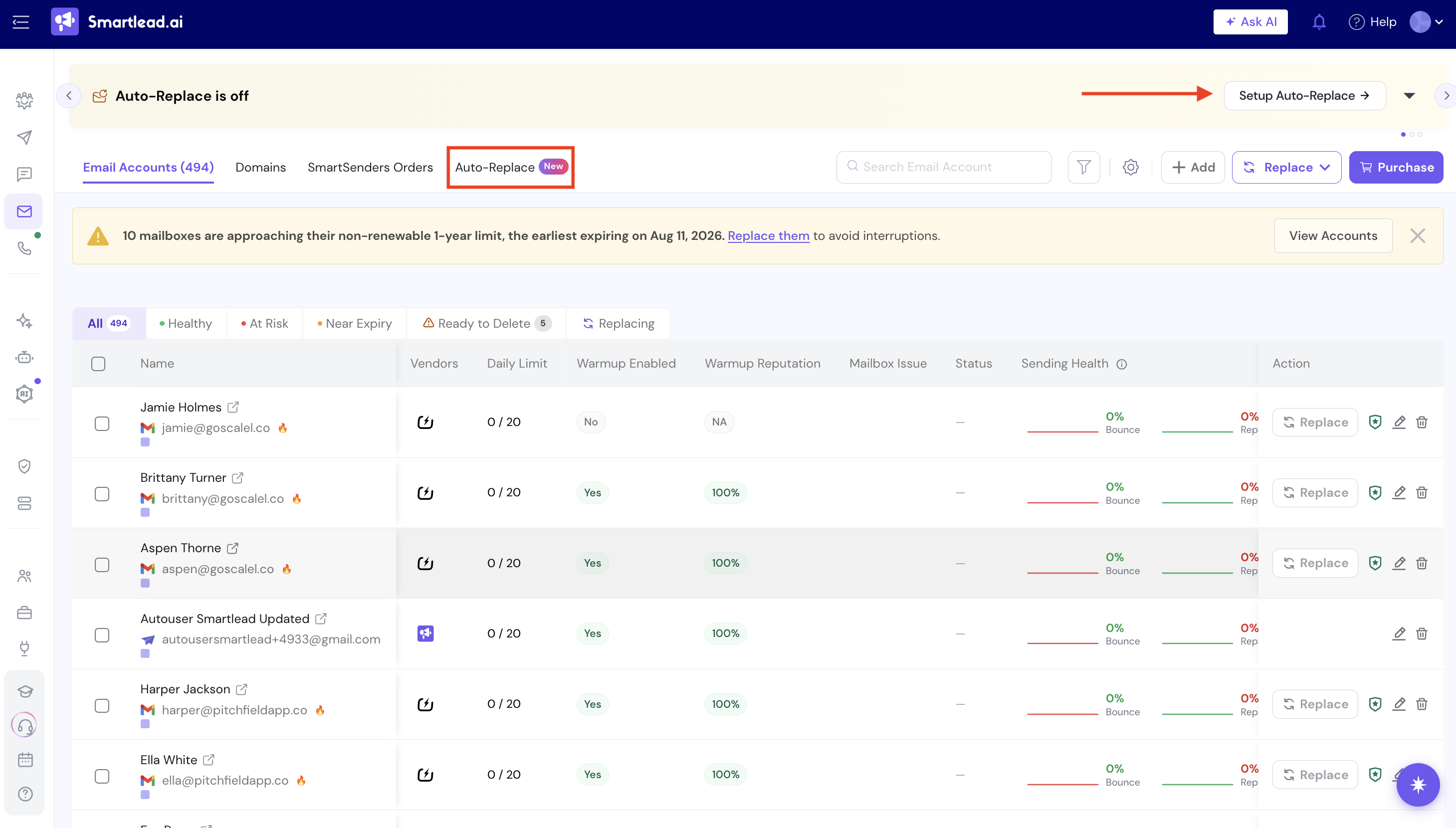
2. Click Setup Auto-Replace
Use the button on the banner, or open the Auto-Replace tab (next to Email Accounts, Domains, and SmartSenders Orders) and click Setup Auto-Replace there. (refer to the previous screenshot)
Before you configure anything, you can click How Auto-Replace works · 5-step process ·
Tap to see to preview the full replacement lifecycle.
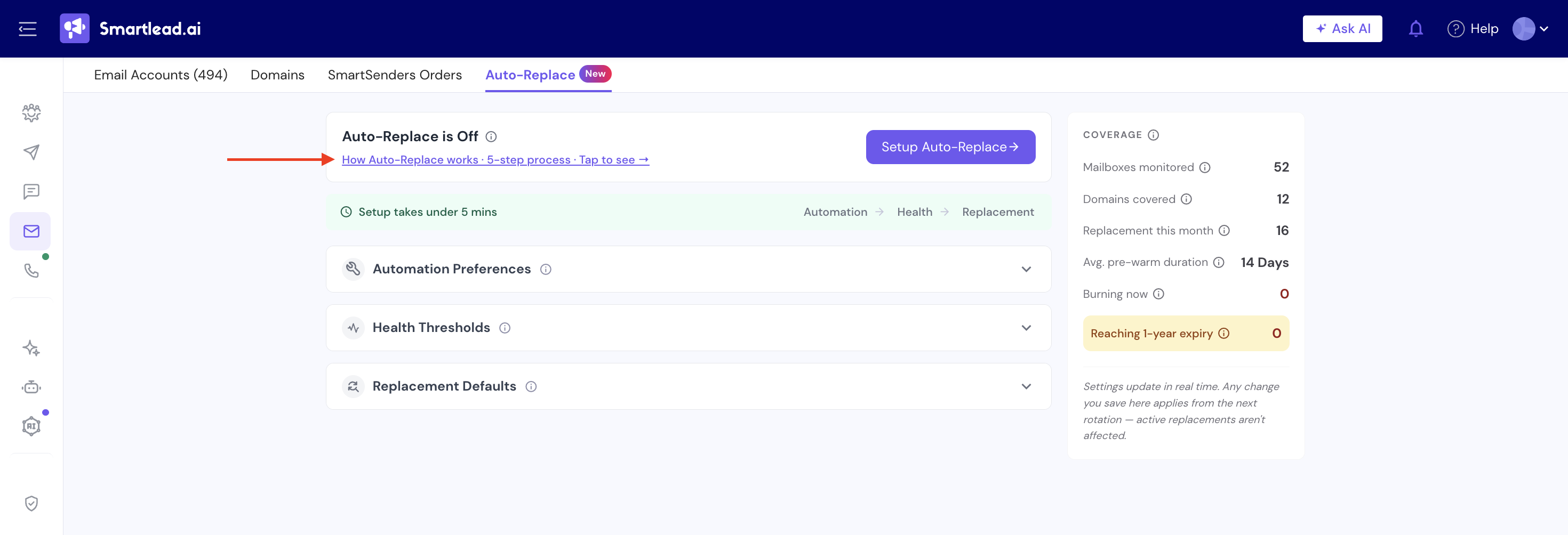
A new dialog box will open consisting of everything you need to know about how it works.
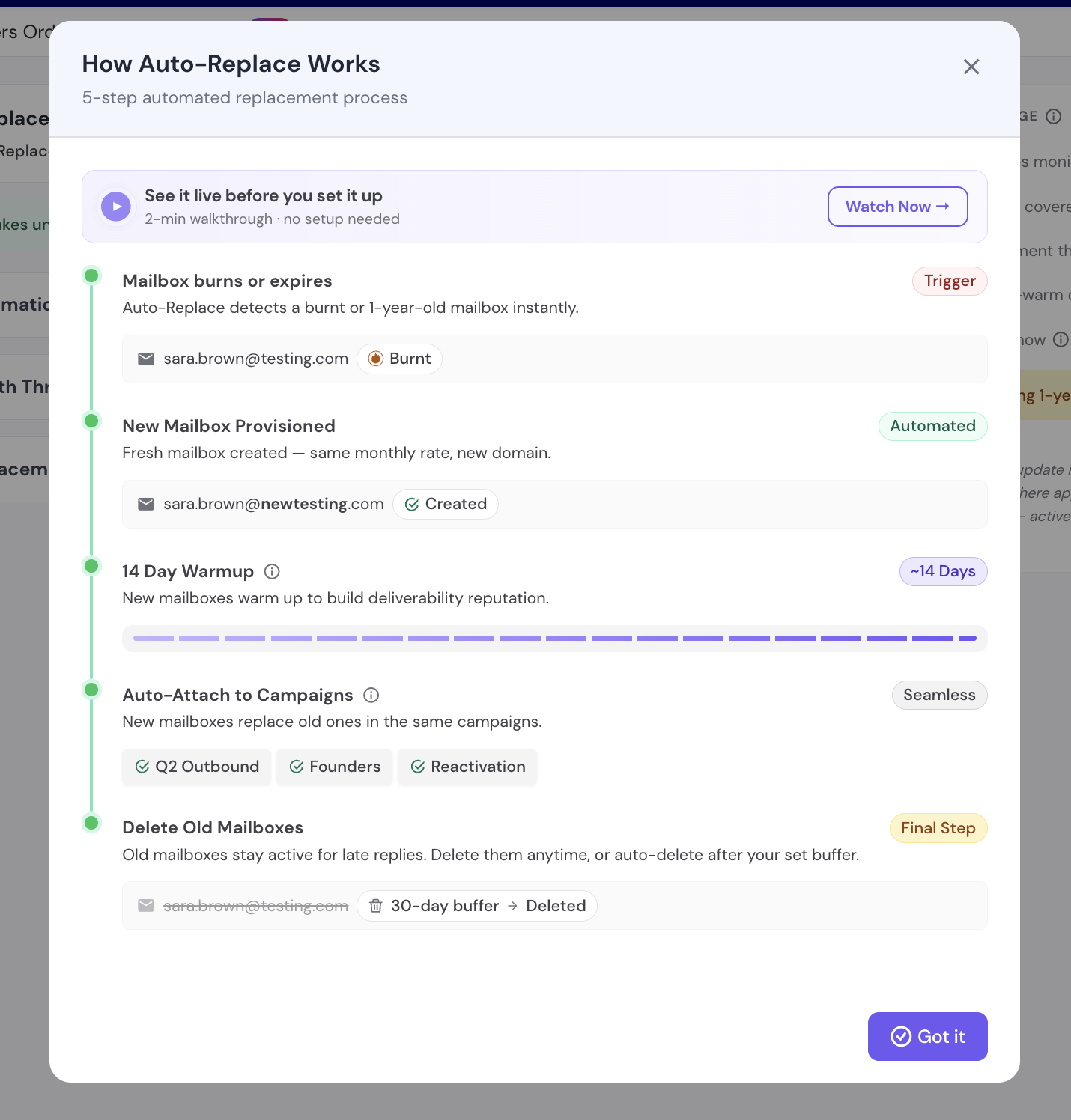
Click on “Got It” once you’re done reading.
Come back on the main page and click on Setup Auto-Replace
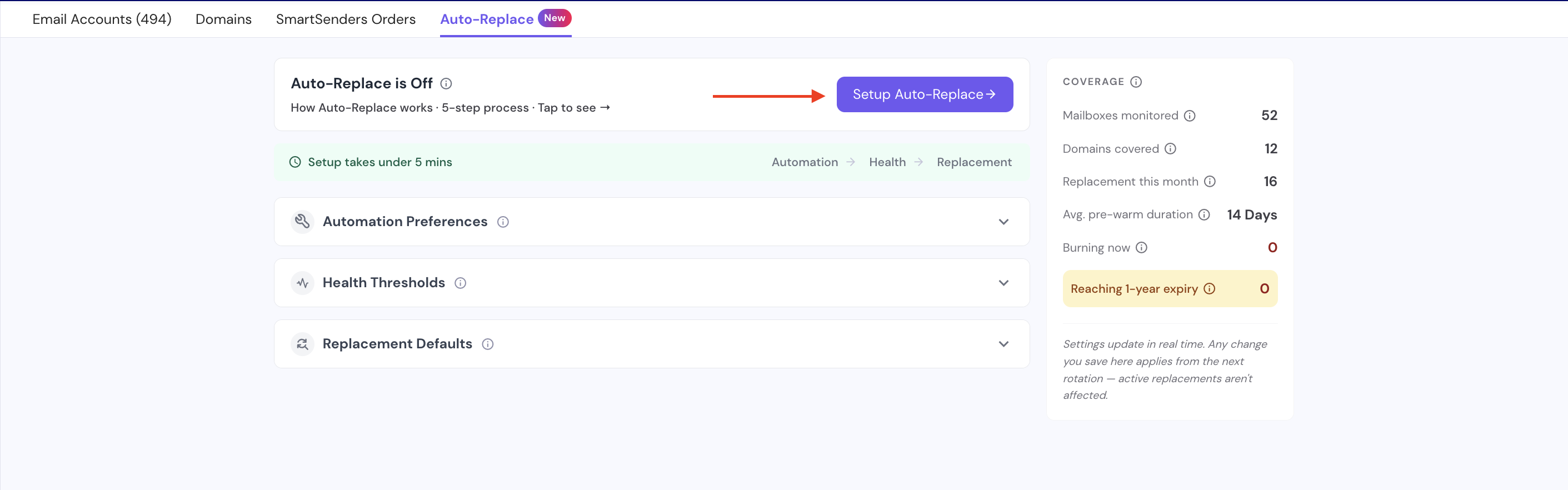
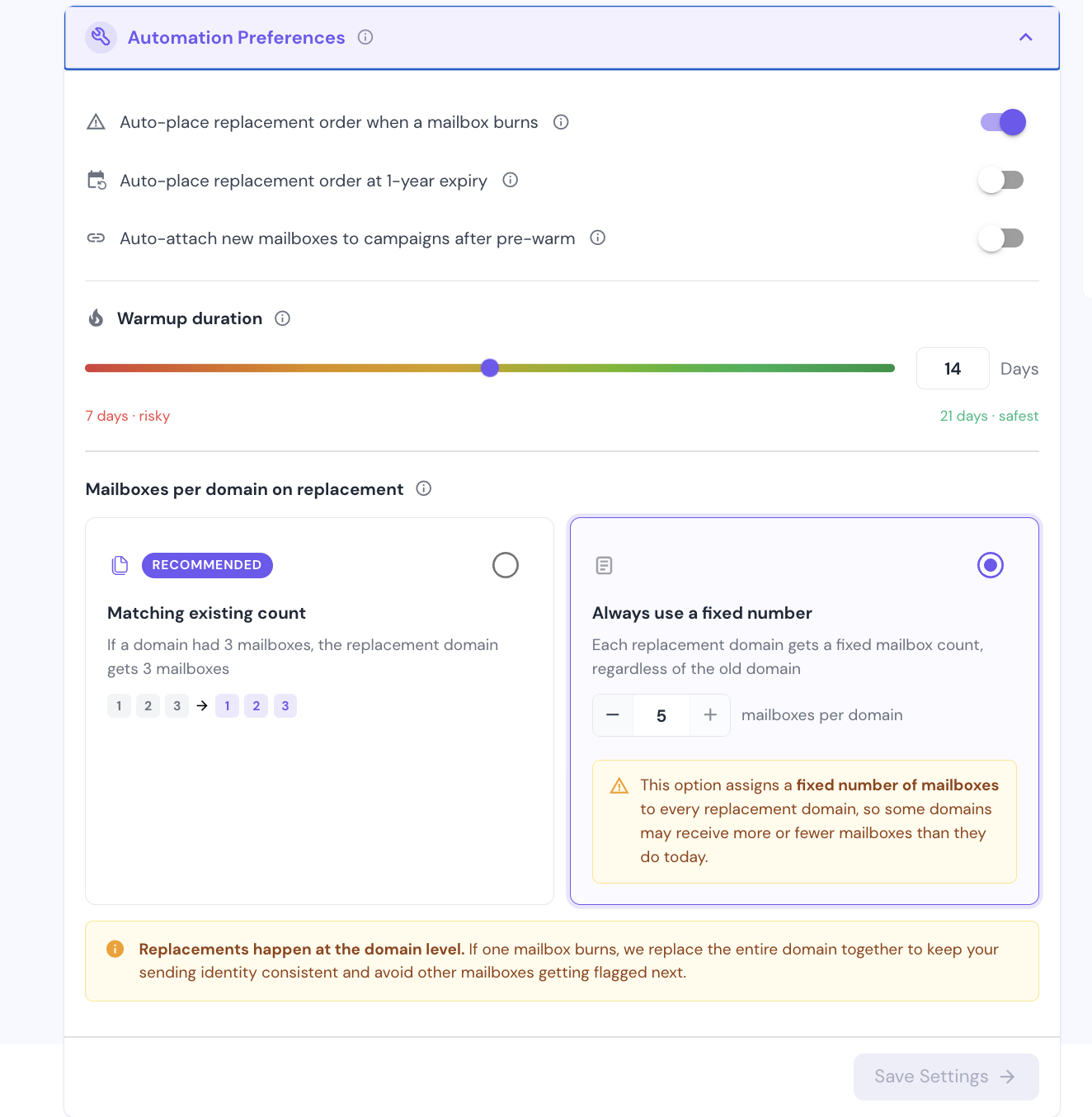
Step 1 of 3 - Automation Preferences
Set your toggles for auto-placing replacement orders, auto attaching after warmup, your warmup duration, and how many mailboxes each replacement domain should get.
Click Next to save this step and continue - you'll see a “Settings saved” confirmation as you move on.
The “i” icon in front of every option will give you more info on the same.
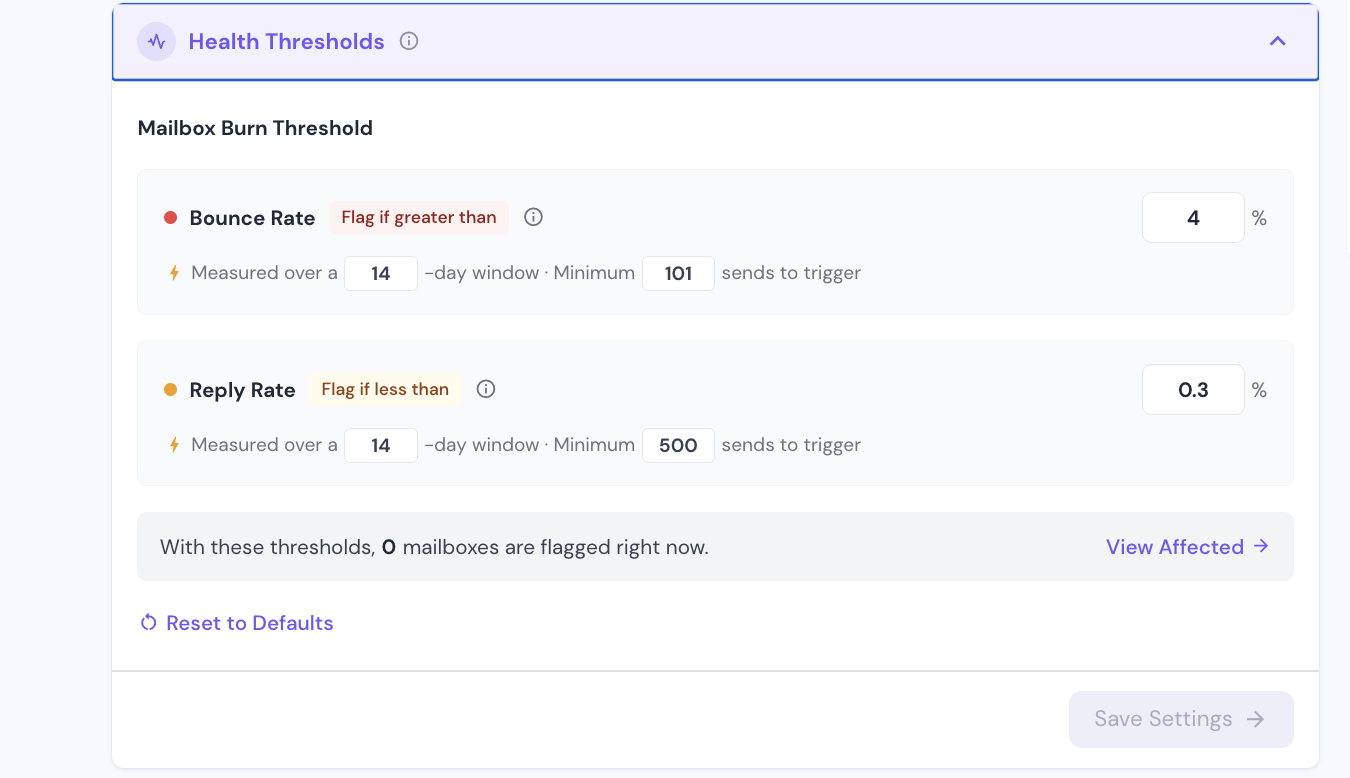
Step 2 of 3 - Health Thresholds
Set your bounce-rate and reply-rate flags (or keep the recommended defaults). The breadcrumb at the top of the panel (Automation → Health → Replacement) shows Health as the active step. Click Next to continue.
Step 3 of 3 - Replacement Defaults
Choose your forwarding domain, and open Configure on Domain Naming and Sender Persona if you want to adjust either.
Click Save Settings to finish.
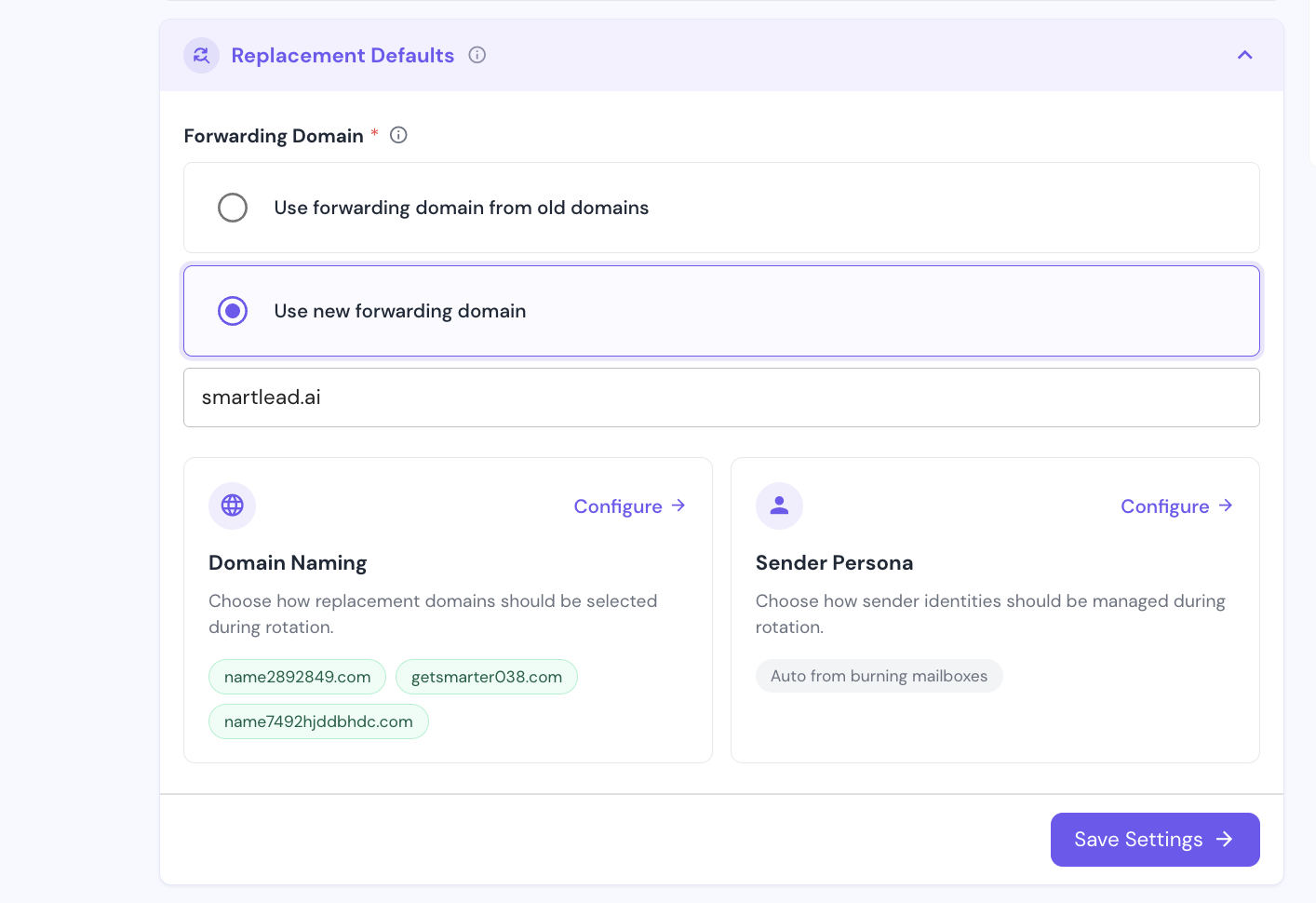
You're done. As soon as you click Save Settings, Auto-Replace switches on and starts monitoring your mailboxes.
You can return to the Auto-Replace tab at any time to review or change these settings - nothing about revisiting the wizard affects a replacement that's already in progress.
Where Else You'll See Auto-Replace
Auto-Replace surfaces in five places, so you're never far from it when it's relevant:
Post-purchase nudge - right after a Smart Senders order completes, on the order-confirmation screen.
Campaign banner - on a campaign's Email Accounts tab, when 2 or more mailboxes used by that campaign are close to burning.
Inline row callout - inside a campaign's mailbox list, a “Nearing Daily Limit” or “Burn Risk” callout appears on the specific mailbox at risk.
However you get there, Auto-Replace runs the same five-step cycle. Revisit it any time from the How Auto-Replace Works link on the Auto-Replace tab.
Mailbox burns or expires - Auto-Replace detects a burnt or 1-year-old mailbox instantly. This is the trigger; nothing happens before it.
New mailbox provisioned - a fresh mailbox is created at the same monthly rate, on a new domain.
14-day warmup - the new mailbox builds deliverability reputation before it starts sending campaigns.
Auto-attach to campaigns - the new mailbox replaces the old one in every campaign the old mailbox was part of.
Delete old mailboxes - the old mailbox stays active so you don't miss late replies. Delete it any time, or let it auto-delete after your set buffer (30 days by default).
Controls when Auto-Replace is allowed to act on your behalf, and how big a replacement should be.
Auto-place replacement order when a mailbox burns (default: On) - places a replacement order automatically as soon as a mailbox is flagged as burning. Turn this off if you'd rather review and replace burning mailboxes manually.
Auto-place replacement order at 1-year expiry (default: Off) - places a replacement order automatically before a mailbox hits its non-renewable 1-year limit.
Auto-attach new mailboxes to campaigns after pre-warm (default: Off) - once a new mailbox finishes warmup, this automatically swaps it into the same campaigns the old mailbox was in. If left off, you attach the new mailbox to campaigns yourself once it's warmed up.
Warmup duration (default: 14 days) - how long a new mailbox spends building reputation before it can be attached to campaigns. Adjustable from 7 days (riskier) to 21 days (safest).
Mailboxes per domain on replacement (default: Matching existing count) - “Matching existing count” gives the replacement domain the same number of mailboxes as the domain it's replacing (recommended). “Always use a fixed number” assigns the same fixed mailbox count to every replacement domain, which may give some domains more or fewer mailboxes than they have today.

Controls what counts as “burning.” A mailbox is flagged if either condition below is met:
Bounce rate - flag if greater than 4%, measured over a 14-day window, with a minimum of ~100 sends to trigger.
Reply rate - flag if less than 0.3%, measured over a 14-day window, with a minimum of 500 sends to trigger.
Both thresholds are editable. As you adjust them, a live preview shows how many mailboxes would be flagged right now under the new values, so you can see the impact before saving.
Use Reset to Defaults to revert to the recommended values above.
Controls how replacement domains and senders are set up:
Forwarding Domain (required) - where replies to your rotated mailboxes get routed. Choose to reuse the forwarding domain from your old domains, or set a new forwarding domain.
Domain Naming - how replacement domain names are chosen during a rotation. Open Configure to review or adjust the naming approach.
Sender Persona - how sender identities (names, profile photos) are handled when a mailbox is replaced. Open Configure to review or adjust - by default this is set automatically from the burning mailbox's existing persona.
Click Save Settings once you've reviewed all three sections.
The Auto-Replace tab includes a Coverage panel that summarizes what the feature is currently doing across your account.
These figures update in real time.
Mailboxes monitored - how many of your mailboxes are being health-scored.
Domains covered - how many distinct domains those mailboxes span.
Replacement this month - how many replacements have been triggered this calendar month, including ones still in progress.
Avg. pre-warm duration - the average warmup time across recently completed replacements.
Burning now - how many mailboxes are currently flagged as burning.
Reaching 1-year expiry - how many mailboxes are within the notification window of their non-renewable 1-year limit.
The Email Accounts page shows filter chips so you can quickly scope the mailbox list to a particular state:
Healthy - bounce and reply rates are within your configured thresholds. No action needed.
At Risk - the mailbox has crossed a bounce or reply threshold, or is nearing its 1-year expiry, and is on track to be replaced.
Near Expiry - the mailbox is approaching its non-renewable 1-year limit.
Replacing - a replacement is in progress; the new mailbox is being provisioned or is still in its warmup period.
Ready to Delete - the new mailbox has been attached to campaigns and the old mailbox is only being kept around for late replies. Safe to delete when you're ready.
No. Replacement orders are only placed automatically if you've turned on “Auto-place replacement order when a mailbox burns” and/or “…at 1-year expiry” in Automation Preferences. If both are off, you'll see the mailbox flagged and can trigger a replacement yourself whenever you're ready.
Any replacement already in progress continues to completion. Turning Auto-Replace off just stops new replacements from being triggered going forward.
No. Setting changes apply from the next replacement onward - active replacements and mailboxes already flagged aren't retroactively affected.
Not necessarily. The old mailbox is kept alive after replacement so you don't lose any late-arriving replies. Once you're confident those replies have come through - or once your buffer period elapses, if you've enabled auto-delete - you can safely delete it.