Your SmartSender Profile controls how your mailboxes appear to recipients and how replies get routed. You can update it two ways: in bulk across multiple mailboxes, or one mailbox at a time.
Profile Photo - the picture recipients see as your sender picture.
Display Name - the first and last name shown as the sender.
Signature
Forwarding Domain - the domain used for forwarding replies to your mailbox. Changing this applies to every mailbox on that domain, not just the ones you selected.

Bulk Update Multiple Mailboxes
Go to Email Accounts (under Sender Accounts) and select the mailboxes you want to update using the checkboxes on the left.
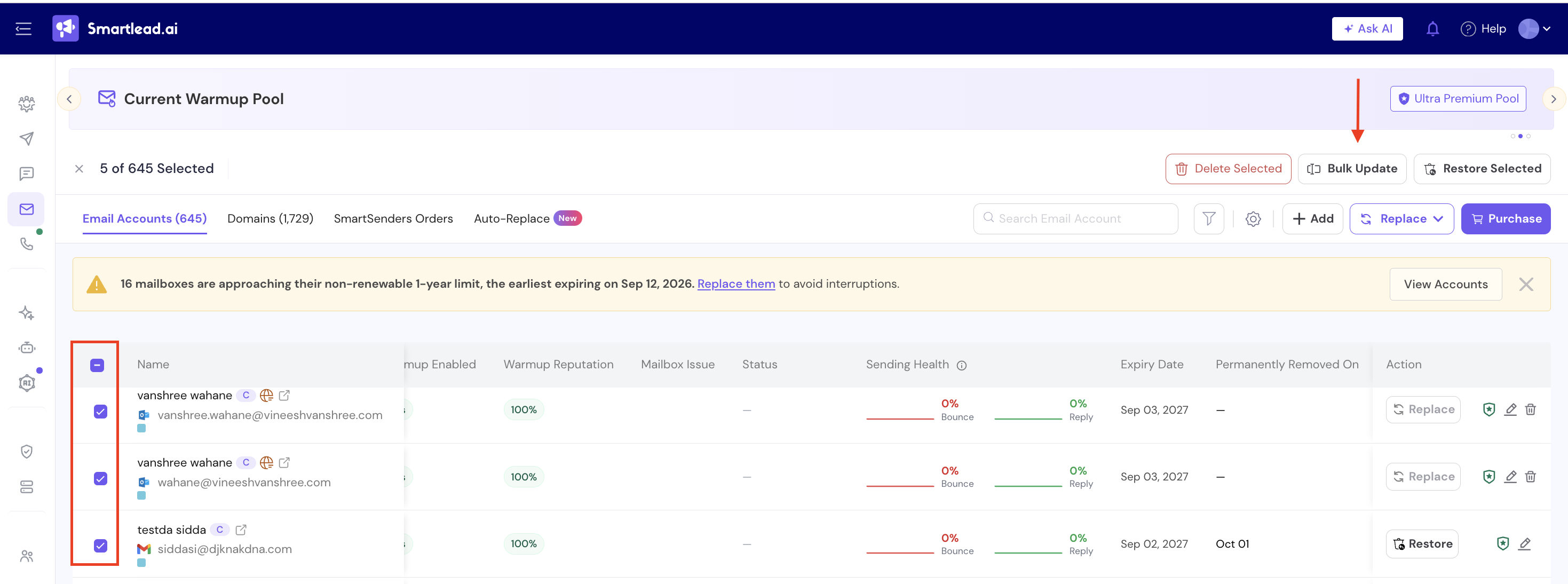
Click Bulk Update in the top-right corner. (check previous screenshot)
In the Bulk Update modal, go to the SmartSender Profile tab.
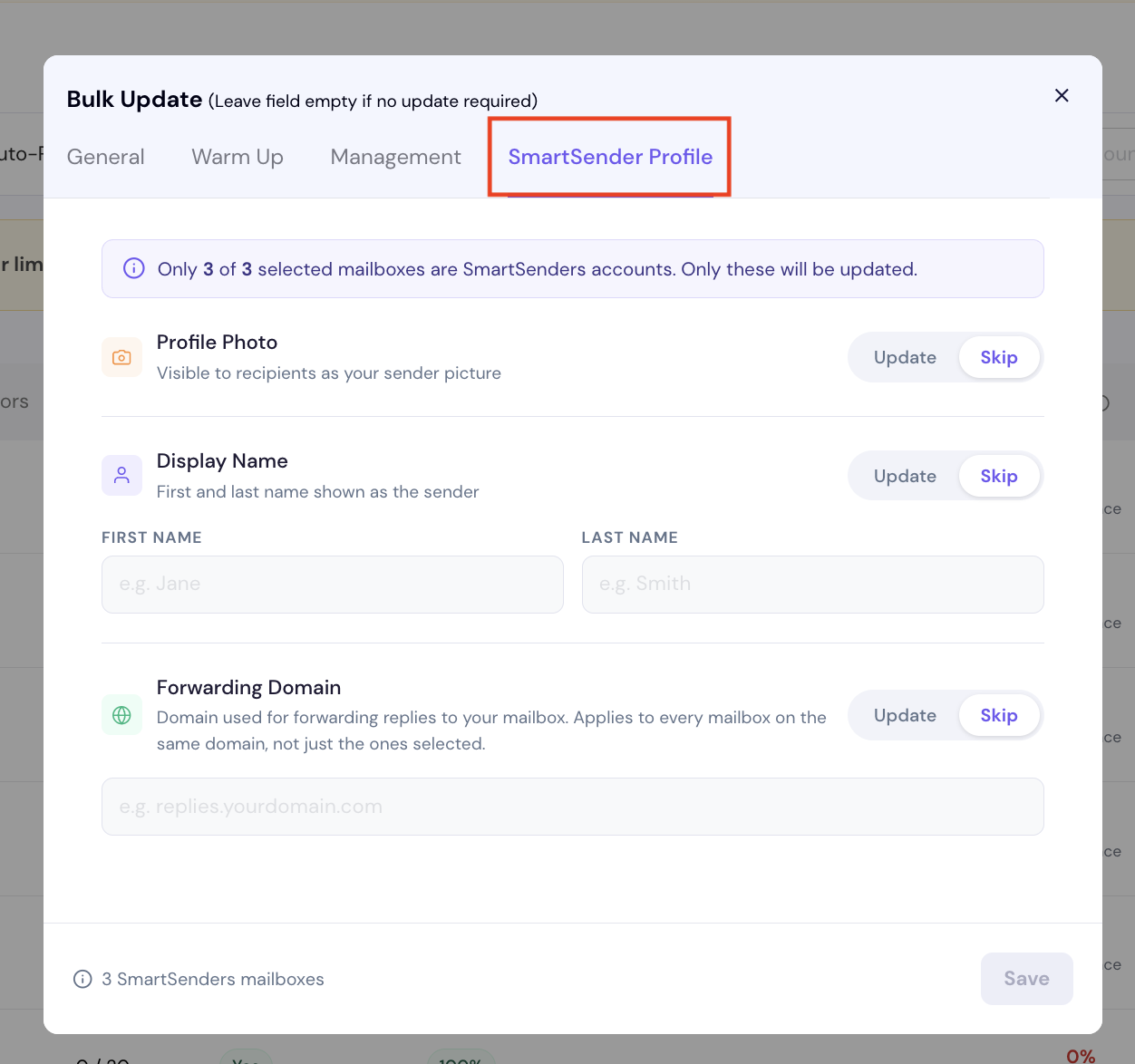
For each field you want to change, toggle it from Skip to Update:
Profile Photo - toggle Update to upload a new photo for all selected SmartSenders mailboxes.
Display Name - toggle Update, then enter First Name and Last Name.
Forwarding Domain - toggle Update, then enter the domain (e.g., replies.yourdomain.com). Remember: this applies to every mailbox on that domain, not just the ones checked.
Leave any field on Skip if you don't want to change it - per the modal's own note, an empty/skipped field means no update.
Click Save.
Similarly, you can update name and other details of a single SmartSender mailbox too.