When a mailbox burns or its domain nears expiry, Auto-Replace orders a new domain with matching mailboxes. Replacement Defaults sets the domain names, sender names and photos, and the forwarding domain used for those orders.
You need the Auto-Replace tab under Sender Accounts, which requires SmartSenders access.
Replacement Defaults can't be saved until you add at least one sender persona and your contact information.
Go to Sender Accounts and click the Auto-Replace tab.
Click Replacement Defaults to open it.
The Forwarding Domain field sits at the top. Below it are the Domain Naming and Sender Persona cards.
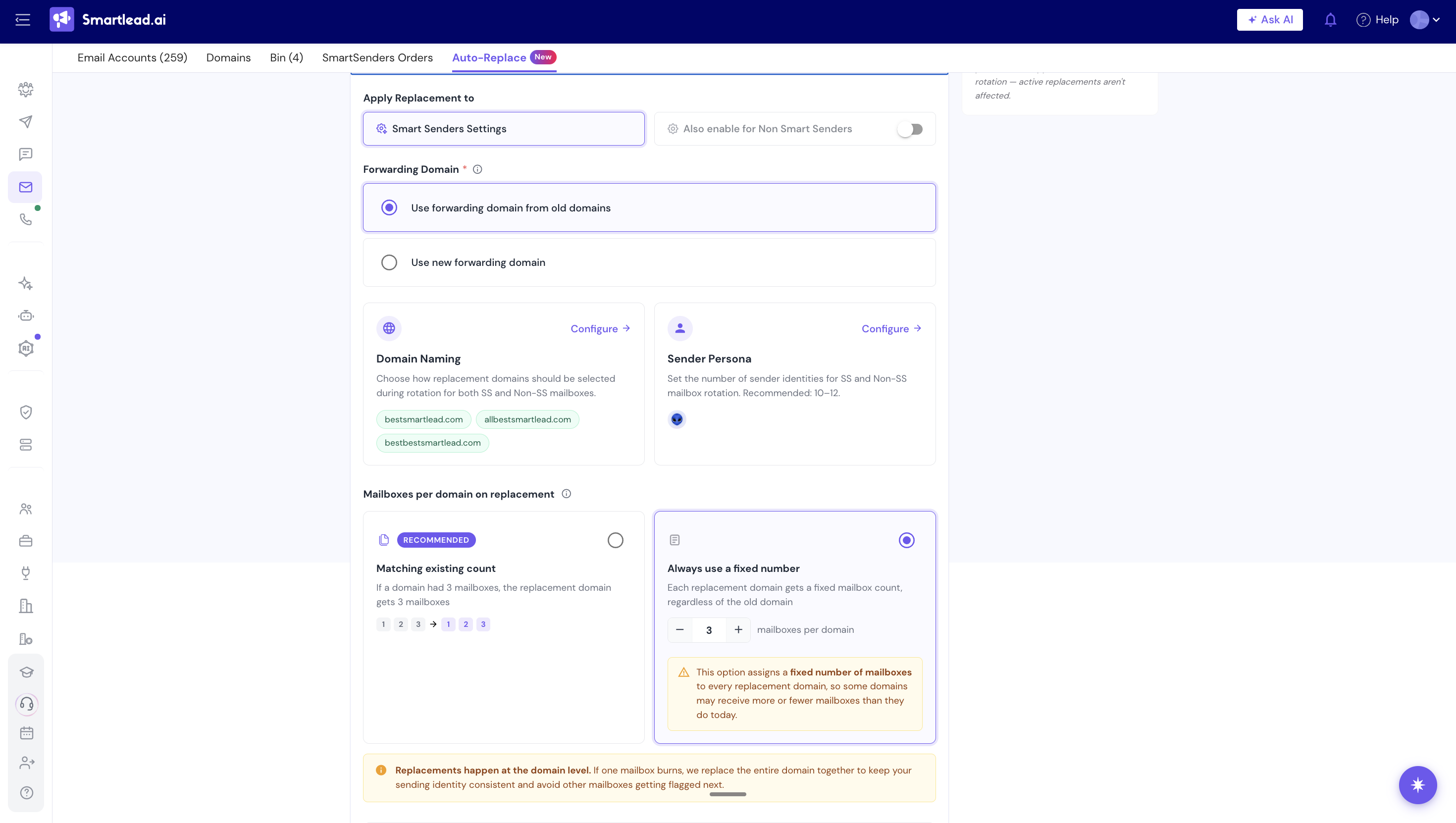
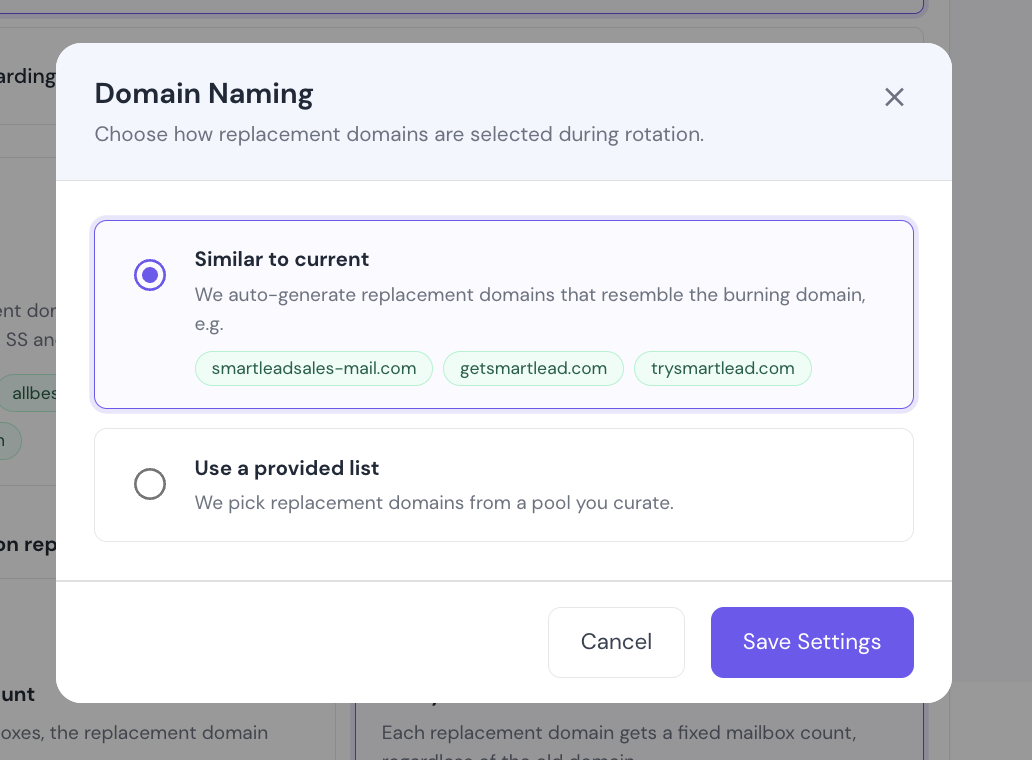
In the Domain Naming card, click Configure.
Select Similar to current to have Smartlead generate names like the burning domain. Or select Use a provided list to pick from a pool you add.
For a provided list, type a name in the search field and press Enter. A name with no dot gets .com, so getacme becomes getacme.com.
Hover over a domain chip to see its status. It shows Available to register, Already registered / unavailable or Couldn't verify availability right now.
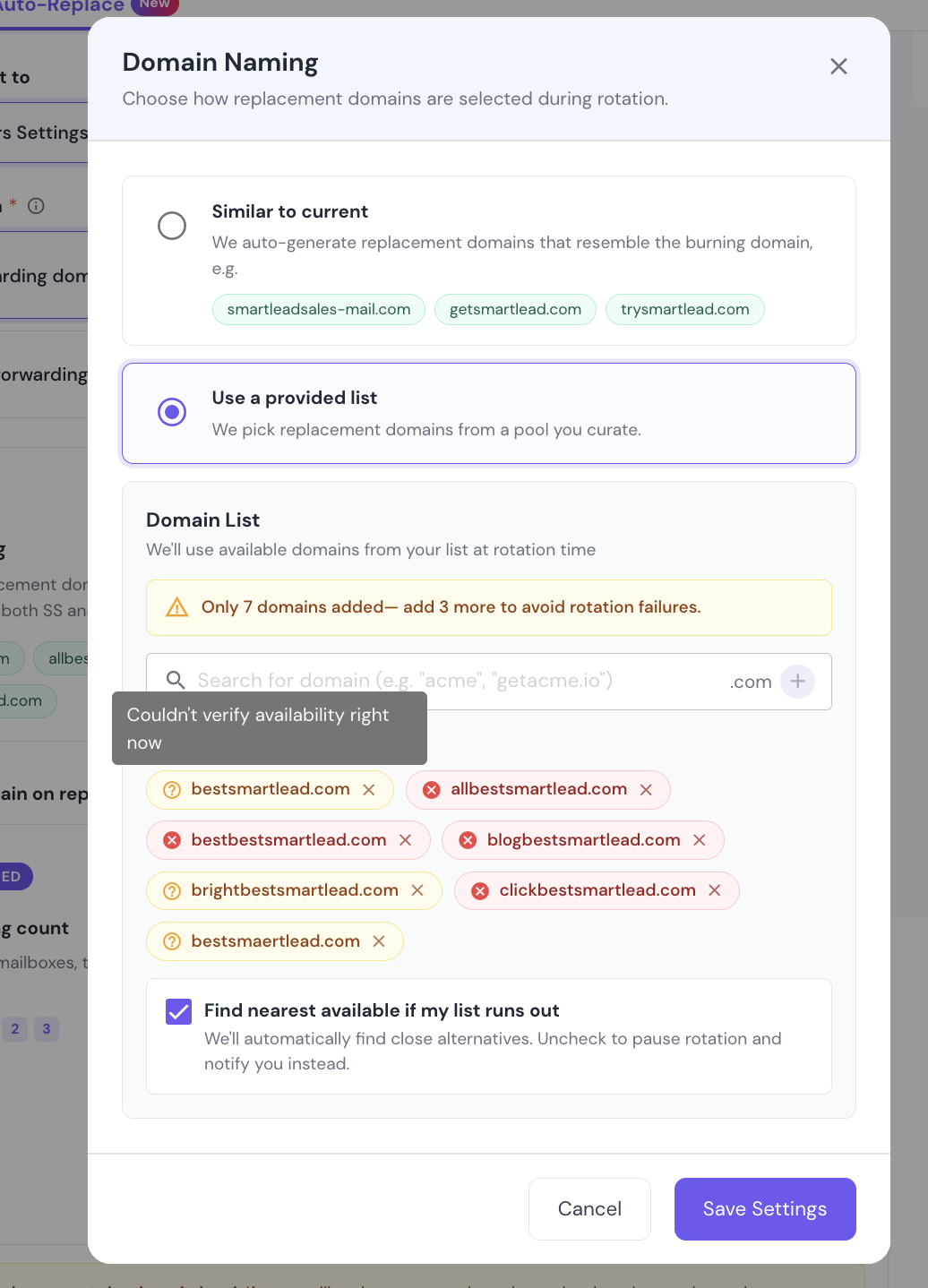
Add domains until the list reaches 10. The notice above the list shows how many are still needed.
Keep Find nearest available if my list runs out checked to let Smartlead use close alternatives when your list runs out. Uncheck it to pause rotation and be notified instead.
Click Save Settings.
In the Sender Persona card, click Configure.
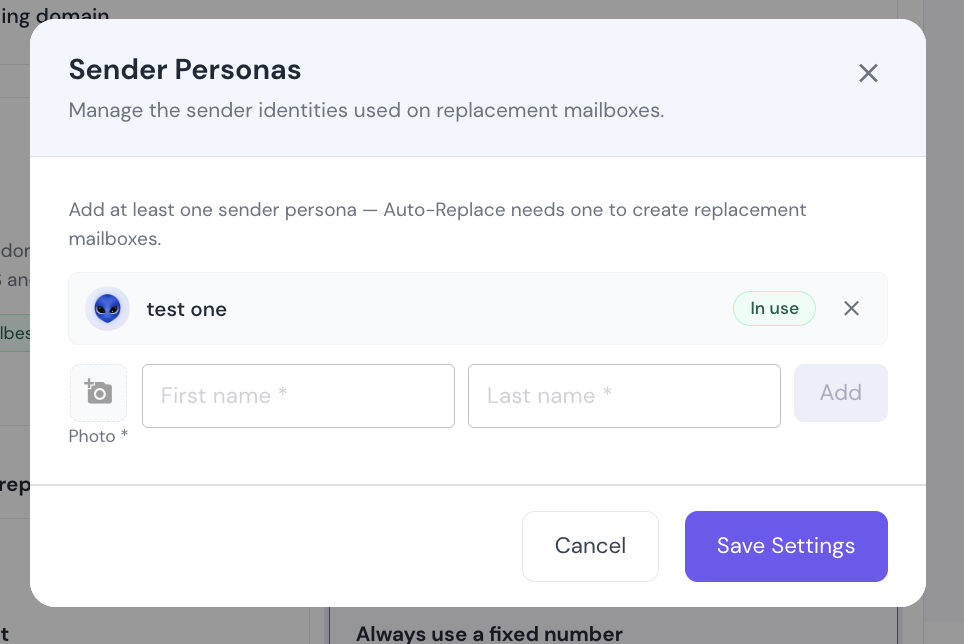
Add a photo, type a first name and a last name, then click Add.
Repeat for each persona. Smartlead recommends 10 to 12.
Click Save Settings.
The forwarding domain is where people land when they visit one of your sending domains, usually your main website.
Select Use forwarding domain from old domains to reuse the forwarding domain of the mailbox being replaced. This is the default, and you don't need to enter a domain.
Or select Use new forwarding domain and enter a domain you own, such as acme.io.
Fill in your contact information if it isn't there yet.
Click Save Settings at the bottom of the section.
Auto-Replace orders a whole new domain. Each order brings new mailboxes, and your card on file is charged for it.
Domain Naming and Sender Persona apply to both Smart Senders and Non Smart Senders mailboxes. The forwarding domain is set separately for each.
The email address of an existing mailbox can't be changed. On a ZapMail mailbox, the SmartSender Profile tab changes the display name and photo.
"Add at least one domain or enable the fallback." Cause: Use a provided list has no domains and Find nearest available if my list runs out is unchecked. Fix: add a domain or check the box.
"Add at least one sender persona to save." Cause: no persona is listed. Fix: add one as in Step 3.
"Add your contact information to save." Cause: your contact details are missing. Fix: fill them in at the bottom of Replacement Defaults.
"Enter a valid domain like getacme.com." Cause: the name has spaces or characters other than letters, numbers, hyphens and dots. Fix: retype it.
A domain shows Already registered / unavailable. Cause: the name is taken. Fix: replace it. This warning doesn't block saving.
Still stuck? Contact support from the chat in your Smartlead dashboard.
