A campaign can send from several mailboxes at the same time. Attach the mailboxes to the campaign, then set how many emails each mailbox can send per day. There is no setting to split leads between mailboxes: sending spreads out as you add mailboxes and set their daily limits.
In each sending round, every attached mailbox that is connected and under its daily limit sends at most one email.
A lead stays with the mailbox that sent its first email, for every follow-up.
A mailbox that is disconnected or at its daily limit skips the round, and the other mailboxes keep sending.
Open the campaign and click the Email Accounts tab.
Open Unselected Accounts and tick the mailboxes you want to use.
Click Add to Campaign, then Confirm Changes.
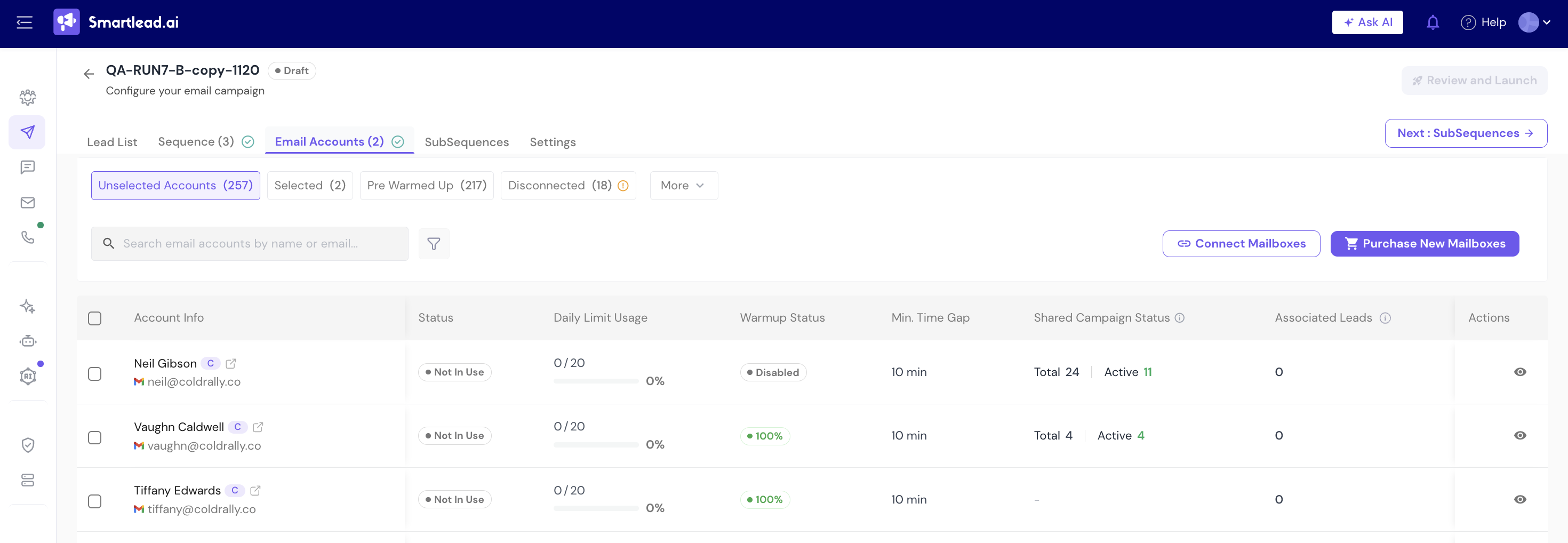
The added mailboxes now show under Selected.
Each mailbox has one daily limit, and every campaign that uses the mailbox counts against it.
Go to Sender Accounts and open the mailbox.
On the General tab, set Message Per Day (Warmups not included).
Save your changes.
To set the same limit on many mailboxes, select them on the Sender Accounts page and click Bulk Update.
ESP Matching makes first emails prefer a mailbox on the same provider as the lead, for example Gmail to Gmail. Leads with no matching mailbox are still sent from your other mailboxes.
Open the campaign and go to Settings > Delivery Optimization.
Turn on ESP Matching and click Save Changes.
ESP Matching is locked on the Base and Popular plans. Turning it on turns off Email Provider Distribution.
Warmup emails don't count toward a mailbox's daily limit.
Adding mailboxes later doesn't move leads that already have one.
To send more in a day, add more mailboxes or raise each mailbox's daily limit.
A mailbox stops sending before the day ends. Cause: it reached its daily limit. Fix: wait for the daily reset, or raise the limit as in Step 2.
An attached mailbox never sends. Cause: it is disconnected. Fix: reconnect it (see the related article below).
Still stuck? Contact support from the chat in your Smartlead dashboard.
