If you are experiencing issues with the number of emails being sent out in your Smartlead email campaigns, it may be due to incorrect campaign configuration settings.
To ensure maximum frequency and output for your campaigns and mailboxes, it's important to carefully review and adjust the following steps.
Step 1: Check the campaign's Sending Window
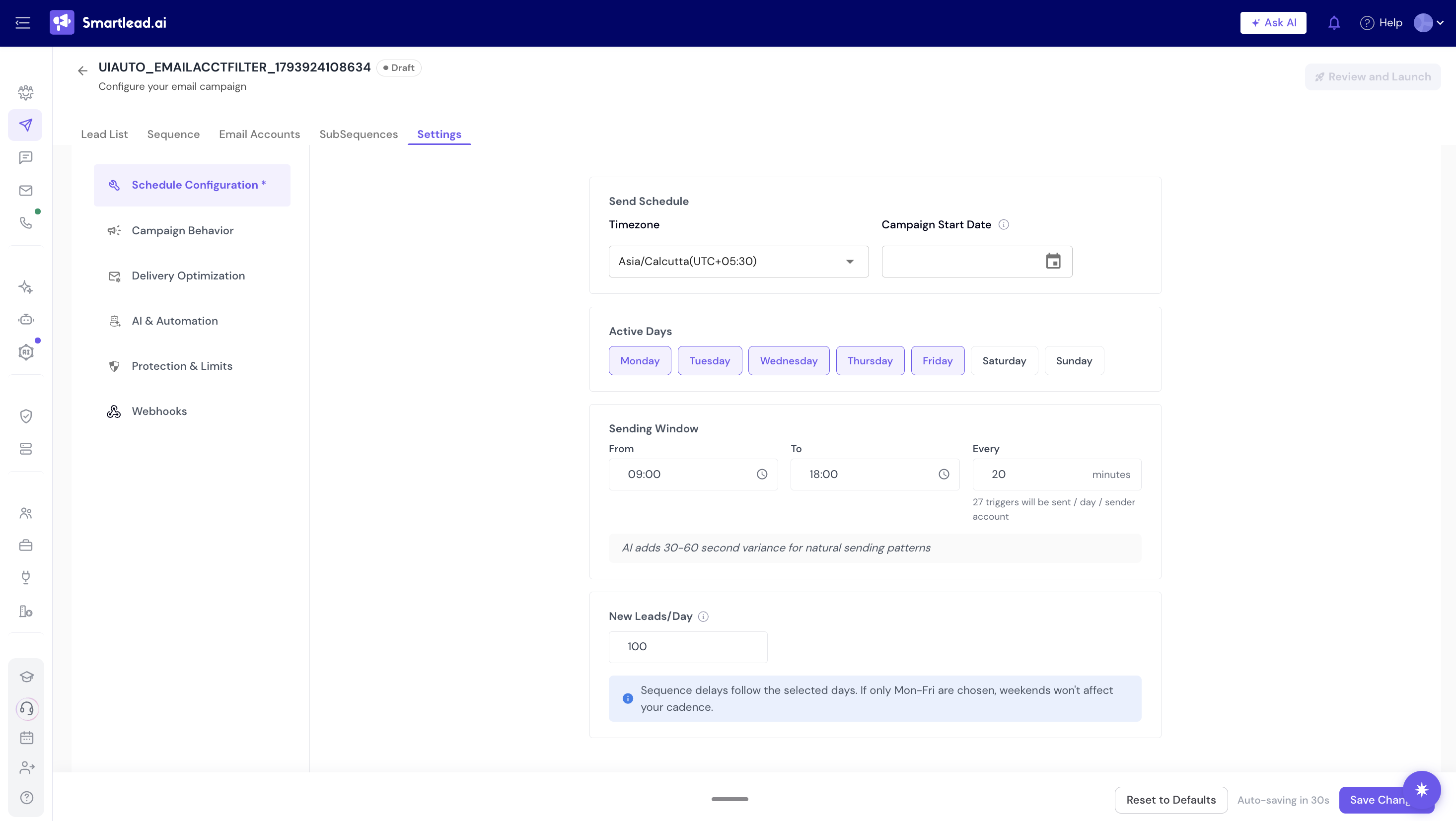
Go to Campaigns, click the pencil icon (Edit Campaign) in the Actions column, then open Settings → Schedule Configuration.
Under Sending Window, check From, To and Every (minutes). The line under Every shows how many triggers will be sent per day per sender account. Make sure it matches the number of emails you expect each mailbox to send. Click Save Changes after any edit.
Step 2: Check New Leads/Day
On the same Schedule Configuration page, New Leads/Day is the number of NEW leads that will receive their first email from the campaign each day. It does not include follow-ups.
If you set this to 100 new leads but see 150 emails sent in a day, it may be because it includes new leads and follow-ups.
To segregate this, you can use the date filter on top of your campaign analytics, select the date you want to analyze, and look at the breakdown of Email 1s, Email 2s, etc.
Step 3: Max Emails Sent on a Mailbox Level
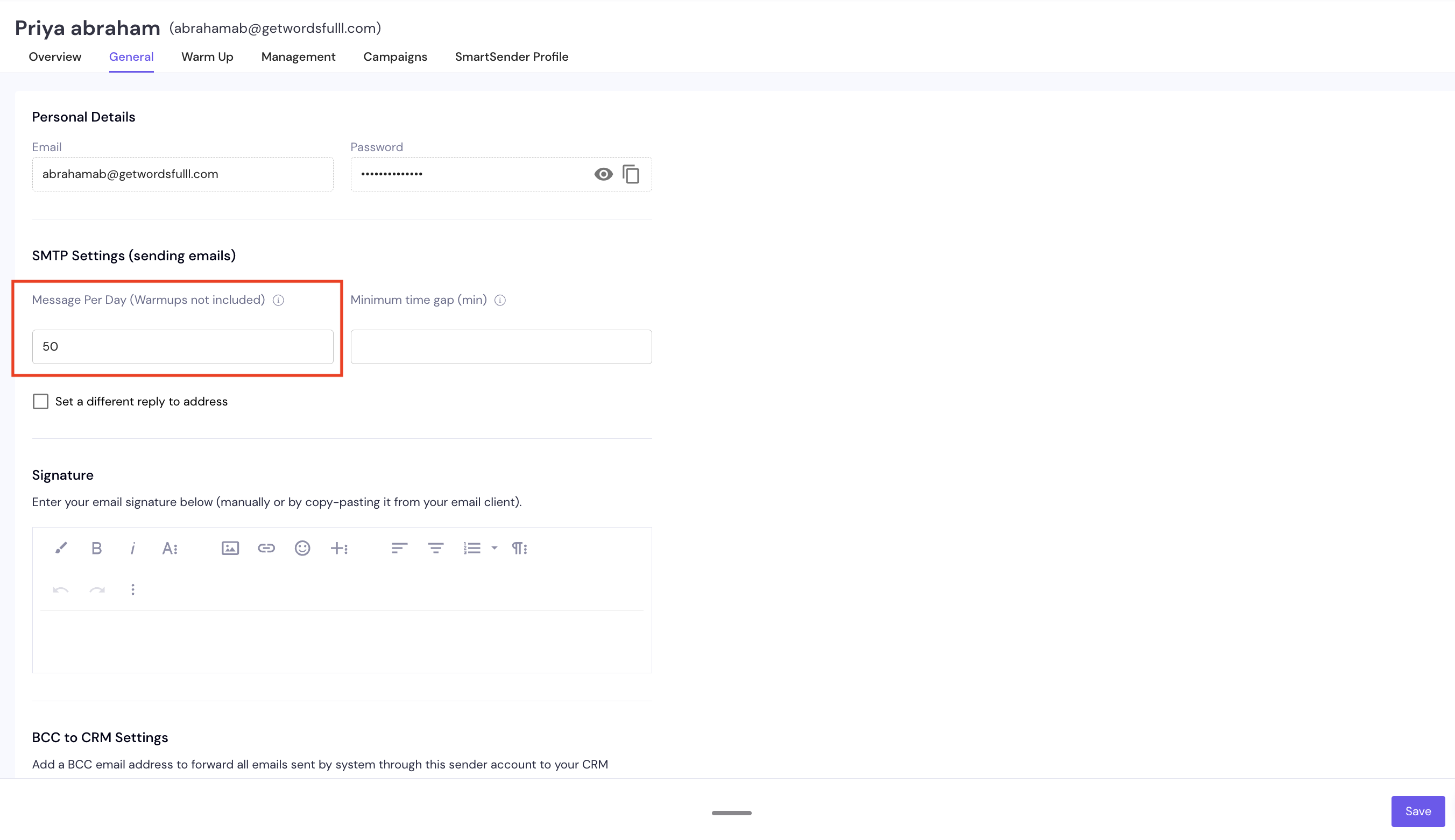
Go to Sender Accounts, open the mailbox, and on the General tab check Message Per Day (Warmups not included).
You can change this to your desired number. This limit counts campaign emails only; warmup emails are sent on top of it. If you set it above 40, Smartlead asks you to confirm the risk before saving.
Step 4: Check for Discrepancies in the Minimum Time Gap
Make sure the Every value in the campaign's Sending Window (Step 1) is higher than the Minimum time gap on the mailbox. For example, if the campaign is set to send every 5 minutes and the mailbox has a Minimum time gap of 8 minutes, the campaign trigger will be skipped. This lowers the sending speed of your mailbox and results in fewer emails being sent.
By carefully reviewing and adjusting these campaign configuration settings, you can ensure that your Smartlead email campaigns are sending the desired number of emails and maximizing the output for your campaigns and mailboxes. If you continue to experience issues, please contact our support team for further assistance.
New mailboxes start at 25 campaign emails per day. To change it, go to Sender Accounts, open the mailbox, and on the General tab edit Message Per Day (Warmups not included), then save. Warmup emails don't count toward this number. If you set it above 40, Smartlead asks you to confirm the risk before saving.
To change it for many mailboxes at once, tick them in Sender Accounts and click Bulk Update. On the General tab, enter the new Message Per Day (Warmups not included) and leave the other fields empty so they don't change.
A mailbox's limit is shared by every campaign it's in. To send more in total, add more mailboxes: open the campaign's Email Accounts tab, click Unselected Accounts, tick the mailboxes and click Add to Campaign.