
A Slack webhook posts Smartlead events, such as replies, to a Slack channel. You create an incoming webhook in Slack, then add its URL in Smartlead.
This is separate from the SmartAgents app for Slack.
Before you start
The Webhooks page isn't available on the Base plan.
Step 1: Open the Slack webhook form
Go to Settings → Webhooks.
Click Slack Webhook, next to Add Webhook.

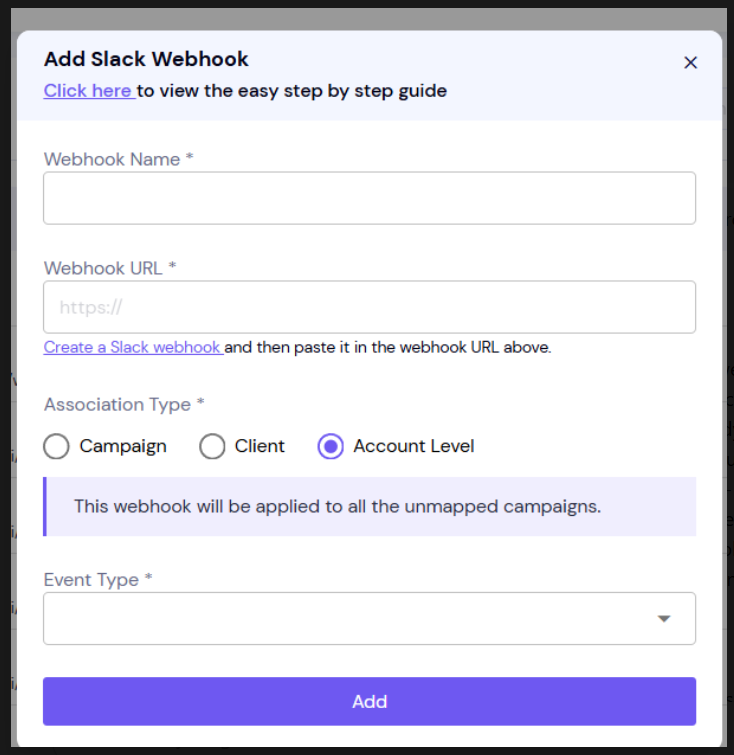
The Add Slack Webhook form opens.
Step 2: Create the webhook URL in Slack
Under Webhook URL, click Create a Slack webhook. Slack's Incoming Webhooks app opens.
Pick the Slack channel to post to.
Copy the webhook URL Slack gives you. It starts with
https://hooks.slack.com/.
Step 3: Fill in the form and save
In Webhook Name, enter a name you'll recognise.
In Webhook URL, paste the Slack URL.
Under Association Type, choose Campaign or Client and pick one, or choose Account to apply it to all unmapped campaigns.
In Event Type, select the events to post.
Click Add Webhook.
The webhook appears on the Webhooks page. To change it later, open it and click Save Changes.
Good to know
Each event goes to only one Slack webhook. If two Slack webhooks match the same event, only one of them receives it.
Send Test isn't available for Slack webhooks.
If something goes wrong
Slack webhook doesn't post
Another Slack webhook may cover the same event at a different level.
Go to Settings → Webhooks.
Look for other Slack webhooks with the same event at account, client or campaign level.
Remove the event from all but one of them.
Still stuck? Contact support from the chat in your Smartlead dashboard. Include the webhook name, the campaign ID and the event you expected.