
Each mailbox in Smartlead has its own two-word warmup identifier, for example apple-juice. Smartlead puts it in the body of every warmup email that mailbox receives. Filter on it to keep warmup emails out of your way.
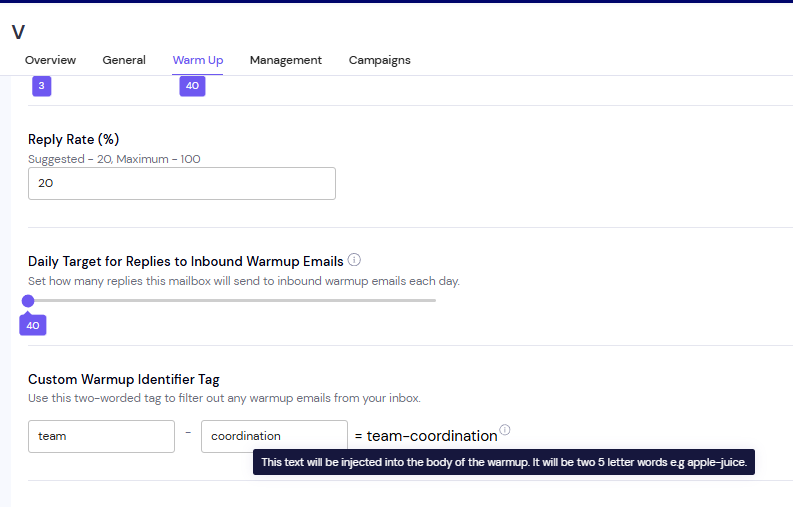
Step 1: Copy your mailbox's warmup tag
In the left menu, open Sender Accounts.
Click the mailbox you want to filter.
Open the Warm Up tab.
Copy the value in Custom Warmup Identifier Tag.
Step 2: Create a filter in your email provider
Open the filter or rules settings in Gmail, Outlook or your other email provider.
Set the condition to body contains your tag. The tag is never in the subject line.
Set the action to apply a label, move to a folder, or mark as read.
Save the filter.
Don't delete warmup emails. Label, move or mark them as read instead.
Good to know
Each mailbox has a different tag. Set up one filter per mailbox, using that mailbox's own tag.
Warmup emails your mailbox sends carry the receiving mailbox's tag, not yours. That's why an email in your sent folder shows a different phrase.
To see the tags for many mailboxes at once, select them in Sender Accounts, click Bulk Update, and open the Warm Up tab.
If something goes wrong
My filter doesn't catch warmup emails
Check that the condition is body contains the tag, not subject contains. Copy the tag again from Custom Warmup Identifier Tag to rule out a typo.
A warmup email in my sent folder has a different tag
This is expected. Sent warmup emails carry the tag of the mailbox they were sent to.
Still stuck? Contact support from the chat in your Smartlead dashboard. Include the mailbox and an example email with its full headers.