
Pausing a lead stops the rest of its email sequence in one campaign. The lead stays in the campaign, and you can resume it later.
Pause a lead when they got in touch another way, or shouldn't get more follow-ups for now.
Pause from the Master Inbox
Open Master Inbox and search for the lead.
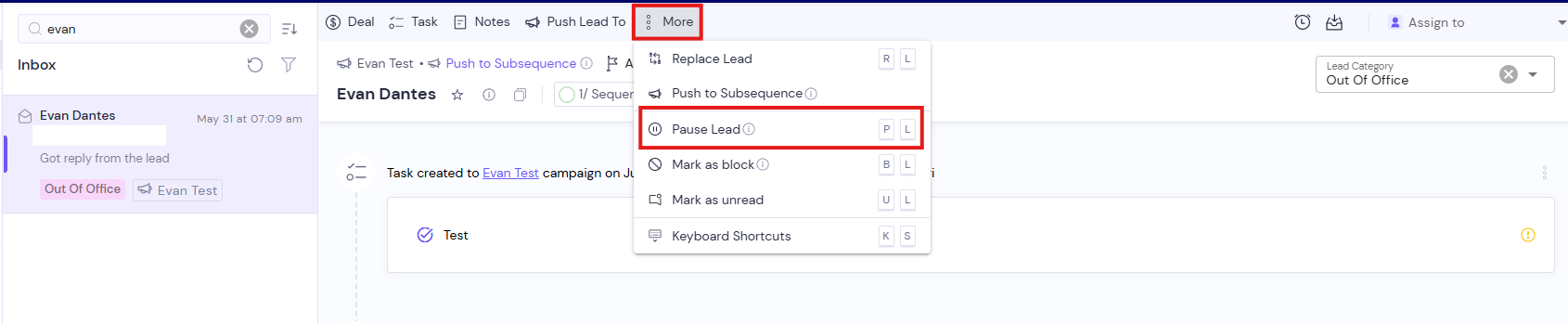
Open the conversation and click More.
Click Pause Lead.
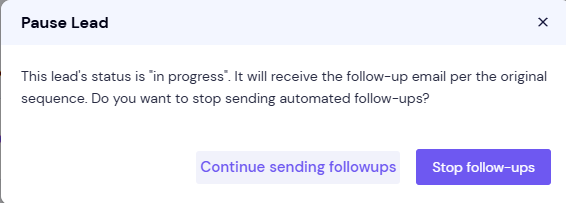
In the prompt, click Stop follow-ups.
The lead's status in that campaign changes to Paused.
Pause from the campaign's lead list
In the left menu, click Email Campaigns and open the campaign.
Go to the campaign's lead list and find the lead.
On the lead's row, click More Actions (⋮).
Click Pause Sequence, then click Pause Sequence again to confirm.
Pause Sequence only shows for leads whose sequence hasn't finished yet.
Resume a paused lead
From the campaign's lead list
Open the campaign's lead list and find the paused lead.
On the lead's row, click More Actions (⋮).
Click Resume Sequence.
The lead continues with its next email. It's timed from the lead's last email plus that step's delay. Resume Sequence also shows for leads with the status Stopped.
From the Master Inbox, with a delay
Open the lead's conversation in Master Inbox and click More.
Click Resume Lead.
In Delay in number of days, enter how many days to wait. Leave it empty to resume right away.
Click Resume.
A delay is useful for out-of-office replies. Resume Lead in Master Inbox is only available for leads who have replied and whose status isn't scheduled or in progress.
Good to know
Pausing only affects one campaign. If the same contact is in other campaigns, those keep sending.
A lead that has already received the last step can't be resumed, because there's nothing left to send.