A custom email template saves an email's subject and body so you can reuse it in any campaign sequence. You create and pick templates from the template library in the sequence editor.
Saving templates needs a paid plan above Popular. On the Trial, Base and Popular plans you can browse templates, but the Save button is turned off.
Open your campaign and go to the sequence.
In the email editor toolbar, click the email template icon.

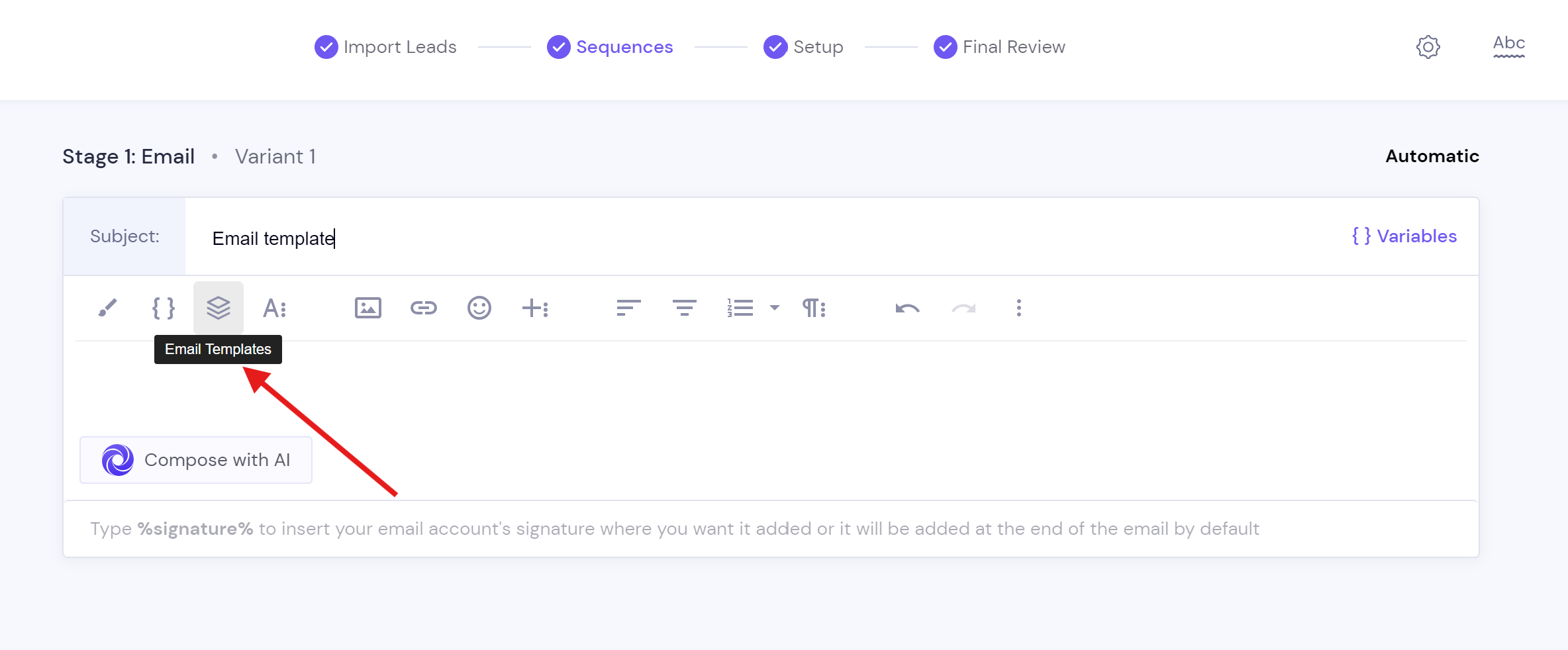
Open a template category and pick a template to start from.
Edit the subject and body.
Click Create New Template.
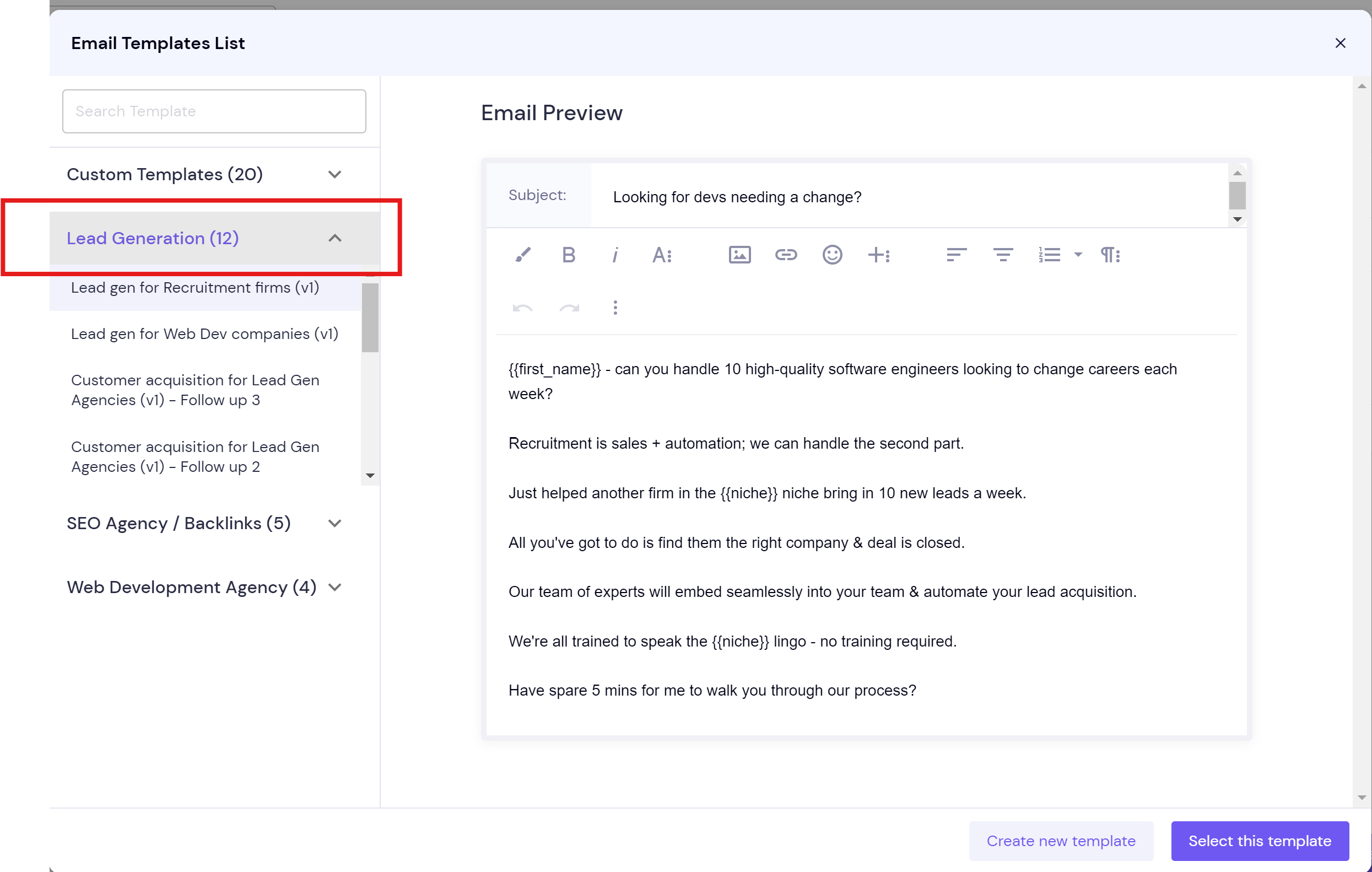
Enter a template name.
Click Save.
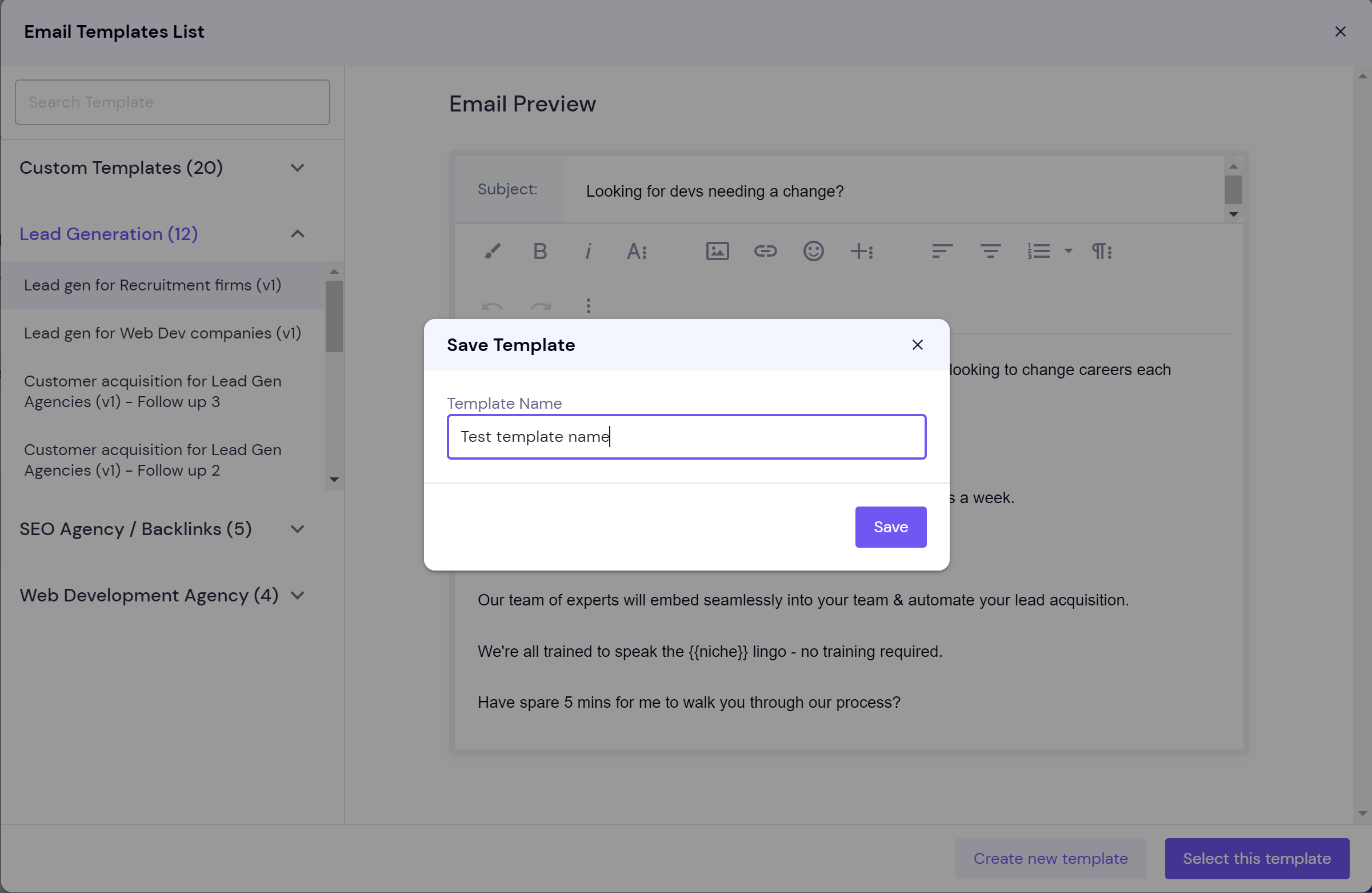
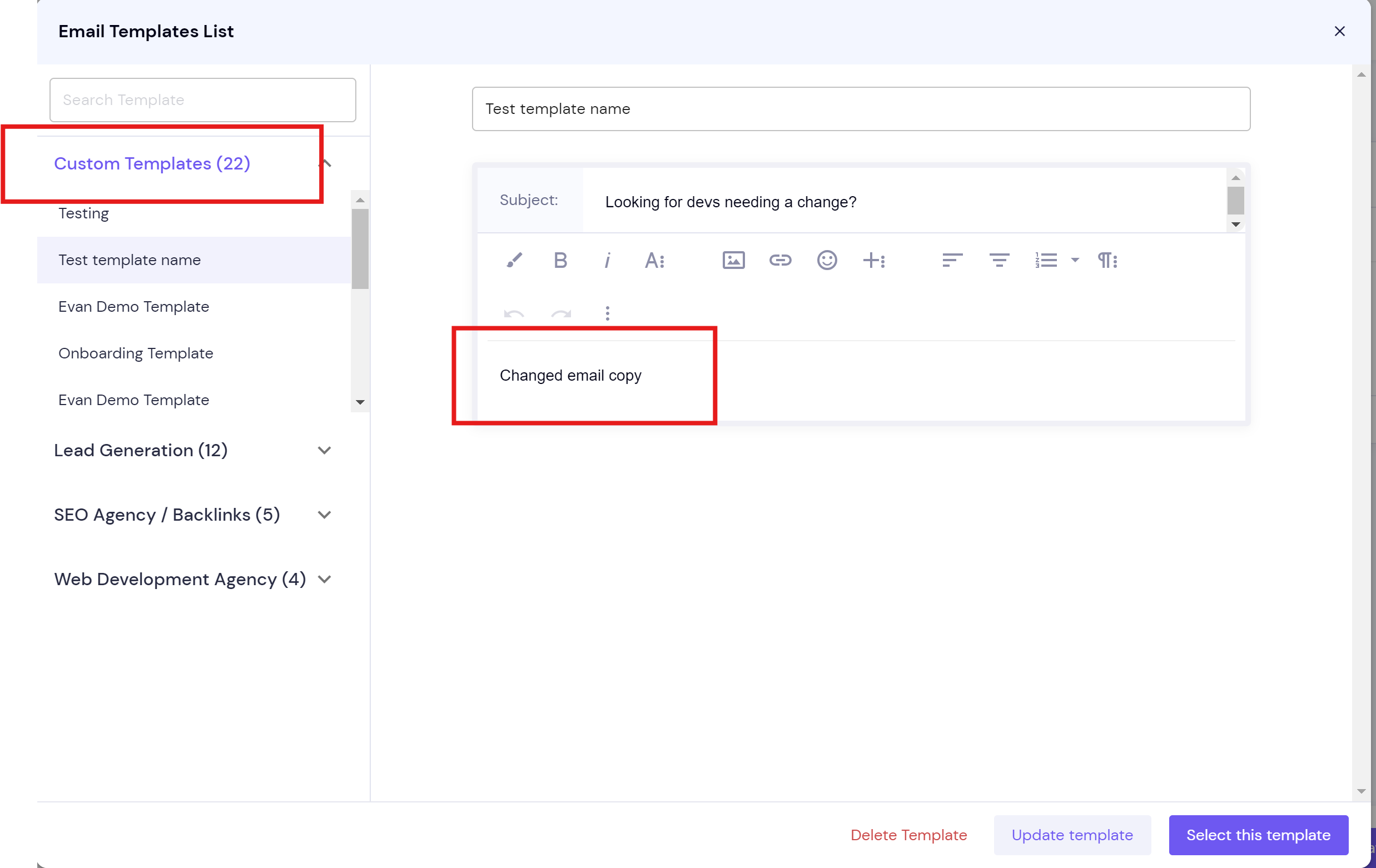
The template is saved under Custom Templates.
To change a saved template, open it under Custom Templates, edit the copy, and click Update template.
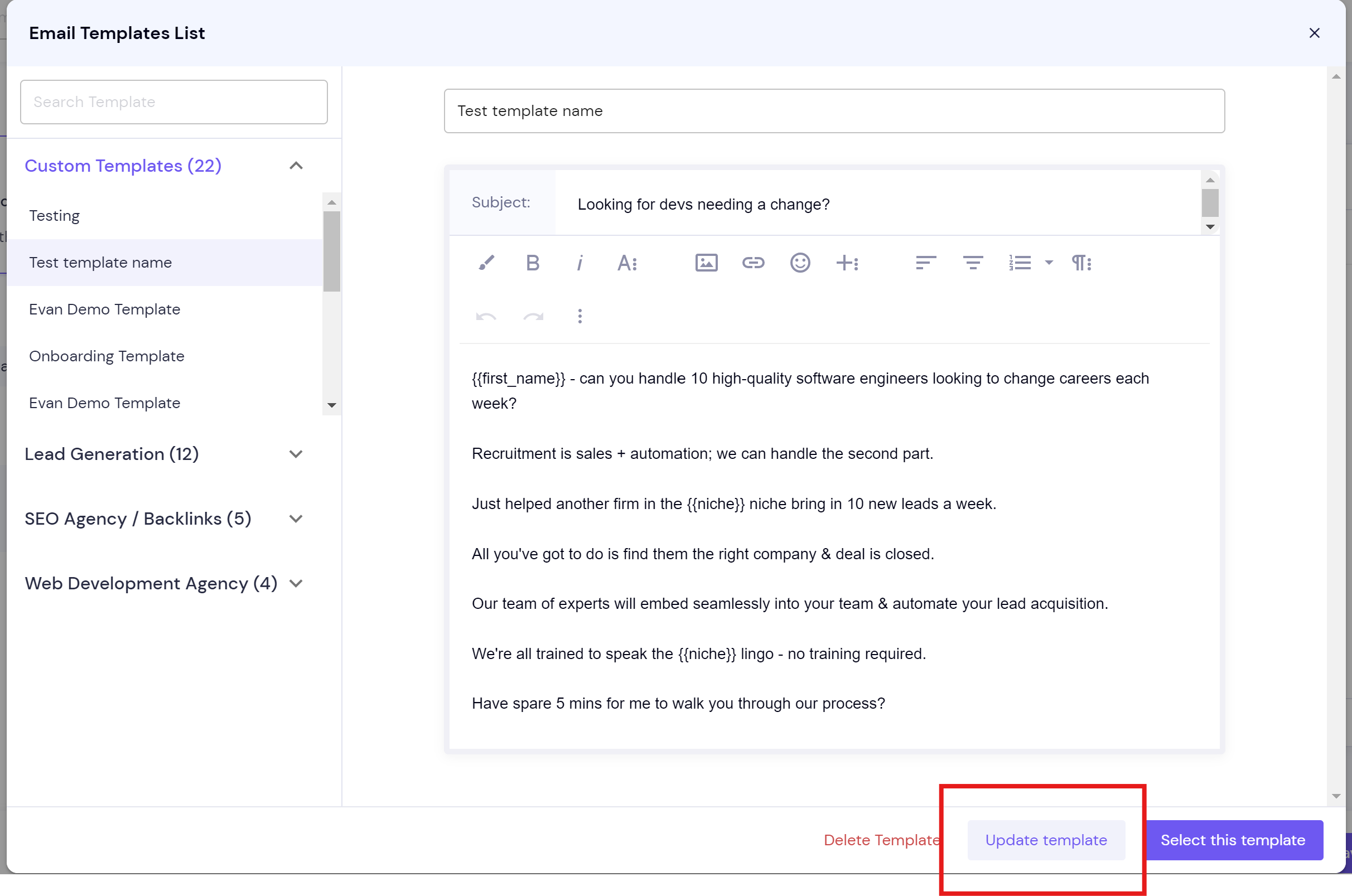
To use it, open it under Custom Templates and click Select this template.
The template's subject and body are added to your sequence step.
Agency accounts can choose who sees a template. When you save, the window shows Template Visibility, where you choose which clients can use it.
Client logins can't save templates. A client signed in to an agency account can select templates, but not save them, unless they have full access.
Still stuck? Contact support from the chat in your Smartlead dashboard.
