Your campaign still sends nothing, or less than expected, after you fixed the errors it showed. This is usually caused by a mailbox's time gap or by mailboxes that are no longer linked to the campaign.
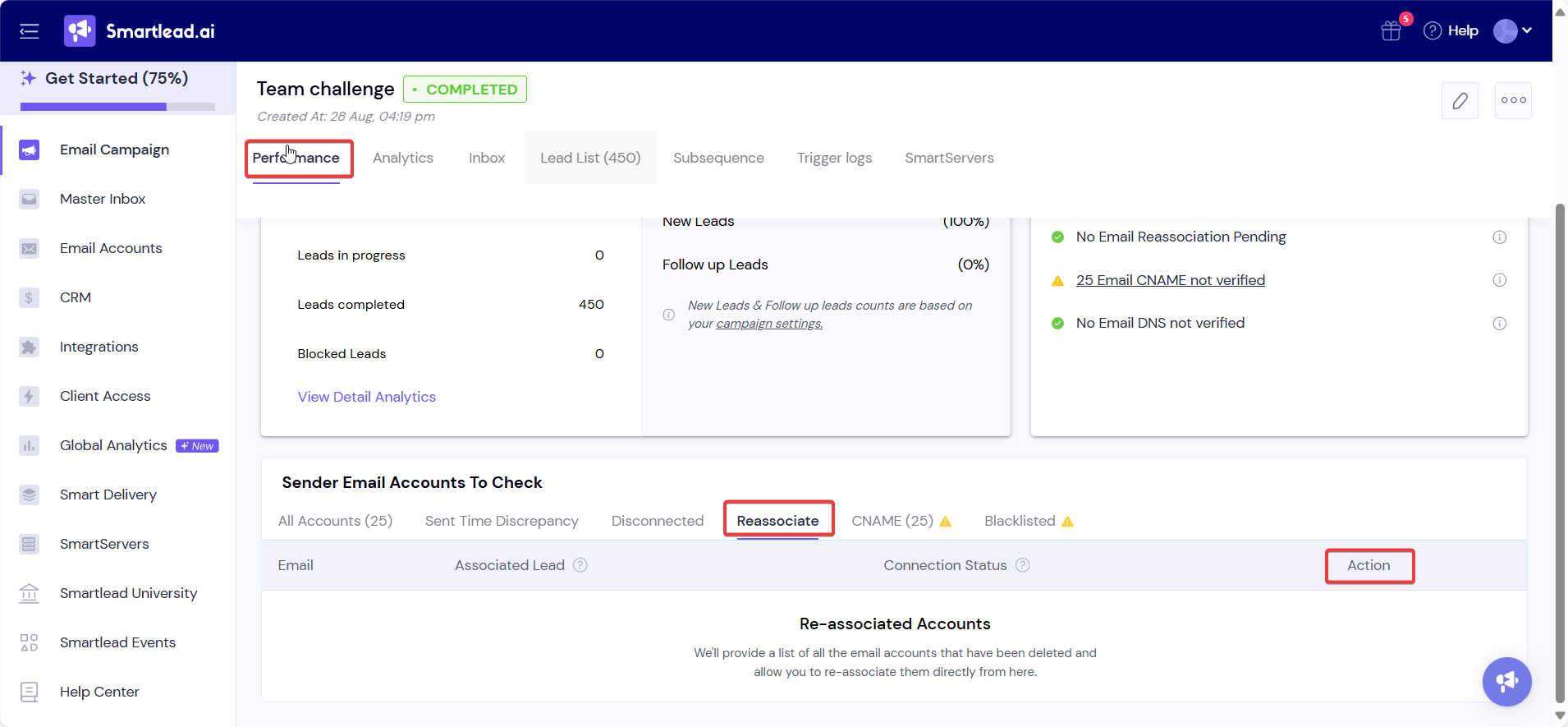
To check, go to Email Campaigns, open the campaign, and open its Email Accounts tab. Each problem below has its own tab there.
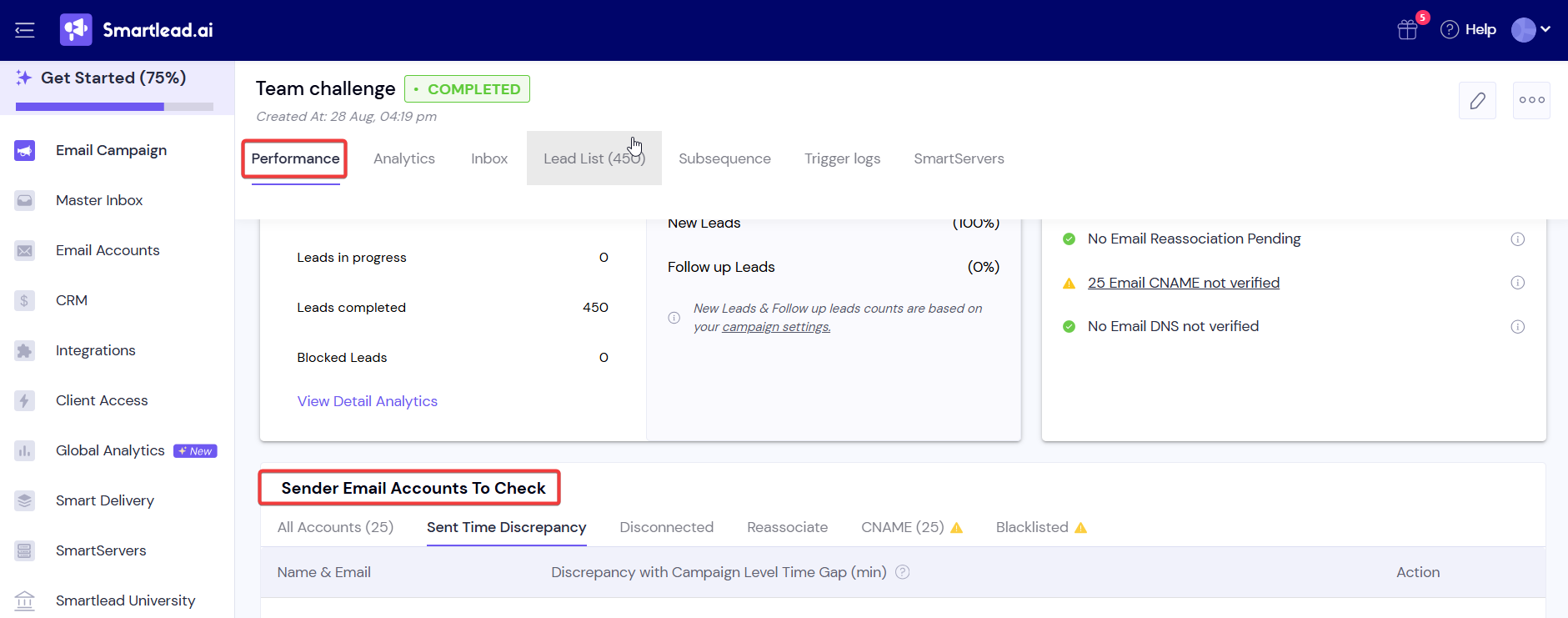
These mailboxes have a Minimum time gap higher than the campaign's sending interval. They miss sending triggers, so the campaign sends less.
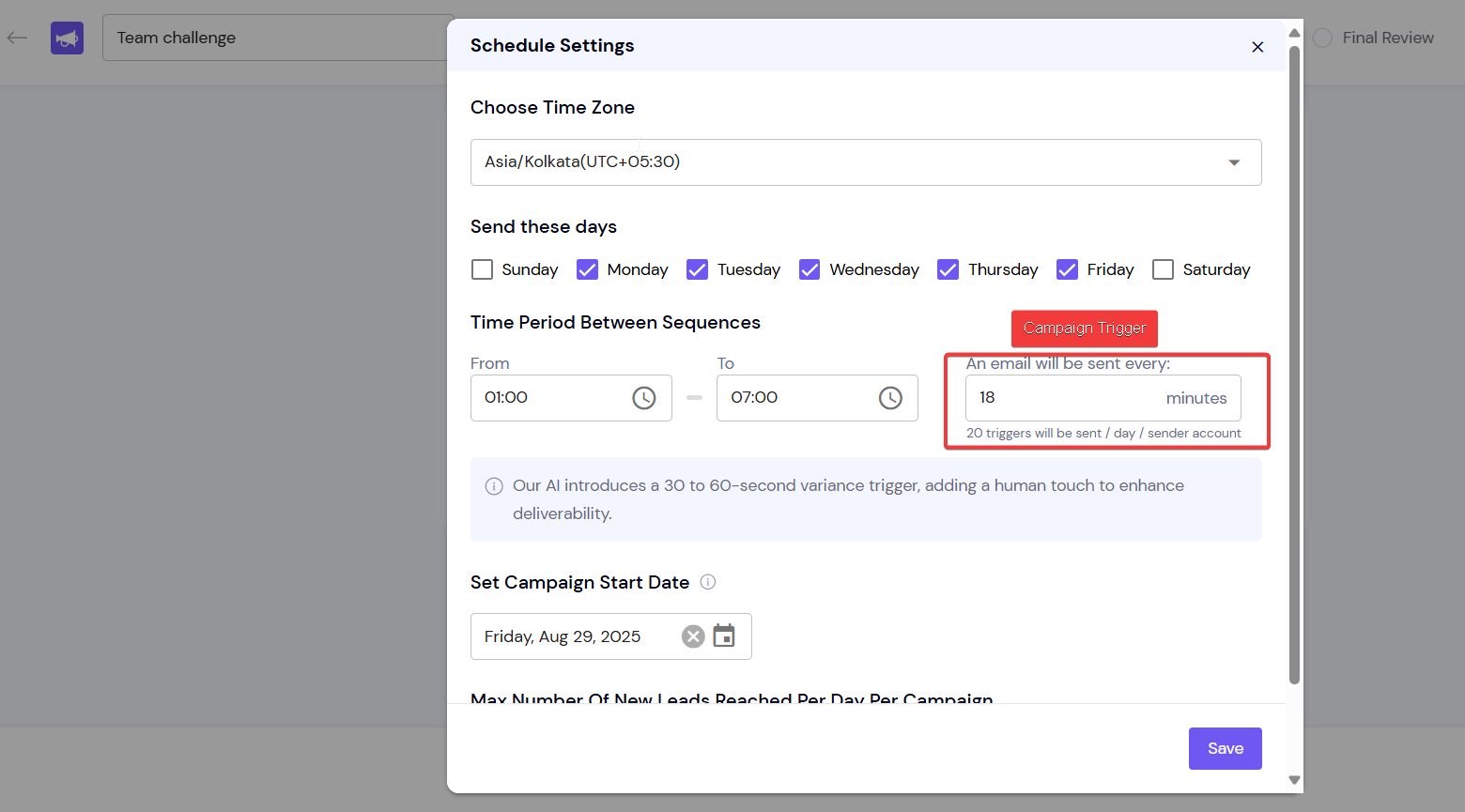
For example, if the campaign sends every 18 minutes and a mailbox's gap is 20 minutes, the mailbox is flagged. Keep each mailbox's gap lower than the campaign's interval.
Open the Sent Time Discrepancy tab to see the affected mailboxes.
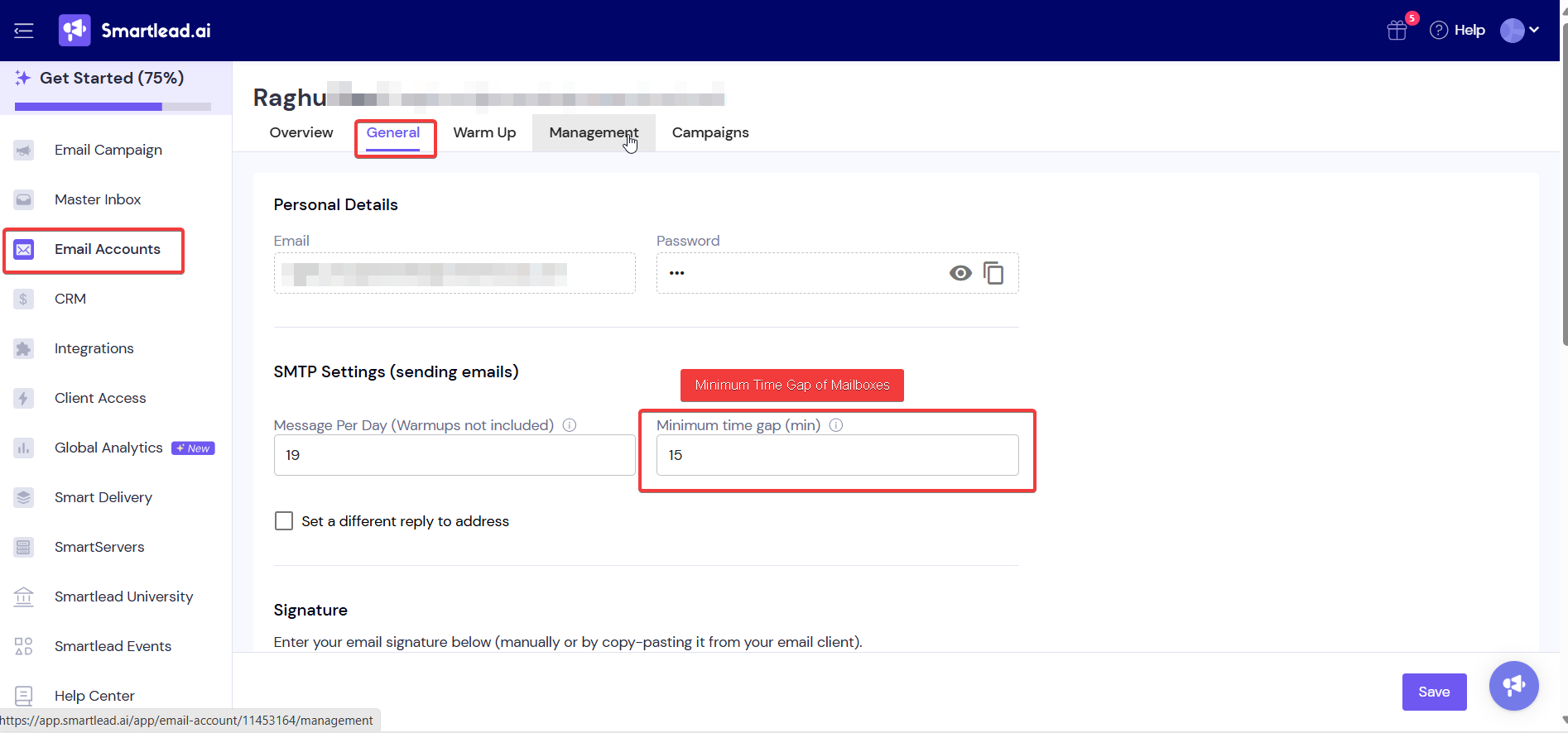
For each one, go to Sender Accounts, open the mailbox, and on the General tab lower Minimum time gap (min) below the campaign's interval.
Or raise the campaign's interval: open the campaign's Settings → Schedule Configuration and change Every.
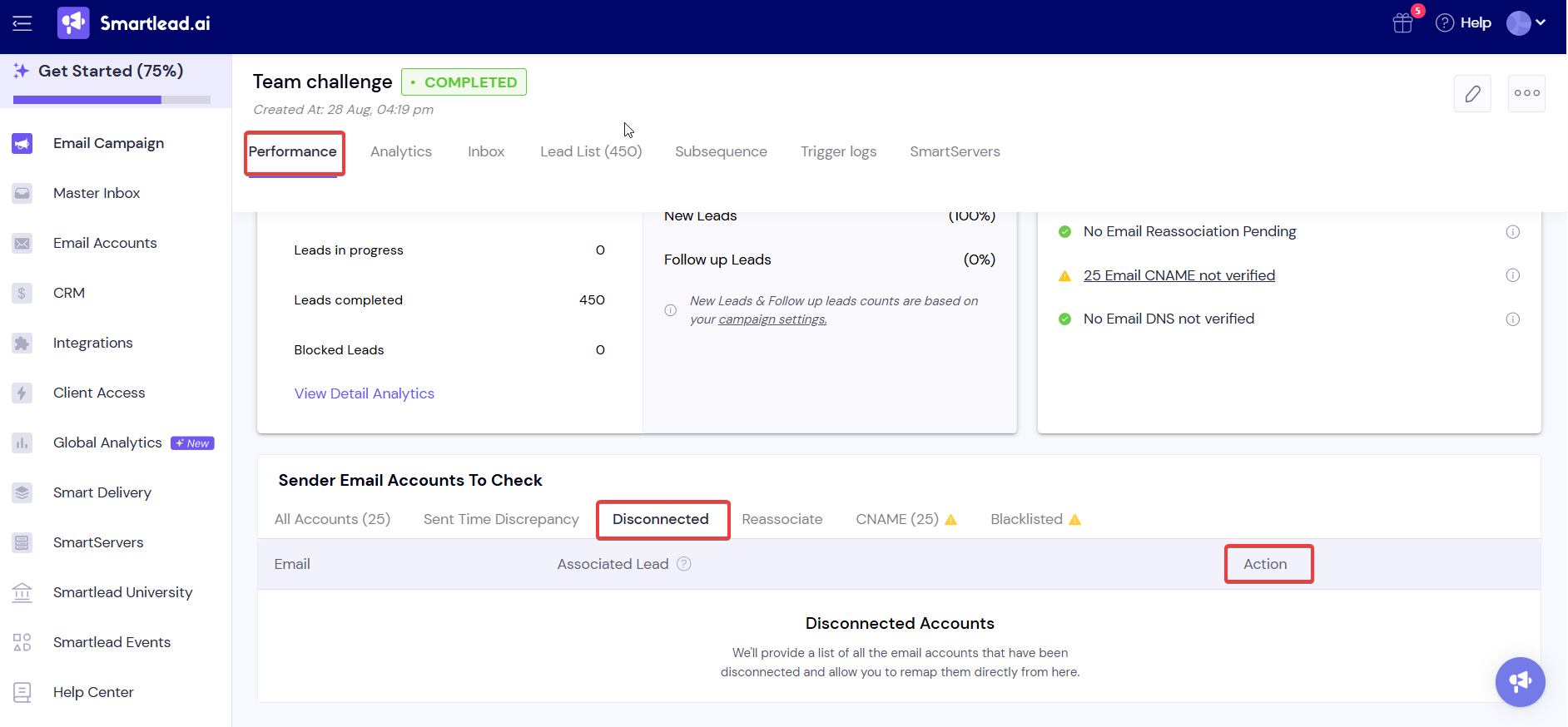
These accounts were part of the campaign but no longer exist in Smartlead.
Open the Disconnected tab to see which accounts are missing.
Add each mailbox back to Smartlead with the same email address.
Reassociate it with the campaign, as below.
These accounts exist and have contacted leads in this campaign, but are no longer linked to it.
Open the Reassociate tab.
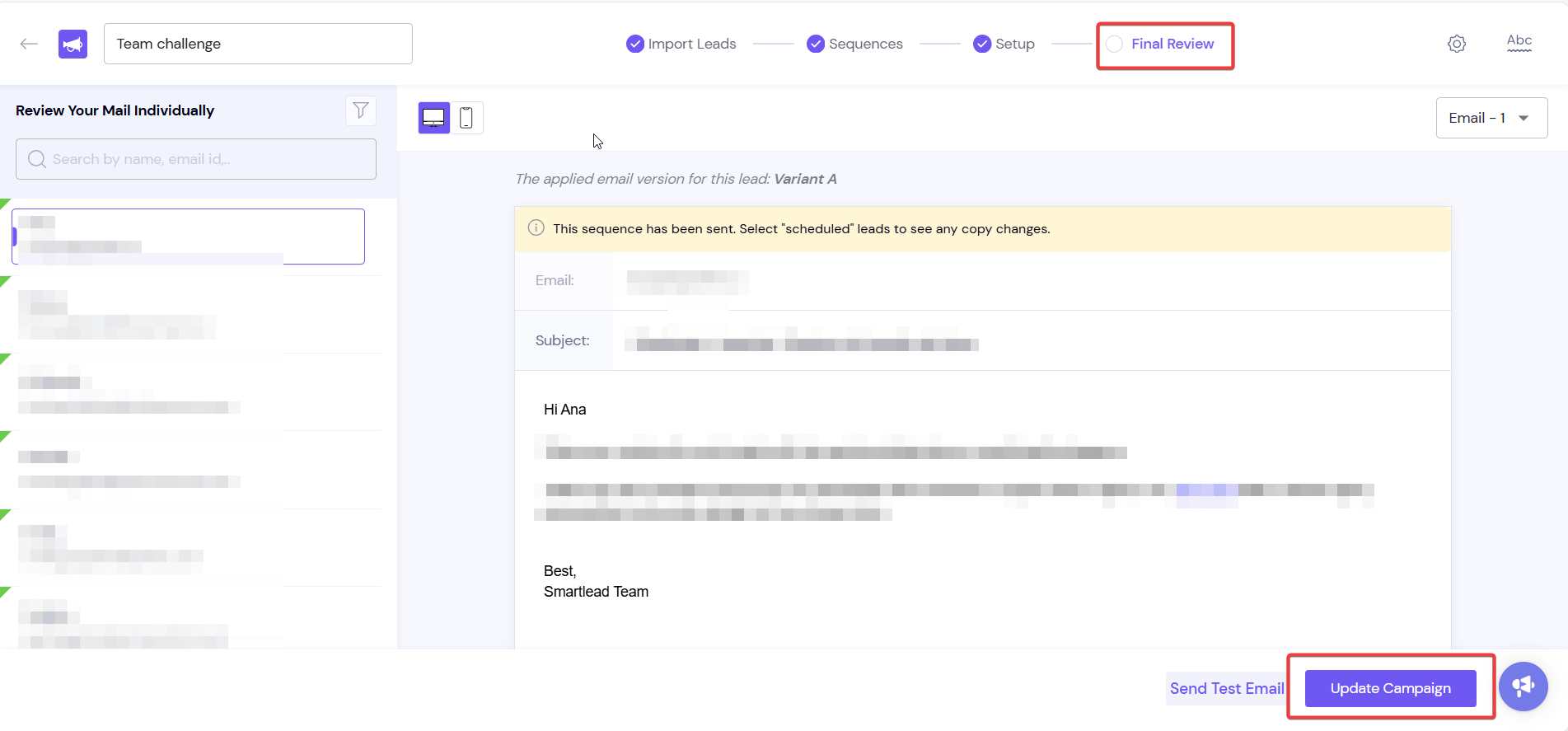
Reassociate the listed accounts with the campaign.
Only the same email address can be reassociated. A different mailbox can't take over another mailbox's leads this way.

Still stuck? Contact support from the chat in your Smartlead dashboard. Include the campaign ID, the affected mailbox and any error text you see.