A campaign sends in triggers: set times when it tries to send emails. The campaign's logs show what happened at each trigger, so you can see when emails went out and why some were skipped.
Go to Email Campaigns and open the campaign.
Click Activity Log in the campaign header.
The Activity Log panel opens for that campaign. It shows when the next email will be sent (Next Email Sent) and a timeline of triggers.
Use the filter tabs at the top to narrow the list.
Pick a period in Timeframe.
Search by sender email or a keyword, such as "failed".
To save the log, click the download icon (Export Activity Log).
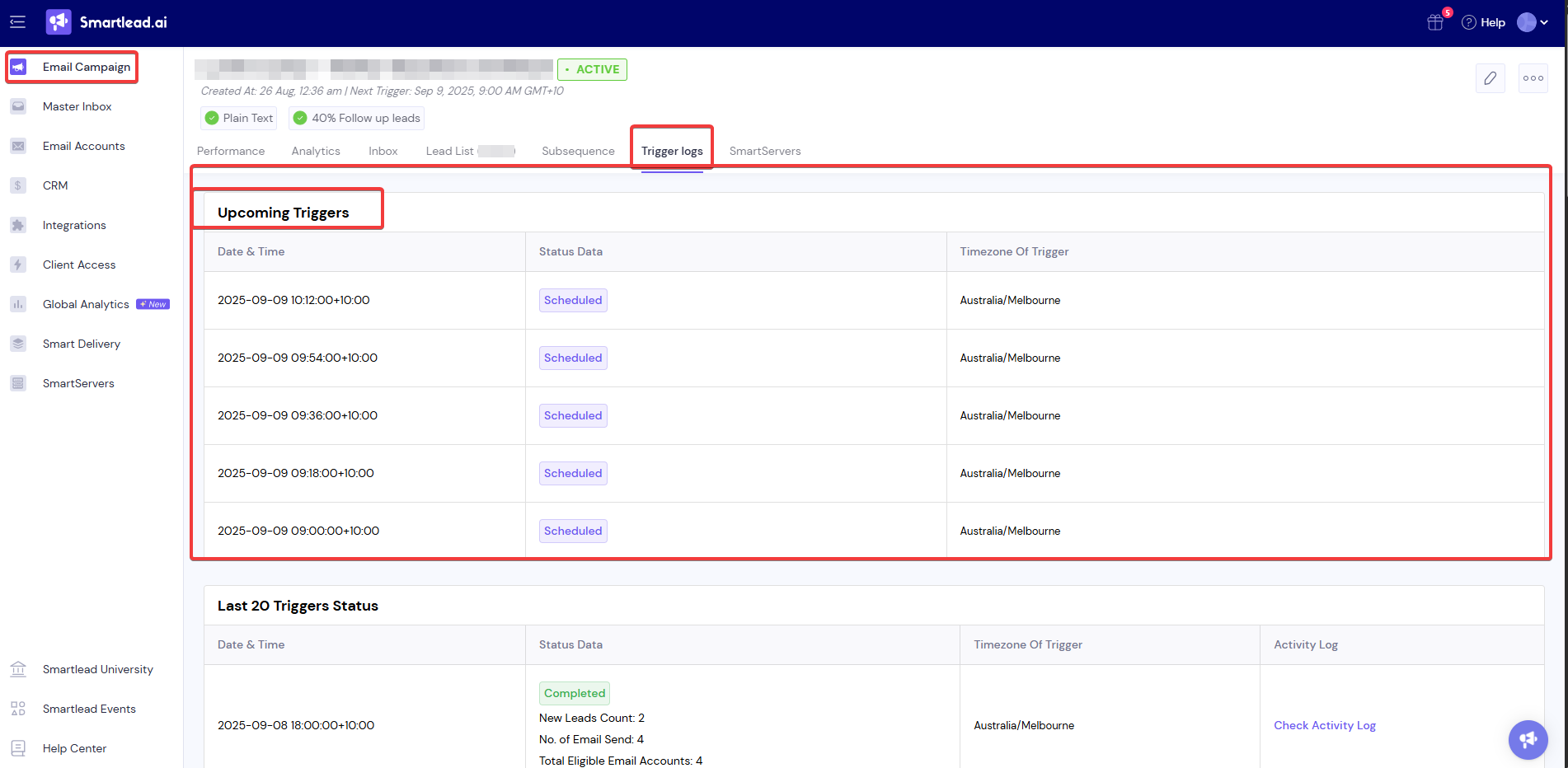
Some campaigns still show the older Trigger Logs page. It has two sections.
Upcoming Triggers lists the next scheduled triggers.
Last 20 Triggers Status shows the most recent triggers.
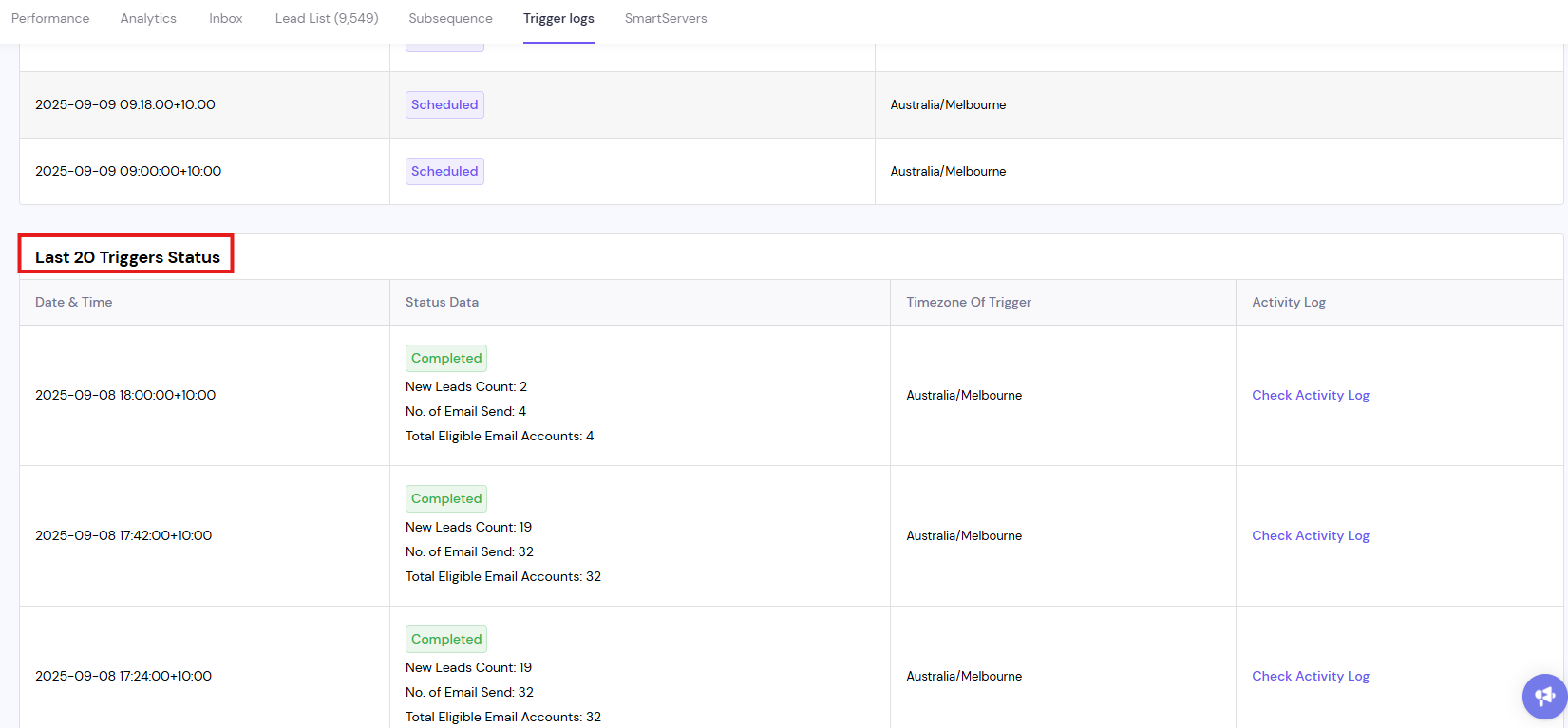
Its table has four columns:
Date & Time: when the trigger ran.
Status Data: New Leads Count, No. of Email Send, No. of Email Skipped and Total Eligible Email Accounts for that trigger.
Timezone Of Trigger: the campaign timezone used for the trigger.
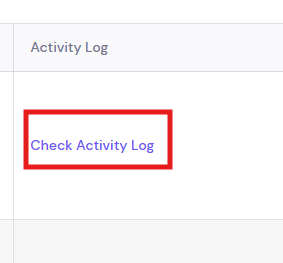
Activity Log: click Check Activity Log to see which leads were contacted and why sends were skipped.
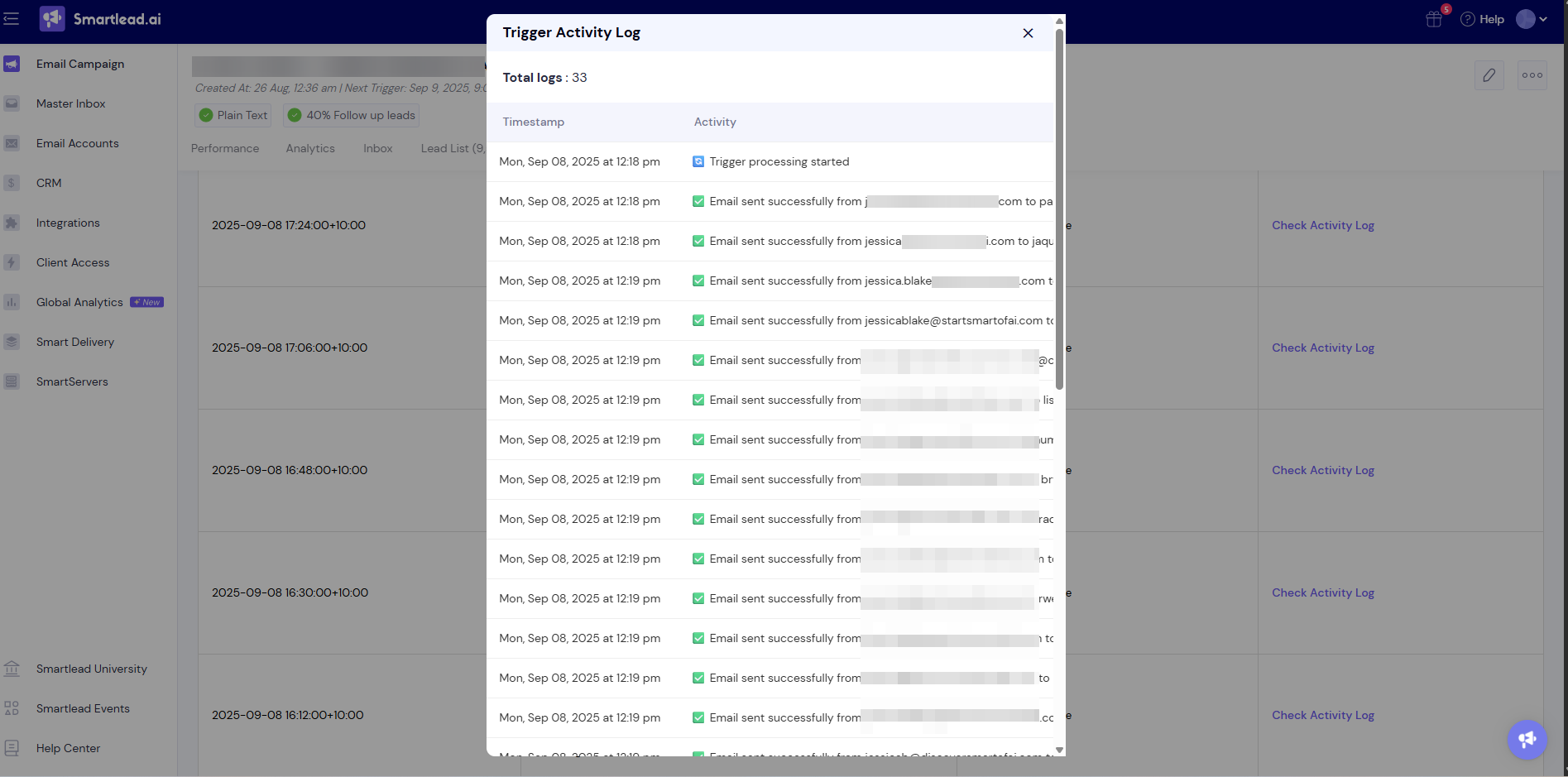
Total Eligible Email Accounts counts the mailboxes that were ready to send at that trigger, based on each mailbox's minimum time gap.
Triggers from before 9 April 2025 show "No logs found".
Sends are skipped for one mailbox. Check that its minimum time gap is lower than the campaign's interval.
Still stuck? Contact support from the chat in your Smartlead dashboard. Include the campaign ID and the time of the trigger you are asking about.