Bring your email and LinkedIn outreach together - automatically.
With Smartlead × HeyReach, your email and LinkedIn workflows finally work in sync. The moment a lead engages with your Smartlead campaigns - whether they open, click, or reply - you can automatically trigger the right LinkedIn action inside HeyReach.
No exporting lists.
No manual updates.
No hopping between tools.
Just seamless, connected outreach across Email + LinkedIn - exactly when your leads are most active.
SmartAgents + HeyReach enable powerful automations like:
Email reply → Add to LinkedIn campaign
No email response → Trigger a LinkedIn sequence
Email link click (high intent) → Send a personalized LinkedIn DM
Warm leads → Auto-sync to specific HeyReach lists or campaigns
These workflows normally require manual movement of leads.
Smartlead does this intelligently, using events + AI.
For example, you can build something like:
When someone replies to your Smartlead campaign → automatically add them to a HeyReach LinkedIn campaign.
SmartAgents bring automation and intelligence to your outreach. They can:
React to events (reply, open, click)
Apply conditional logic
Trigger multi-step workflows across channels
Remove manual follow-up steps
This makes Smartlead × HeyReach far more capable than simple API-level syncs.
Once you connect Smartlead with HeyReach, you’ll use SmartAgents - Smartlead’s AI-powered agents - to build the workflow that links both platforms.
SmartAgents let you define what should happen when a lead engages with your emails, so actions inside HeyReach (like adding someone to a LinkedIn campaign) can automatically trigger at the right moment.
Let’s see how you can do that.
Watch TutorialOr, continue reading.
From the left sidebar, navigate to SmartAgents. You will see the SmartAgents screen where you can start typing in what you want to build.
This is where your new automation flow begins.
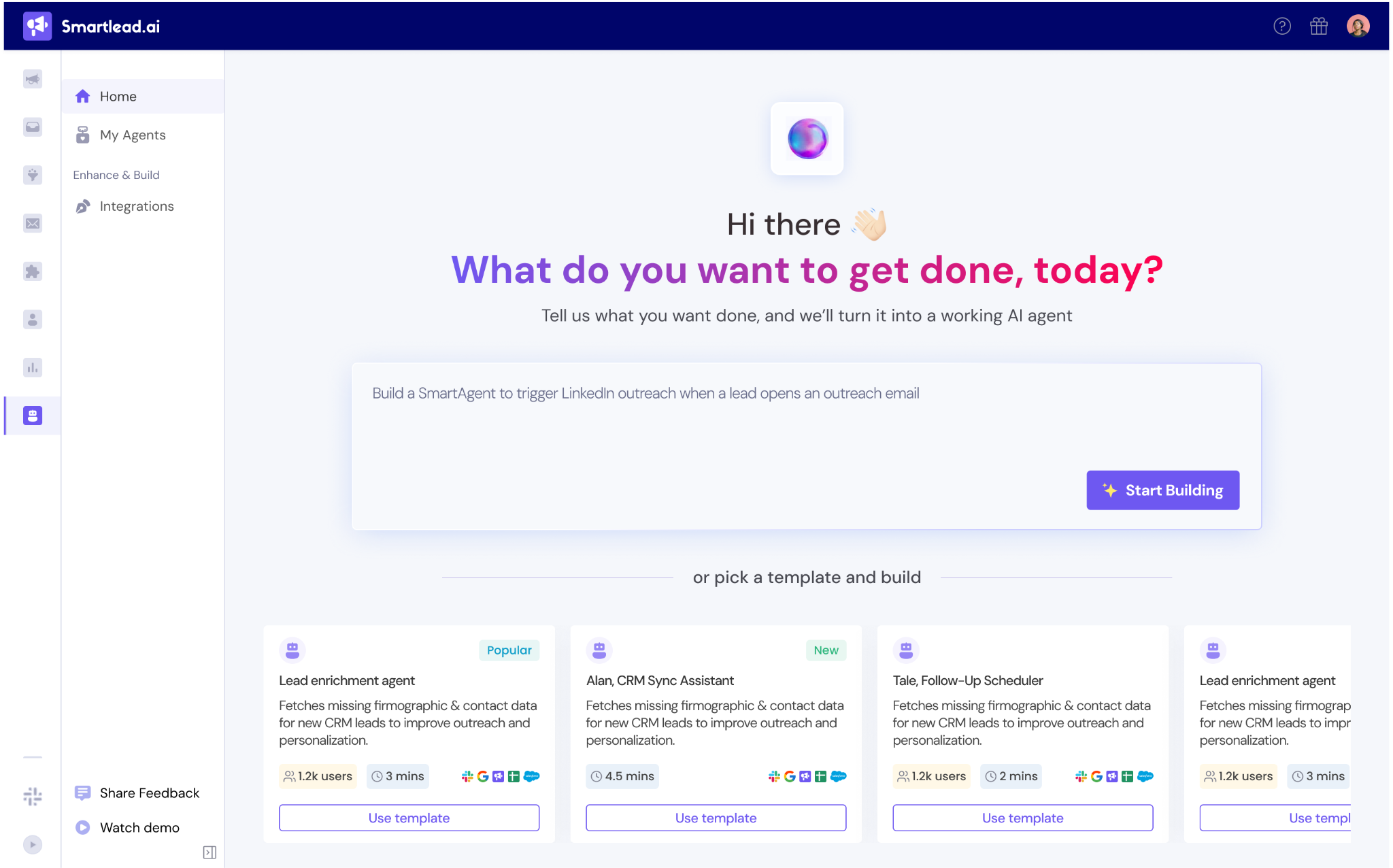
On the prompt screen (“What do you want to get done today?”), describe your goal.
Example: “Trigger LinkedIn outreach when a lead replies to my Smartlead campaign.”
Click Start Building.
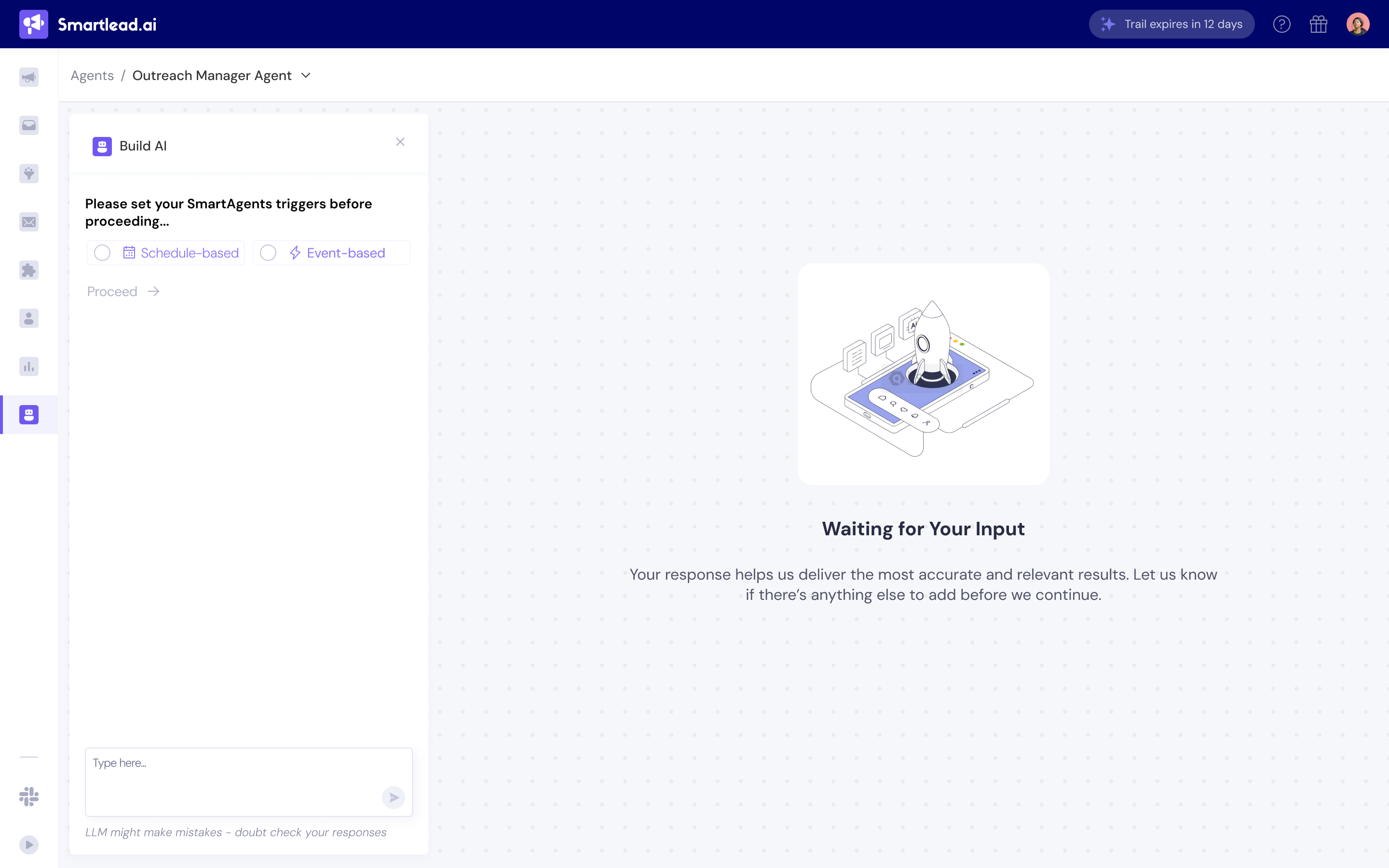
Once you click on start building, next you will need to select your SmartAgent trigger.
You can pick between event-based and Schedule-based triggers.
(Event-based triggers fire on opens, clicks, replies. Schedule-based runs on time intervals.)
Next, select your Agent’s scope.
You can select Account-Level, Client-level, or Campaign-Level scope and pick the mailbox you want to monitor.
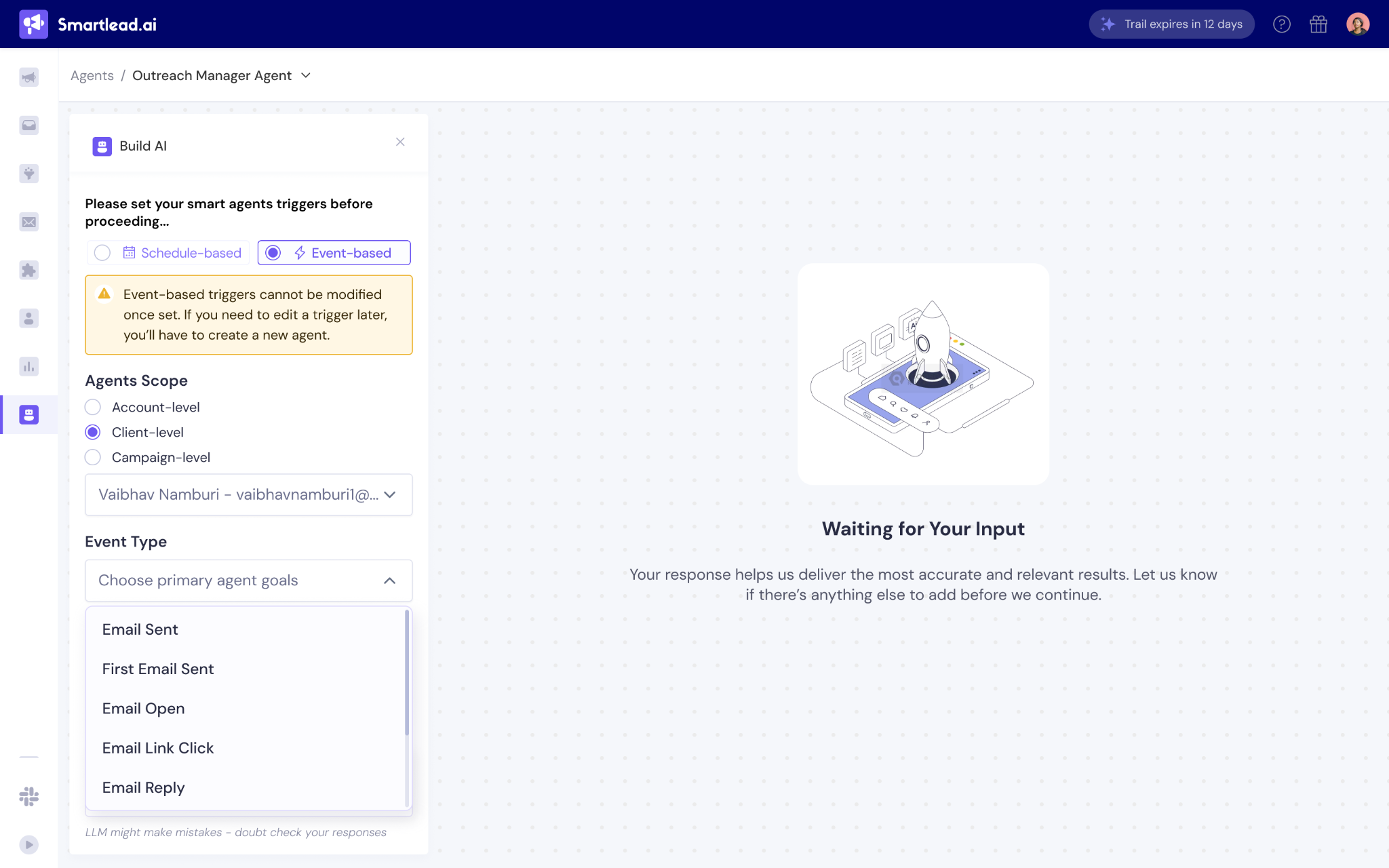
Next, choose the event type you want to trigger this workflow - for example, Email Reply, Email Open, or Email Link Click. (refer to above screen)
Smartlead will confirm the trigger and open the workflow canvas. (refer to the screen in the next step)

If you have not already connected your HeyReach account to Smartlead, you can do so while creating the agent as well.
On the right sidebar:
Under HeyReach API Key, paste your HeyReach key.
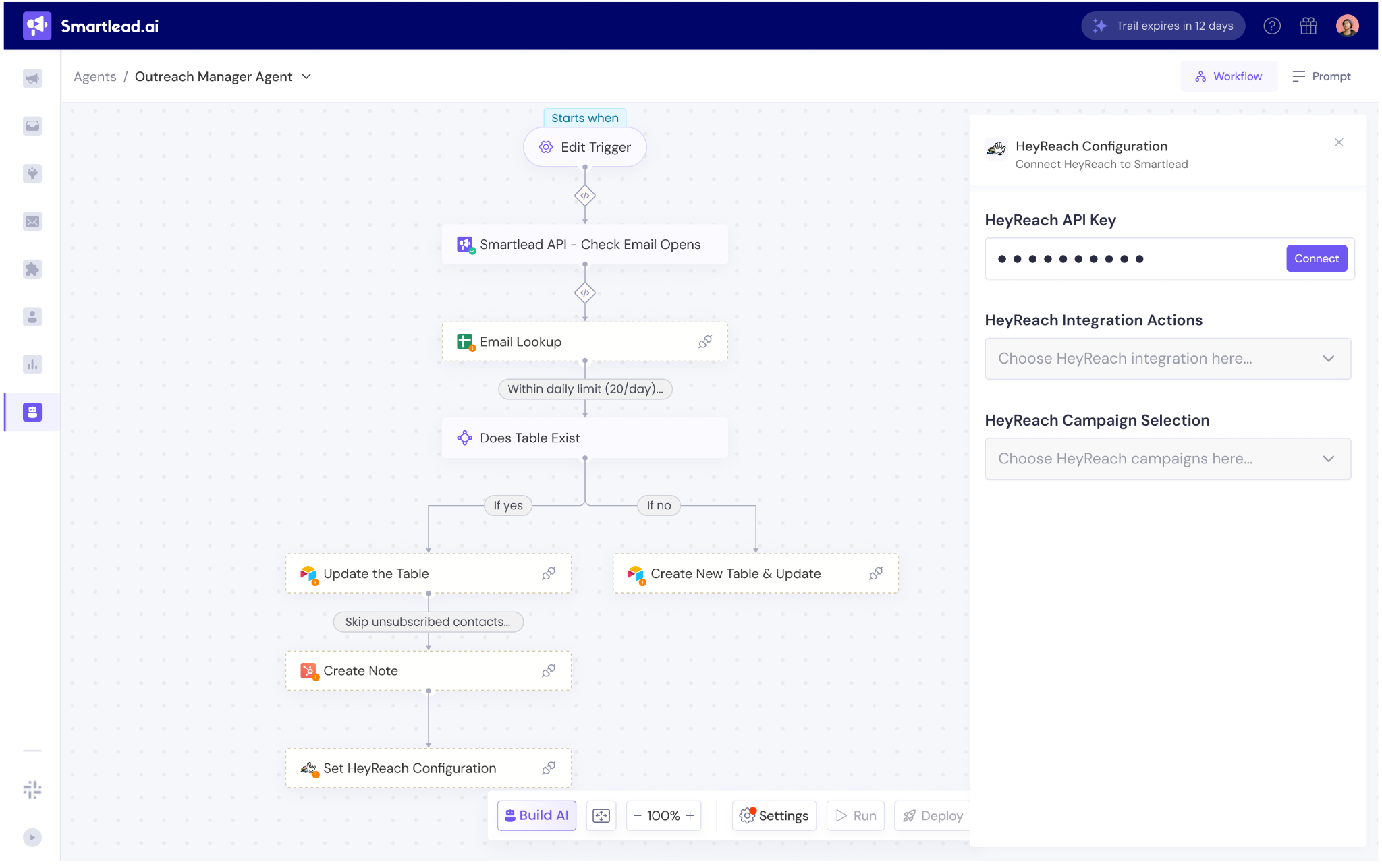
Click Connect.
Once connected, additional HeyReach action options will unlock. Learn more about these actions in the next step.

Under HeyReach Integration Actions, open the dropdown.
As you can see on the screen below, there are multiple integration actions you can perform, like:
Add Leads to campaign
Add leads to list
Get lead from list
Get campaign for lead
Ge lead
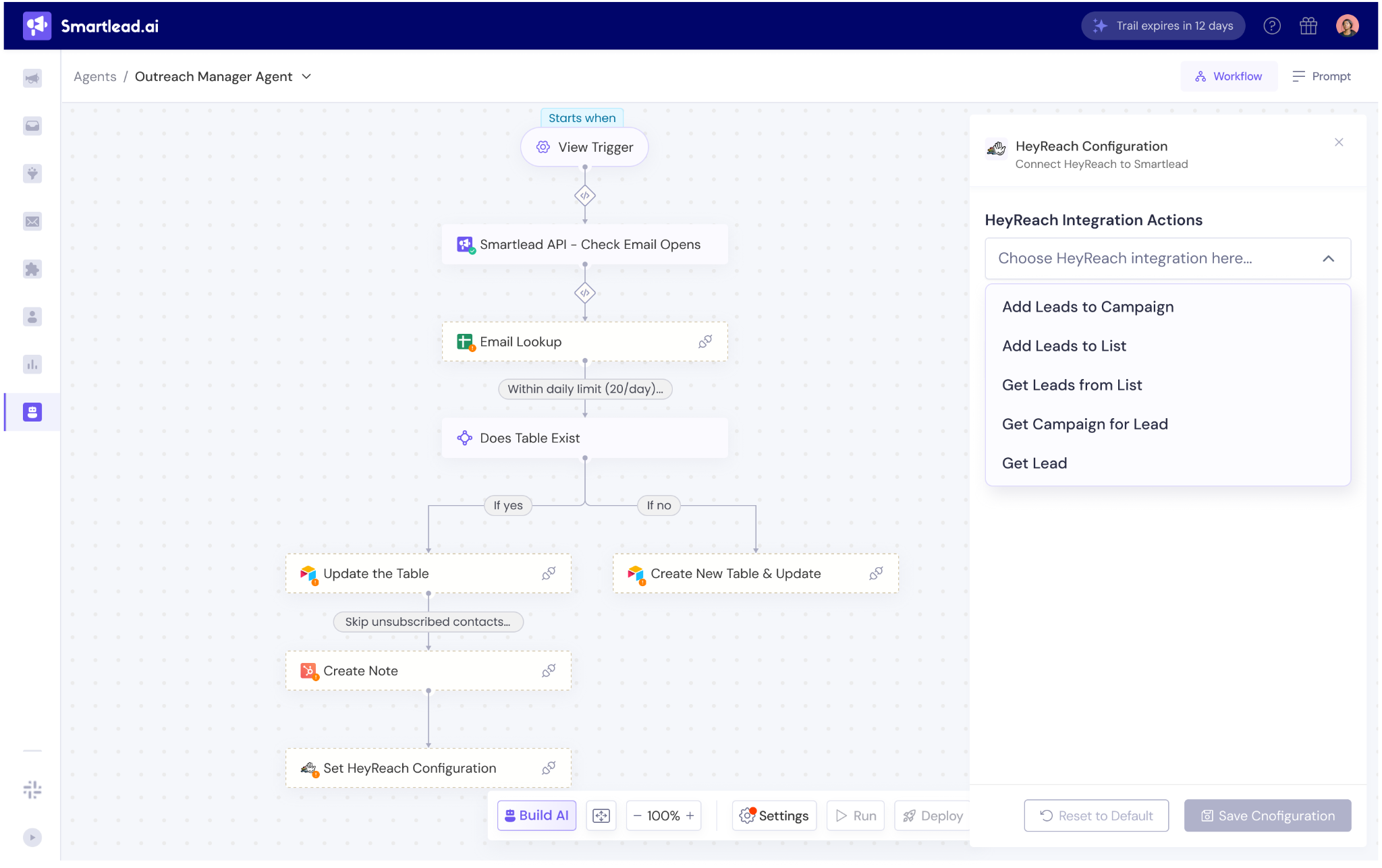
For example, let’s say you select Add Leads to Campaign.
This tells SmartAgents to push leads into a specific HeyReach LinkedIn campaign when your trigger occurs.
Under HeyReach Campaign Selection, choose the LinkedIn campaign you want leads added to.
Example: Campaign 4. Please note that you have to select HeyReach campaigns here.
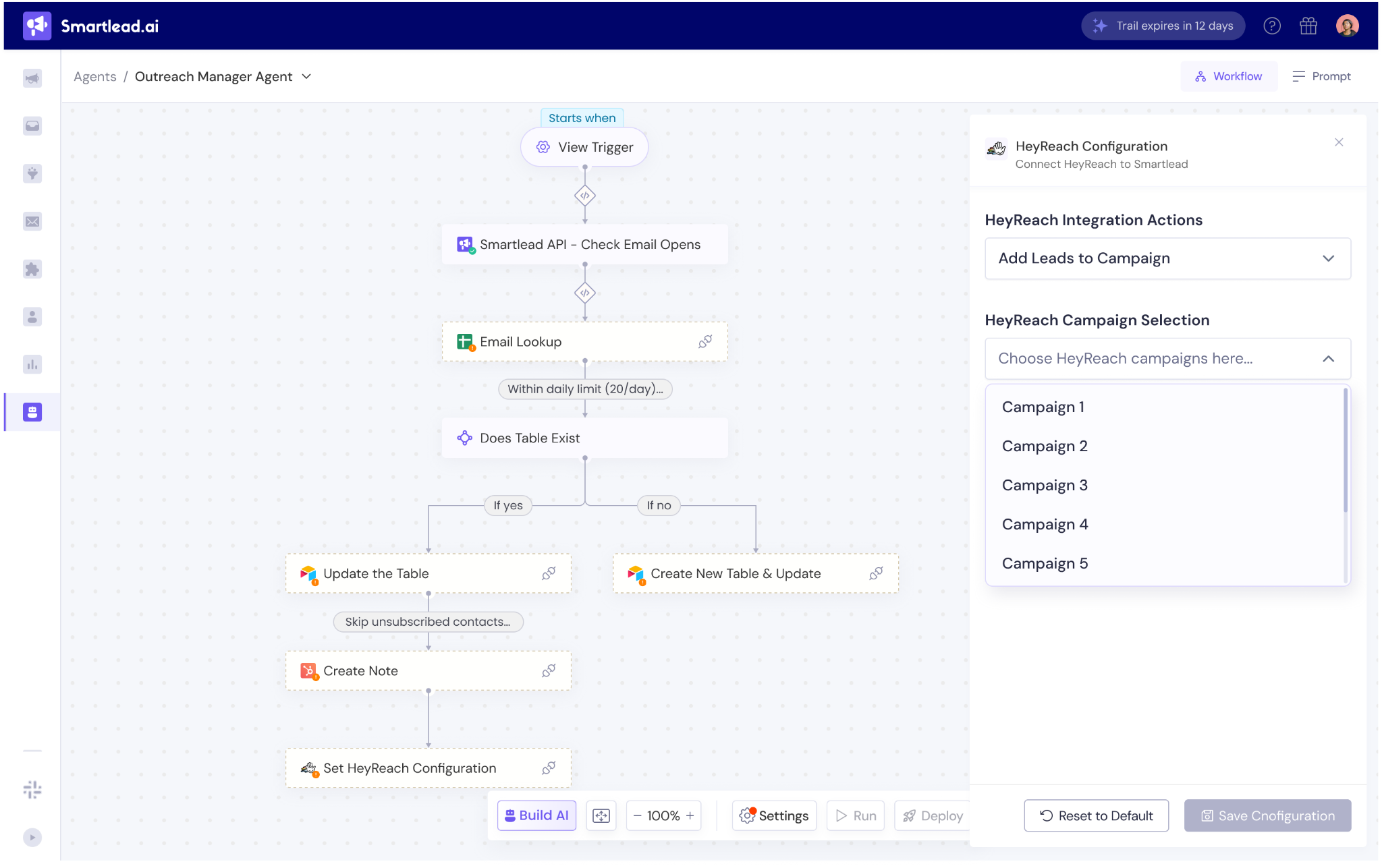
Click Save Configuration.
Scroll to the bottom of the workflow canvas.
Click Deploy.
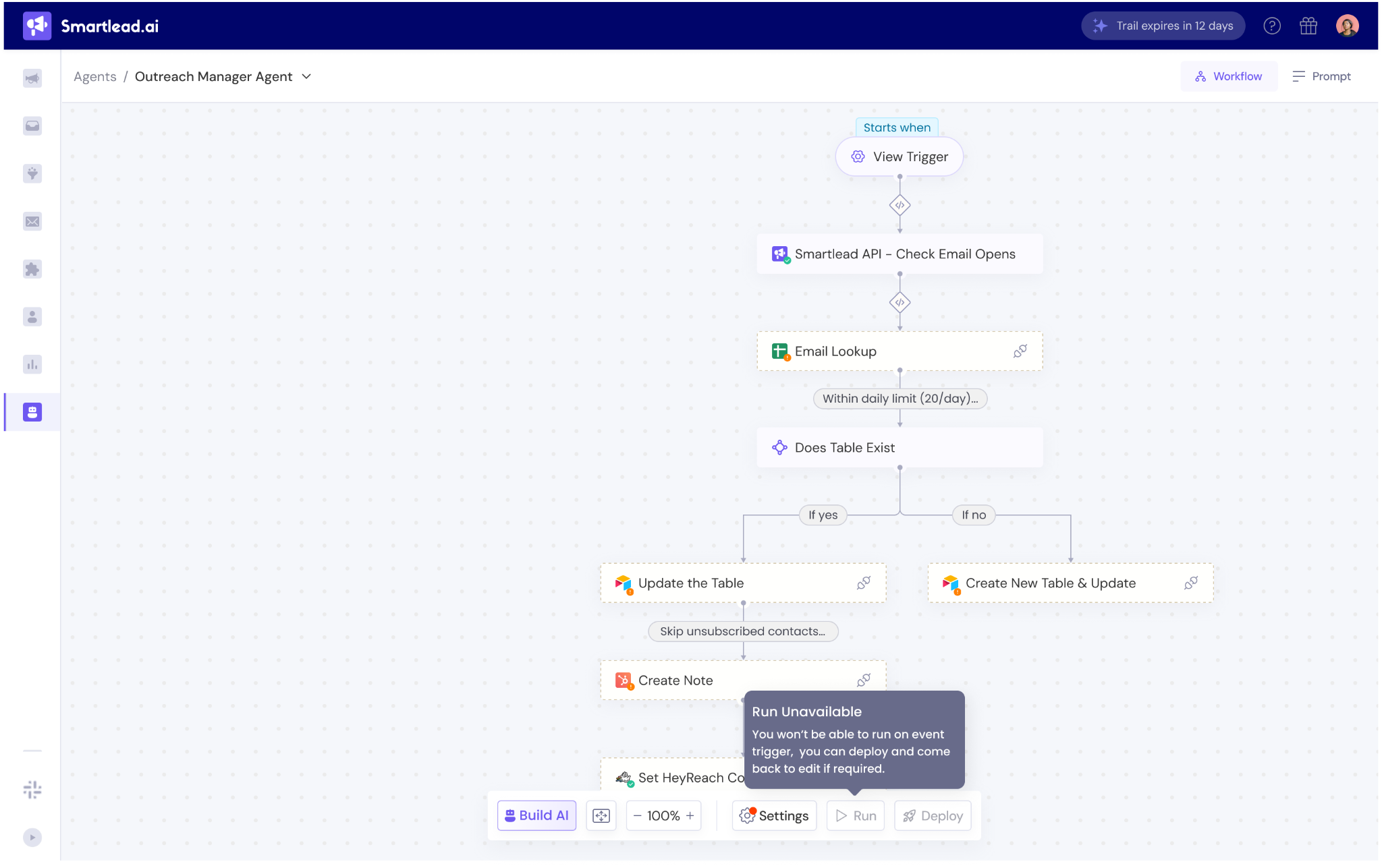
Your agent is now live.
When someone replies to your Smartlead campaign, they’ll automatically be added to the selected HeyReach campaign.
Once your integration is set up, you can start building more advanced multichannel workflows. Here are a few ideas you can try:
No reply after X emails → Add to a LinkedIn nurture sequence
Great for re-engaging cold or passive leads.
Lead opens your email multiple times → Send a LinkedIn connection request
Useful for identifying warm interest and acting quickly.
Lead clicks a high-intent link → Trigger a personalized LinkedIn DM
Ideal for pricing pages, feature pages, or webinar invites.
Sync new leads daily → Add them to a LinkedIn campaign automatically
Helps maintain a steady outreach pipeline without manual effort.
These combinations allow you to build truly cohesive email + LinkedIn journeys.
1. Do I need a specific HeyReach plan to use this integration?
You’ll need access to your HeyReach API key. If you don’t see it under Settings → API, reach out to HeyReach support.
2. Can I edit the trigger later?
Event-based triggers (like opens, clicks, replies) cannot be changed once created.
If you need to update the trigger, simply create a new SmartAgent.
3. Can a single workflow include both email and LinkedIn actions?
Yes. You can mix Smartlead actions and HeyReach actions within the same workflow to build full multichannel sequences.
4. What happens if a lead is already part of the selected HeyReach campaign?
HeyReach will ignore duplicates, so your workflow remains safe and clean.
5. Why do I see “Run Unavailable”?
This is expected for event-based agents. They run only when the trigger event occurs (like a reply).
Additional Readings:
Learn more about SmartAgents: How they work, how to set them up?