
Voicemail Drop lets you leave a pre-recorded voicemail on a call instead of waiting through an unanswered ring or repeating the same message live every time. You can record or upload a voicemail once, then drop it into any call from the dialer panel.
This guide covers:
Creating a voicemail
Managing saved voicemails
Dropping a voicemail during a call
1. Creating a Voicemail
Go to the SmartDialer section in the left sidebar (Engage tab > Calls),
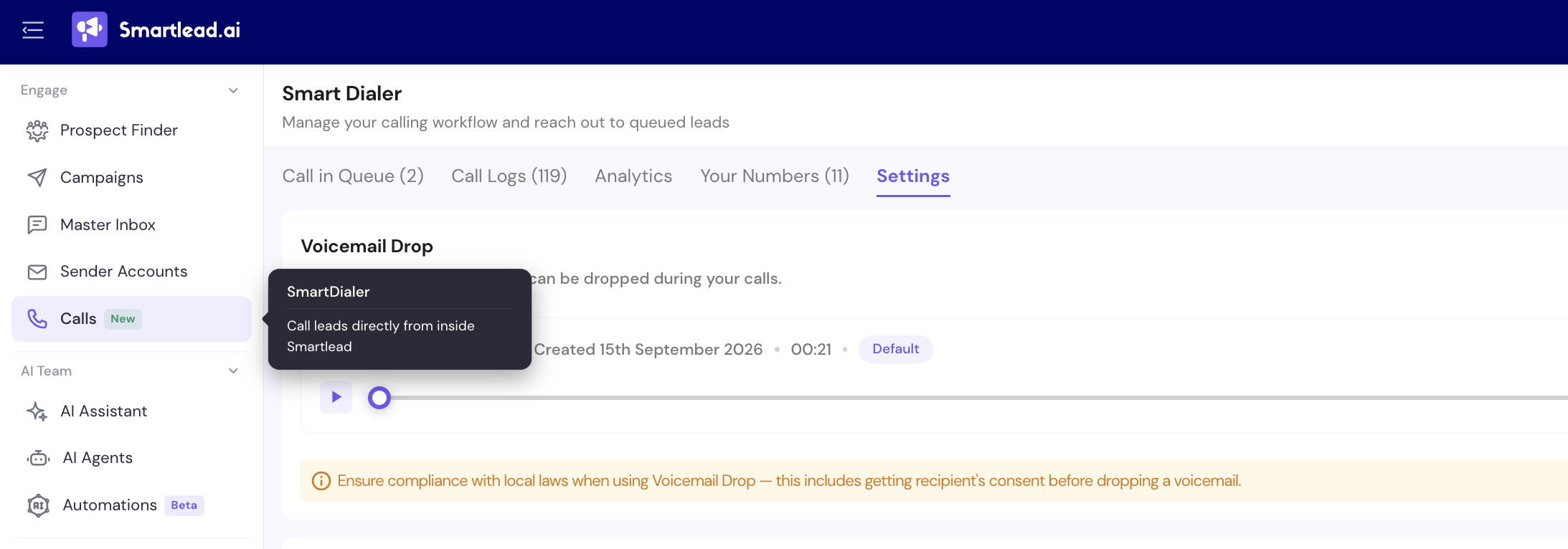
then click the Settings tab.
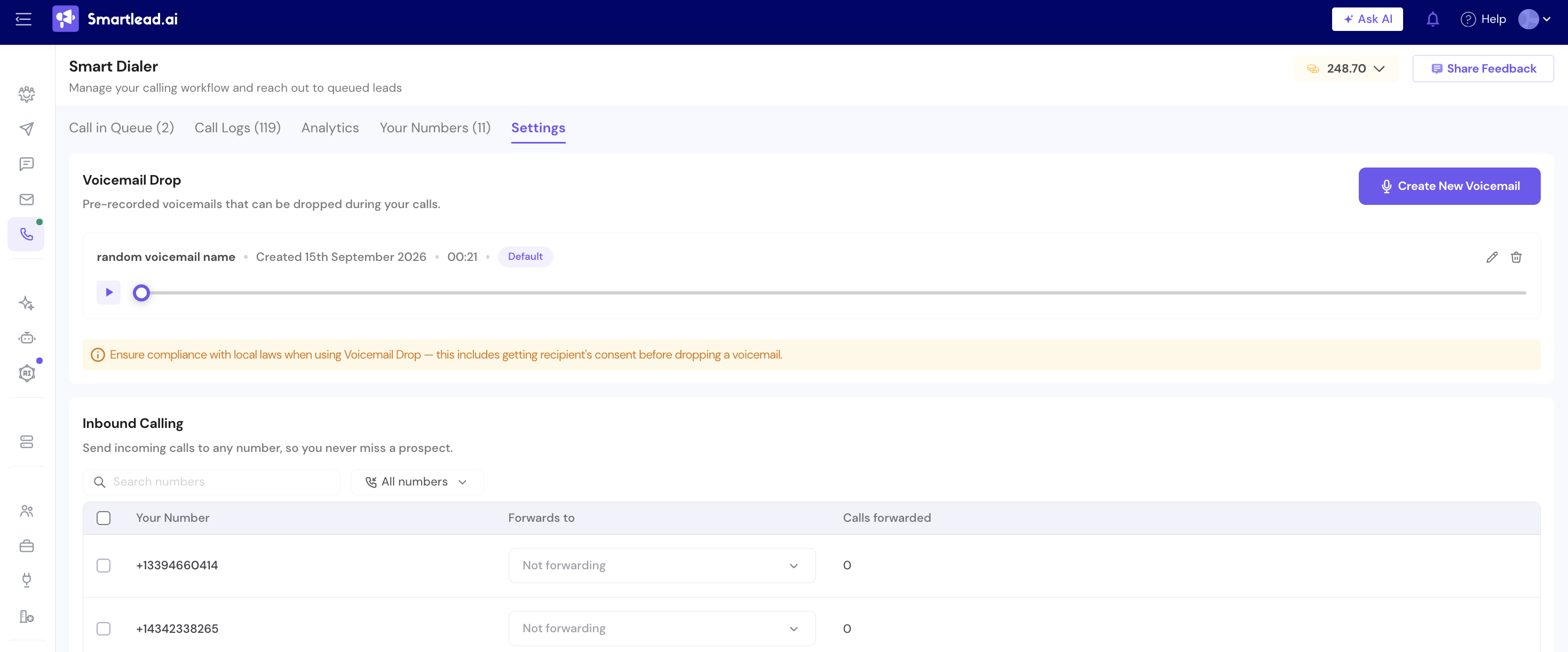
Under Voicemail Drop, click Create New Voicemail (top right).
In the Create new voicemail modal:
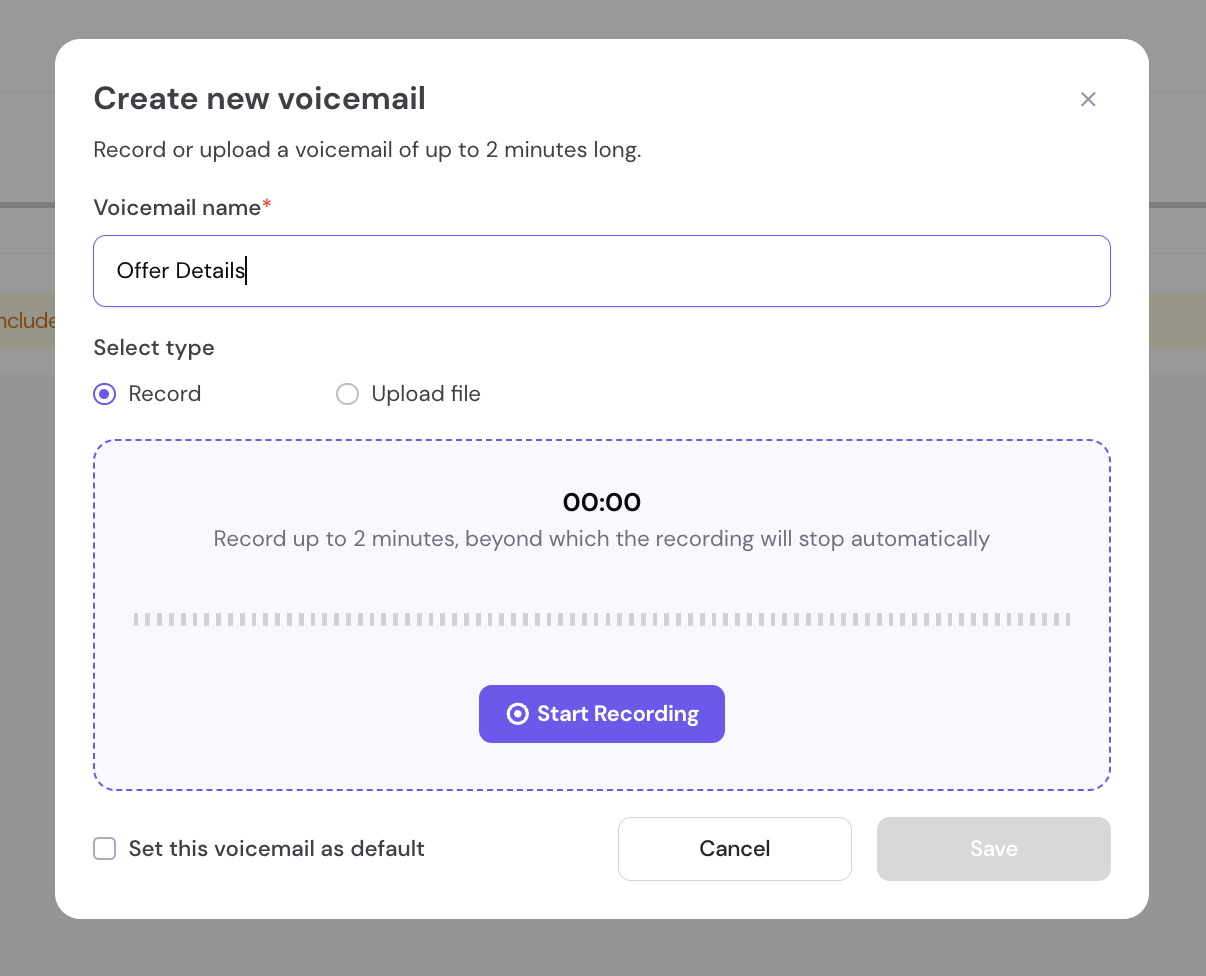
Enter a Voicemail name (required)
Choose Select type: Record or Upload file
If recording, click Start Recording. You can record up to 2 minutes, after which recording stops automatically.
If uploading, use Upload file to add an existing audio file
Optionally check Set this voicemail as default
Click Save.
Ensure compliance with local laws when using Voicemail Drop. This includes getting the recipient's consent before dropping a voicemail.
2. Managing Saved Voicemails
Every voicemail you create appears under the Settings tab, showing its name, creation date, and length (e.g. "Voicemail 1 - Created 9th September 2026 - 00:14").
From this list you can:
Click the play control to preview a voicemail
Click the pencil icon to edit a voicemail
Click the trash icon to delete a voicemail
3. Dropping a Voicemail During a Call
While a call is active, the dialer panel shows Context, Voicemail Drop, and End Call.
Click Voicemail Drop to open the Select voicemail panel:
Choose which saved voicemail to drop from the dropdown (e.g. "Voicemail 1")
Click Drop Voicemail & Hang up to play the voicemail and end the call
This is especially useful for calls that go unanswered. Instead of hanging up with no message left, you can drop a consistent, pre-recorded voicemail and move to the next call.
For the full call flow (placing a call, recording, logging call details, transcripts), see: How to Call a Lead from Master Inbox.