
You no longer have to wait for a reply to pick up the phone - you can build a manual call directly into your outreach sequence, right alongside your email steps.
Step 1: Open the Sequence Builder
Go to Email Campaigns and Create a New Campaign (Learn More)
Click the Sequence tab
Step 2: Add a Sequence Step
Below your existing step(s), click + Add Sequence
Three step types appear:
Email - Automated email
Call - Add to queue
Manual - Send manually
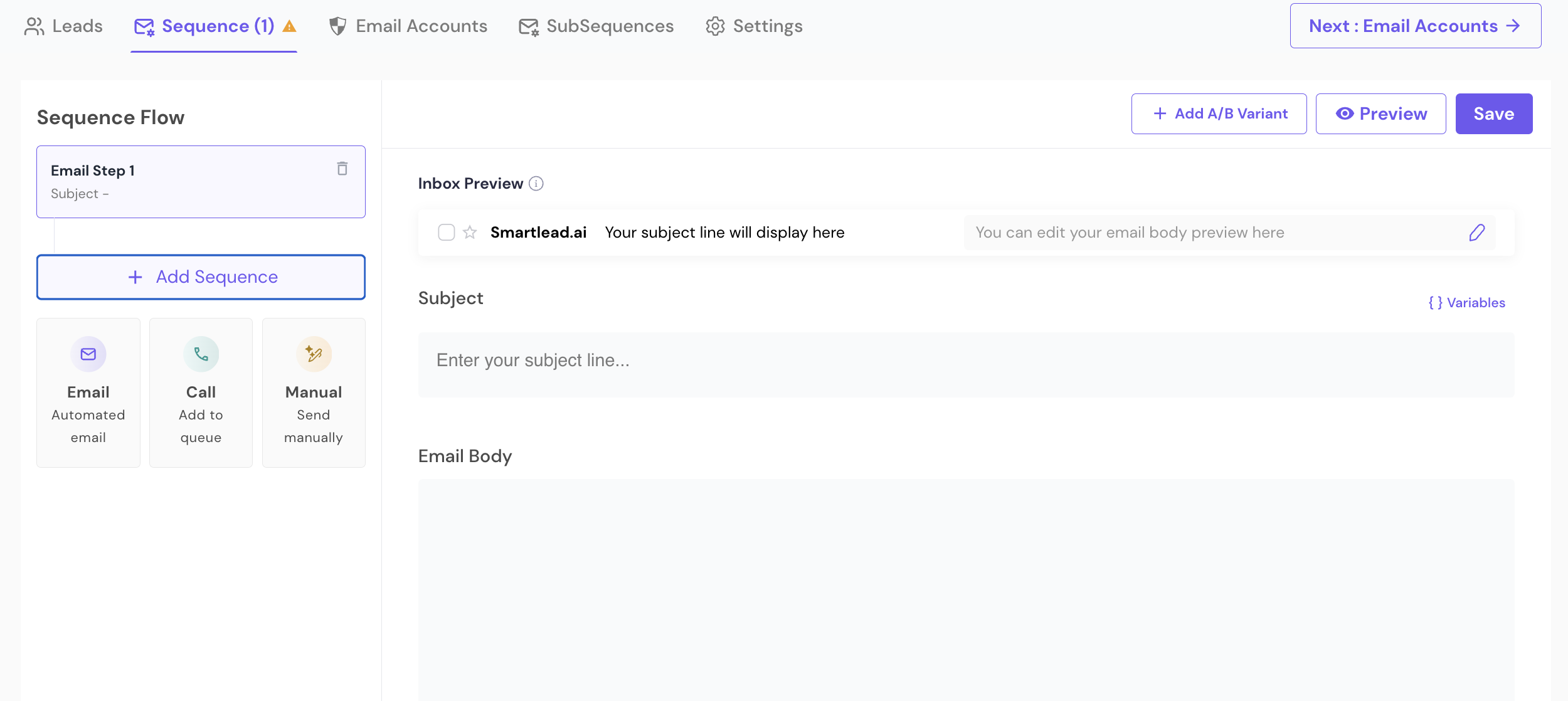
Select Call
Step 3: Set the Delay
Set Wait for [X] days to control how long after the previous step the call step should trigger (e.g., "Wait for 2 days" after Email Step 1)
The new step appears in the Sequence Flow as Call Step [N] - Manual phone call to lead
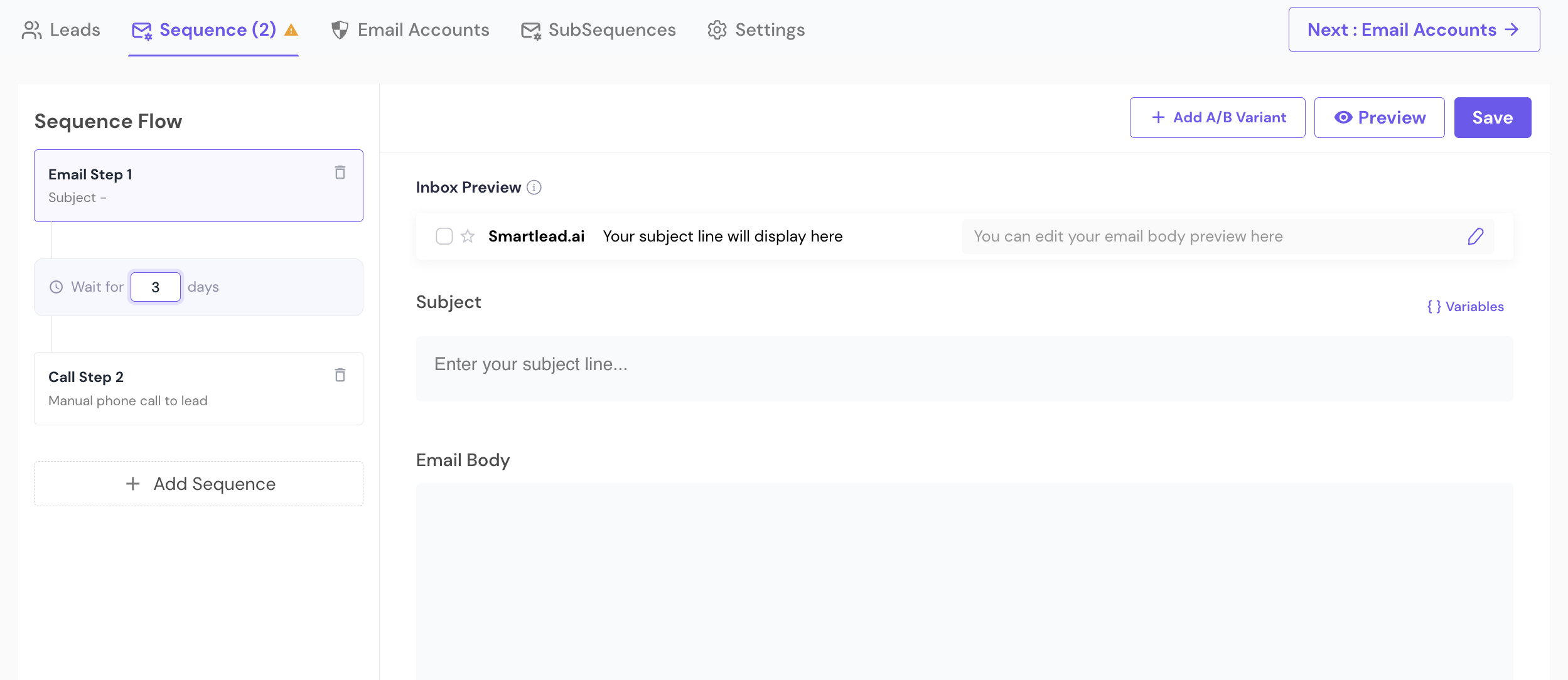
Step 4: Save
Click Save, or continue to Next: Email Accounts
Your changes auto-save as you build the sequence
A Call step is a manual dial - it queues the lead for your team to call, it does not place an automated call.
Where These Leads Go
Once a lead reaches a Call step in the sequence:
They're automatically added to the Sequence Leads queue inside the dedicated SmartDialer section (not Master Inbox)
Leads are shown with their local time, so you can call during their business hours
Leads waiting more than 7 days surface a reminder banner so none get missed
For the full workflow on working this queue, dialing, reviewing call logs, and managing your numbers from the dedicated SmartDialer section, see: SmartDialer Section: Call Queue, Logs & Numbers.