Stop dialing. Start talking. Sequential Dialing lines up your next call the moment you wrap the last one.
With Sequential Dialing, you don't have to find the next lead, click call and wait after every conversation. SmartDialer works through your queue for you. When one call ends and you've logged it, the next lead is dialed automatically, so you spend your time talking to prospects instead of clicking.
In SmartDialer, a running sequence appears as Auto Dial at the bottom of the screen.
This guide covers:
Starting a sequence
Tracking your sequence
Pausing or stopping a sequence
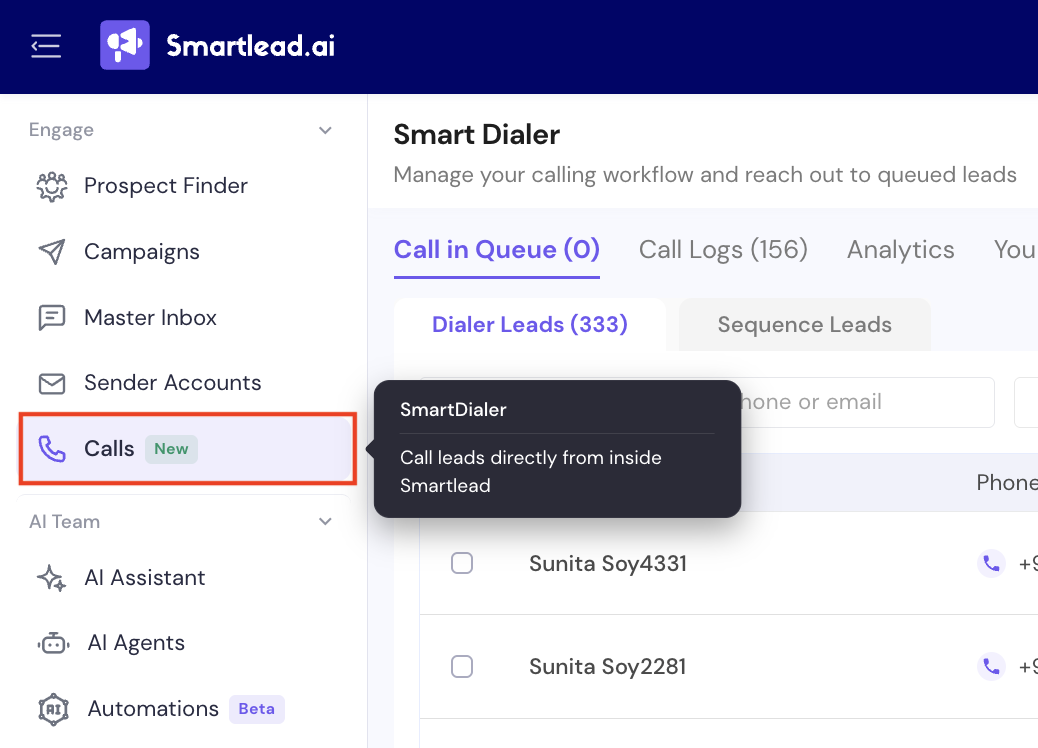
Go to the SmartDialer section in the left sidebar (Engage tab > Calls) and open the Call in Queue tab.
Select as many leads as you need using the checkboxes. The number of selected leads shows above the list (e.g. "4 leads selected").
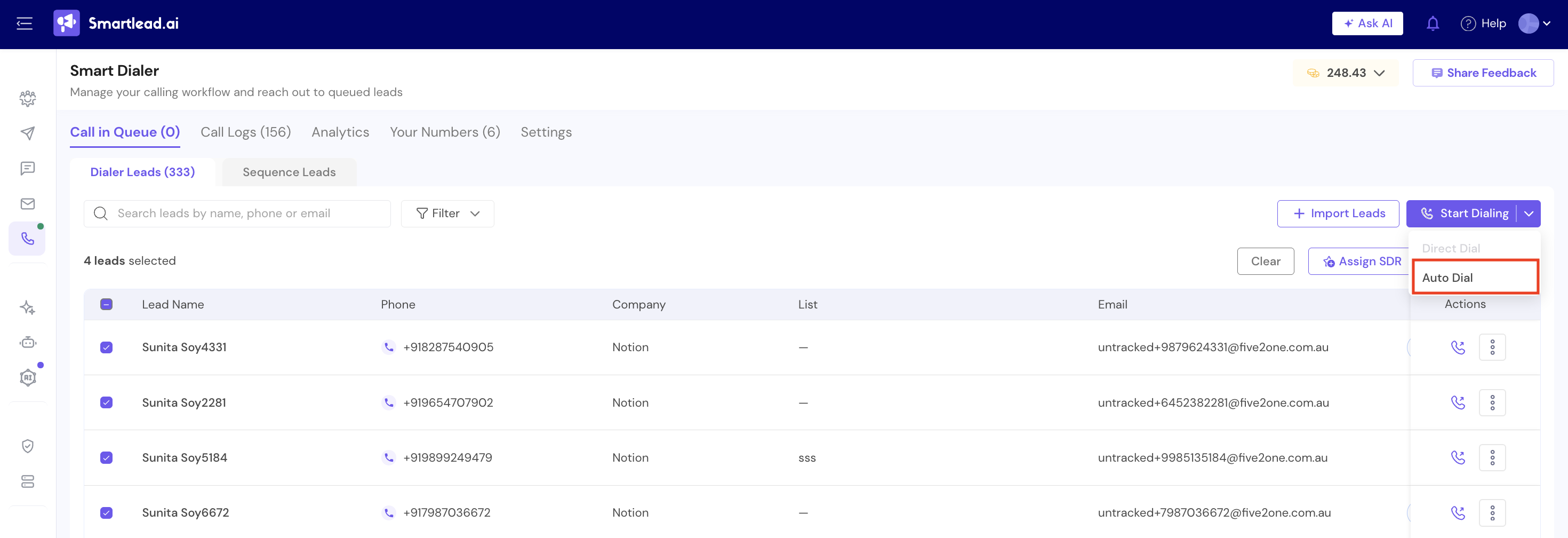
Click Start Dialing or click on the dropdown to select Auto-Dial.
SmartDialer calls the first lead. When that call ends and you've logged it, the next lead is dialed automatically, one after the other, until the queue is done.
While a sequence is running, the Auto Dial bar at the bottom of the screen shows:
The sequence status (e.g. Active)
Attempted: calls placed so far
In Queue: leads still waiting to be called
Each lead in the sequence, marked Dialing or Queued
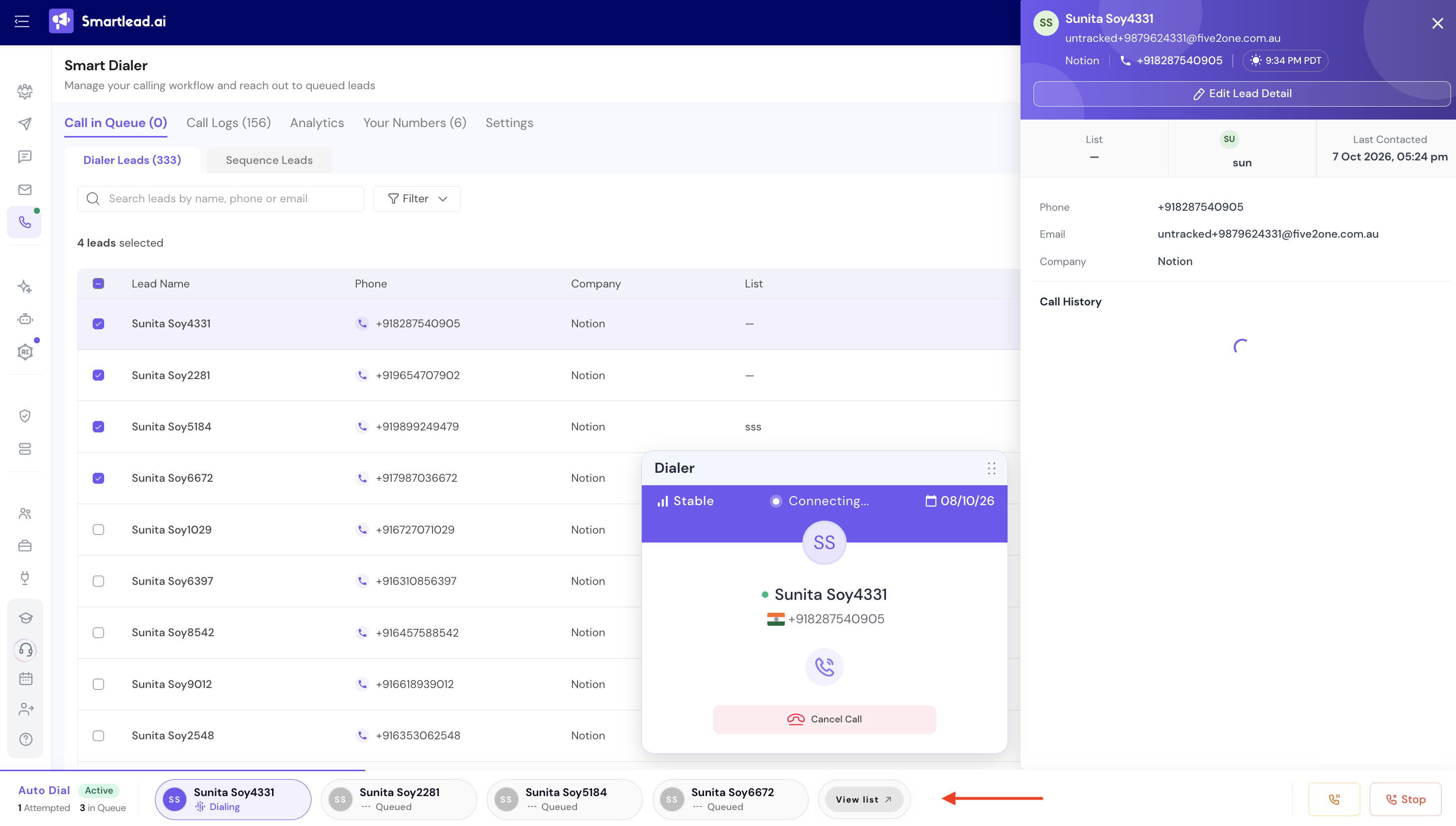
Click View list to open the Auto Dial Sequence List. Switch between the In queue and Attempted tabs to see who is left and who has already been called.
Every call in the sequence is added to Call Logs automatically, and also shows in the lead's Call History.
Pause: You can pause a sequence and resume it at any time.
Stop: You can also stop a sequence and clear the list whenever you want.
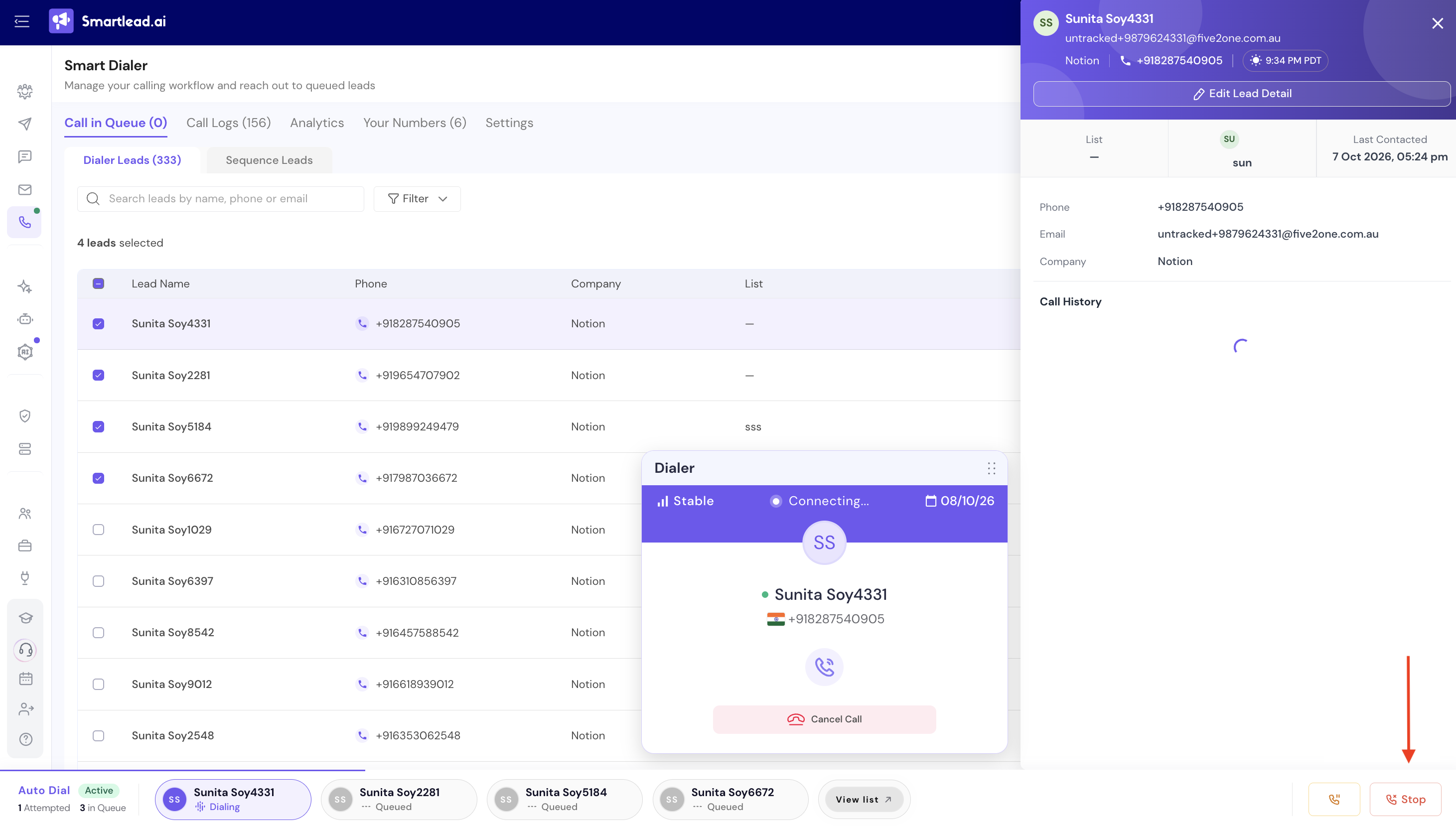
Click Stop at the bottom right of the screen.
In the Stop Call Sequence window, click Stop Sequence to confirm, or Keep calling to continue.
Your sequence ends after the active call finishes, and the current call sequence list is cleared. Until then, the status shows Stopping and the remaining leads show as Paused.
Once the sequence stops, a summary shows how many leads were Called and how many Connected.
Click View List to review the sequence, or Close to return to SmartDialer.
For the full call flow (placing a call, recording, logging call details, transcripts), see: How to Call a Lead from Master Inbox.